New to CommonLook Office in version 2.1 - Tables of Contents
When you open CommonLook Office, you might be wondering "What happened to my Table of Contents that I had in Word?".
If your Word document contains a Table of Contents, when CommonLook Office opens, it requires that the TOC be updated (just like if you selected to update it in Word). If you've created your TOC using the Style Mapping in Word then you won't have any issues. If, however, you created your TOC another way, when it's updated, it could be changed.
For more information, read this article on Creating a TOC in Word.
If you have created a Table of Contents in your document in another way, other than using the style mapping as recommended above, and you don't want CommonLook Office to make changes to it, you can set that setting in the Application Preferences.
To adjust this setting, follow the steps below. Note: The default in CommonLook Office is set to update the TOC in Word documents without warning.
- In Word, select the CommonLook Office tab.
- In the ribbon, choose the CommonLook Office Preferences button.

- In the dialog box that opens, navigate to "Warn before updating TOCs" and use the dropdown menu to choose "Yes."
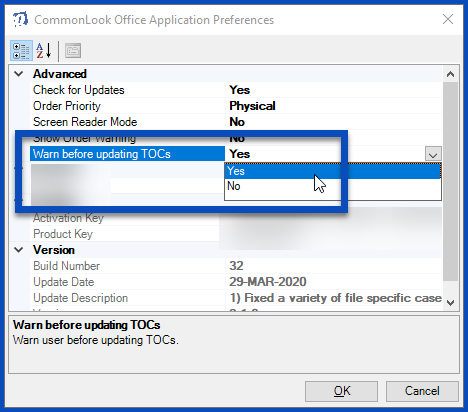
- Select OK.
What happens when I set the preferences to warn me about updating the TOC?
When you run CommonLook Office, if your Word document contains a Table of Contents, you'll be told that CommonLook Office needs to update the TOC and you'll be asked if you'd like to proceed.
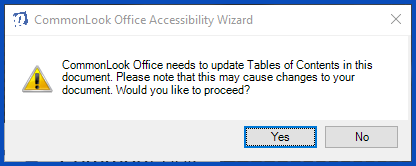
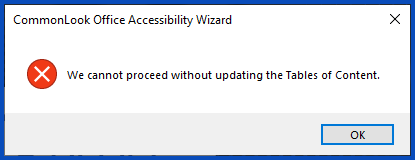
If you choose "Yes," CommonLook Office will continue opening. If you choose "No," you'll be told that CommonLook Office cannot proceed. Choose "OK" to return to Word.
Was this article helpful?
That’s Great!
Thank you for your feedback
Sorry! We couldn't be helpful
Thank you for your feedback
Feedback sent
We appreciate your effort and will try to fix the article