Instead of creating space and formatting the slides simply by using the Enter key, Spacebar, and Tab key, use the Paragraph formatting functionality provided in PowerPoint. This prevents blank spaces from being created in the PDF which can have negative effects for screen readers. Also, particularly in PowerPoint, and especially when using lists in slides, if the Enter key is used to create space between list items, this can result in having a list in the PDF with more list items than what visually appears on the slide. The end result for screen reader users is that they'd be told there's a list of five items, for example, when, on the slide, there are only three.
To Format Spacing on PowerPoint Slides:
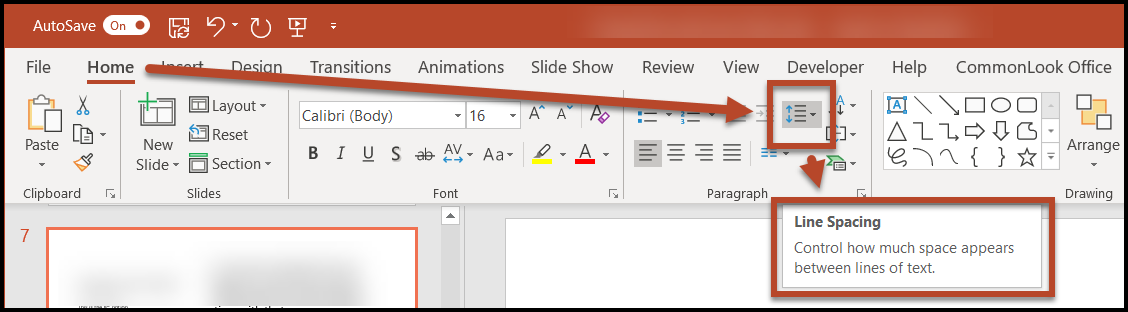
In the Paragraph group on the Home Tab in the Ribbon, use the Line Spacing menu to choose from a variety of spacing options.
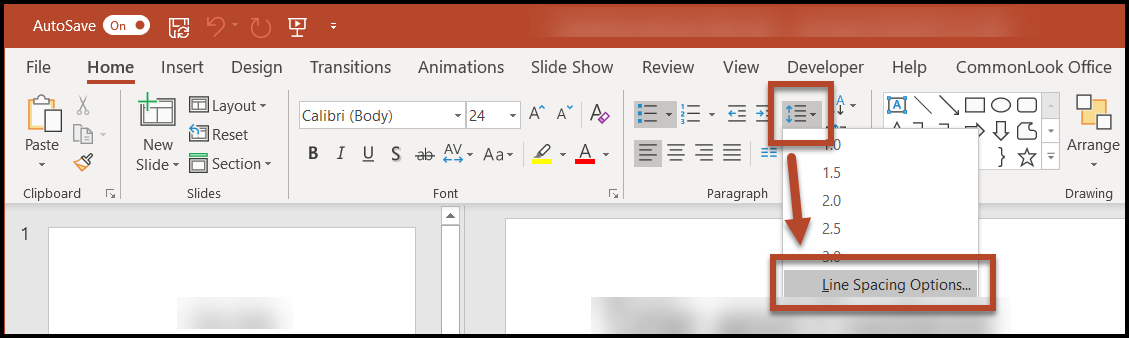
For even more formatting control, select "Line Spacing Options" from the bottom of the menu to open an additional dialog box.
In the dialog box that opens, make the necessary changes and then select "OK."
Note: In addition to spacing control, you can also change indentation and text alignment. Read this article for more information, and important things to consider regarding Text Alignment.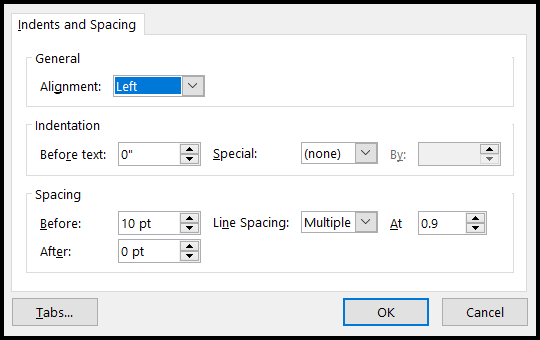
Was this article helpful?
That’s Great!
Thank you for your feedback
Sorry! We couldn't be helpful
Thank you for your feedback
Feedback sent
We appreciate your effort and will try to fix the article