What and Why? Understanding Reflowed Large Print Word Format?
Input File Types for Reflowed Large Print Word
- Word
- NIMAS
- ePUB
Steps to Create an Accessible Reflowed Large Print Word file
While specific workflows may vary depending on document complexity, the general process for creating an accessible Reflowed Large Print Word file in CommonLook Edu includes:
- Upload the Source File
- Upload the source file (PDF, Word, Nimas, or ePub) into CommonLook Edu.
- Provide Additional Details (when the source file is a PDF)
- For documents containing math, ensure the toggle is active.
- Choose Accessible Format
- Select "Reflowed Large Print Accessible Word (.docx)."
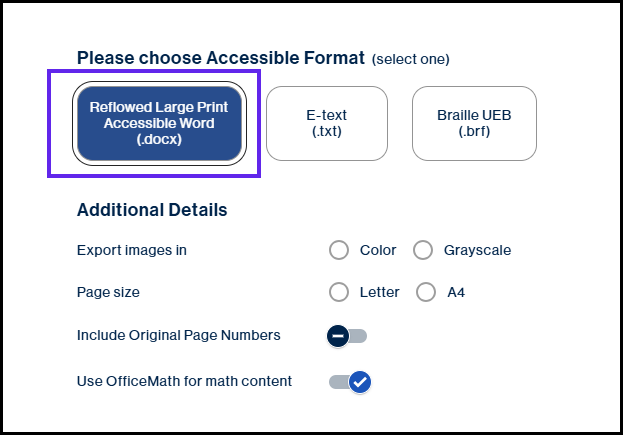
- Select "Reflowed Large Print Accessible Word (.docx)."
- Additional Details
- For "Export Image in," select either Color or Greyscale.
Note: Grayscale is better when readability and contrast are the priority. It works well for users with low vision, because strong light–dark contrast can be easier to see than subtle color differences. It also avoids issues for people with color vision deficiencies who may not distinguish certain colors. - For "Page Size," Choose either Letter or A4, depending on your paper-size needs.
- onToggle On "Include Original Page Numbers," if you want the original page numbers to be displayed in the output.
Note: When a document is converted to reflowed large print, the layout changes - text gets bigger, spacing increases, and content may shift onto many more pages. Because of this, the new page numbers in the Word document no longer match the original version. Including the original page numbers helps users stay oriented and makes the document easier to use alongside other versions of the same content. - Keep "Use OfficeMath for math content" toggled on if you have math content in the source file.
Note: In reflowed large print, text and layout adjust dynamically, so equations inserted as images can become blurry, misaligned, or hard for screen readers to interpret. Office Math keeps equations scalable and readable at larger sizes, maintains proper formatting (fractions, exponents, symbols), and works better with assistive technologies. It also allows users to adjust font size, spacing, and contrast along with the rest of the document.
- For "Export Image in," select either Color or Greyscale.
- Add Image Descriptions
- Depending on the type of source document and if it contains images, you may be asked to provide image descriptions.
- For PDF Source Files Only: You will have the opportunity to use the simplified editor to verify or adjust page elements and reading order. Additionally, you can automatically generate math or chemistry descriptions.
How to Handle Math and Chemistry Content: When your Source File is PDF
Math
When uploading a PDF in CommonLook Edu, you will be prompted to toggle an option indicating that your file contains math content. If math is detected in the document, it will automatically be placed into an "Equation" container, either independently or within another container, where necessary. Once created, the Equation container will be given an "Equation description," which will be used as Alternate text for the Equation tag. Users can edit these descriptions as they see fit.
For more detailed information on working with math equations in CommonLook Edu, please explore our Knowledge Base article titled "Working with Math Equations (CL Edu)."
Chemistry
If chemistry is present in an uploaded PDF, descriptions of formulas and equations will be automatically generated only after the container is created by the user and labeled accurately.
For more information on working with chemistry content in CommonLook Edu, please explore our Knowledge Base article titled "Working with Chemistry (CL Edu)."
Was this article helpful?
That’s Great!
Thank you for your feedback
Sorry! We couldn't be helpful
Thank you for your feedback
Feedback sent
We appreciate your effort and will try to fix the article