Product
Simplified Editor (Web-based CL PDF)
Feature
Tables of Contents (TOC)
Document Element
TOC Accuracy and Identification
Overview
A table of contents helps readers navigate a document. For it to work correctly in an accessible PDF, it needs to be identified as a TOC element in the Simplified Editor, with each item detected accurately, marked at the right level, and page numbers properly assigned. This article walks you through how to check and fix all of that.
Prerequisites
Do this any time your document includes a Table of Contents. You should complete this step during the Clarify Page Elements stage of your remediation project or during the Full Document Review.
Steps to Follow
Step 1: Check the TOC element
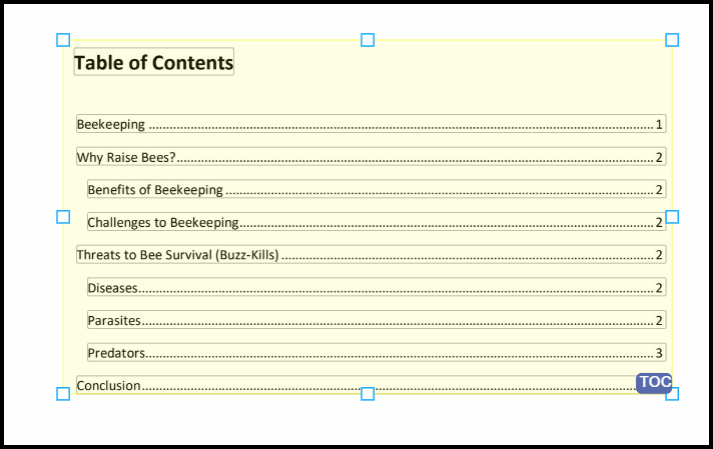
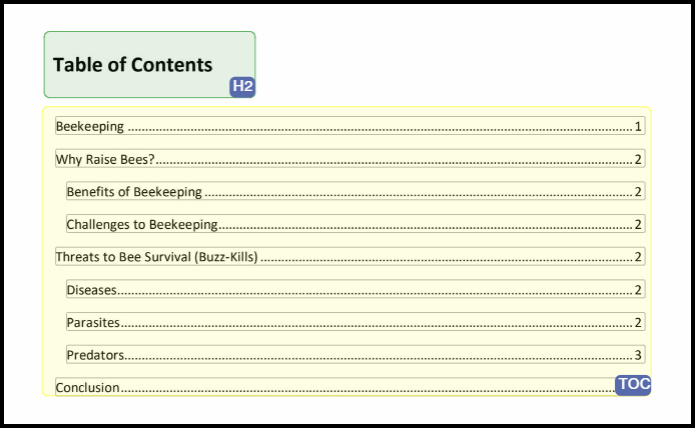
First, make sure the TOC element includes the correct content. It should contain the table of contents entries only, not the heading above them.
- In the page view, look at what is inside your TOC element.
- If the words "Table of Contents" are inside the TOC element, resize the element so that the heading is excluded.
- Draw a new element around the heading text and assign it the correct heading level, for example, H2.
Step 2: Check the TOC Item levels
TOC entries have levels that need to match the structure of the table of contents in the document.
- Select the TOC element in the page view.
- Click the "TOC" button in the toolbar to open the TOC-specific toolbar.
- Review the level indicat,ors on each TOC item. Top level entries should show "L1" and any nested entries should show "L2" or deeper.
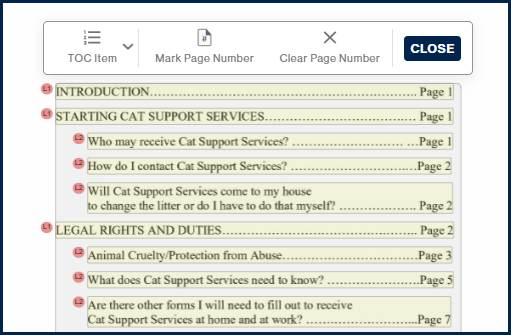
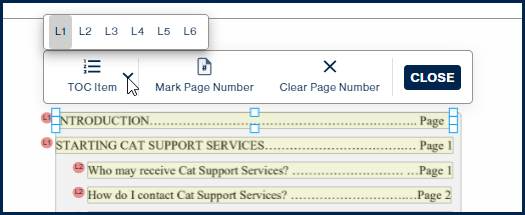
- If any item is at the wrong level, click on it and select the correct level from the TOC Item menu. If needed, use the zoom functionality at the top right of the interface to get a closer look while working with TOC items.
Step 3: Verify and mark page numbers
The Simplified Editor will usually mark page numbers in TOC items automatically. For complex layouts, you may need to check and fix these manually. This matters because the Simplified Editor uses the marked page number to set the range for artifacting dot leaders, keeping them out of the tag structure.
- Select the TOC element and click the "TOC" button in the toolbar to open the TOC toolbar.
- Review each TOC item to confirm the page number is marked correctly.
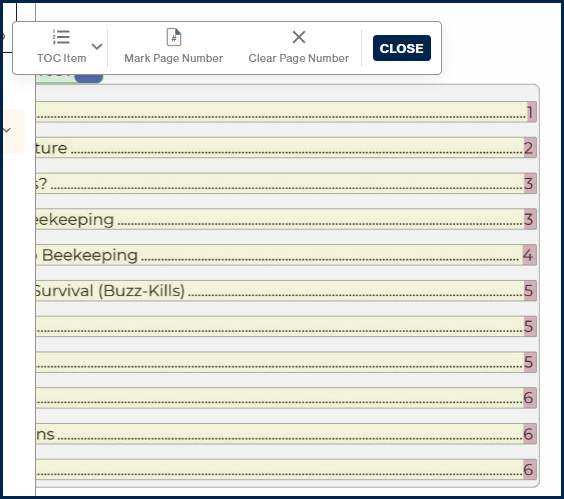
- If a page number is missing or marked incorrectly, click the TOC item you want to fix.
- In the TOC toolbar, click "Clear Page Number" to remove any existing marking.

- Click "Mark Page Number" and draw a box around the page number in the page view.
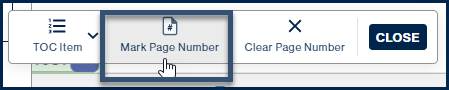
When drawing the box around the page number, be careful not to include any dot leaders. Only the number itself should be inside the box.
Common Problems
The "Table of Contents" heading is inside the TOC element
This is one of the most common issues with tables of contents. The heading text should sit in its own element outside the TOC element. Resize the TOC element to exclude it and create a separate heading element for it.
TOC item levels do not match the visual structure
If all entries are showing as L1 when some should be nested, go through each item in the TOC toolbar and set the correct level manually. Zooming in on the page view makes this much easier.
Page numbers are not being marked automatically
If the layout of your table of contents is complex, for example, with wide dot leaders or unusual spacing, the Simplified Editor may not detect page numbers reliably. Use the "Mark Page Number" tool to draw a box around each one manually.
Frequently Asked Questions
Why does the "Table of Contents" heading need to be outside the TOC element?
The TOC element is specifically for the navigational entries in the table of contents. A heading sitting above those entries serves a different structural purpose and should be tagged as a heading, not as part of the TOC. Mixing them together produces an incorrect tag structure in the final output.
What are dot leaders and why do they get artifacted?
Dot leaders are the rows of dots that visually connect a TOC entry to its page number. They are decorative and carry no meaningful information for someone using a screen reader. Artifacting them removes them from the tag structure so they are not read aloud, which keeps the reading experience clean.
What happens if TOC item levels are wrong?
If all entries are at the same level when some should be nested, a screen reader will not be able to convey the hierarchy of the table of contents to the user. Someone navigating the document by TOC entries will lose the sense of which items are top level sections and which are subsections.
Related Articles
Was this article helpful?
That’s Great!
Thank you for your feedback
Sorry! We couldn't be helpful
Thank you for your feedback
Feedback sent
We appreciate your effort and will try to fix the article