In CommonLook Office, follow the steps below to verify that lists are formatted correctly in Word and PowerPoint so they'll be tagged correctly in the PDF. If needed, please refer to the article on creating lists in Word.
When running CommonLook Office:
- The CommonLook Panel will display all lists that are included in the document or presentation.
Important: Commonlook will only display lists created with that functionality in the authoring application. If the list functionality isn't used, then the list checkpoint will not open (or will display an inaccurate number of lists as compared to the document itself). If lists are not built correctly in the document (presentation) phase, incorrect structural information may be conveyed to the end-user!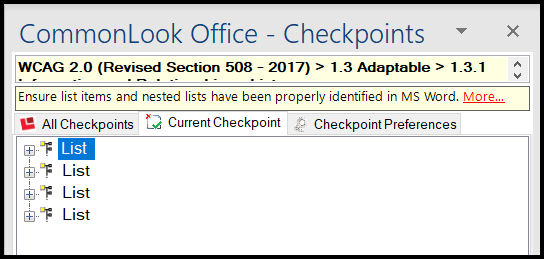
- Click the plus sign next to the first list in the CommonLook panel to open it, showing the list items. (Alternately, navigate to the first list and open it with the right-arrow on your keyboard.)
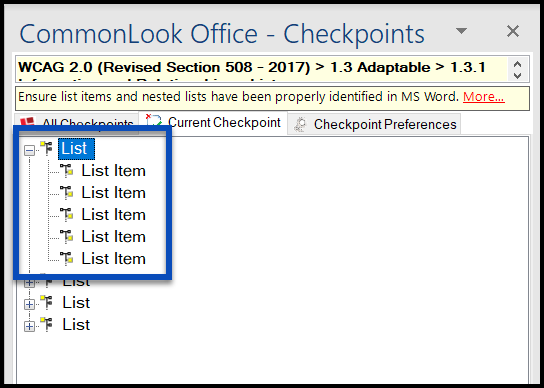
- Verify that the List as displayed in the CommonLook panel has the same number of list items as the list in the physical view.
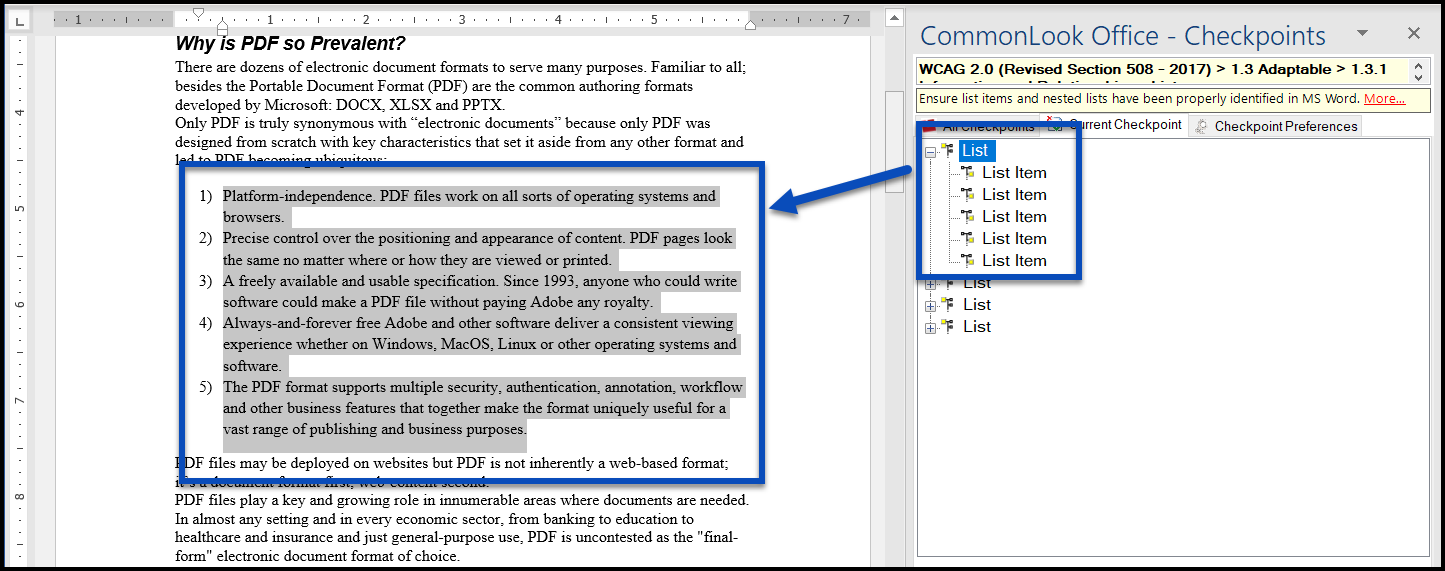
- If the list as displayed in CommonLook does not have the same number of List Items as the list in the physical view, choose one of the following options:
- Either: Close CommonLook Office, return to Word (or PowerPoint), fix the list, and then reopen CommonLook to continue working (you have to choose this option if using keyboard functionality) OR…
- With the mouse, click in the physical view (with CommonLook still open),
- Fix the list, (Refer to the article on creating lists in Word if needed.)
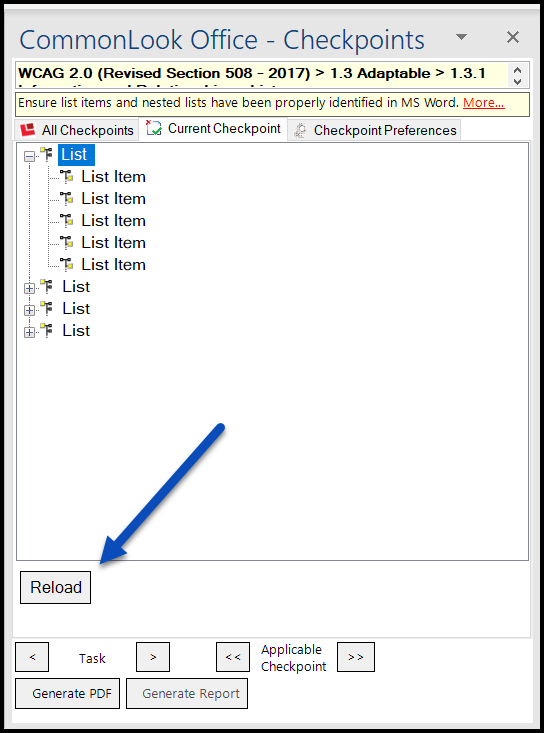
- Click the “Reload” button in the CommonLook panel below the list of lists.
Was this article helpful?
That’s Great!
Thank you for your feedback
Sorry! We couldn't be helpful
Thank you for your feedback
Feedback sent
We appreciate your effort and will try to fix the article