Important Note: Color and Contrast are two separate concepts but they're combined in this article because we find that, oftentimes, people "lump" them together.
Color
The rule: Don't use color as the only way of conveying information.
Why: People who are colorblind, and people who are using screen readers and other assistive technologies, will (or may) miss out on very important information.
Other Considerations: Along with color, don't use other "visual cues" as the only way of conveying information. For example, if font, style, format, location on the page, underlining, bold, italics, etc., are the only things being used to convey information then people using screen readers and other similar assistive technologies will miss out on that information.
In Charts, Graphs, Etc: Oftentimes in charts and graphs color will be used to differentiate various sets of data. This is a failure of the color checkpoint (using color as the only way of differentiating between Group A and Group B, for example). This problem can be overcome in a number of ways. For example, use patterns as well as colors. Or, include "Group A" and "Group B" next to their data sets in the chart. For more on assigning patterns to data series in charts, refer to the "Assigning Patterns" article.
The Color Checkpoint in CommonLook Office
When running CommonLook Office, if color is used in the document, the pages that have color will prompt the user to verify that color is not the only way information is being conveyed.
To check color use in CommonLook, follow these steps:
- Select the first page listed in the CommonLook panel.
- Select the “Show Filter” button near the bottom of the CommonLook panel.
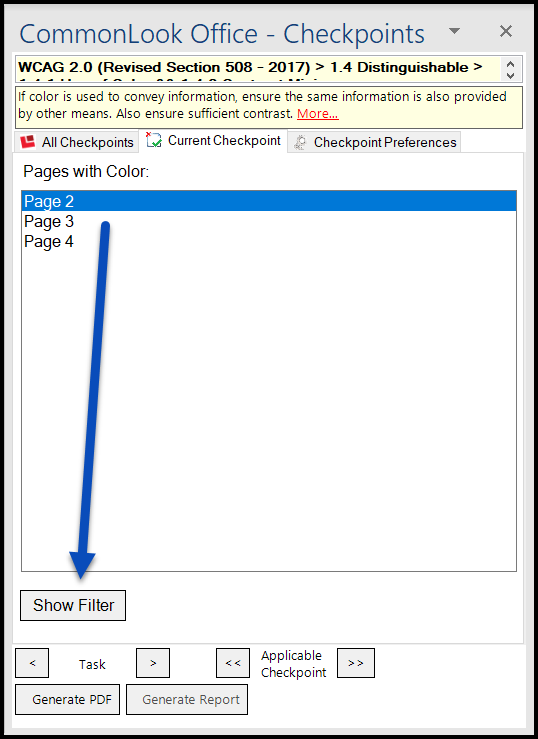
- Move the lens (either by clicking and dragging or with the arrow keys on your keyboard) over the page to make sure that, when the color is removed, information is not lost.
- If you find that color (or some other formatting choice) is used as the only to convey information, close CommonLook, fix the issues in Word (or PowerPoint), and then reopen CommonLook to continue working.
Contrast
Make sure that there is sufficient contrast between the background and foreground on the page so people can easily see the content. While this is not generally an issue in Word documents (perhaps more of an issue in PowerPoint), this does come up as a checkpoint when running CommonLook Office and it is a good thing to keep in mind when creating your content. That said, in Word, pay special attention to the contrast, for example, in data tables when shading is applied to rows in the table.
Note: CommonLook Office will ask you to verify that the contrast is sufficient but there's no contrast checking tool in CommonLook Office. There are, however, lots of great (and free) contrast checkers available by doing a quick web search.
Was this article helpful?
That’s Great!
Thank you for your feedback
Sorry! We couldn't be helpful
Thank you for your feedback
Feedback sent
We appreciate your effort and will try to fix the article