If the original document’s (or presentation's) fonts are not available, for example, if CommonLook Office is being used to create the PDF on a machine different from the one initially used to create the document (presentation), then the Font Substitution checkpoint will open. CommonLook will ask you to choose appropriate substitute fonts before creating the PDF.
Important Note: Any font substitution has the potential to significantly change the appearance in the PDF. In general, font substitution should be avoided. Of course, the easiest way to avoid font substitution problems is to create the PDF on the same computer used to author the content.
Instructions for Fixing Font Substitution
When the Font Substitution checkpoint is prompted either:
- Stop working, install the missing font, and then resume your work
- OR follow these steps:
- Select the “Show Font Substitutions” button to display the “Font Substitution” dialog
- Confirm that the substituted font is acceptable,
- Choose “Convert Permanently.”
Font Substitution Issues in Microsoft Word, rather than CommonLook Office
Sometimes, clients have unexpected challenges with font substitutions that they might want to attribute to CommonLook Office. As noted above, CommonLook can sometimes have an impact but there is an easy way to check if it is truly involved in the error.
You can verify this by opening up the Word document in Microsoft Word (do not open CL Office) and going to File > Options > Advanced > Font Substitutions. In the following screenshot, you will note that these font issues exist before ever coming into contact with CommonLook Office:
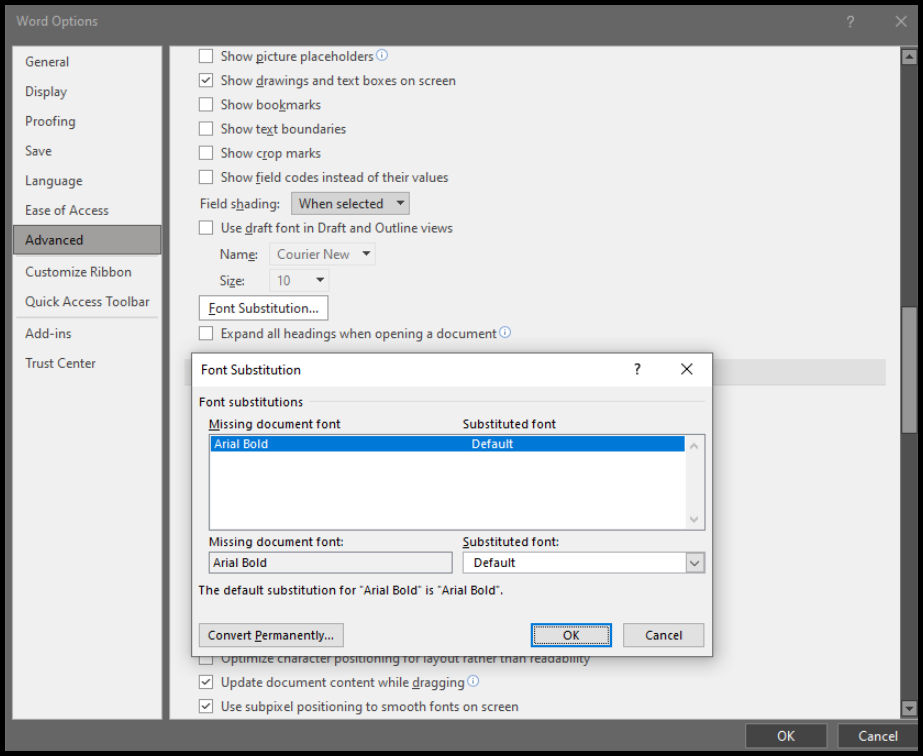
If this is the situation you are finding yourself in, investigating the usable and missing fonts before running CommonLook Office is the best course of action.
Was this article helpful?
That’s Great!
Thank you for your feedback
Sorry! We couldn't be helpful
Thank you for your feedback
Feedback sent
We appreciate your effort and will try to fix the article