Sometimes you’ll find, in your PDF, that you have what appear to be “font encoding” issues, and, while this is partially true, the issue comes from using ligatures in your source Word file.

In the screenshot above, the text on the page reads “Chemical reactions” but, in the Content pane (and in the Tags), the word “reactions” is missing the letter “i” after the letter “t.”
To fix this in Microsoft Word, follow these steps:
- Open the Word document.
- Put your cursor somewhere in the document.
- Hit Ctrl+A (the keyboard shortcut for "select all"). It'll select all of the text in the document. You want to do this so you can turn off all ligatures at once.
- When all of the text is selected, in Word, navigate to the Home tab.
- In the "Font" group, click the little diagonally pointing arrow at the lower right corner of the font group (or use the keyboard shortcut Ctrl+D). This will open a dialog box.
- In the dialog box that opens, navigate to the "Advanced" tab (at the top).
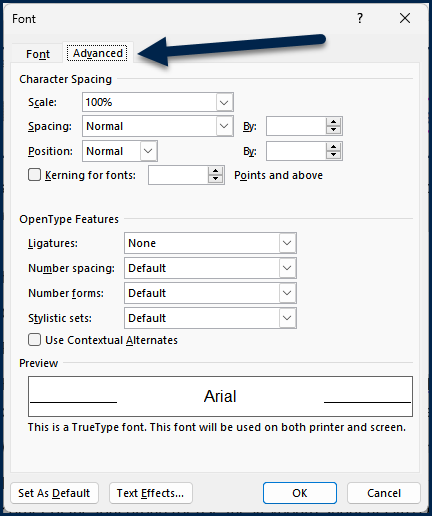
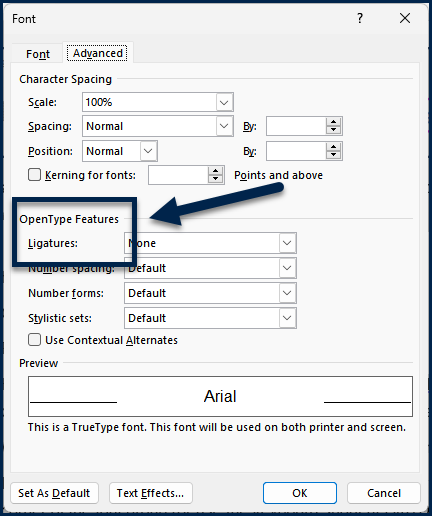
- About halfway down that dialog box, you'll find a section called "OpenType Features" and the first menu in that section is "Ligatures."
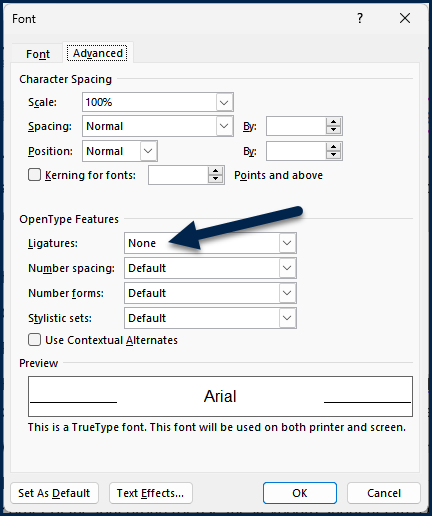
- Open the Ligatures dropdown menu and choose "None."
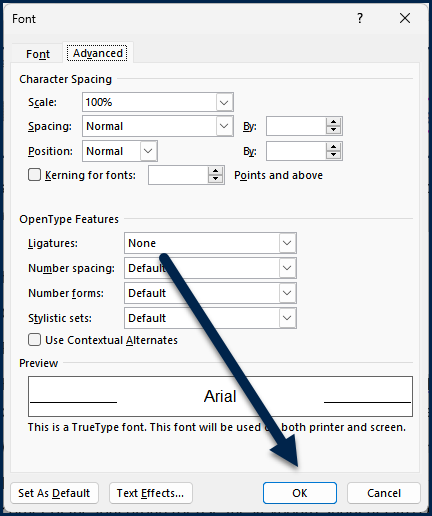
- Hit "Ok."
- Save your work.
- Recreate the PDF.
Didn't find what you're looking for? Navigate to our "General Software Functionality" section for more related articles that may help!
Was this article helpful?
That’s Great!
Thank you for your feedback
Sorry! We couldn't be helpful
Thank you for your feedback
Feedback sent
We appreciate your effort and will try to fix the article