Product
Advanced Editor (Web-based CL PDF)
Feature
Automatically generating tags
Overview
When opening a PDF in CommonLook PDF, specifically the Advanced Editor, you can choose to automatically generate a new tag structure for the document.
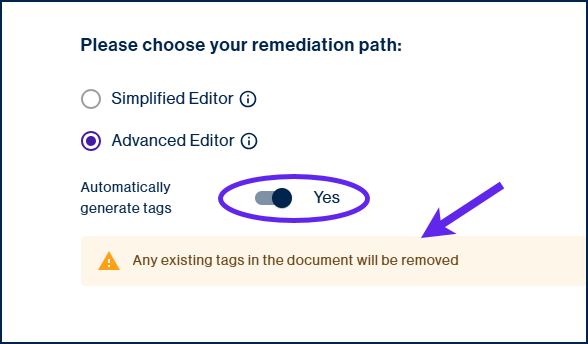
Enabling this option removes all existing tags in the PDF and replaces them with newly generated tags. Because this action does not preserve the original tag structure, it is recommended only for documents that are untagged or have poor-quality tagging.
Automatically generated tags still require manual review and correction before the document can be considered accessible. Simply auto-tagging and saving the document will generally not result in a completely compliant document.
Prerequisites
Before using this feature:
- Open a document in CommonLook PDF – Advanced Editor.
- Determine whether the existing tag structure should be replaced.
- If the document already contains a well-structured tag tree, do not use this option.
Steps to Follow
- When selecting the Advanced Editor as your pathway for success, locate the Automatically Generate Tags option.
- Set Automatically Generate Tags to Yes.
- Continue opening the document in the Advanced Editor.
- Review the newly generated tags and make any necessary corrections. Automatically generated tags provide a starting point, but they should always be reviewed for accuracy. Depending on the document's content, manual adjustments will likely be required.
Common Problems
The original tags are missing after opening the document.
This is expected behavior. Enabling Automatically Generate Tags removes all existing tags and replaces them with newly generated tags.
The generated tags are not correct.
Automatically generated tags are intended to provide a starting point. Review and update the tag structure as needed before completing accessibility remediation.
Frequently Asked Questions
When should I use Automatically Generate Tags?
Use this option for documents that do not contain tags or whose existing tags are incorrect, incomplete, or not useful. For example, documents containing custom tags that are not properly role-mapped may benefit from generating a new tag structure.
Will this preserve my existing tags?
No. All existing tags are removed and replaced when Automatically Generate Tags is enabled.
Are automatically generated tags accessibility compliant?
Not necessarily. The generated tags must be reviewed and corrected as needed to ensure the document meets accessibility requirements.
Was this article helpful?
That’s Great!
Thank you for your feedback
Sorry! We couldn't be helpful
Thank you for your feedback
Feedback sent
We appreciate your effort and will try to fix the article