Product
Advanced Editor (Web-based CL PDF)
Feature
Table of Contents
Document Element
Table of Contents tag structure and generation
Overview
Properly structuring the TOC helps assistive technologies identify the Table of Contents and understand the relationship between each TOC entry and its content.
In a Table of Contents:
- Each TOCI contains a Reference tag.
- The Reference tag contains the text associated with that particular Table of Contents entry.
Prerequisites
Use this process when a PDF contains a Table of Contents that needs to be properly identified and structured in the Tags tree.
Before tagging the Table of Contents:
Review the document's existing Tags tree.
- Determine where the TOC belongs in the document's logical reading order.
- If the TOC entries are linked, verify that the links function correctly.
- Be prepared to review the completed TOC structure after CommonLook generates the tags.
Steps to Follow
- In the Physical View, highlight the entire Table of Contents.
Select the Insert Tag button. In the Generate from selection group on the far right, select TOC.
You can also use the keyboard shortcut Ctrl+Alt+0.

- Review the Tags tree and make sure the new TOC tag is in the correct reading order.
If necessary, reposition the TOC using Level Up, Change Tag Order, or Cut and Paste. - Clean up any empty tags that were left behind when the TOC was created.
Right-click the TOC tag, or otherwise open its context menu, and select Artifact leaders.
This artifacts the leader characters—such as the series of dots commonly found between a TOC entry and its page number—so that they are not unnecessarily announced by a screen reader.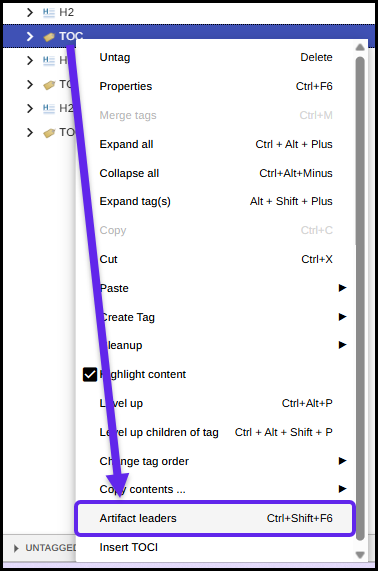
- Expand the TOC tag in the Tags tree and review its internal structure.
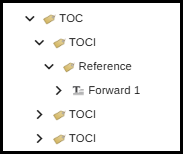
Verify that the TOC and its individual entries were assembled correctly. Each TOC entry should generally be contained within a TOCI tag, with the appropriate Reference structure inside.
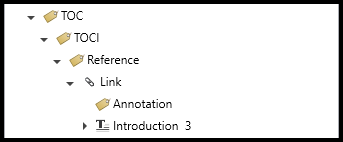
Note: If the TOC is linked, expand the Reference tags and review the Link tags inside them.
Table of Contents Structure: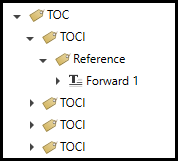
If the Table of Contents is set up with links to the various pages in the document, then the Reference tag (in the TOCI) would contain a Link tag which then has, inside the Link, the text and the Annotation for the link.
Common Problems
A Single TOC Entry Is Split Into Multiple TOCI Tags
When a TOC entry wraps onto two or more lines in the Physical View, CommonLook may create a separate TOCI and Reference for each line.
Open the TOCI tags and merge the appropriate Reference tags so that the content belonging to the same TOC entry is represented together.
Do not simply merge the TOCI tags. Doing so can result in one TOCI containing multiple Reference tags.
A Linked TOC Entry Is Split Into Multiple Links
If the Table of Contents contains links, a multiline entry may also result in separate Link tags.
Expand the Reference tags and merge the appropriate Link tags so that the entire TOC entry is represented by the correct link structure.
Empty Tags Remain After Creating or Correcting the TOC
Creating the TOC or merging its components may leave empty tags in the Tags tree. Clean up these empty tags after completing the TOC structure.
Leader Dots Are Being Read by a Screen Reader
Leader dots and similar decorative characters should not interfere with the reading experience. Open the TOC tag's context menu and select Artifact leaders to artifact these characters.
Frequently Asked Questions
What is the keyboard shortcut for creating a TOC tag in CommonLook?
Select the Table of Contents in the Physical View and press Ctrl+0.
What should I do with the dots between TOC entries and page numbers?
Right-click the TOC tag, or otherwise open its context menu, and select Artifact leaders. This prevents decorative leader characters from being unnecessarily read by screen readers.
What should I do if one TOC entry is split into two TOCI tags?
Expand the TOCI tags and merge the Reference tags associated with the same entry. Do not simply merge the TOCI tags, because this can leave one TOCI containing two Reference tags.
What if the TOC entries are links?
For a linked TOC, the Reference tag contains a Link tag. The Link contains the TOC entry's content and its Annotation. If a linked entry has been incorrectly divided into multiple tags, review and merge the appropriate Link tags as needed.
Do I need to clean up the Tags tree after creating the TOC?
Yes. Creating or modifying the TOC may leave empty tags behind. Clean up these empty tags after you have finished organizing and correcting the TOC.
Was this article helpful?
That’s Great!
Thank you for your feedback
Sorry! We couldn't be helpful
Thank you for your feedback
Feedback sent
We appreciate your effort and will try to fix the article