Which editor do I choose?
It's probably easier to start with the Simplified Editor, unless any of the following conditions exist in your PDF:
- The document is 150 pages or longer
- The document contains more than one language
- The document language is not English, French, Spanish, Basque, Bulgarian, Catalan, Croatian, Czech, Danish, Dutch, Estonian, Finnish, German, Hungarian, Italian, Latvian, Lithuanian, Norwegian, Portuguese - Brazilian, Romanian, Russian, Slovak, Slovenian, Swedish, Turkish, Ukrainian, Polish.
- You need to use Span tags to fix OCR errors
- The document contains very complex tables
- You want to add alt text for links that differs from the display text
- You require specific, manual control over the reading order and how your document will be presented to end-users
- You want to guarantee the document complies with standards like ISO 32000, HHS, and WCAG 2.x, OR, if you want to make sure your PDF complies with PDF/UA and one of those other standards.
Is there a File Size/ Page Count limit?
Question: Are there file size limits for the files that I can work on?
Answer: There is no maximum page limit file size limit of 200MB.
When should I use the "Automatically generate tags" tool in the Advanced Editor?
The "Automatically generate tags" tool will remove all previously existing tags in the Tags tree and replace them with automatically generated tags. This is an ideal tool to use for untagged or poorly tagged documents but if you've done a lot of tagging prep work you may not want to choose this option.
Why is the "Automatically generate tags" tool of the Advanced Editor not working?
The Advanced Editor’s "Automatically generate tags" tool has a limit of 500 pages.
Getting “timed out”
Question: I got timed out. Can I pick up where I left off?
Answer: Yes! On the Remediations screen, the project you were working on will be listed as “Editing.” When you’re ready to continue working, find your “Editing” project and select “Continue.”

Question: Wait, I missed something, can I do the same document again?
Answer: Yes! Back in the Remediations screen, click the three dots next to the file (the “hamburger menu”). You'll then be able to choose to edit again with the Simplified or Advanced Editor.

Note: This action cannot be undone. In other words, if you choose to rework the file, you will not be able to download the file that was previously available on the Remediations screen. You’ll need to complete the process to download a new, accessible file. Also, if you choose to use the Advanced Editor, you will not be able to use the Simplified Editor again, for that file.
Choose “Yes, Edit Again,” or “Cancel” as needed.
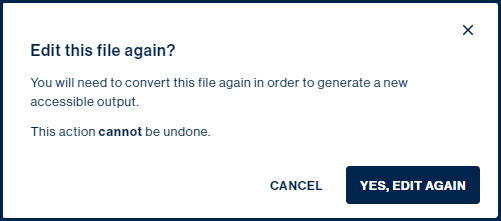
If you choose “Yes, Edit Again,” with the Simplified Editor, you’ll be brought back into the software at the “Full Document Review” stage. Continue working as needed.
What results should I address when running a standards validation in the Advanced Editor?
In order to ensure a PDF complies with verification standards and is reflected in the Verification Report, you will need to address all “Failures,” “Warnings,” “User Verifications” and “Awaiting Validation” results. After a failure has been fixed in the verification process, the result of the failure will change to “Awaiting Validation.” In order to change the “Awaiting Validation” result to passed, you will need to run an “Incremental Check” of the standard(s) previously chosen.
Was this article helpful?
That’s Great!
Thank you for your feedback
Sorry! We couldn't be helpful
Thank you for your feedback
Feedback sent
We appreciate your effort and will try to fix the article