Product
Advanced Editor (Web-based CL PDF)
Feature
Table of Contents
Document Element
Nested Table of Contents tag structure and generation
Overview
A nested Table of Contents (TOC) is a table of contents that shows the hierarchical relationship between sections and subsections. Instead of every TOC entry being at the same level, entries for subsections are nested beneath the entry for their parent section.
For a nested TOC, subordinate TOC items are placed within another TOC tag beneath their parent TOCI
Prerequisites
Use this process when a PDF contains a Table of Contents with nested components. Before tagging the Table of Contents:
Review the document's existing Tags tree.
- Determine where the TOC belongs in the document's logical reading order.
- If the TOC entries are linked, verify that the links function correctly.
- Be prepared to review the completed TOC structure after CommonLook generates the tags.
Steps to Follow
Follow these steps to assemble and verify the nested TOC:
- Tag the Table of Contents using "Generate Tag from Selection" (Ctrl+Alt+0) as previously described. Artifact Leaders as needed.
- Open the TOCIs to verify that they, their References, and Links (if present) have been assembled correctly.
- Check the Nested TOC:
- Open the "Parent" TOCI - there should be a Reference tag containing the text for that "main level" item
- Directly below the Reference, there should be a nested TOC.
- Expand the nested TOC to verify it was generated correctly. As with your "main level" TOC, Open the TOCIs to make sure that the References (and Links, if applicable) have been assembled correctly.
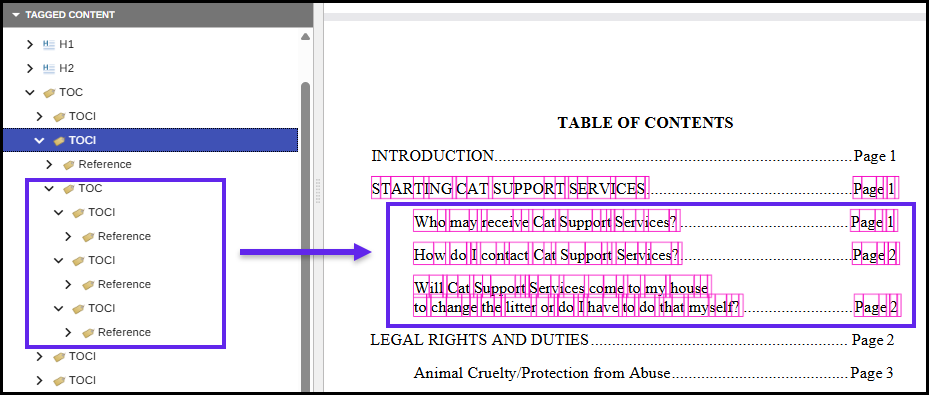
The screenshot below shows a properly tagged nested TOC. The "main level" TOCI is open showing the Reference tag and a nested TOC immediately below it (as a sibling). The nested TOC is opened to show the TOCI tags for each line of the nested TOC and the TOCI tags are open to show their Reference tags. (This TOC is not linked so there are no Link tags present.)
Screenshots
The screenshot below shows a portion of a Table of Contents with nested sub-sections (outlined), as seen in the physical view of a document.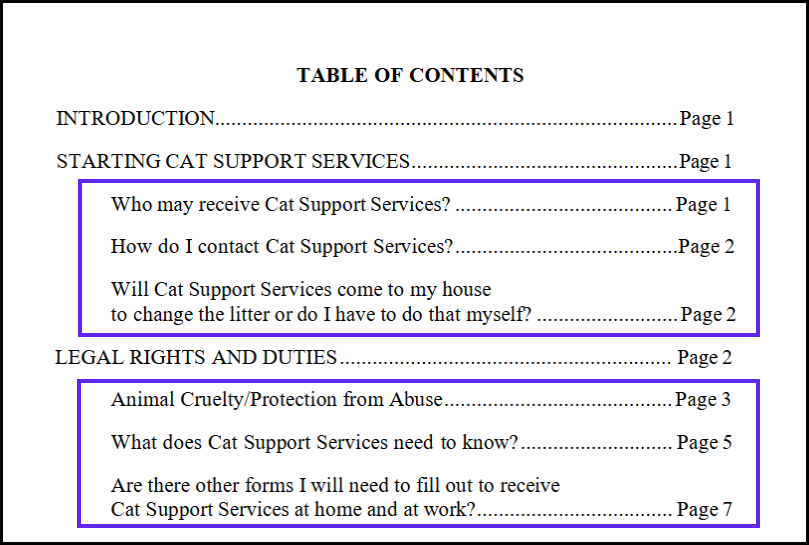
At the "base" level, we'll have one TOC that contains the whole Table of Contents. The nested sections will be tagged as individual TOCs which are then placed within their “main” TOCI tag. The screenshot below shows the TOC tagged and open showing 5 TOCIs for the "main" levels of the Table of Contents.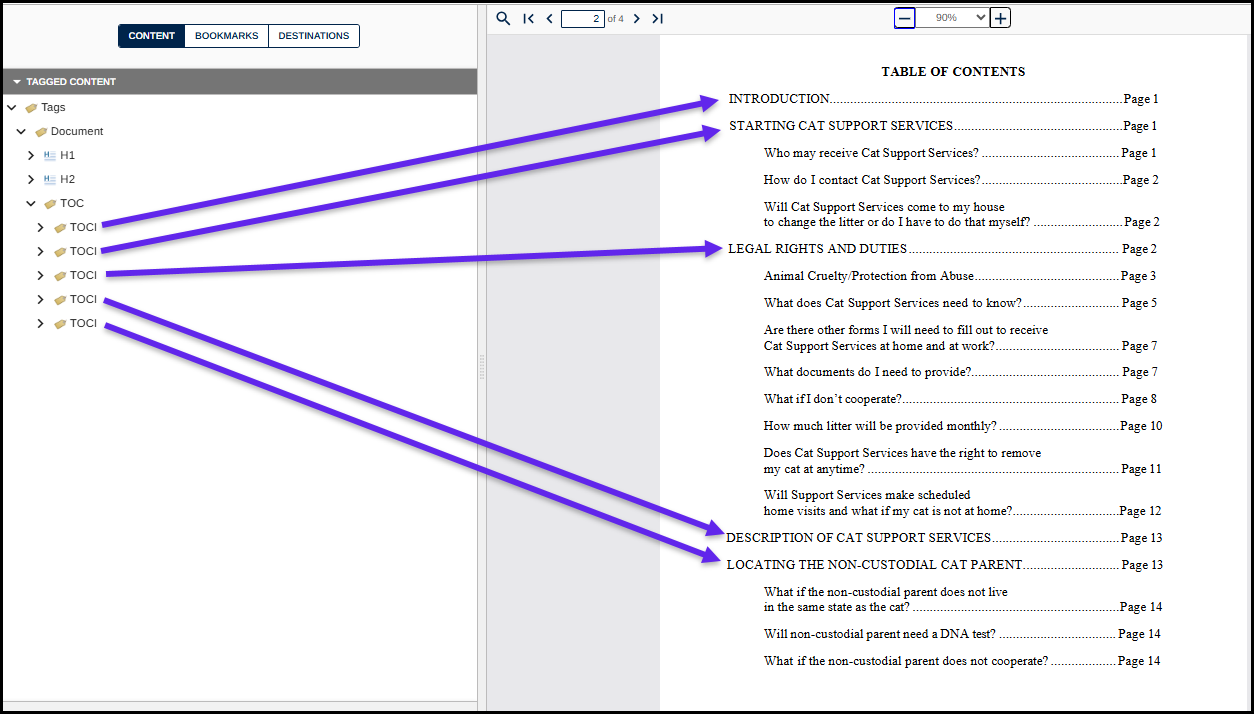
Common Problems
The nested entries were generated as regular TOCIs in the main TOC.
Visually indented entries should not simply be treated as additional main-level TOCIs. The subordinate entries should be contained in their own nested TOC within the appropriate parent TOCI. This can happen if visual indentation is not apparent for nested items. To correct this, use the highlight tag, push, and clean method to re-tag the nested TOCs.
The nested TOC was placed inside the Reference tag.
The Reference and nested TOC should be siblings within the parent TOCI. The nested TOC should appear immediately after the Reference—not inside it. If you find a TOC that is structured like this, go ahead and just regenerate the TOC with CommonLook.
Frequently Asked Questions
How do I know whether a TOC needs to be nested?
If the visual Table of Contents shows subordinate entries—typically through indentation, numbering such as 2.1 or 2.2, or another clear parent/child relationship—the tag structure should represent that hierarchy with nested TOCs.
Where exactly should the nested TOC be placed?
Place it inside the applicable parent TOCI, immediately after that TOCI's Reference tag.
Was this article helpful?
That’s Great!
Thank you for your feedback
Sorry! We couldn't be helpful
Thank you for your feedback
Feedback sent
We appreciate your effort and will try to fix the article