Overview
The search tags tool allows users to search for specific tags in the entire document or within a section of the document in order to select all the tags and perform a bulk function, such as:
1. Converting the tag
2. Deleting the tag
3. Other similar actions
Prerequisites
Sometimes it would be very helpful to be able to find all of a particular tag type, for example, so that they can all be handled at the same time. The Search Tags feature makes this possible.
Steps to Follow
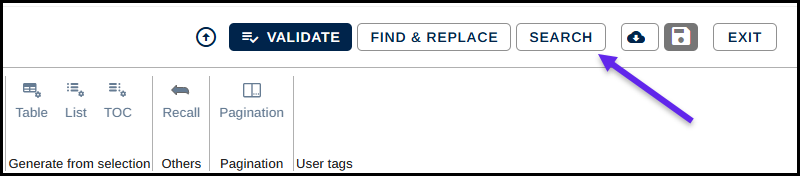
- Select the "Search" button at the top left of the advanced editor interface. (keyboard shortcut Ctrl+Shift+F)
- When the panel opens, begin typing the tag type in the text field.
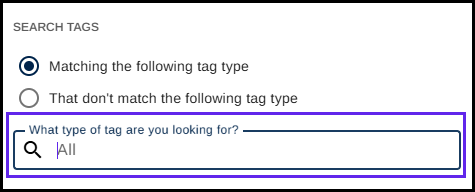
- When the dropdown list of tags appears, choose the correct tag from the list.
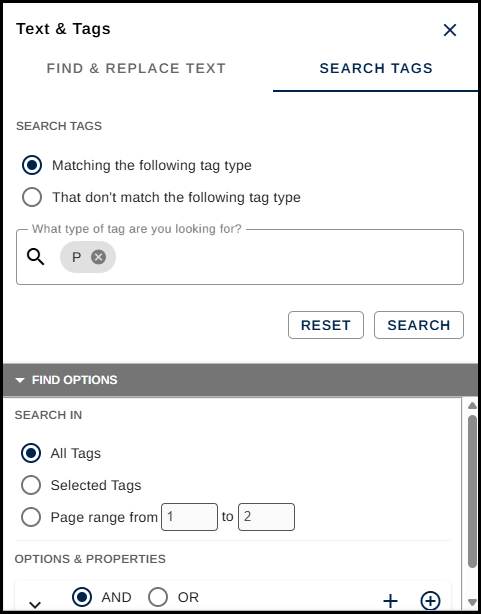
- Use the Advanced Options and Find options menus to set other search parameters as needed. (The options are explained below.)
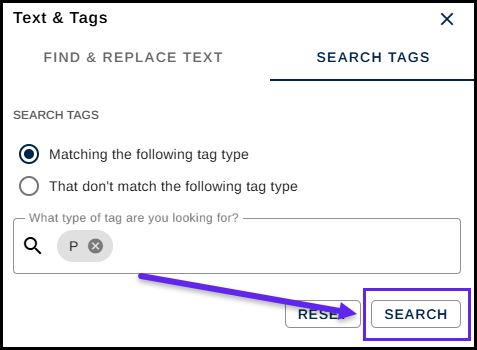
- One the parameters have all been set, click the Search button.
- When the search is complete, the found tags will be listed in the search panel. Select them and then perform the necessary function for remediation.
Search Tags - Advanced Options
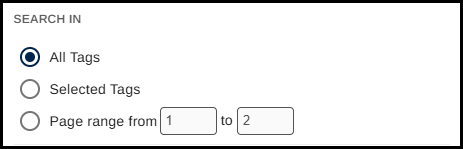
- Search in All Tags - CommonLook will look in the entire document for the tag type you're searching for.
- Search in Selected Tags - CommonLook will look within tags that you've selected in the Tags tree for the particular tag type you want. (Can be helpful, for example, to find all of the List tags in a Table to check them and verify that they've been assembled correctly.)
- Page From/ Page To - Search for a particular tag type within a range of pages.
Search Tags - Find Options:
To further refine your search, you can add additional rules or parameters to your search.
- Choose the plus sign button to add a rule (or the plus sign with the circle to "Add group").
- Navigate to and expand the Field menu to choose your operator.
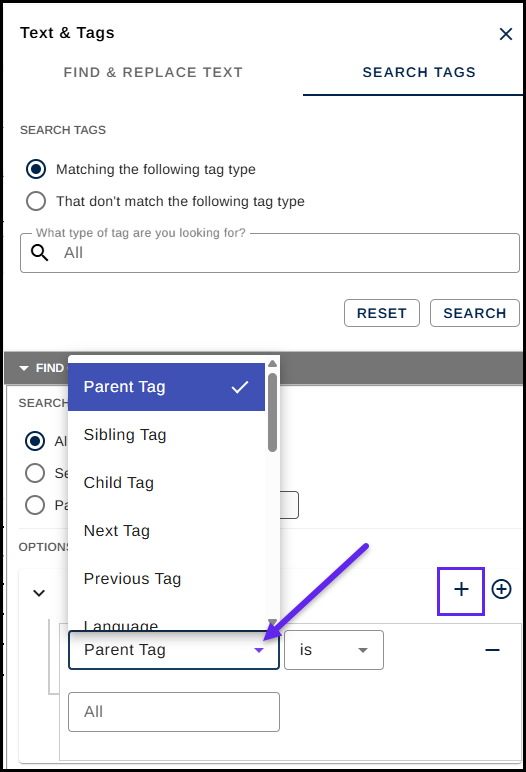
- Choose the "Operator" - "is" or "is not."
- In the "Value" field, type in the necessary value. (As you begin to type, a drop-down menu will open. Select the option you need. (Refer to the screenshot and description below.)
- Run your search
Was this article helpful?
That’s Great!
Thank you for your feedback
Sorry! We couldn't be helpful
Thank you for your feedback
Feedback sent
We appreciate your effort and will try to fix the article