Check the containers
As with other types of content, when CommonLook has processed the document and brought you to the “Clarify Page Elements” step, you’ll want to make sure the containers are correct.
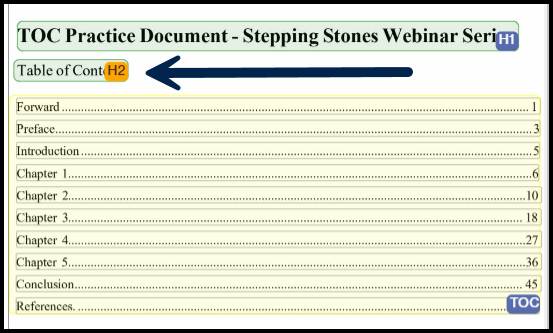
When it comes to Tables of Contents, checking the containers not only means making sure the TOC container holds the whole TOC, but, if the words, “Table of Contents” are also included in the TOC container, you’ll want to resize the TOC container so it does not include the words “Table of Contents” and put that into an H2 container.
Check the “TOC Item Levels”
In addition to checking the TOC container(s), you’ll want to check the TOC Item levels (much like checking List Item levels). To do so, select the TOC container, in the page view, and then click on the TOC button in the toolbar to open the “child toolbar.”
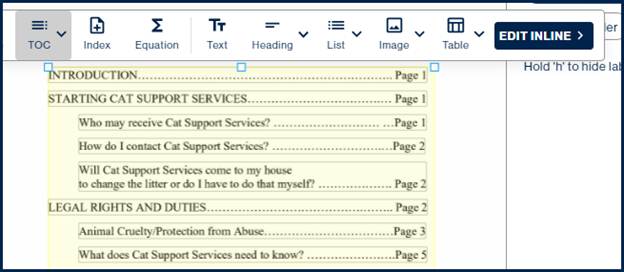
In the screenshot below, the TOC “child toolbar” is open and, in the page view, the TOC Item levels are highlighted. Notice, the “first level” items have “L1” by them and, in the nested TOC, those items have “L2” next to them.
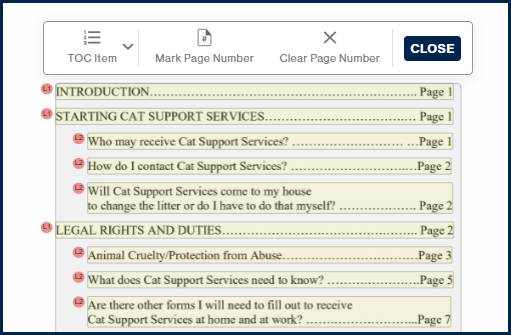
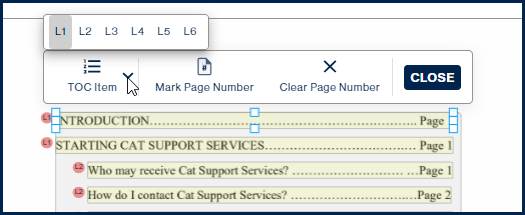
To change TOC Item levels, select the item and then, in the TOC Item menu, select the correct level. (Use the “Zoom” functionality at the top right of the interface to zoom in, as needed.)
Verifying and Marking Page Numbers
When checking TOC Item levels, you should also check, and mark (or clear) page numbers. Ordinarily, the software will mark the page numbers in the TOC Items automatically. If you have a complex TOC layout, however, you might need to check and fix these manually.
Why is this important? CommonLook will artifact the dot leaders in the TOC and marking the page numbers helps to set that range.
To check and fix page numbers:
- Click on the TOC container,
- Click on TOC in the toolbar,
- Verify the page numbers,
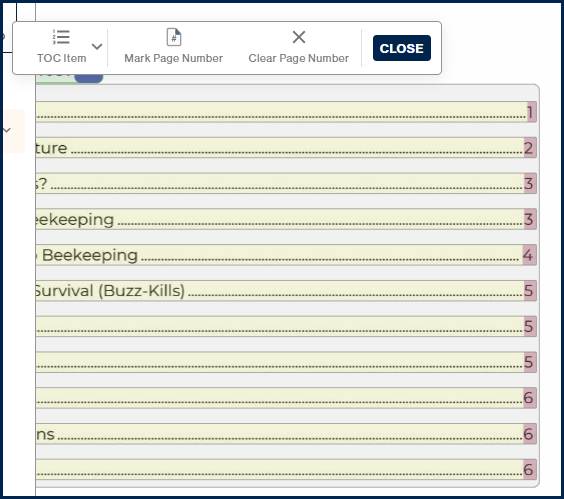
If the page numbers have not been identified, or have not been marked correctly, follow the steps below. (Pro Tip: It might be helpful to zoom in on the page view to more easily see and work with the page numbers!)
- Click on the TOC container, in the page view and then click the TOC button in the toolbar.
- In the TOC container, click on the TOC Item that you want to work with.
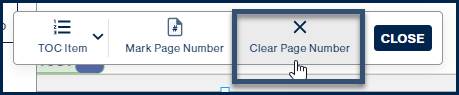
- In the “child toolbar,” choose “Clear Page Number” to remove the box around the page number if needed.
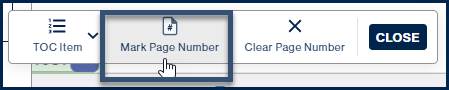
- Click “Mark Page Number” and then, in the TOC Item, highlight the page number (draw a box around it) to mark it. Important: Be careful not to also include any dot leaders that may be close to the page numbers!
Was this article helpful?
That’s Great!
Thank you for your feedback
Sorry! We couldn't be helpful
Thank you for your feedback
Feedback sent
We appreciate your effort and will try to fix the article