Check out this demo video on the web-based Simplified Editor!
Note: To get started using web-based CommonLook PDF's Simplified Editor, use this link, or scroll to the bottom of this article, download the accompanying file, “Web-based CL PDF Simplified Editor Quick Start sample,” and follow the steps below.
Important Note: While the Simplified Editor in CommonLook PDF is a highly automated tool, it still requires human, manual verification - and possibly correction - to ensure that document content is fully accessible. Do not just trust the AI / automation! Don't just "Clarify Page Elements," do the Full Document Review, too! It's ultimately your responsibility to ensure your documents are accessible and, frankly, AI and automation are not "there" yet! You must do your due diligence!
Getting started
- Login to web-based CommonLook PDF.
Note 1: Currently, the system will only accept your email address, for login, in all lower-case letters.
Note 2: If Multifactor Authentication has been turned on, when you enter your username (email address) and your password, you'll then be brought to the "Verify Code" screen. Check your email for your verification code and enter it here to continue.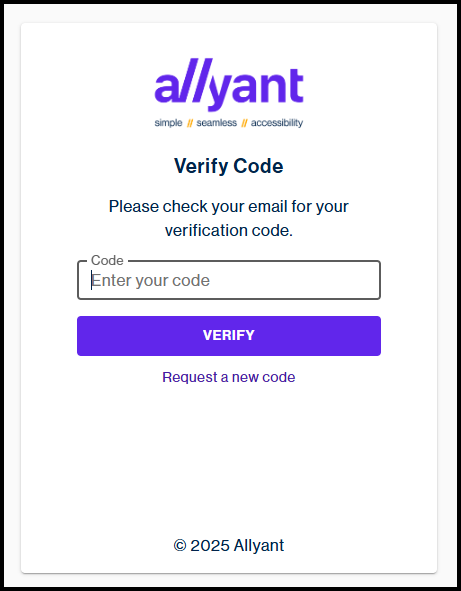
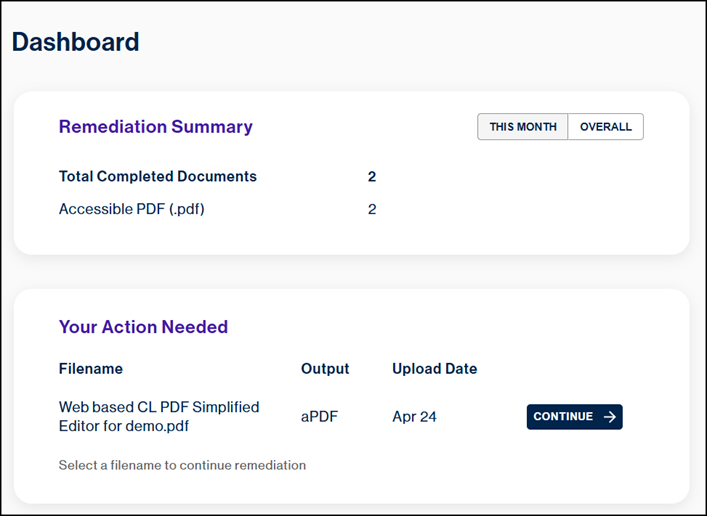
- When you login, you'll be taken to your "Dashboard," where you'll be able to find Summary information of the work you've done in the past. It will list, by type, your "Total Completed Documents" and will let you see data related to "This Month" or "Overall." Also, in "Your Action Needed," it will list any documents that are in progress or pending your input.
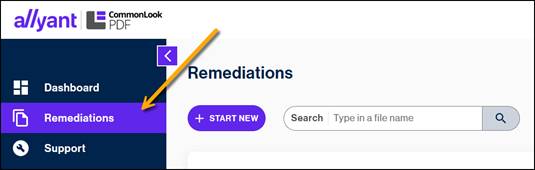
- To start a new project, in the menu on the left, choose “Remediations.”
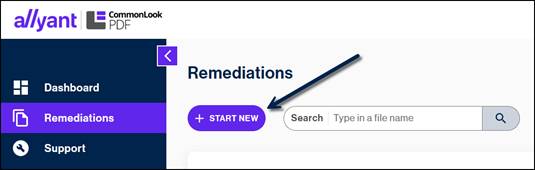
- To begin working on a document, choose “Start New.”
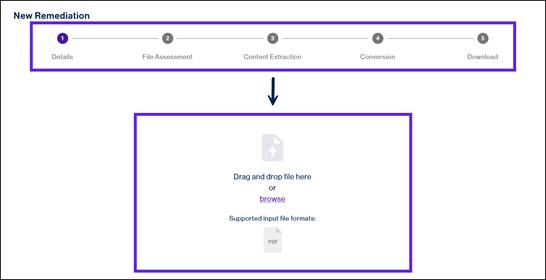
- The "New Remediations" wizard screen will open. At the top of the wizard, it outlines the overall steps in the process. You'll begin with document "Details" and then the web-based CommonLook PDF Simplified editor will walk you through the steps of "File Assessment," "Content Extraction," creating the "Accessible Output," and, finally, you'll be able to "Download" your accessible PDF. To start the process, upload the PDF you want to make accessible by either dragging and dropping it into the widget or by "browsing" to locate and select the file. (Remember, you can get the sample file for this Quick Start Guide at the bottom of this Knowledge Base article.)
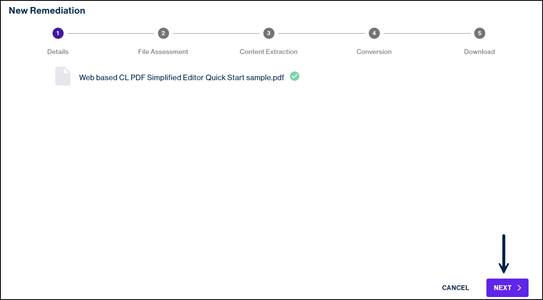
- With the document loaded in the system, hit “Next” (at the lower right corner of the screen).
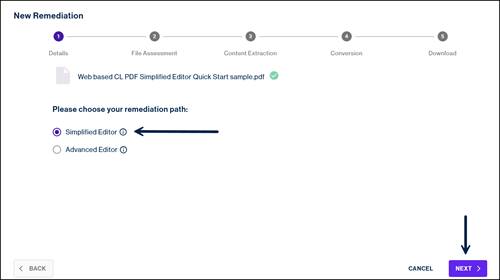
- Next, you need to choose a remediation path. Select the radio button for the Simplified Editor, if it is not already selected and hit “Next.”
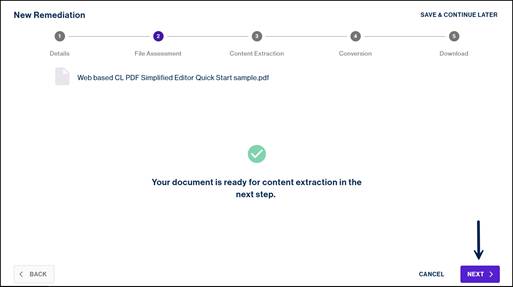
- CommonLook PDF has completed the “File Assessment” step. This is where the file is assessed to determine if CommonLook PDF can extract the content. Hit “Next” again.
- When you hit "Next," the system starts the "Content Extraction" step, detecting and analyzing the document content. Depending on the length of your document, this may take several minutes or so.
- When the Simplified Editor is done analyzing the content of the document, it'll stop on the screen as shown below, indicating that some pages could not be resolved automatically. While the CommonLook PDF Simplified Editor is highly automated, there are sections of documents that may require your input. For example, as shown in the screenshot below, there is an image in the document that needs to have Alt text assigned to it, and there are some page elements that the Simplified Editor wants you to clarify.
To progress, keep the sliders in their default positions, to add image descriptions, and to clarify page elements, and hit “Next.”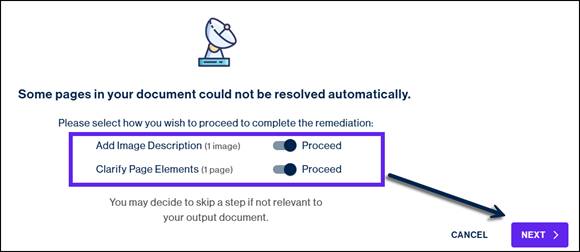
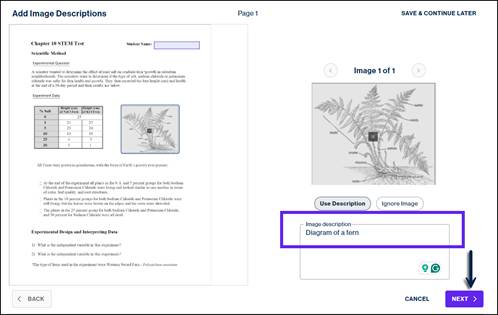
Note: When clarifying page elements, the Simplified Editor will only take you to the pages that it needs some help with. But, if the system feels confident in its analysis of the content on certain pages, at this point, those pages will be skipped. So, if you are working through a multipage document, and in the Clarifying Page Elements step, the Simplified Editor seems to skip some pages, that's why. Of course, the Simplified Editor will also provide the opportunity to check every page during the "Full Document Review." - Adding Image Descriptions: In the panel on the right, provide the Alt text for the image, “Diagram of a fern.” When you are finished adding Alt text to the image, hit the “Next” button.
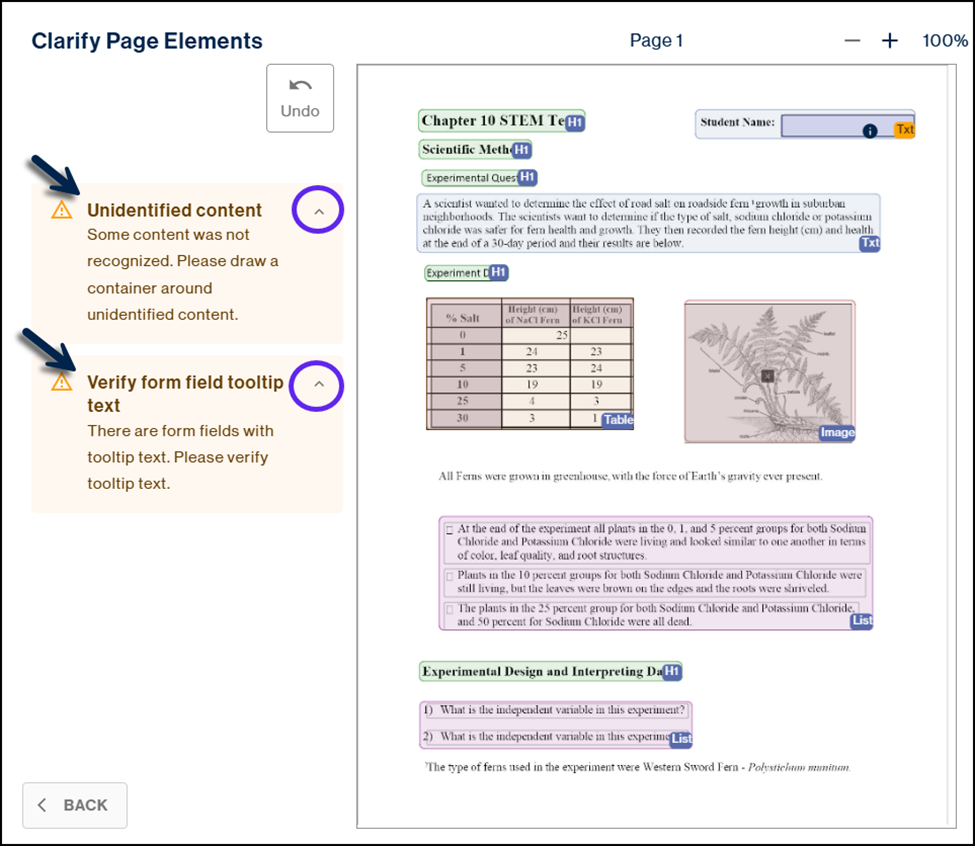
- Clarifying Page Elements: On the left side of the interface, the Simplified Editor shows you warnings that point to elements that need your attention. In this sample file, we see that there is some “Unidentified content,” and we have to “Verify form field tooltip text.” Next to each of those warnings, use the “Expand” button to show a description of the issue and how to correct it. Hovering your mouse over either warning or clicking on them will highlight on the page view, where the issues are. Warning or no warning, a best practice is to check each piece of content in the document, ensuring it has been handled correctly and make the necessary corrections!
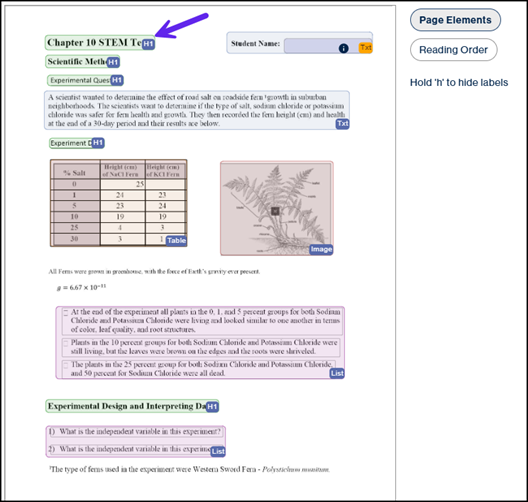
- At the top, the title of the document has been placed in an H1 container, which is exactly the right heading container for the title, so you can move on to the next piece of content.
- The next piece of content has been placed in a text container. Text page elements, such as this, will be placed in paragraph tags in the remediated PDF.
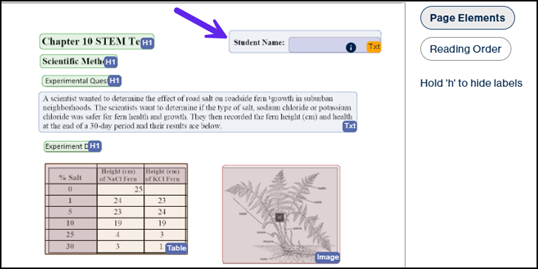
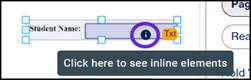
- Notice that there is an “i circle icon” indicating that there is an inline element inside it. This is because there is a form for someone to enter their name there, too. If you hover your mouse over it a tool tip appears that says, “Click here to see inline elements.”
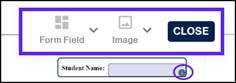
- Next, verify the tooltip of the form. To check the tooltip, you will first need to click on the inline icon so that the inline elements' toolbar opens.
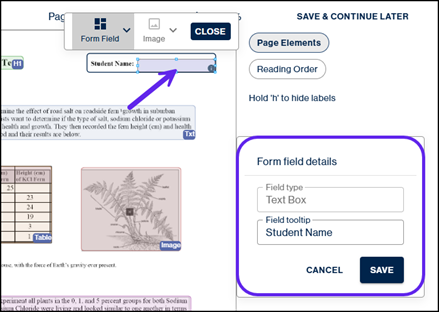
- Then, click on the form field, which opens the “Form field details” dialog box.
- In this case, the tooltip, Student Name, is correct, but if you did want to make any changes, you would do so in the tooltip field and then press Save.
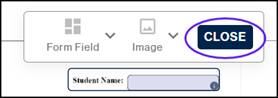
- Once that is done, you can close the Inline toolbar by selecting the “Close” button.
- The next two pieces of content have been identified as H1s; however, the H1 heading level is assigned to the title of the document and subsequent heading levels need to be correctly identified.
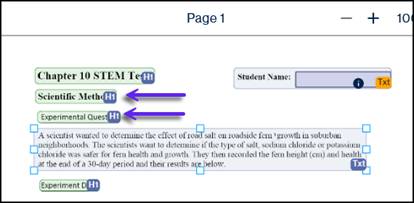
Note: It may be helpful to think of heading level organization similar to that of an outline. For example, the title of the document would be assigned “H1,” major sections, like chapters in a book, would be tagged as “H2,” and subsections within chapters would be marked as “H3.” We will need to change the heading level for “Scientific Method” to an H2 container. And, because “Experimental Question” is a sub-section of Scientific Method, this content needs to be changed into an H3 container. - To change the heading levels for this content, you can click the H1 container for “Scientific Method,” and then in the toolbar, open the dropdown menu for “Headings”, and select the H2 option.

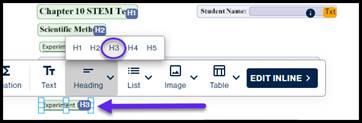
- Next, change the heading level for the “Experimental Question” content by again clicking on the container, opening the “Heading” dropdown menu and this time selecting the H3 option.

- As we move down through the document, we see the next piece of content is a paragraph and has been placed in a text container. This is correct, as all elements identified as text will be placed in P tags, so we can move on.
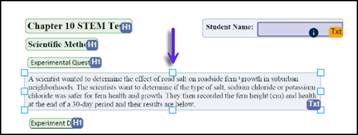
- Directly under the paragraph, we have another heading, but we need to change it to the correct heading level. If the container label is in the way of the text, the Simplified Editor has a quick keyboard shortcut to hide the labels, so you can read the text under them.
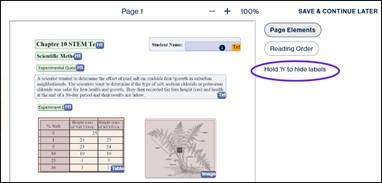
- Holding down the “h” key reveals that the heading says, “Experiment Data,” and because it is a part of the “Scientific Method” section (which is at the H2 level) it should be labeled as an H3. You can change this easily by clicking on the container to open the toolbar and selecting H3 in the “Heading” dropdown menu.
- The next piece of content is in a table container. The good news here is that the table was properly identified by web-based CommonLook PDF, but we do need to open the table to ensure all the cells are organized correctly. To do this, select the table container and then select the “Table” button in the toolbar.
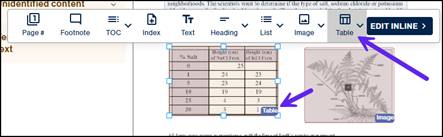
- The table toolbar opens, and inside the table, the table headers, both column and row, have been identified, as well as the borders of all the cells in the table.
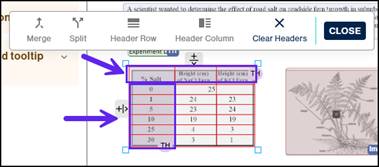
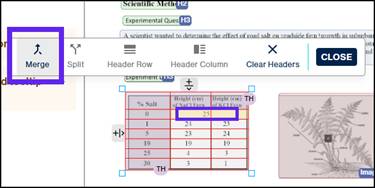
- Notice there is one cell in the table that should span two columns. This is the data cell that has the number 25 in it. This is something we can easily fix with the table toolbar.
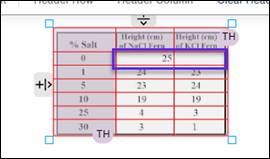
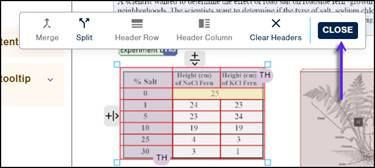
- First, select the cell with the number 25 in it. Next, click and hold and then drag your mouse to the right so that when you let go of your mouse button, you will have both cells selected. Both cells that need to be merged should now be highlighted in the table. Once highlighted, select the “Merge” button in the table toolbar, and the red line dividing the cells disappears, indicating the cells are now merged.
- Close the table toolbar by pressing “Close.”
The Image to the right of the table is in an image container, and you already provided the Image description in one of the very first steps. The next piece of content is a paragraph, but it needs to be identified correctly. - Identify the paragraph by drawing a box around the sentence and choosing the “Text” button in the toolbar.

- The content under this paragraph is labeled in a list container. This container has been correctly labeled, but we should also check if the list items are all at one level and each of the bullet points have been identified.
- To check the list structure, select the list container and then select the “List” button in the toolbar.
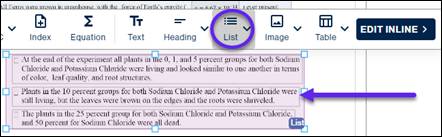
- You’ll notice that it is difficult to read the inner parts of the list showing the individual list items. If you zoom in on this content, it will become more clear. You can zoom in using the buttons at the top of the interface.
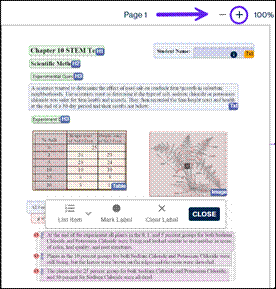
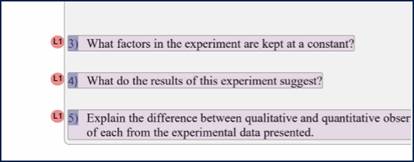
- With the list zoomed in, notice there are circles with an “L1” inside, indicating that all three list items are at the first list level. This is correct because there are no nested lists inside any of these list items.
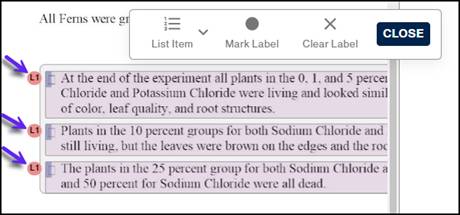
- Another thing to check in lists is if the list labels are highlighted. All of the bullet points have been recognized, so they will be tagged correctly in the PDF.
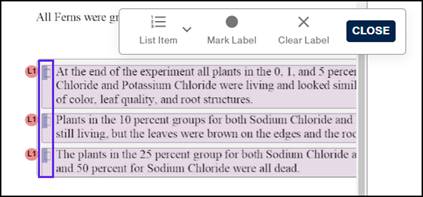
- Close the list toolbar by selecting the “Close” button.
- Zoom back out, if you have not done so already, to check the next piece of content. We have another heading, but this one should be at the "H2" level.
- Select this heading container, open the “Headings” drop-down, and select “H2.”
- Next, we have another list. Again, select the list container and then select the list button in the toolbar to examine the list components to ensure the items are at the same level and the labels have been identified.
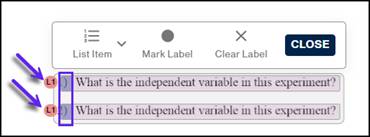
- After checking the list, select the “Close” button to shut the list toolbar. The last piece of content on this page is a footnote; however, it is not inside a container.
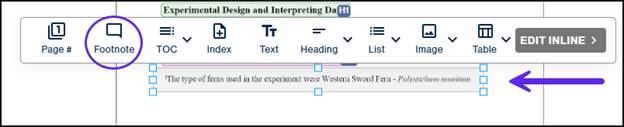
- To identify this content as a footnote, draw a box around the footnote with your mouse in the page view, then select the “Footnote” button in the toolbar. This will place the footnote in a footnote container.
Now that you have worked through all of the page elements on page one, it’s time to check and fix the Reading Order. - Reading Order: At the upper right-hand corner of the interface, select the “Reading Order” button.
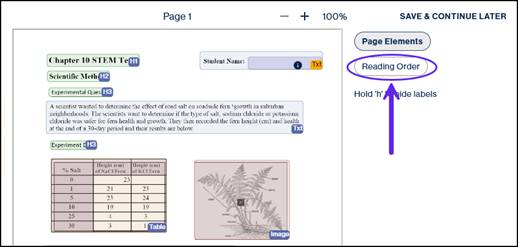
Note: The system will attempt to detect the reading order automatically and will assign a number to each container. These numbers indicate the order in which those tags will be placed in the PDF, establishing the reading order. Notice, in our example, the reading order follows the order of the content from the top left to the bottom right of the page. However, because this document has a list that spans the page break, we will need to make an adjustment to the reading order of the footnote at the bottom of page one. Because the footnote is mentioned in the 5th container, we can move the footnote to be read directly after that paragraph.
- Select the reorder button up at the top left.
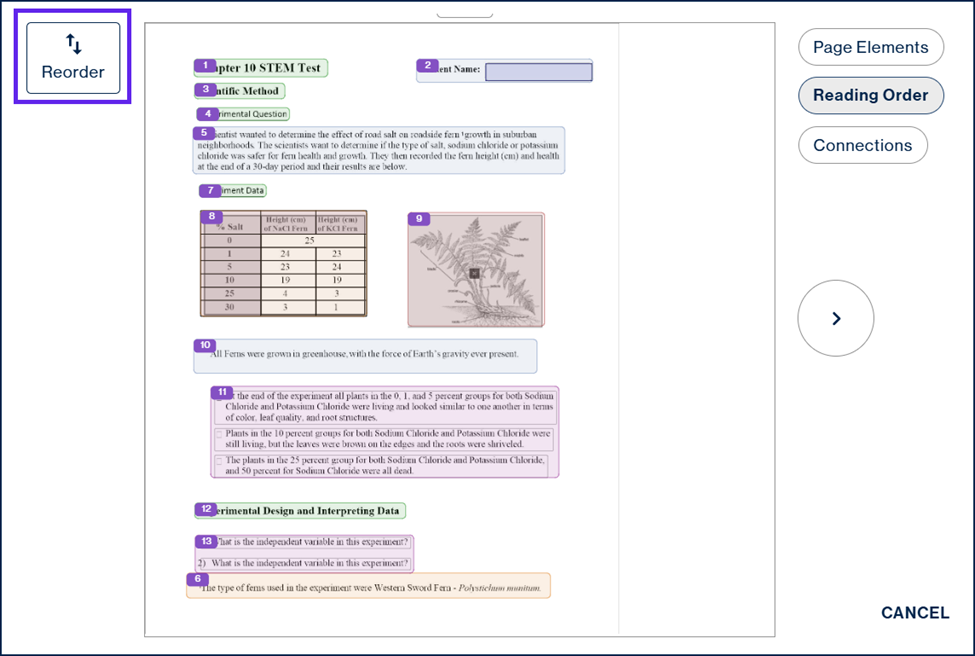
- Select the following containers in this order:
1: H1 - title,
2: Paragraph - student name with form filed
3: H2 – Scientific method
4: H3 – Experimental Question
5: Paragraph with footnote reference
6: Footnote container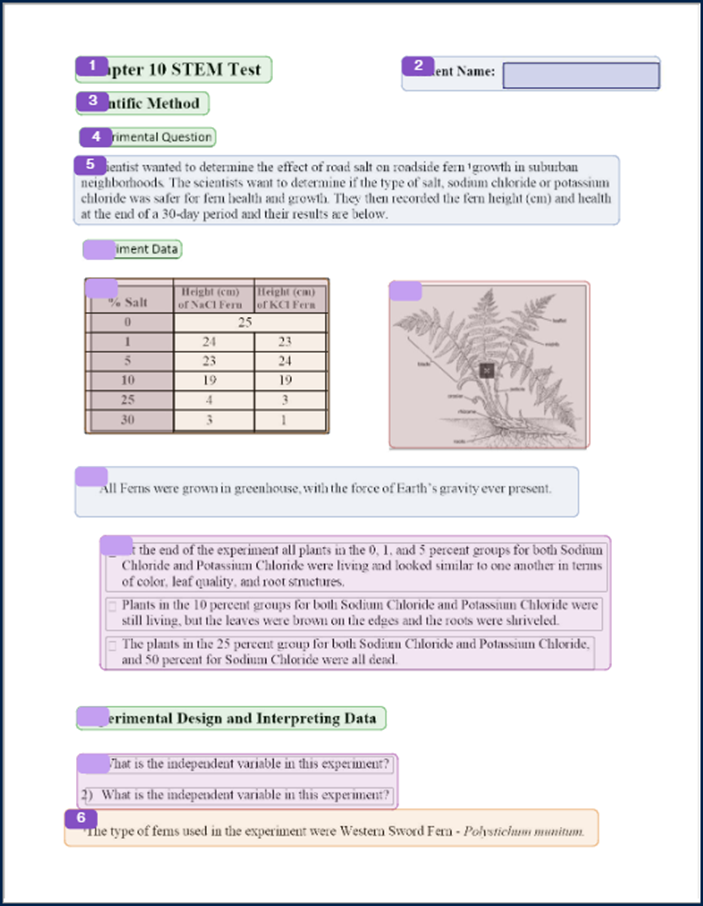 7: H3 - Experiment data
8: The table
9: The image - Continue selecting the rest of the containers straight down the page.
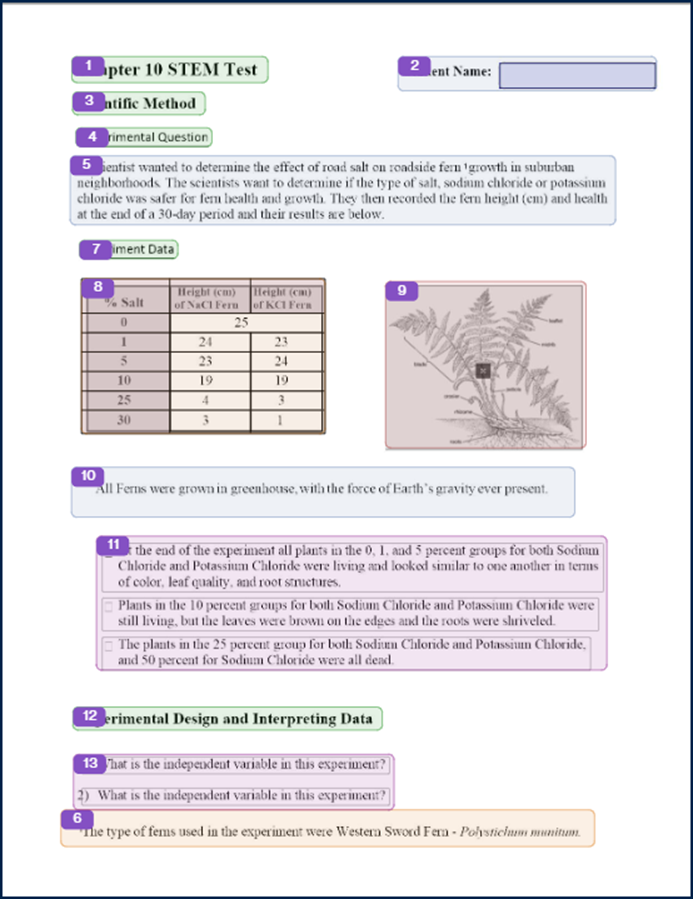
- Now that you have addressed both identifying page elements and reading order, press the “Next” button at the bottom left of the screen.
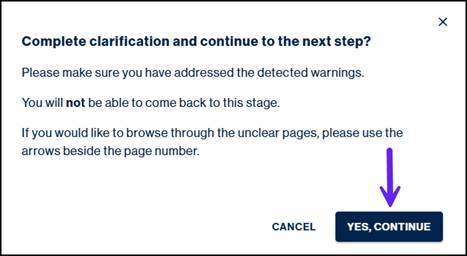
- A warning textbox appears asking if you want to complete clarification and continue to the next step. While you cannot go back to the clarifying page elements step, you can make any changes to the containers, reading order, and even connect elements in the full document review. Choose the “Yes, Continue” button.
- Hit the “Next” button to move on to reviewing the document.
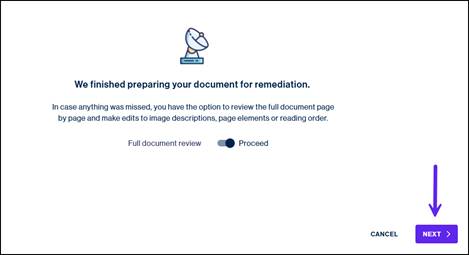
Note: While we know that this document is two pages long, page two did not come up in the clarify page elements step because CommonLook PDF’s Simplified Editor was able to identify the content. You still have the opportunity to check the second page and ensure the content is handled correctly in the full document review process. - Full Document Review: Do not skip this step! In the Full Document Review step, you will now be able to verify the following on every page of the document:
- Page Elements – First, make sure the containers are correct. This will be double-checking the work you’ve already done on page one in our sample file. In larger files, this will give you the functionality to fix any containers on pages that didn't come up when you were working in the "Clarifying Page Elements" step.
- Reading Order – Second, make sure the Reading Order is correct, double-checking the work you’ve already done and checking pages you haven’t yet seen. As with the Page Elements, during the Full Document Review, you'll be able to verify and fix the reading order on all of the pages, even those that did not come up in the "Clarify Page Elements" step.
- Connections - Connections are how to join things like lists or tables that span across a page break, or a paragraph or list that spans across two columns on a page. Connections must be made only after the Page Elements and Reading Order are corrected. For example, changing Page Elements may break connections that have previuosly been established in the Simplified Editor.
- Because you have already checked and fixed the Page Elements and Reading Order on page 1, select the next page arrow to advance to page 2.
- Next, check the list structure of the first piece of content, the list container, by selecting it to open the toolbar. Press the “List” button and ensure that all the list items are at the L1 level and all the label numbers have been identified. This is correct, so you can close the list toolbar.
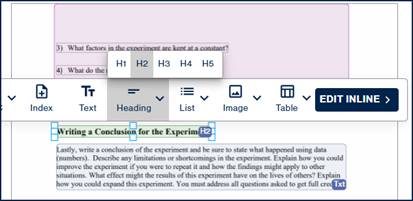
- Under the list, the next content is in a Heading 1 container; however, it needs to be changed to an "H2." Click inside of the heading container, open the “Heading” dropdown, and select “H2.”
- The last container on this page is a paragraph and is inside a text container. This is correct and doesn’t need any adjustments.
- To check the reading order of the content on page 2, select the “Reading Order” Button to ensure the three containers on this page are in the correct reading order. This is perfect and doesn't need to be adjusted.
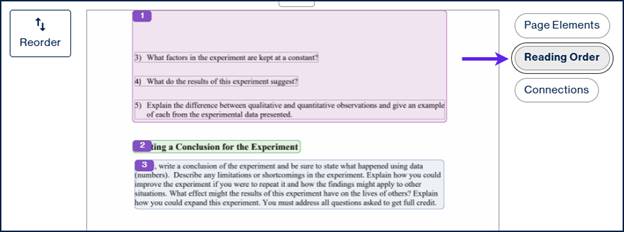
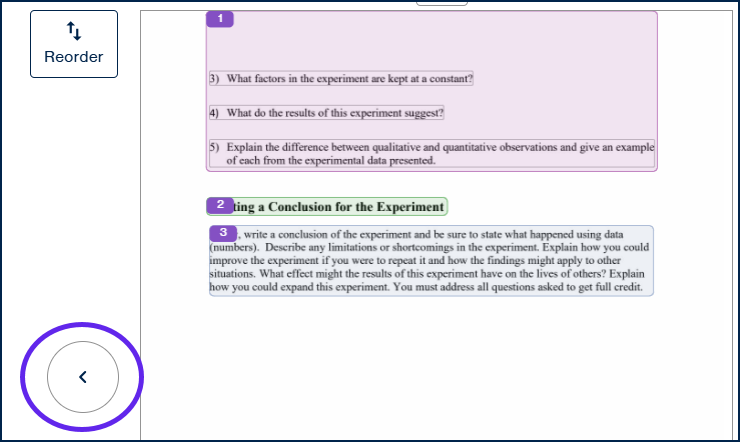
Lastly, select the "Previous Page" icon at the center right side of the interface to return to page 1.
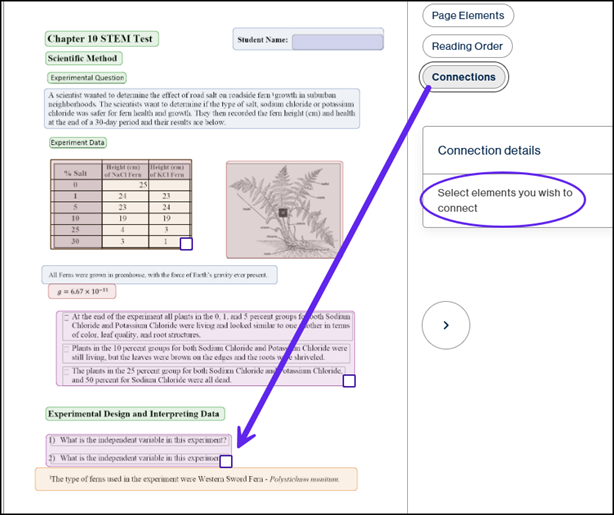
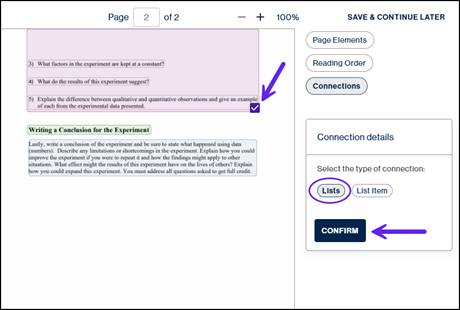
Connections: Both the page elements and reading order have now been checked and fixed in the entire document, so the last thing to check is "Connections." This document has a list that spans the page break. You need to ensure these pieces of content are connected in order for the list to be treated as one continuous list, not two separate ones. To make the connection, select the “Connections” button on page one and check the check box of the list we need to connect to the list on page two.
Hit "Next Page."
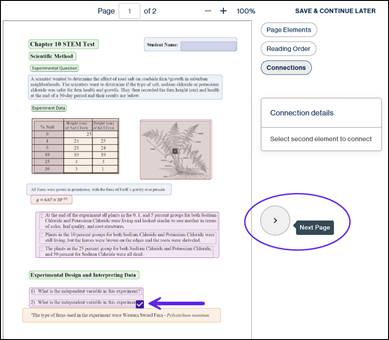
- Select the checkbox of the list at the top of the page to indicate what we want to connect to the list, and in the "Connection Details" pop-up screen, select the button for lists. This will ensure you connect the Lists on the bottom of page 1 and the top of page 2, and not an Lbody that spans the page break. Lastly, hit “Confirm.”
- After pressing confirm, you will now see a blue arrow pointing to the list container on this page.
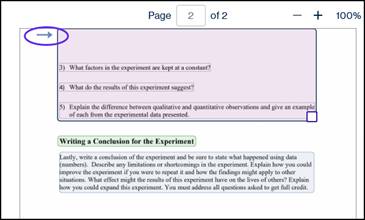
Note: You can check to ensure the connection was made correctly on the first page by pressing the previous page button, and check to see that there is also a blue arrow at the bottom right of the list that is connected. - Lastly, select the “End Review” button.

- A warning dialog box opens asking if you would like to complete the document review and continue to the next step. This is the final time you can make any changes to the document. So if you are confident that you have reviewed the document thoroughly, press the “Yes, Continue” button.
Note: If you would like to return to Document review, select the "Cancel" button.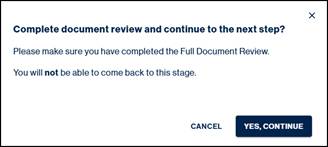
- Next, you will see a message letting you know that the document is being converted to an accessible output.
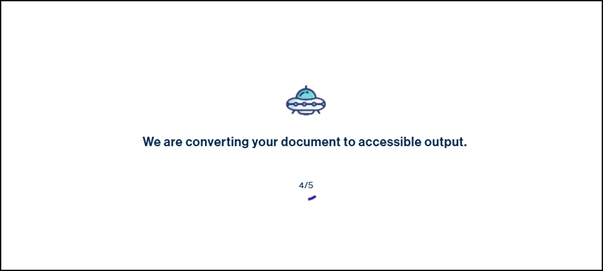
- A message appears informing you that your remediation is complete and ready for download. You can either download the document and the validation reports on this screen by selecting the download buttons, or hold off and download them from the Remediation screen at a later time.
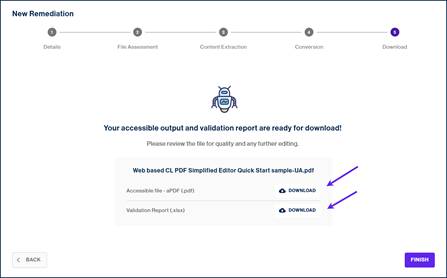
- Hit “Finish” to return to the new remediations screen.
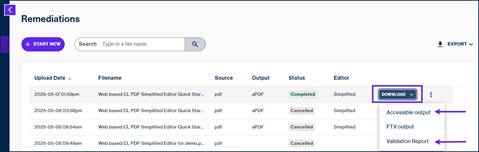
- Remediation Screen: Here you will find the list of files you’ve worked on in the past and if they have been "Completed," you'll be able to download the PDF and Validation report from here, too. So, if you ever need to get another copy of a file that you've previously remediated, you don't need to run it again. You cannavigate to your Remediations page and re-download the file you want.,
Sample document
Was this article helpful?
That’s Great!
Thank you for your feedback
Sorry! We couldn't be helpful
Thank you for your feedback
Feedback sent
We appreciate your effort and will try to fix the article