When using the Simplified Editor to mark lists, you need to look closely at the List Items within the List containers to make sure that each item is marked individually. If it’s not, as shown in the screenshot below, you’ll need to fix it. Notice, below, that “Airplane” and Broccoli” are in one List Item as are “Dinosaur” and “Fireworks.” “Clownfish,” meanwhile, is in its own List Item. While this should be identified as a list of five items, because some of the List Items contain more than one “thing,” the list will not be generated correctly in the final output.
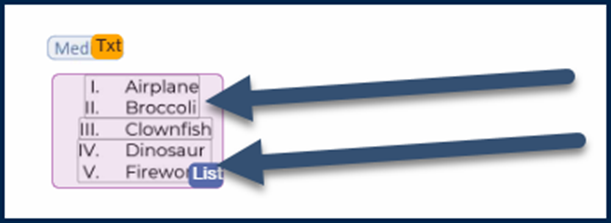
To fix this, you’ll need to put each item in its own List Item. Follow the steps as outlined below.
Tip: You may need to use the buttons at the top right of the “Page” to zoom in, so you can work with only one item at a time.

- Click on the List container.
- In the toolbar, click on “List.”
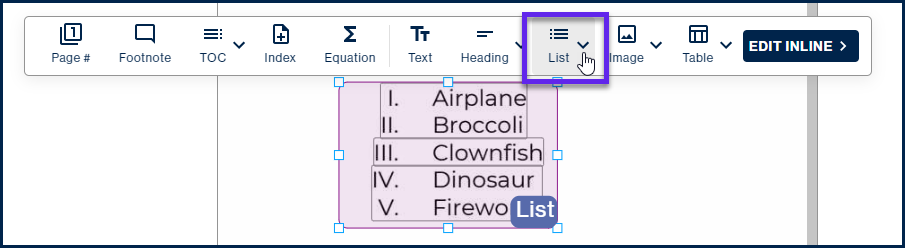
- When you click on “List,” within the toolbar, you’ll get a “child toolbar” to edit the parts of the list including the List Items and to “Mark” or “Clear” labels.
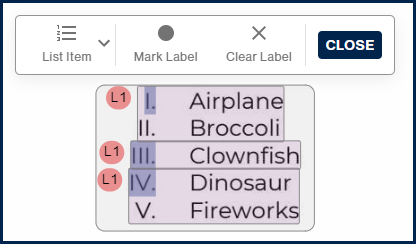
- On the page view, hover over the List Item that contains “Airplane” and “Broccoli.” When you do, you’ll see the “resize” boxes, to be able to resize that List Item.
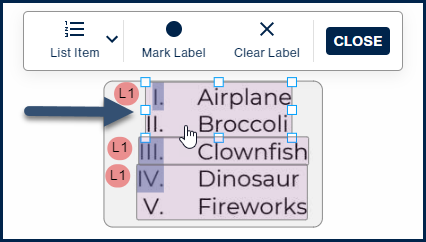
- From the bottom edge of that List Item, click on the resize box in the middle and drag it up so the List Item only contains “Airplane.”
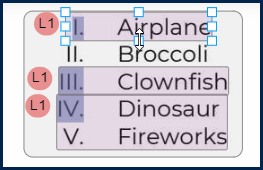
- Highlight around “Broccoli” to create a new List Item.
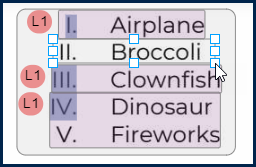
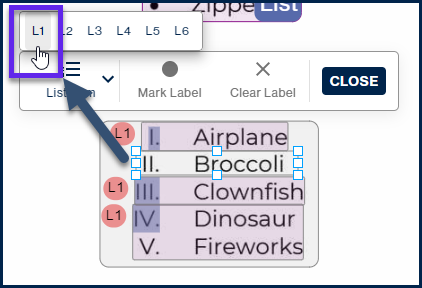
- When you highlight text to create a new List Item, the “List Item level option” will become available, from within the “child toolbar.” Select the appropriate List Item level. For example, in the screenshot of our list, everything in the list should all be at the same level – there are no nested lists. So, for this example, you would choose “L1” as shown in the screenshot below.
- Notice your new List Item is created. However, in the new List Item, the Label is not highlighted.
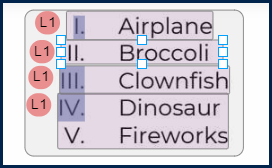
- To identify the Label for your List Item, select the List Item you created, if it isn’t already, and then, in the toolbar, click “Mark Label.”
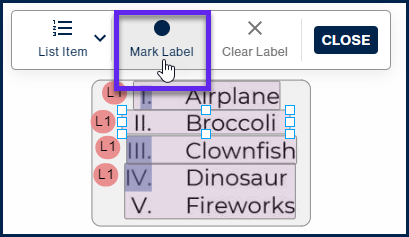
- In the List Item, draw a box around the Label (in the page view) to create the Label.
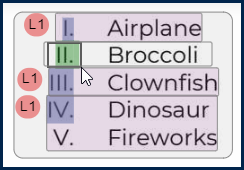
- Verify that your new Label is created.
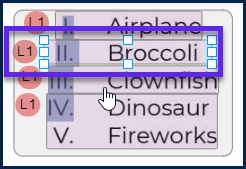
Important Reminder: Don’t forget to mark your new Labels, after you create List Items!
Tip: Sometimes it can be a little tricky to resize the List Items. You may need to resize them both down from the top as well as up from the bottom. Remember, use the zoom functionality, if needed.

List Item Levels
When you have lists properly marked in CommonLook PDF, it’s a good idea to check the List Item levels to make sure that they are correct, too. If they aren’t, you could end up with list items being nested at the wrong level.
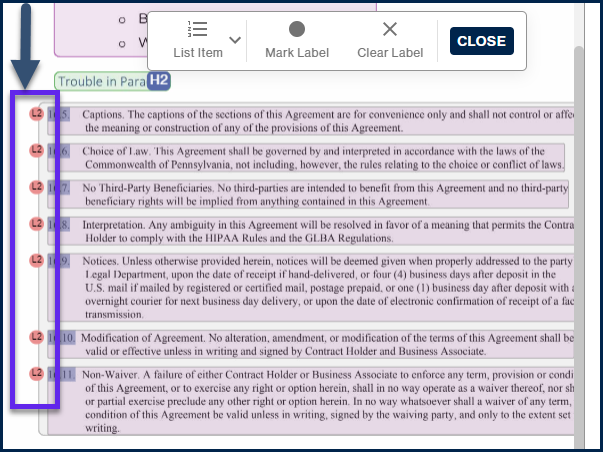
The screenshot below shows one scenario that could inadvertently create issues. Here, the list labels are numbers with decimal points, for example “16.5.” CommonLook is assuming that there is an item “16,” which it would put at the first level and then “16.5” would be recognized as a nested list, or a sub-list. However, that’s not the actual case for the list in this example.
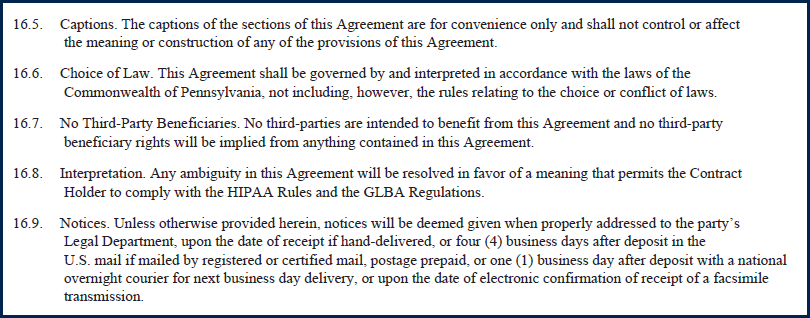
Verifying List Item levels
To check the levels of your List Items, follow these steps:
Select the List container.
- In the toolbar, click on the List button.
- Clicking the List button will open a “child toolbar” and, in the List Container, it will show you the List Item levels, shown as “L2” in the screenshot, here.
Fixing List Item levels
If you notice that List Items are at the wrong level, follow these steps:
Select the List.
- Select the List button in the toolbar.
- Click on the circle containing the level number. When you do, the List Item level options will open.
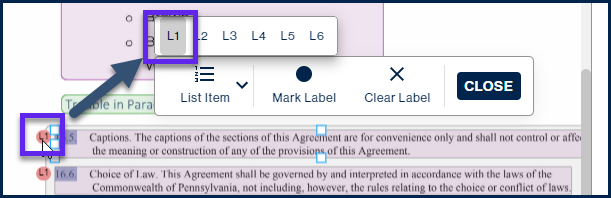
- Select the correct List Item level option.
- Repeat, as needed, for the other items in the List.
Didn't find what you're looking for? Navigate to our "Lists" section for more related articles that may help!
Was this article helpful?
That’s Great!
Thank you for your feedback
Sorry! We couldn't be helpful
Thank you for your feedback
Feedback sent
We appreciate your effort and will try to fix the article