CommonLook's Find and Replace tool is an effective and efficient way of locating repeated document content and manipulating them all at once.
Find and Replace - Symbols
The following screenshot shows a pharmacy directory with three unique symbols placed at multiple locations throughout the document. These symbols allow a sighted reader to learn about each pharmacy, as they reference information in a symbol key located along the bottom of the page.
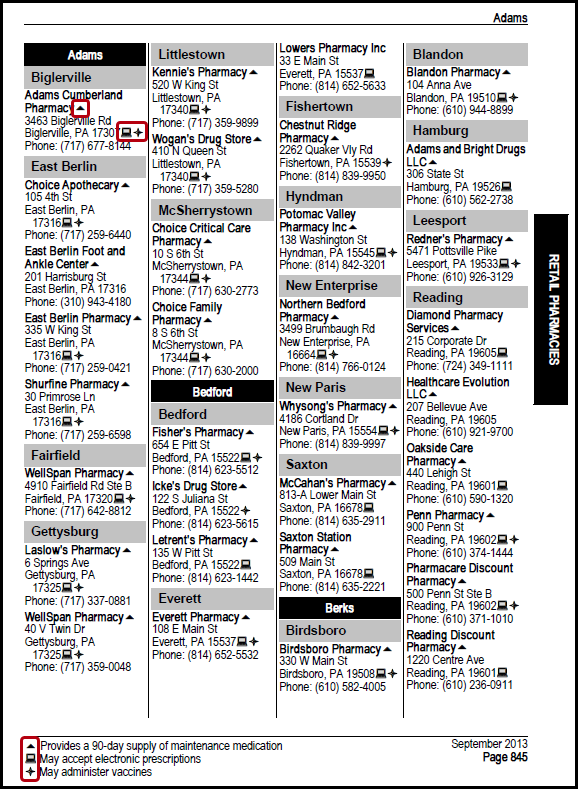
When symbols are used to convey information, they need to be placed in Span tags and given Alternative text to convey the necessary information to the user. (For more information on Span tags, refer to the article titled, “Span Tags")
If a symbol is used multiple times in a document and if that symbol conveys the same information each time it is used, follow these steps to find them, place them in Span tags, and assign the appropriate Alternative text:
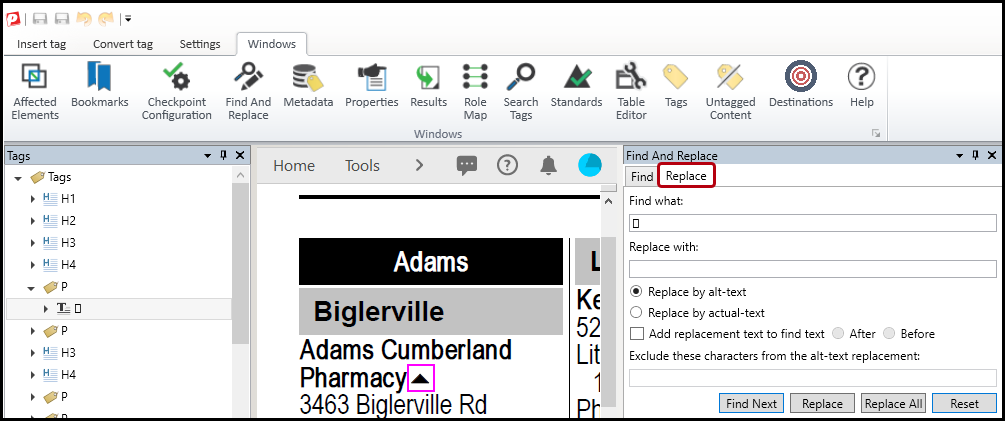
- In the Physical View, highlight one occurrence of the symbol.
- In the Windows tab on the ribbon, choose “Find and Replace” (or use Ctrl+H for “Find and Replace” and then skip to Step 4 below).

- In the Find and Replace panel that opens, click the Replace” tab (at the top).
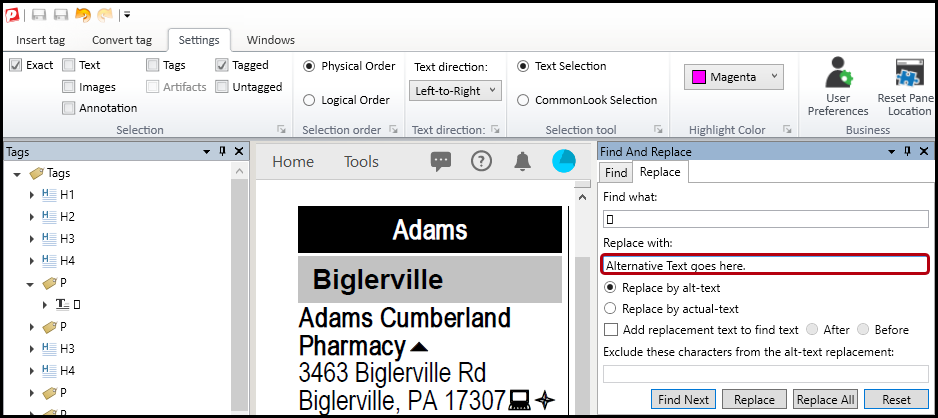
- In the “Replace with” box, enter the required Alternative text. Refer to the article on using selection tools for efficient copying and pasting document text.
- Click “Replace All.”
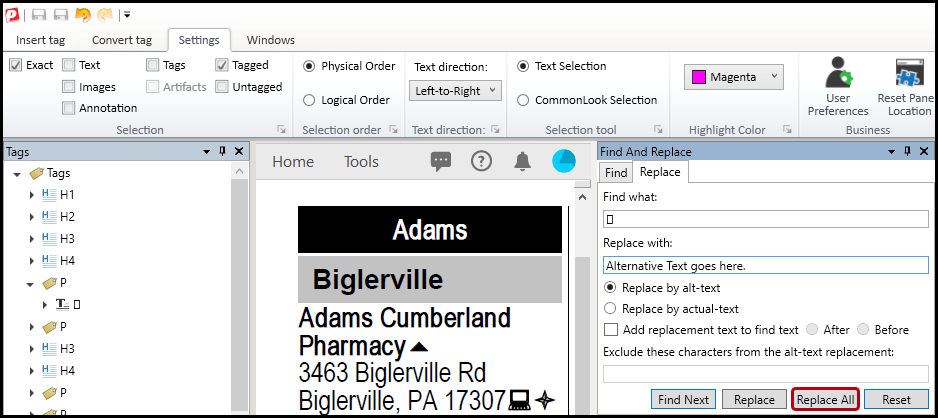
- A window will pop up saying how many occurrences of the symbol were replaced. Click OK.

- The Affected Elements panel will open with a list of Span tags. Arrow (or click) down through the list to make sure that the symbols were all replaced correctly. The Alt. text can be verified in the Properties panel.
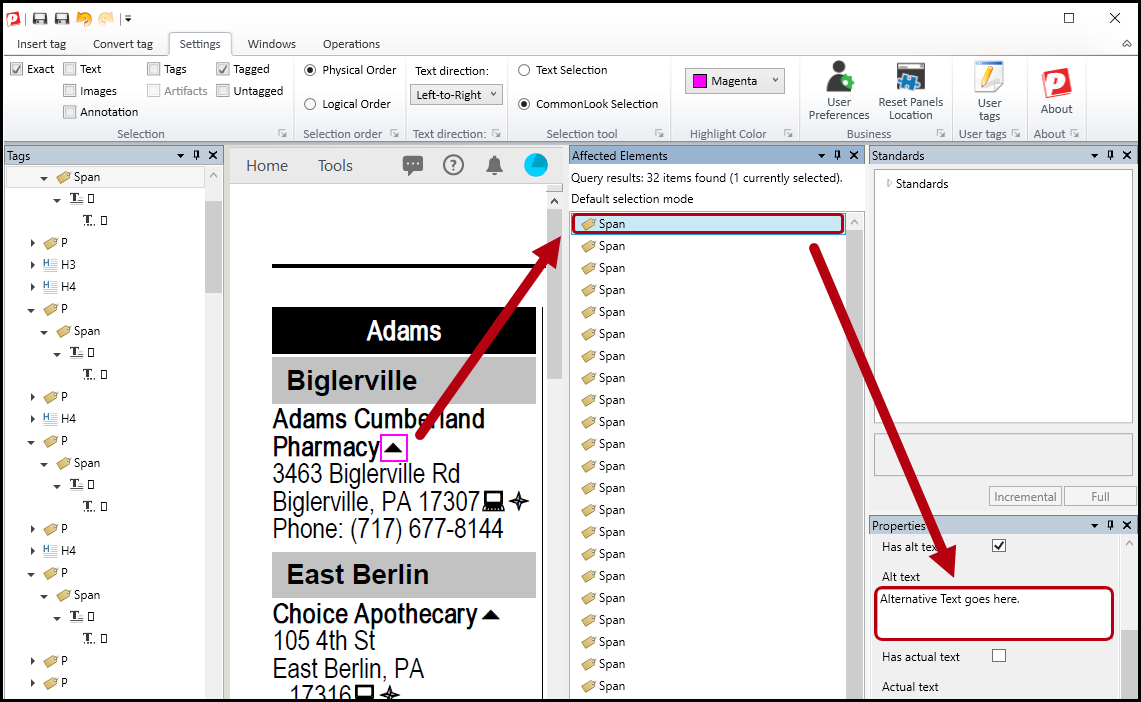
- In the Settings tab, click “Reset Panels Location” to put all of the panels back to their default locations.

Find and Replace using Wildcards
If font properties (bold, italics, strikethrough, etc.) are used to convey information, this is a failure of the color checkpoint. For example, in the PDF with the table in the screenshot below, there’s a key indicating that drug names in lowercase bold are generics and those in uppercase letters are brand name drugs. We can use Wildcards and font options, in Find and Replace, to find the lowercase bold words and then indicate that they’re generic drugs. (On a side note, we can use Find and Replace, as described above with symbols, to replace the “QLL” in the table with “Quantity Level Limits Apply.” Similarly, we can use Find and Replace with Regular Expressions – the next section in this article – to find all of the uppercase words to indicate that those are the brand name drugs.)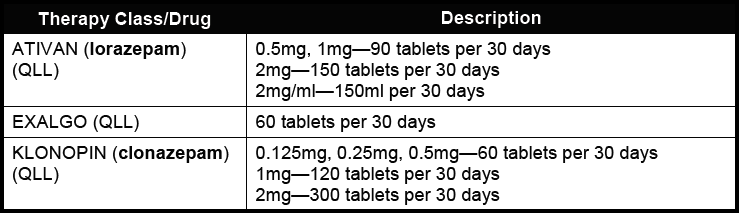
To Find and Replace using Wildcards, follow the steps below.
- Open Find and Replace (from the Windows tab or using Ctrl+H).
- Navigate to the Replace tab.
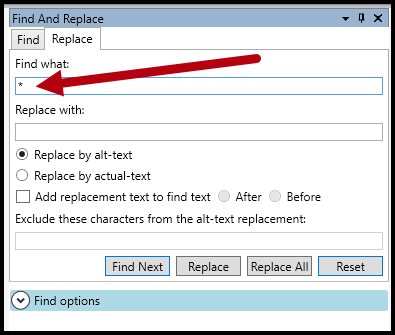
- In the “Find What” field type an asterisk (*). (In a later step, when we choose “Wildcards” this will change things so that instead of searching for asterisks, we’ll be looking for “everything.” We’ll then set other parameters so that we aren’t literally finding everything.)
- In the “Replace with” field, enter your required Alt. text. (In this example, indicating drug names in lowercase bold text are generics, we’ll add “Generic Drug” in this field.)
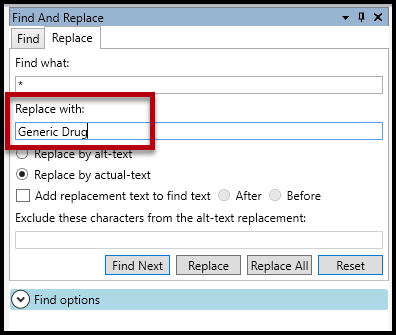
- Decide whether to make the “Replacement text” (from the previous step) Alt. text or Actual text. (For this example, replacing text with other text, Actual text would be the correct option.)
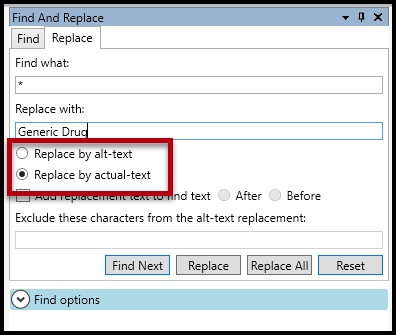
- Choose whether or not to “Add (the) replacement text to (the) find text.” In other words, do you want your Alt. (or Actual) text to replace the words that you’re finding, or do you want to add that information to the other text that’s currently there? In this example of finding generic drug names and then indicating that they’re generics, we’d add the replacement text (generic drug) to the “find text” (the drug name) so that the screen reader reads both the drug name and that it’s a generic drug. In contrast, we didn’t check that checkbox when using Find and Replace for symbols (the section above) because we wanted to replace the symbol with its actual meaning.
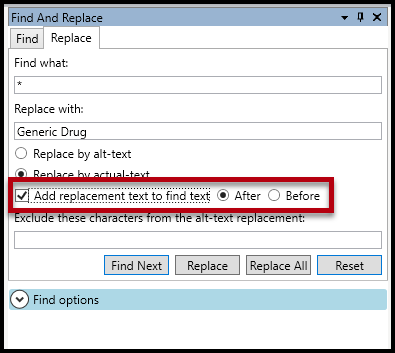
- Choose whether to add the replacement text before or after the “find” text. In our example here, do you want a screen reader to say that it’s a generic drug before or after the drug’s name?
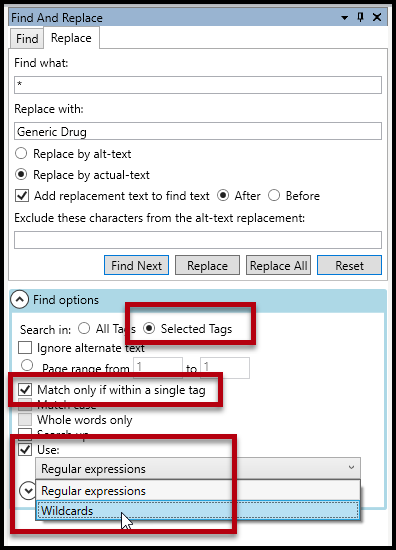
- Open the “Find options” section in the Find and Replace panel. Helpful selections to make can be:
- Search in Selected tags: Select the tag (or tags) where you want to run your Find and Replace, and then choose the radio button for “Selected Tags” so that, as in this example, you’ll only find the lowercase bold words in the table and not all of them in the entire document.
- Match only if within a single tag: This will make the search go tag by tag looking for the lowercase bold words instead of finding lowercase bold letters in multiple tags and treating them like all one word (and giving them our predetermined Actual text).
- Use: Check this checkbox and then, from the dropdown menu, choose Wildcards. This will set the search so that you’re looking for “everything” and not asterisks (because that’s what we put in the “Find what” box in step 3). Note: We are going to further refine our parameters so that we aren’t literally finding “everything.”
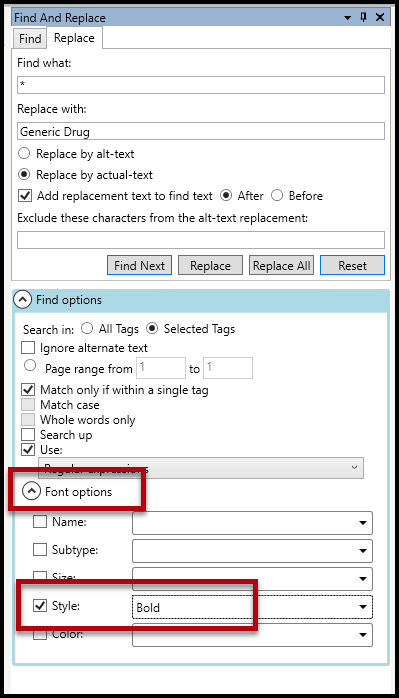
- Below the dropdown menu for “Wildcards,” expand the “Font options.” Check the checkboxes and use the options in the dropdown menus to choose by font name, subtype, size, style, and color. Because, in the example we’re using for this manual, we’re searching for text in bold, the Style checkbox is checked and then Bold is selected in the dropdown menu.
- After all of the search parameters have been set, navigate back up in the Find and Replace panel to the “Find Next” button. Use this button to find the first (and subsequent) occurrences of whatever you’re searching for. (In this scenario it’s not recommended to just hit “Replace All.” Using “Find Next” will take you step by step through wherever you’re searching giving you greater control over what words get the new Alt. (or Actual) text and which ones don’t.) When you find a word that needs to have Alt. (or Actual) text assigned to it then… (continue to the next step)
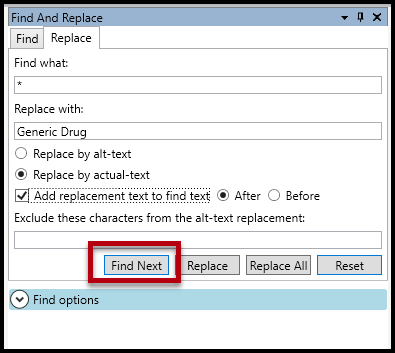
- … Use the “Replace” button to assign the Alt. (or Actual) text to your search result. (The “Replace” button is shown in the screenshot above, immediately to the right of the “Find Next” button. If using keyboard navigation, from the “Find Next” button, use the right-arrow to get to the “Replace” button.)
Tip: Use “Find Next” to skip over something that’s been found that you don’t want to replace with Alt. (or Actual) text. - When you’ve found all instances of what you were searching for a dialog box will open indicating that CommonLook has reached the end of the search. Choose “Ok” to close the dialog box.
Find and Replace using Regular Expressions
In the example above, we used Wildcards to find the bold lowercase drug names in the table and indicate that they’re generic drugs. Another similar functionality is to use Regular Expressions. This can be helpful, for example, to find the drug names (in the table, from our Wildcards example) that are in uppercase letters to then indicate that they’re brand name drugs.
To Find and Replace using Regular Expressions, follow the steps below.
- Open Find and Replace (from the Windows tab or using Ctrl+H).
- Navigate to the Replace tab.
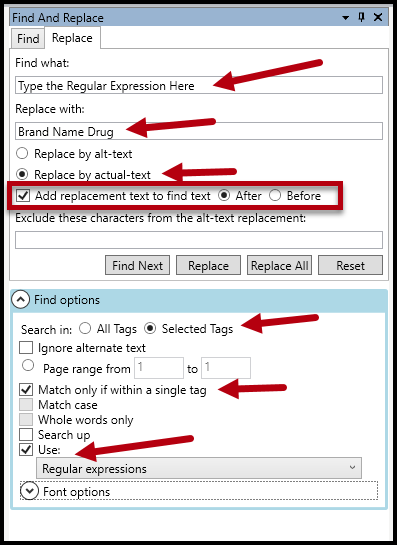
- In the “Find What” field type the Regular Expression needed. (Note: Regular Expressions can be quite complex and are beyond the scope of this article. That said, after these steps, there are some Regular Expressions provided to help get you started.)
- As in the steps above, in the “Replace with” field, enter your required Alt. (or Actual) text. (In this example, indicating drug names in uppercase text are brand name drugs, we’d add “Brand Name Drug” in this field.)
- Decide whether to make the “Replacement text” (from the previous step) Alt. text or Actual text. (For this example, replacing text with other text, Actual text – is the correct option.)
- As with the Wildcards example, choose whether or not to “Add (the) replacement text to (the) find text.” In other words, do you want your Alt. (or Actual) text to replace the words that you’re finding, or do you want to add that information to the other text that’s there? In this example of finding and indicating brand name drugs, we’d add the replacement text (brand name drug) to the “find text” (the drug name) so that the screen reader reads both the drug name and that it’s a brand name drug. In contrast, we didn’t check that checkbox when using Find and Replace for symbols because we wanted to replace the symbol with its actual meaning.
- Choose whether to add the replacement text before or after the “find” text. In other words, do you want a screen reader to say that it’s a brand name drug before or after the drug’s name?
- Open the “Find options” section in the Find and Replace panel. Helpful selections to make can be:
- Search in Selected tags: Select the tag (or tags) where you want to run your Find and Replace and then select the radio button for “Selected Tags” so that, as in this example, you’ll only find the uppercase words in the table and not all of them in the entire document.
- Match only if within a single tag: This will make the search go tag by tag looking for the uppercase words instead of finding uppercase letters in multiple tags and treating them like all one word (and giving them our predetermined Actual text).
- Use: Check this checkbox and then, from the dropdown menu, choose Regular Expressions. This will set the search so that you’re not looking for the literal text used in the Regular Expression but, instead, what it means.
- Optionally, below the dropdown menu for “Regular Expressions,” expand the “Font options.” If needed, check the checkboxes and use the options in the dropdown menus to choose by font name, subtype, size, style, and color. (This can be helpful if searching for all uppercase words in a particular font, for example.)
- After all of the search parameters have been set, navigate back up in the Find and Replace panel to the “Find Next” button. Use this button to find the first (and subsequent) occurrences of whatever you’re searching for. (It’s not recommended to just hit “Replace All.” Using “Find Next” will take you step by step through wherever you’re searching, giving you greater control over what words get the new Alt. (or Actual) text and which ones don’t.) When you find a word that needs to have Alt. (or Actual) text assigned to it then… (continue to the next step)
- … Use the “Replace” button to assign the Alt (or Actual) text to your search result. (The “Replace” button is shown in the screenshot above, immediately to the right of the “Find Next” button. If using keyboard navigation, from the “Find Next” button, use the right-arrow to get to the “Replace” button.)
Tip: Use “Find Next” to skip over something that’s been found that you don’t want to replace with Alt. text. - When you’ve found all instances of what you were searching for, a dialog box will open indicating that CommonLook has reached the end of the search. Choose “Ok” to close the dialog box.
The screenshot below shows all of the parameters set as described in the preceding steps.
Some Regular Expressions for Find and Replace
Here are three regular expressions to get you started. Keep in mind that regular expressions will change based on what you're searching for.
- Looking for words with 3 or more CAPITAL LETTERS: [A-Z]{3,}[A-Z ]+
- Looking for words with 3 or more letters in lower case: [a-z]{3,}[a-z ]+
- Looking for words with 3 or more CAPITAL LETTERS and numbers: (ex. MYAGEIS 40): [A-Z]{3,}[A-Z0-9 ]+
Suggestion: If the text is lower case and bold (for example) then use the Regular Expression for the lowercase letters and use the Font Options choices for bold, color, etc. as needed.
Didn't find what you're looking for? Navigate to our "Tagging (or Untagging) Content" section for more related articles that may help!
Was this article helpful?
That’s Great!
Thank you for your feedback
Sorry! We couldn't be helpful
Thank you for your feedback
Feedback sent
We appreciate your effort and will try to fix the article