Note: The keyboard functionality below applies to both the desktop and web-based versions of CommonLook PDF unless otherwise specified.
Tag Creation and Conversion Shortcuts
| TAG | CREATE (Insert tag) | CONVERT (Convert tag) |
| Toggle Sticky buttons | Desktop: Alt + i +s (Press sequentially, not in combination) Web-based: Use the Tab key for navigation | N/A |
| Toggle Individual Parents | Desktop: Alt + i + v (Press sequentially, not in combination) Web-based: Use the Tab key for navigation | N/A |
P
| Ctrl+7 | Ctrl+Shift+7 |
Hn (1-6)
| Ctrl+(1-6) | Ctrl+Shift+(1-6) |
| H (non-numbered Heading) | Desktop: Alt + i + 7 (Press sequentially, not in combination) Web-based: Use the Tab key for navigation | Desktop: Alt + c + 7 (Press sequentially, not in combination) Web-based: Use the Tab key for navigation |
Figure
| Ctrl+g | Ctrl+Shift+g |
Caption
| Ctrl+q | Ctrl+Shift+q |
| Table | Desktop: Alt + i + b (Press sequentially, not in combination) Web-based: Use the Tab key for navigation | Desktop: Alt + c + b (Press sequentially, not in combination) Web-based: Use the Tab key for navigation |
| TR | Desktop: Alt + i + r (Press sequentially, not in combination) Web-based: Use the Tab key for navigation | Desktop: Alt + c + r (Press sequentially, not in combination) Web-based: Use the Tab key for navigation |
| TH | Desktop: Alt + i + h (Press sequentially, not in combination) Web-based: Tab for navigation Use the Tab key for navigation | Desktop: Alt + c + h (Press sequentially, not in combination) Web-based: Use the Tab key for navigation |
TD
| Ctrl+d | Ctrl+Shift+d |
| L | Desktop: Alt + i + l (Press sequentially, not in combination) Web-based: Use the Tab key for navigation | Desktop: Alt + c + l (Press sequentially, not in combination) Web-based: Use the Tab key for navigation |
LI
| Ctrl+i | Ctrl+Shift+i |
Lbl
| Ctrl+l | Ctrl+Shift+l |
LBody
| Ctrl+b | Ctrl+Shift+b |
Span
| Desktop: Ctrl+w Web-based: Ctrl+Alt+w | Desktop: Ctrl+Shift+w Web-based: Ctrl+Alt+Shift+w |
Link
| Ctrl+k | Ctrl+Shift+k |
Form
| Ctrl+8 | Ctrl+Shift+8 |
| TOC | Desktop: Alt + i + z (Press sequentially, not in combination) Web-based: Use the Tab key for navigation | Desktop: Alt + c + o3 (letter "o," not zero) (Press sequentially, not in combination) Web-based: Use the Tab key for navigation |
TOCI
| Ctrl+o (Tagged panel only) | Ctrl+Shift+o |
Note
| Desktop: Ctrl+n Web-based: Ctrl+Alt+n | Desktop: Ctrl+Shift+n Web-based: Ctrl+Shift+Alt+n |
Reference
| Ctrl+r | Ctrl+Shift+r |
| ReversedChars | Desktop: Alt + i + o7 (letter "o," not zero) (Press sequentially, not in combination) Web-based: Use the Tab key for navigation | Desktop: Alt + c + o7 (letter "o," not zero) (Press sequentially, not in combination) Web-based: Use the Tab key for navigation |
Standard Tags (dropdown menu) | Desktop: Alt + i + o8 (letter "o," not zero) (Press sequentially, not in combination) Web-based: Use the Tab key for navigation | Desktop: Alt + c + o8 (letter "o," not zero) (Press sequentially, not in combination) Web-based: Use the Tab key for navigation |
Role Map tags (dropdown menu) | Desktop: Alt + i + o9 (letter "o," not zero) (Press sequentially, not in combination) Web-based: Use the Tab key for navigation | Desktop: Alt + c + o9 (letter "o," not zero) (Press sequentially, not in combination) Web-based: Use the Tab key for navigation |
Generate Table
| Desktop: Ctrl+t Web-Based: Ctrl+Alt+t | N/A |
Generate List
| Desktop: Ctrl+9 Web-Based: Ctrl+Alt+9 | N/A |
Generate TOC
| Desktop: Ctrl+0 (zero) Web-Based: Ctrl+Alt+0 (zero) | N/A |
| Pagination | Desktop: Alt + i + w (Press sequentially, not in combination) Web-based: Use the Tab key for navigation | N/A |
| User Tags | Desktop: Alt + i + u1 (Press sequentially, not in combination) Web-based: Use the Tab key for navigation Tab for navigation (if they have been added in the ribbon) | Desktop: Alt + c + u1 (Press sequentially, not in combination) Web-based: Use the Tab key for navigation (if they have been added in the ribbon) |
Tag Annotations |
Ctrl+o (Untagged Content panel only) | N/A |
| Tag |
Desktop: Ctrl+t (Untagged Content panel only) Web-Based: Ctrl+[ | N/A |
Convert to TH and set the scope to Column |
N/A
| Ctrl+c (With focus on a cell, or cells, in the Table Editor) |
| Convert to TH and set the scope to Row |
N/A
| Ctrl+r (With focus on a cell, or cells, in the Table Editor) |
Quick Access Toolbar Shortcuts
| OPERATION | SHORTCUT |
|---|---|
Quick Save (Desktop) Save (Web-based)
| Ctrl+s |
Save and Close (Desktop only)
| Ctrl+Shift+c |
Close (without saving)
| Desktop: Alt+F4 Web-based: "Exit" (button) Use the Tab key for navigation |
Undo
| Ctrl+z |
Redo
| Ctrl+y |
Settings Tab Shortcuts
| OPERATION | SHORTCUT |
|---|---|
| Selection: Exact | Desktop: Ctrl+Shift+e Web-based: Ctrl+Alt+Shift+e |
| Selection: Text | Ctrl+Shift+x |
| Selection: Images | Desktop: Ctrl+Shift+s Web-based: Ctrl+Alt+Shift+s |
| Selection: Annotation | Desktop: Ctrl+Shift+a Web-based: Ctrl+Alt+Shift+a |
| Selection: Tags | Ctrl+Shift+z |
| Selection: Artifacts | Ctrl+Shift+Space |
| Selection: Tagged Elements | Ctrl+Shift+h |
| Selection: Untagged Elements | Ctrl+Shift+v |
| Selection Order: Physical Order | Desktop: Alt+s+h (Press sequentially, not in combination) Web-based: Tab to the dropdown and then expand it to make the selection. |
| Selection Order: Logical Order | Desktop: Alt+s+l (Press sequentially, not in combination) Web-based: Tab to the dropdown and then expand it to make the selection. |
| Text Direction: Left-to-Right | Desktop: Alt+s+c0 (Press sequentially, not in combination) Web-based: Tab to the dropdown and then expand it to make the selection. |
| Text Direction: Right-to-Left | Desktop: Alt+s+c1 (Press sequentially, not in combination) Web-based: Tab to the dropdown and then expand it to make the selection. |
| Selection Tool: Text Selection | Desktop: Alt+s+j (Press sequentially, not in combination) Web-based: Tab to the dropdown and then expand it to make the selection. |
| Selection Tool: CommonLook Selection | Desktop: Alt+s+z (Press sequentially, not in combination) Web-based: Tab to the dropdown and then expand it to make the selection. |
| Highlight Color | Desktop: Alt+s+k (Press sequentially, not in combination) Web-based: Tab to the menu and then use Tab and Arrows to change highlight colors. |
| User Preferences | Desktop: Alt+s+f (Press sequentially, not in combination) Then, Tab or Arrow through the options in the dialog box. Web-based: Navigate to the "hamburger" menu at the top left of the interface, choose "Settings" and then "Preferences." 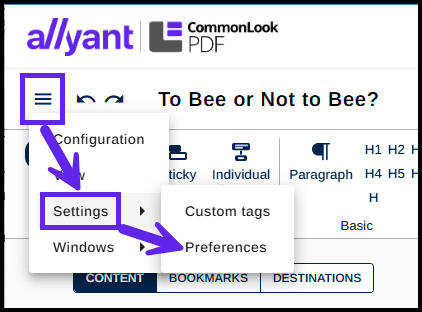 |
| Reset Panels Location | Desktop: Alt+s+s (Press sequentially, not in combination) Web-based: |
| User Tags | Desktop: Alt+s+i (Press sequentially, not in combination) Web-based: Navigate to the "hamburger" menu at the top left of the interface, choose "Settings" and then "Custom Tags." 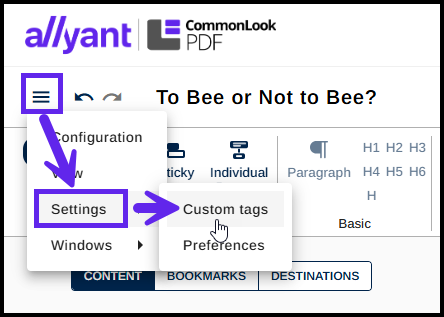 |
| About | Desktop: Alt+s+t (Press sequentially, not in combination) Web-based: N/A |
Windows Tab Shortcuts
| OPERATION | SHORTCUT |
|---|---|
| Affected Elements | Desktop: Alt + w + e
|
| Bookmarks | Desktop: Alt + w + b Web-based: Use the Tab key for navigation
|
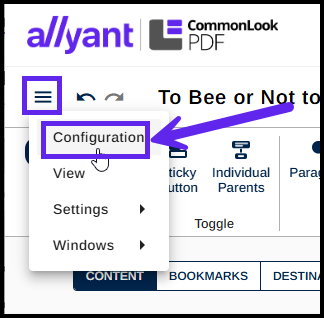
| Checkpoint Configuration | Desktop: Alt + w + c Web-based: Navigate to the "hamburger" menu at the top left of the interface, open it, and choose Configuration.
|
| Find And Replace (Find) | Desktop: Ctrl+f OR Web-based: Ctrl+f |
| Find And Replace (Replace) | Desktop: Ctrl+h OR Web-based: Ctrl+f (to open Find and Replace, and then navigate to the "Replace Text" tab) |
| Metadata | Desktop: Alt + w + m Web-based: Use the Tab key for navigation |
| Properties | Desktop: Alt + w + p Web-based: Use the Tab key for navigation |
| Results | Desktop: Alt + w + r Web-based: Use the Tab key for navigation |
| Role Map | Desktop: Alt + w + l Web-based: Use the Tab key for navigation |
| Search Tags | Desktop: Alt + w + s Web-based: Ctrl+Shift+f |
| Standards | Desktop: Alt + w + d Web-based: Use the Tab key for navigation |
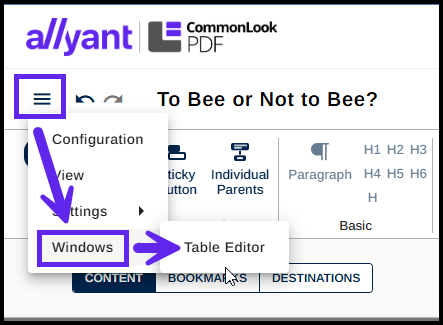
| Table Editor | In addition from getting to the Table Editor from the Context menu on a Table tag or using Ctrl+Shift+F1 Desktop: Alt + w + o Web-based: Navigate to the "hamburger" menu at the top left of the interface, choose Windows and then choose Table Editor.
|
| Tags | Desktop: Alt + w + t Web-based: Use the Tab key for navigation (Tab to Content to navigate into the Tags tree.) |
| Untagged Content | Desktop: Alt + w + u Web-based: Use the Tab key for navigation (Tab to Content, navigate through the Tags to then get to the Untagged Content.) |
| Destinations | Desktop: Alt + w + n Web-based: Use the Tab key for navigation |
| Help | Desktop: F1 OR Web-based: Help is available from the Support page in the software. |
Operations Tab Shortcuts
These shortcuts are available in the context menus of selected tags, text elements and/or text runs OR in the ribbon of the Operations tab.
| OPERATION | SHORTCUT |
|---|---|
Untag
| Delete |
Tag Properties (moves focus to the Properties panel)
| Desktop: Use Ctrl+Tab to navigate to Properties Web-based: Use the Tab key for navigation |
Merge Tags
| Ctrl+m |
Expand all
| Desktop: Ctrl+Plus Web-based: Ctrl+Alt+Plus |
Collapse all
| Desktop: Ctrl+Minus Web-based: Ctrl+Alt+Minus |
Expand Tag(s)
| Desktop: Ctrl+Shift+Plus Web-based: Alt+Shift+Plus |
Cut
| Ctrl+x |
Copy
| Desktop only: Ctrl+c |
Paste as sibling
| Ctrl+v |
Paste as child
| Ctrl+Shift+v |
Create tag as parent
| Desktop: Ctrl+j Web-based: Ctrl+Alt+Shift+j |
Create tag as sibling before
| Ctrl+F10 |
Create tag as sibling after
| Ctrl+F11 |
Create tag as child
| Ctrl+Shift+j |
Cleanup – Full cleanup
| Ctrl+u |
Cleanup – Skip empty cells
| Ctrl+e |
Table full cleanup (from within a table tag) | Desktop: Ctrl+Shift+t Web-based: Alt+Shift+t |
Level up
| Desktop: Ctrl+p Web-based: Ctrl+Alt+p |
Level up children of tag
| Desktop: Ctrl+Shift+p Web-based: Ctrl+Alt+Shift+p |
Change tag order up (Move Up)
| Ctrl+Shift+Up |
Change tag order down (Move Down)
| Ctrl+Shift+Down |
Tag Similar
| Ctrl+Shift+F5 |
Copy contents To ActualText
| Ctrl+Shift+F2 |
Copy contents To Alt text
| Ctrl+Shift+F3 |
Split textrun
| Ctrl+Shift+x |
Calculate bounding box
| Ctrl+F5 |
Linearize table horizontally
| Ctrl+Shift+h |
Linearize table vertically
| Ctrl+Shift+u |
Create linked headers (in Tables) One level
| Ctrl+Shift+F10 |
Create linked headers (in Tables) Recursive | Ctrl+Shift+F11 |
Show table editor
| Ctrl+Shift+F1 |
| Insert Caption (in Tables) | Desktop: Alt + o + 8 (Press sequentially, not in combination) Web-based: Available in the ribbon from the Operations tab (when a Table tag is selected). |
Insert row before (in Tables)
| Ctrl+F10 |
Insert row after (in Tables)
| Ctrl+F11 |
Insert cell after
| Ctrl+Shift+F4 |
Insert cell before
| Desktop: Ctrl+Alt+F4 Web-based: Ctrl+Alt+Shift+F4 |
| Split to rows | Desktop: Alt + o + 7 (Press sequentially, not in combination) Web-based: This function is available from the context menu of a TD or TH. |
Application Navigation Shortcuts
| OPERATION | SHORTCUT |
|---|---|
Navigate between panels
| Ctrl+Tab |
Navigation toolbar
| Desktop: F12 Web-based: Use the Tab key for navigation |
Help
| Desktop: F1 Web-based: Navigate to the Support screen |
Insert tag (Ribbon)
| Desktop: Alt + I Web-based: Use the Tab key for navigation |
Convert tag (Ribbon)
| Desktop: Alt + c Web-based: Use the Tab key for navigation |
Settings (Ribbon)
| Desktop: Alt + s Web-based: Use the Tab key for navigation |
Windows (Ribbon)
| Desktop: Alt + w Web-based: Use the Tab key for navigation |
Operations (Ribbon)
| Desktop: Alt + o Web-based: Use the Tab key for navigation |
Quick Save
| Desktop: Alt + 1 Web-based: Use the Tab key for navigation |
Save and Close
| Desktop: Alt + 2 Web-based: N/A |
Undo
| Both: Ctrl+z Desktop: Alt + 3 Web-based: Use the Tab key for navigation |
Redo
| Both: Ctrl+y Desktop: Alt + 4 Web-based: Use the Tab key for navigation |
Navigate between panels in a group
| Desktop: Ctrl + Page Up, Ctrl + Page Down Web-based: Use the Tab key for navigation |
Display Window Options for active panel | Desktop: Alt + – Web-based: N/A |
Recall (on the Insert Tag ribbon)
| Desktop: Alt + i + 9 Web-based: Use the Tab key for navigation |
Was this article helpful?
That’s Great!
Thank you for your feedback
Sorry! We couldn't be helpful
Thank you for your feedback
Feedback sent
We appreciate your effort and will try to fix the article