Role Maps and Custom Tags (Desktop and Advanced Editor)
Modified on Sat, 14 Jun, 2025 at 10:50 AM
Often, in a PDF, we'll find tags in the Tags tree that don't have standard PDF tag names. This is permissible as long as the custom tags are “role mapped” (associated) to standard PDF tags.
When a PDF uses custom tags you essentially have two options. Either check their role mapping to make sure that it's correct and then keep the custom tags or convert the custom tags to whatever standard tag they've been mapped to.
Checking and Editing Role Maps
To check (and edit, if needed) the role mapping of custom tags, follow these steps:
- Navigate to the Windows tab and choose the Role Map button.

- In the “Role Map” panel that opens, check that the custom tag (listed in the left column of the panel) is mapped to the correct standard tag (shown in the right column).
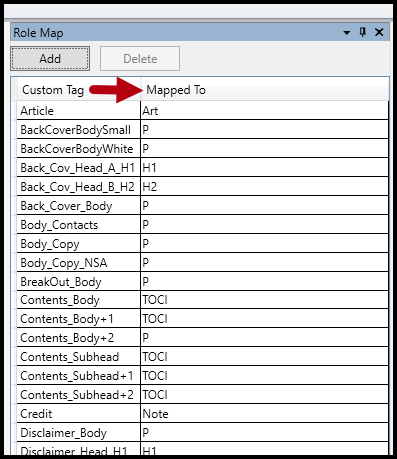
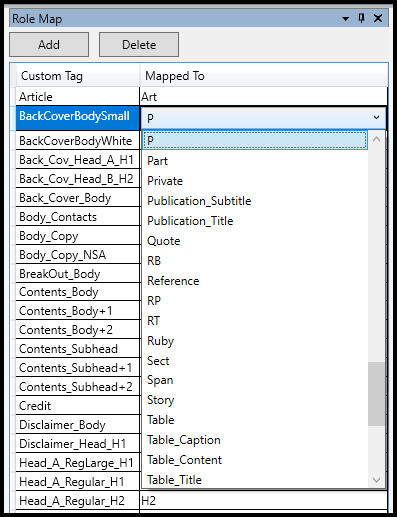
- If the custom tag is not mapped to the proper standard tag, click once in the standard tag field that needs to be changed, click again to provide a dropdown arrow to change the tag, and click a third time to open the menu of tags from which to choose. Then, choose a new tag to which the custom tag should be mapped.
The screenshot below shows the Role Map panel open with a custom tag selected. In addition, the standard tag dropdown menu is visible, showing the tag type options to which the custom tag may be mapped.
Removing Role Maps (Converting to their Standard PDF tag type)
To automatically convert custom tags to their standard tag equivalent:
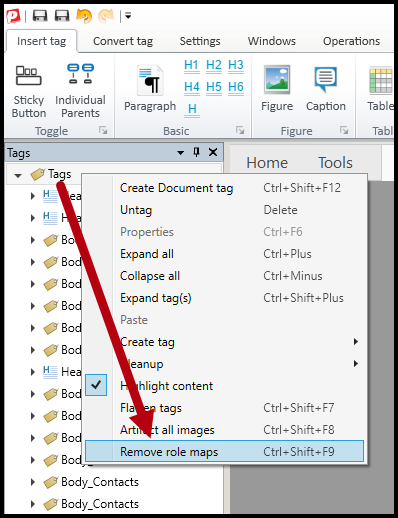
- Select the Tags root,
- Right-click or otherwise open the context menu,
- Choose “Remove role maps.”
When "Remove role maps" didn't work as expected
Here are some different scenarios that can occur in documents and how "Remove role maps" will work:
- If a custom tag is role mapped to a standard PDF tag, when role maps are removed, the custom tag will be converted to its standard tag "equivalent."
- If a custom tag is role mapped to another custom tag, remove role maps will seem to have no effect because CL PDF doesn't know what standard PDF tag to convert the custom tag to.
- If a custom tag is not role mapped at all, remove role maps will seem to have no effect because CL PDF doesn't know what standard PDF tag to convert the custom tag to.
Oftentimes "Remove role maps" and "Flatten tags" go hand in hand. If you're having issues with flattening tags, in addition to the role mapping, please refer to our article on Flatten Tags for more information about that functionality.
When standard PDF tags have been role-mapped.
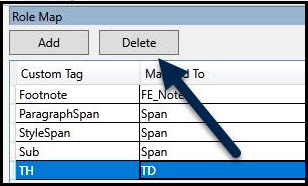
When one or more standard PDF tags have been role mapped, you will receive a Warning dialog box, as shown in the screenshot below, when you open CL PDF. The PDF accessibility standards do not allow standard PDF tags to be role mapped to something else. For one reason, if you have a standard tag role mapped to a different tag, this can cause functionality issues and unintended tag behavior for assistive technology. For example, you cannot have a TH tag role mapped to a TD tag. Both are standard tags and will result in all data tables in a document lacking any header cells. Furthermore, you will not be able to assign the proper column or row header scope to these tags (because, in this example, you can't assign scope to a TD).
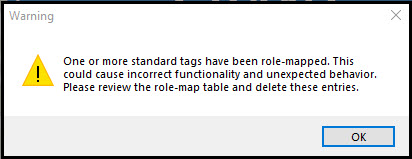
If this warning in the above screenshot appears when opening the document follow these steps:
1. Navigate to the Windows tab and choose the Role Map button.
2. In the “Role Map” panel that opens, look in the Custom Tag column for any standard tags.
3. Next, select the standard tags that are role mapped to another tag, and then press the delete button, above the table.
Didn't find what you're looking for? Navigate to our "Tagging (or Untagging) Content" section for more related articles that may help!
Was this article helpful?
That’s Great!
Thank you for your feedback
Sorry! We couldn't be helpful
Thank you for your feedback
Feedback sent
We appreciate your effort and will try to fix the article