Product
Simplified Editor (Web-based CL PDF)
Feature
Getting Started, General Questions
Overview
This article answers some of the most common questions new users have when getting started with CommonLook PDF, including which editor to choose, file size limits, saving your progress, redoing a project, and understanding your compliance report.
Frequently Asked Questions
Which editor should I choose?
For most documents, the Simplified Editor is the easier place to start. Consider using the Advanced Editor instead if any of the following apply to your document:
- It is 150 pages or longer.
- It contains more than one language.
- The document language is not one of the following: English, French, Spanish, Basque, Bulgarian, Catalan, Croatian, Czech, Danish, Dutch, Estonian, Finnish, German, Hungarian, Italian, Latvian, Lithuanian, Norwegian, Portuguese (Brazilian), Romanian, Russian, Slovak, Slovenian, Swedish, Turkish, Ukrainian, or Polish.
- You need to use Span tags to fix OCR errors.
- The document contains very complex tables.
- You want to add alt text for links that is different from the visible link text.
- You need specific, manual control over the reading order and how your document is presented to end users.
- You want to guarantee the document complies with standards like ISO 32000, HHS, or WCAG 2.x, or if you want to ensure your PDF complies with both PDF/UA and one of those other standards.
Is there a file size or page count limit?
Yes. Both web based CommonLook PDF editors have a file size limit of 200MB. If your document is longer than 150 pages, we recommend using the Advanced Editor instead of the Simplified Editor.
Can I save my progress and come back later?
Yes. Choose "Save and Continue Later" while working.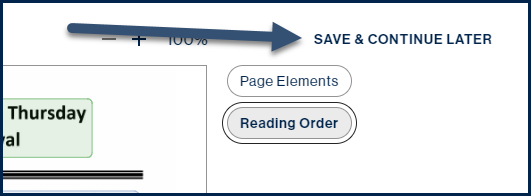
When you are ready to pick the project back up, go to your list of Remediations, find the project marked "Editing," and select "Continue."
Can I redo a document I already completed?
Yes. From the Remediations screen, click the three dots next to the file to open the menu. From there, you can choose to edit the document again using either the Simplified or Advanced Editor.
You will see a dialog box letting you know that the file will need to be converted again to generate a new accessible version.
Important: This action cannot be undone. Once you choose to rework a file, the previously downloaded accessible version will no longer be available on the Remediations screen. You will need to complete the process again to download a new version. Also, if you choose to use the Advanced Editor, you will not be able to switch back to the Simplified Editor for that file afterward.
Select "Yes, Edit Again" to proceed, or "Cancel" to back out. If you choose "Yes, Edit Again" with the Simplified Editor, you will be brought back into the software at the Full Document Review stage.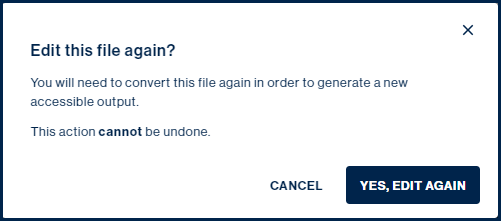
Why do I have Warnings and User Verification items in my PDF/UA Compliance Report?
The Simplified Editor can automatically confirm many accessibility checkpoints, but some require a manual review. These checkpoints will show a status of either "User Verification" or "Warning." Review both types carefully and make any needed changes to your document to ensure everything is correct.
Was this article helpful?
That’s Great!
Thank you for your feedback
Sorry! We couldn't be helpful
Thank you for your feedback
Feedback sent
We appreciate your effort and will try to fix the article