Product
Advanced Editor (Web-based CL PDF)
CommonLook PDF Desktop Version
Feature
PostScript
Document Element
Running PostScript for Font Encoding/Unicode Mapping and Form XObject Issues
Overview
"Running" PostScript means exporting a PDF to a PostScript file through Acrobat and then reopening that file so Distiller rebuilds it into a new PDF. This process can resolve certain document issues that are otherwise difficult or impossible to fix directly, but it comes with an important trade-off: saving a document as PostScript may change the physical view of the document, and all interactive elements — such as forms and links — will be removed.
Prerequisites
The PDF document you're trying to remediate has Font Encoding/Unicode Mapping issues you're unable to fix directly.
Steps to Follow
Warning: Saving a document as PostScript may change the physical view of the document, and all interactive elements (forms, links, etc.) will be removed.
How to "Run" PostScript
- With the PDF open in Acrobat, navigate to File.
- Navigate to "Export to" and, in the submenu, choose PostScript.
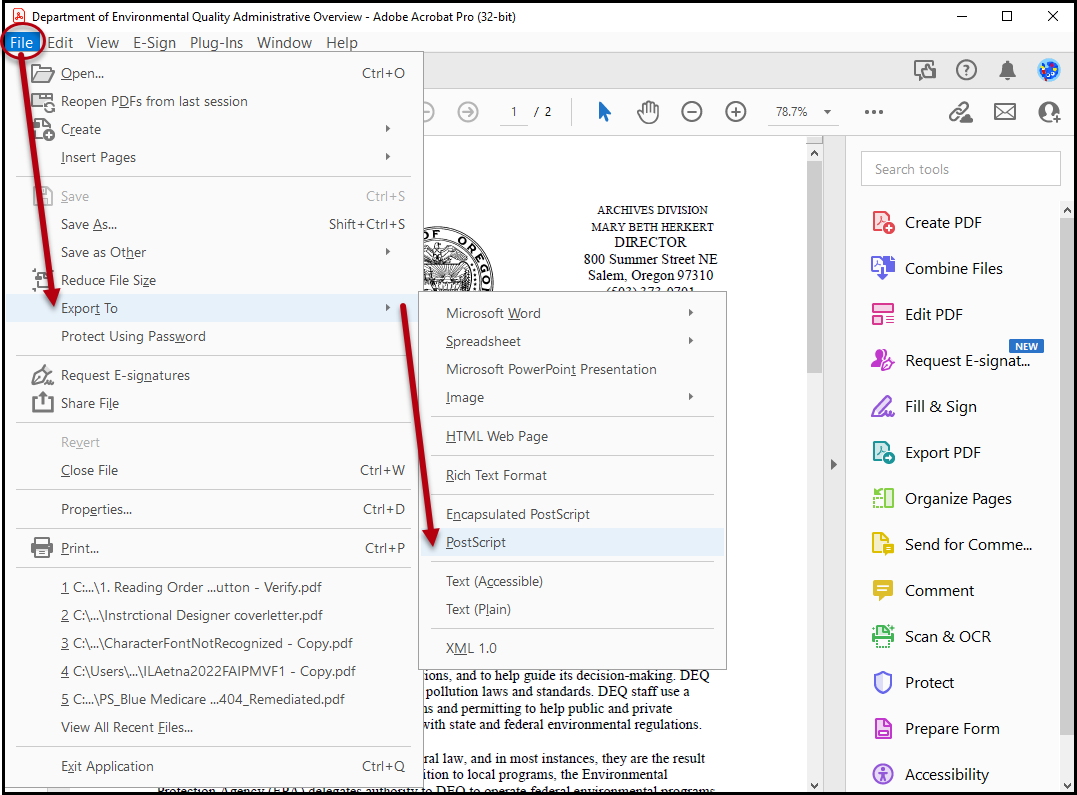
- Save the PostScript file with a new name so you can tell the original and the PostScript file apart.
- When the PostScript file is saved, open it. The Distiller will run, creating a new PDF.
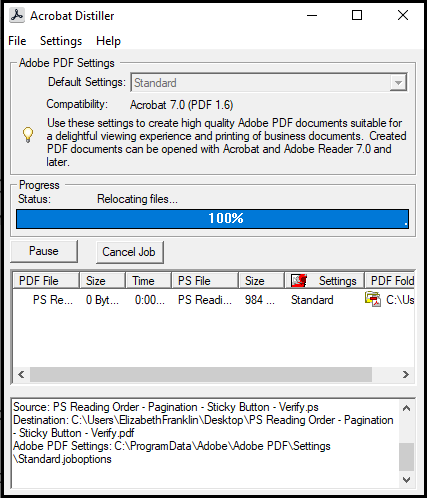
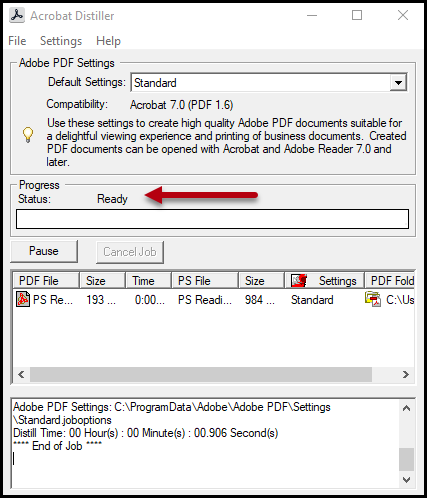
- Once the Distiller is finished running, you will see "Ready" next to "Progress Status". Close it, and open the PDF. (Also, in the bottom portion of the dialog box, you'll find "End of Job.")
- Compare the newly created PDF with the previous version to ensure the physical view did not change.
Screenshots
Add screenshots to help illustrate
Common Problems
Running PostScript can change the physical view of the document and will remove all interactive elements (forms, links, etc.) — always compare the new PDF against the original (Step 6) to confirm the physical view is unchanged, and be aware that any forms or links will need to be recreated.
Frequently Asked Questions
When would you want to "Run" PostScript?
- If the PDF document you're trying to remediate has Font Encoding/Unicode Mapping issues you can't fix.
Was this article helpful?
That’s Great!
Thank you for your feedback
Sorry! We couldn't be helpful
Thank you for your feedback
Feedback sent
We appreciate your effort and will try to fix the article