Issue
Symptom
If Unicode mapping is missing or incorrect:
- screen readers cannot identify the text correctly
- failed text extraction
- search fails
- braille displays may output incorrect symbols
- text-to-speech may mispronounce or skip content
Caues
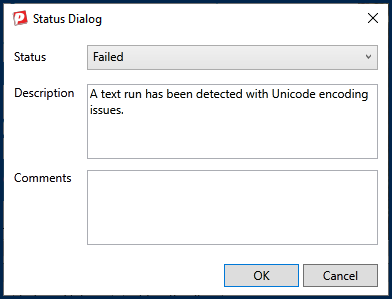
There are a variety of reasons why you may get an error message telling you that your document has Unicode, or character encoding, issues. Some possibilities include:
- Fonts are being used that are not, or cannot be, mapped to Unicode.
- How the PDF is being generated from the source.
Affected Users
Screenreader, Braille, and Text-to-speech Users.
Accessibility Guidelines
WCAG 2.2 SC 1.3.1 Information and Relationships (Level A): ensure that information and relationships that are implied by visual or auditory formatting are preserved when the presentation format changes.
WCAG 2.2 SC 4.1.2 Name, Role, Value (Level A): People using assistive technology understand all components.
Resolution Steps
Possible options include:
- Try using different fonts that are encoding correctly.
- Try generating the PDF a different way and see if that corrects the encoding issue.
- Convert the PDF to a Word document and then back to PDF. (Caution: This may change the physical view including fonts, graphics, layout, etc. In addition, links, form fields, and other interactive elements will likely be removed!)
- Try "Fix Font Issues" in Acrobat with the Pre-Flight tool.
- Delete the tags and retag the document in Acrobat.
- Run the document through "PostScript" in Acrobat and then convert it back to a PDF.
- Find someone who can fix mapping/encoding issues. (Note: This can be a very technical and labor-intensive process. Using the options above might be better.)
Verification
After you try to fix the encoding issue, run the PDF through an accessibility verification to determine if the issue has been resolved.
Related Articles
Was this article helpful?
That’s Great!
Thank you for your feedback
Sorry! We couldn't be helpful
Thank you for your feedback
Feedback sent
We appreciate your effort and will try to fix the article