Product
Simplified Editor (Web-based CL PDF)
Advanced Editor (Web-based CL PDF)
CommonLook PDF Desktop Version
CommonLook Edu
Feature
Fonts
Document Element
Font Encoding and Unicode Mapping Issues
Overview
Sometimes a standards check flags a problem with how a document's fonts are encoded, or with Unicode mapping. These issues live at the font level rather than in the document's tags, so they can't be fixed from within CommonLook PDF. Instead, they need to be addressed in Adobe Acrobat itself, using a tool called Preflight, or in the original source document. This article covers the Acrobat side of that fix: the "Fix potential font problems" option in Preflight.
Prerequisites
Before you start, make sure you:
- Have run a standards check that flagged a font encoding or Unicode mapping issue.
- Have access to Adobe Acrobat Pro, since Print Production and Preflight are Acrobat Pro features and may not be available in Acrobat Standard.
- Save a copy of your PDF first. This fix is applied directly in Acrobat, outside of CommonLook PDF, so it's good practice to keep a backup in case you want to compare files afterward.
Steps to Follow
- Open the PDF in Adobe Acrobat
- In the "Tools" open Print Production
- If it’s not already in the list of tools on the right side of Acrobat, from the Tools screen, choose “Add” to add it to the right side. (You can also reorder the tools on the right side so you don’t have to search so hard for it every time.)
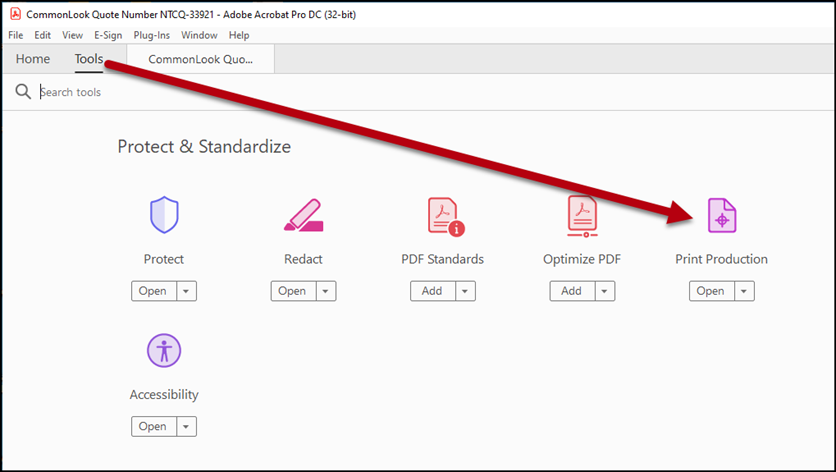
- If it’s not already in the list of tools on the right side of Acrobat, from the Tools screen, choose “Add” to add it to the right side. (You can also reorder the tools on the right side so you don’t have to search so hard for it every time.)
- In Print Production, choose Preflight."
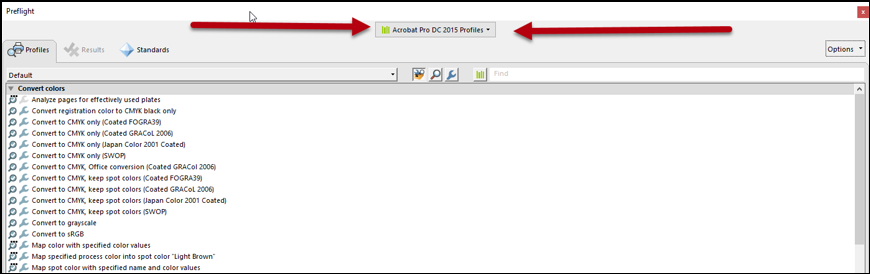
- In the Preflight panel, make sure your “Profile” (at the top, in the very center) is set to “Acrobat Pro DC 2015 Profiles
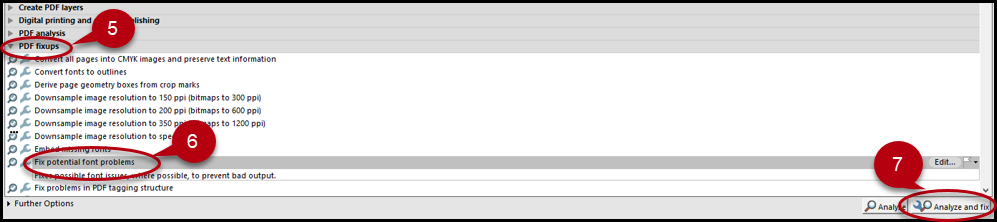
- Navigate down to "PDF fixups" and expand it
Select “Fix potential font problems”
Select "Analyse and Fix
Save (or Save As).
Re-run the document against accessibility standards to determine if this has fixed the font issue.
Common Problems
Print Production isn't listed in your Tools
Go to the Tools screen in Acrobat and click "Add" next to Print Production to add it to your tools list. You can also drag tools into a different order so the ones you use often are easier to find.
The font issue is still flagged after running Analyse and Fix
Some font problems come from how the font was embedded in the original source file rather than from something Preflight can correct on its own. If the issue persists, it may be necessary to go back to the source document (in Word, InDesign, or wherever it was created), fix or replace the problematic font there, and export a new PDF.
Frequently Asked Questions
Will this change anything else in my document?
"Fix potential font problems" only targets font encoding, so it typically doesn't affect your document's tagging or other content. Even so, it's good practice to keep a backup copy of your file before running any fixup in Acrobat.
Do I need to run this fix inside CommonLook PDF?
No. This fix happens in Adobe Acrobat's own Preflight tool, under Print Production, entirely outside of CommonLook PDF. Once it's done, run your CommonLook standards check again to confirm the fix worked.
What if I don't see Print Production or Preflight in my version of Acrobat?
These are Acrobat Pro features and generally aren't available in Acrobat Standard. If you don't see them, confirm which version of Acrobat you're using, and check with whoever manages your software license if you're not sure.
Was this article helpful?
That’s Great!
Thank you for your feedback
Sorry! We couldn't be helpful
Thank you for your feedback
Feedback sent
We appreciate your effort and will try to fix the article