Update: New in CL PDF version 5.13: CL PDF now supports tagging content within Form XObjects. If you are running CL PDF v.5.13 or later, you will not need to flatten Form XObjects to tag their content!
If you are running an older version of CL PDF than version 5.13, read on...
In some scenarios, remediators are unable to select some content in CommonLook no matter how hard they try. When typical fixes such as adjusting the selection settings don't work, it may be indicative of the content being "hidden" inside of Form XObjects.
Essentially, Form XObjects are graphical elements that can function just like any other image and be placed in a Figure tag but have a sneaky tendency to "hide" important content, such as text, inside of them. In the below screenshot, we have a document with two lists. The second list is unable to be selected, and the text is not showing up in the tag tree, untagged content, or anywhere else!
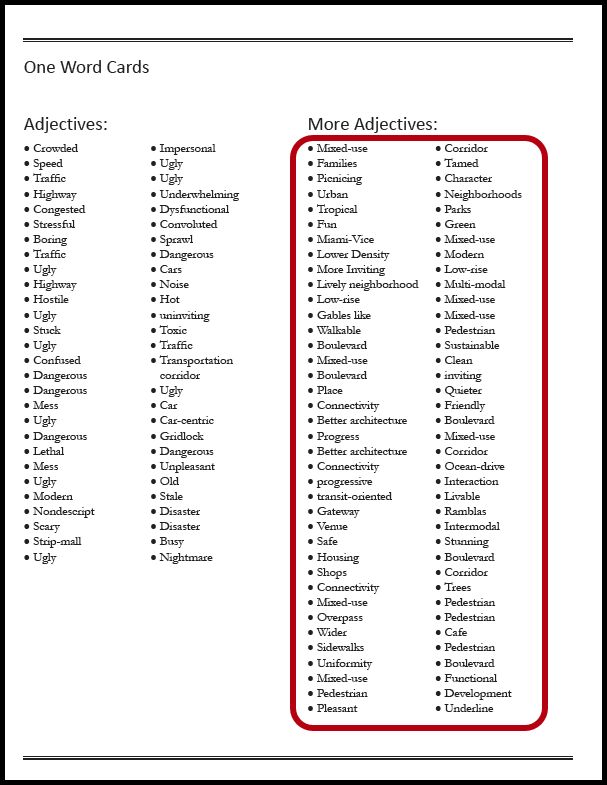
In this case, we must dive into the Content panel (in Acrobat) to find the missing content, move it outside of the Form XObject, and then save the change. From there, we will be able to bring it into CommonLook for remediation and should not have trouble tagging this second list properly.
Locating the Missing Content
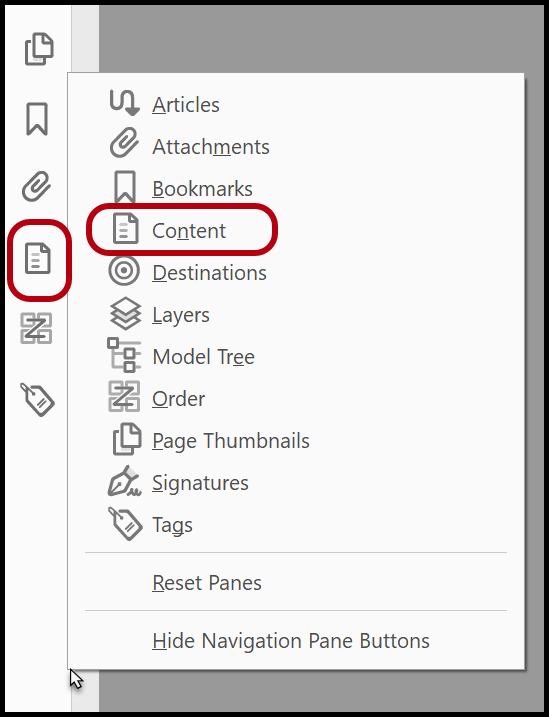
- Open the document in Adobe Acrobat Pro and navigate to the Content panel. This can be found along the left side of Acrobat, an option inside the Navigation pane. If the Content menu is not showing, you may need to right-click in the Navigation pane to add the Content icon to the list of options.
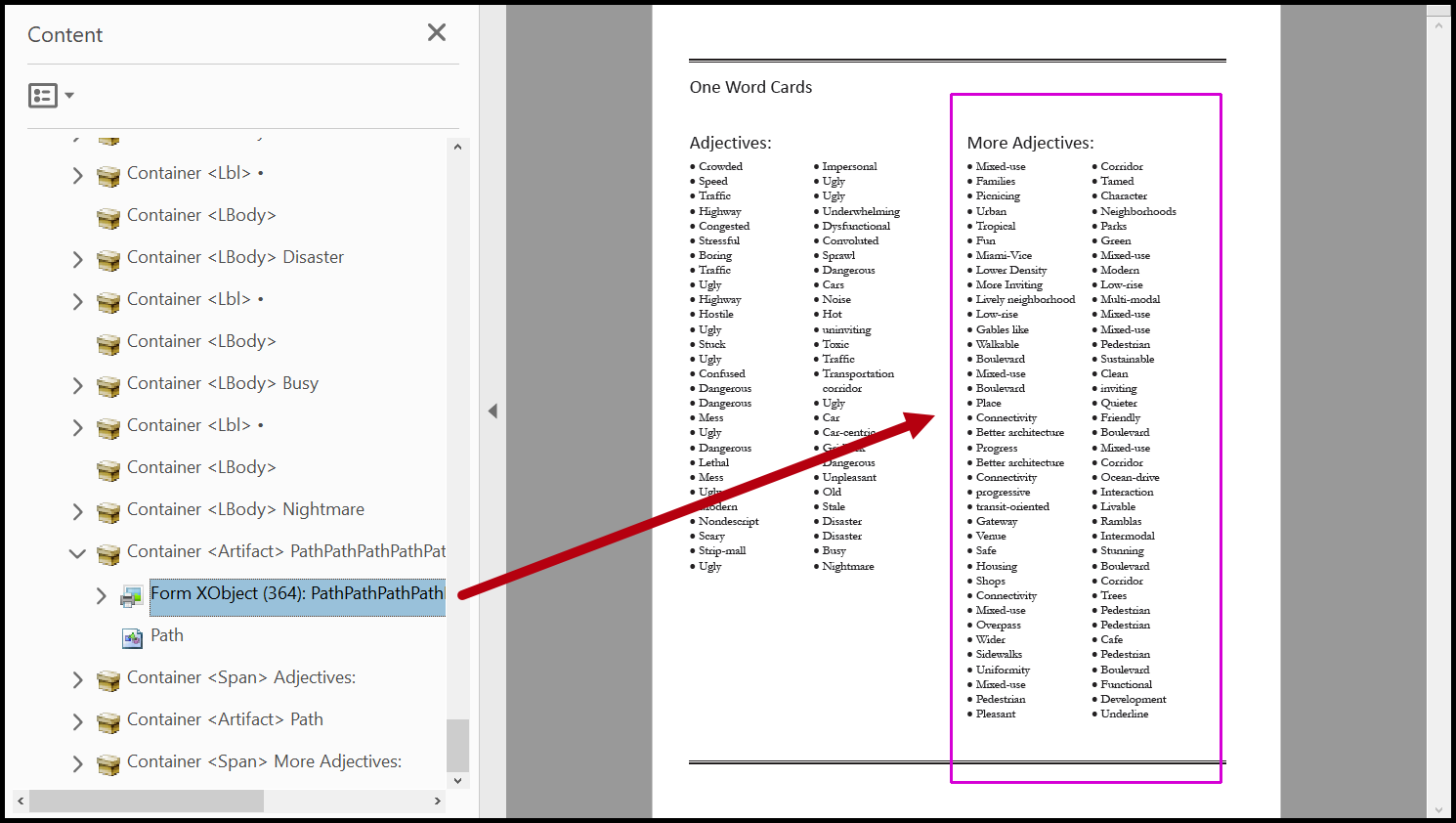
- Once inside the Content pane, locate the missing content. The Content is organized by page and you should be on the lookout for Form XObjects as you search. The following screenshot shows a Form XObject that shows nearby content, so this will be a great place to start!
- Open the Form XObject and look for any of the needed text. You might find all sorts of other containers, such as Paths, but will hopefully find the text, as shown in the following screenshot.
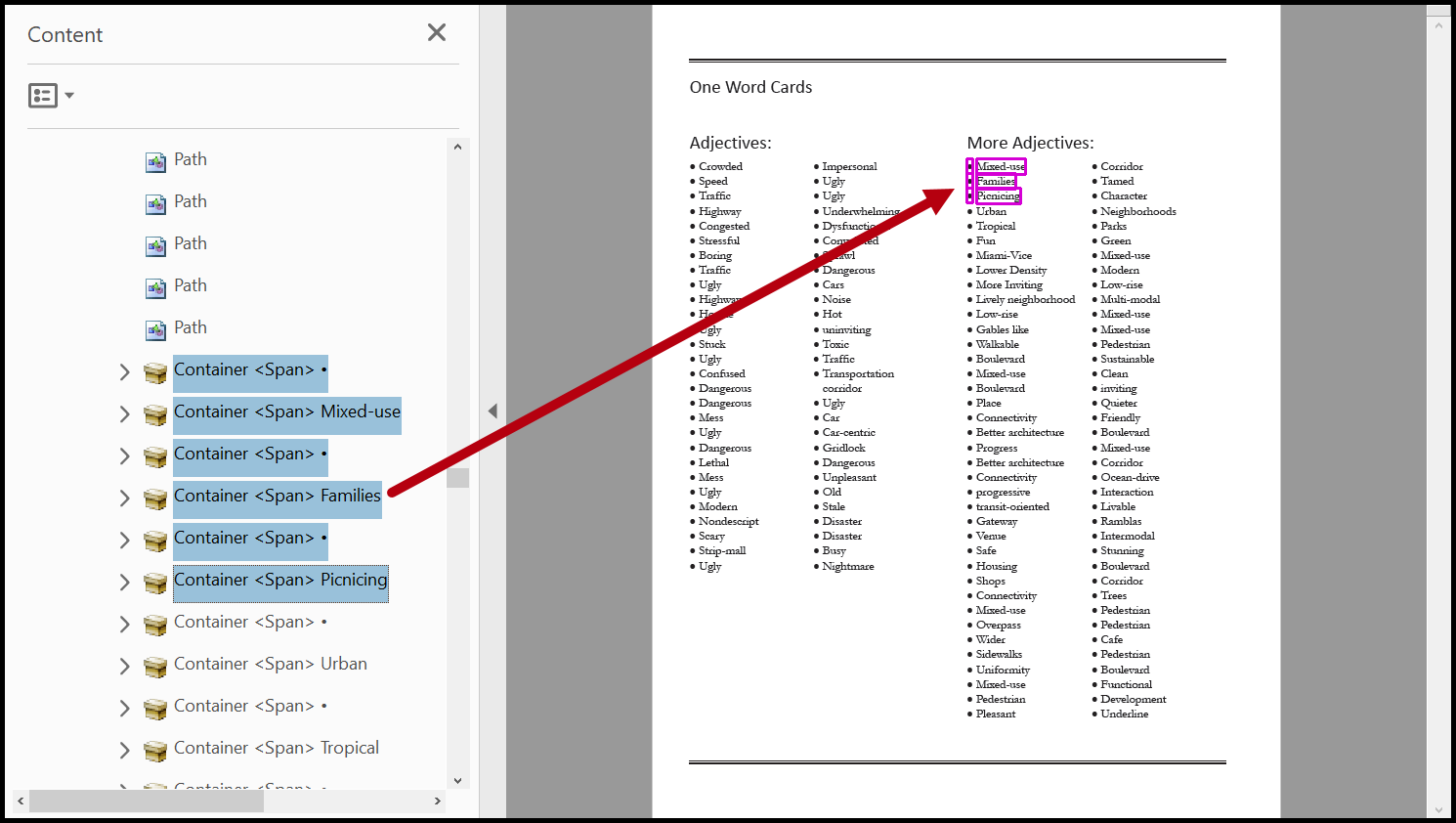
Moving the Missing Content to a Usable Location
- Select the content you need and move it outside of the Form XObject. This can be challenging depending on how much content you are trying to move, but what I typically try to do is select it all using Shift-Click, and click-and-drag it directly above the Form XObject. This list is split into two sections, so I will do it twice, but the following screenshot shows where I will drag-and-drop the content.
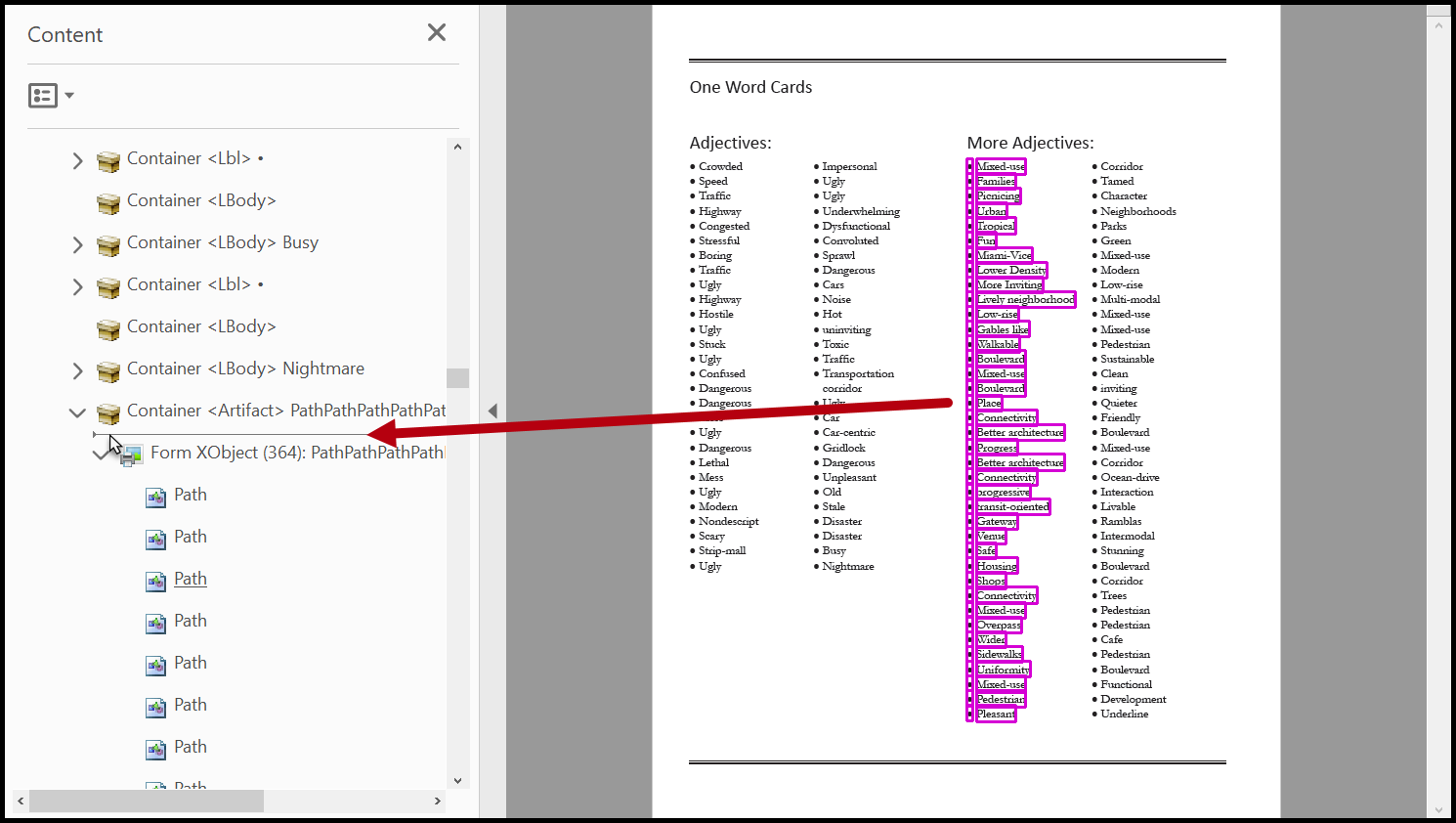
- Confirm that no additional text is hidden within the Form XObject. If you successfully move it all, you can save your document, which will update and prepare it for remediation.
Possible Side-Effects of Form XObject Manipulation
Form XObjects can not only contain text but they can also contain graphics and even formatting information, for laying out content on the page. As such, sometimes, when you try to pull text or graphics out of a Form XObject, to tag them, you can inadvertently change the physical view. This is definitely something to be aware of! When moving things in the Content panel, sometimes the layering of the page content changes, causing the physical view to change significantly. This could be overlapping text, completely missing content, or revealing other content that was previously hidden. If this happens, a typical solution is to go back to the source file and attempt to fix the complication before conversion.
Was this article helpful?
That’s Great!
Thank you for your feedback
Sorry! We couldn't be helpful
Thank you for your feedback
Feedback sent
We appreciate your effort and will try to fix the article