Alternative Text on Links
Similar to images, links need to have alternative text (in PDF/UA compliant documents, the link annotation must have “contents”). By default, in this checkpoint, CommonLook Office will use the hyperlinked text as the alternative text. Unless the text needs to be changed, this checkpoint is very easy to pass. (To determine whether or not the text needs to be changed, refer to the "Link-Authoring Best Practices" section of the "Creating Links" article.)
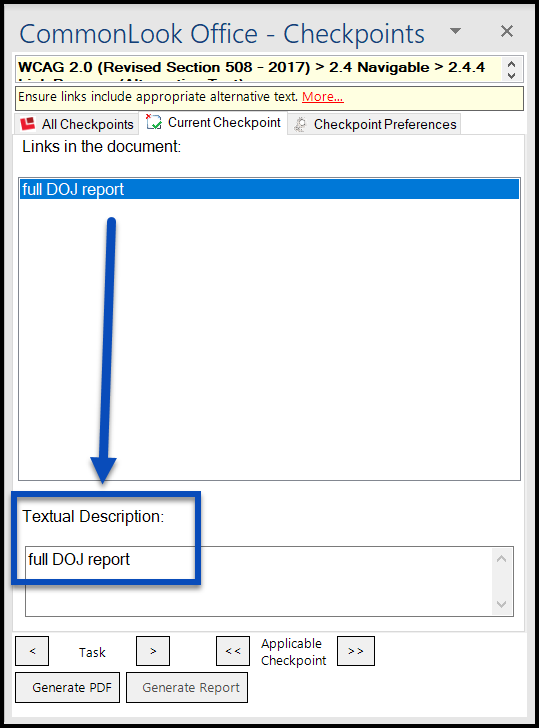
The screenshot below shows the alternative text checkpoint for links. The hyperlinked text is listed in the CommonLook panel and then, below, the Textual Description box displays the alternative text that will be assigned to the link.
NOTE: If a link does not have Alt text, you will receive the following error message: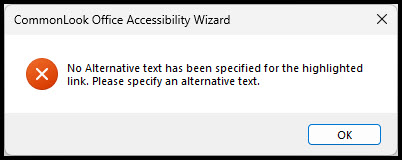
Link Context Checkpoint
This checkpoint asks you to make sure that the hyperlinked text is appropriate. Can you read the hyperlinked text, by itself, and know where that link will take you? If not, edit the link.
Refer to the "Link-Authoring Best Practices" section of the "Creating Links" article for more information.
"Bypass Blocks" or "Navigation Links" Checkpoints
While this is a more common occurrence for webpages, when running CommonLook Office with the WCAG 2.0 and/or Section 508 standards, if the same link target is used more than once in the document (or presentation), this will prompt the “Bypass Blocks” (WCAG) or “Navigation Links” (Section 508) checkpoint.
On a website, if pages have repeated navigation links at the top (think “Home, Products, Services, Contact Us” at the top of each page) then there needs to be a way for users to skip these links and quickly get to the content on the webpage. In a Word document (or PowerPoint presentation), if the same link target is used multiple times, CommonLook will ask if the link is a repetitive navigation link. If it is, consider reformatting the document (presentation) so that these links are not necessary. If the link is not a repeating navigational link then simply proceed to the next Task or Checkpoint as needed.
Link Validity
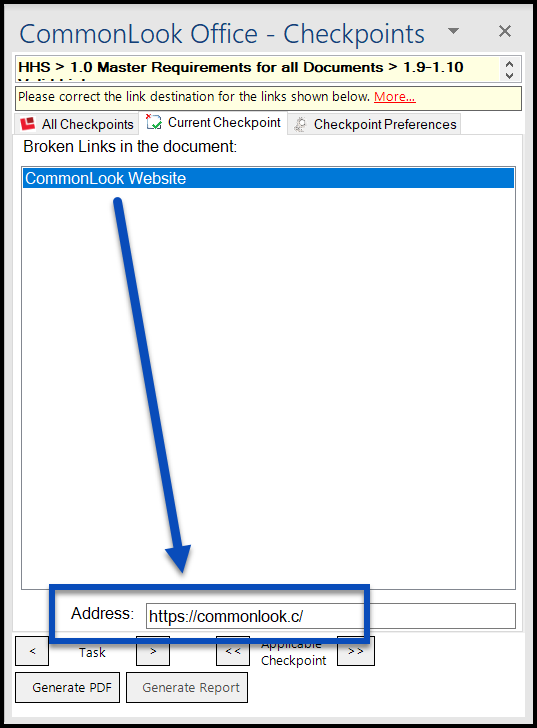
When running CommonLook Office and choosing the HHS standard, CommonLook will check the links to make sure they aren't broken. If a link is (or links are) broken, CommonLook will stop on this checkpoint, asking you to fix the link's destination.
Was this article helpful?
That’s Great!
Thank you for your feedback
Sorry! We couldn't be helpful
Thank you for your feedback
Feedback sent
We appreciate your effort and will try to fix the article