Overview
Making formulas and equations in PDFs can be challenging because mathematical and chemical notation is inherently visual and often cannot be understood correctly if read character-by-character by a screen reader. The goal is to ensure that assistive technology users receive an equivalent understanding of the mathematical expression. This can be accomplished by tagging this content in a formula tag and providing actual text.
Under PDF/UA, mathematical expressions must be represented in a way that provides meaningful access to the content. PDF/UA does not prescribe a single tagging method, but it requires that the information conveyed by the equation be available to assistive technology users.
Prerequisites
If your PDF contains formulas or equations, whether they are created using text or inserted as images and screenshots, they need to be tagged in Formula tags. The Formula tags, then, need to have Actual text.
Steps to Follow
- Select the formula or equation in the physical view of the Document or in the tags tree.
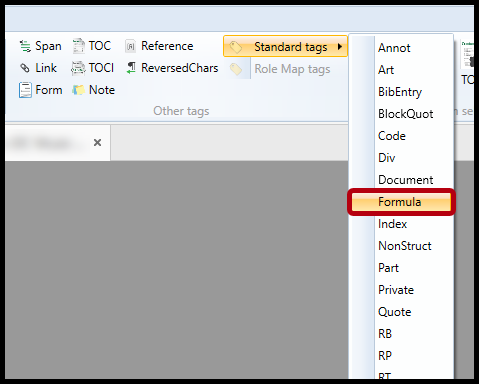
- In CommonLook PDF, you'll find the button to create (or convert to) Formula tags in the ribbon, in the "Other tags" group, in the drop-down menu for "Standard tags."
Frequently Asked Questions
Can I put the formula with its symbols directly into the actual text?
You can’t just put the formula in the Alt text for the screenshot; you have to actually write it out. This not only includes writing out symbols like “Function,” “Sigma,” and “Square root,” but also more simple things like “inches” instead of using quotation marks. This is to ensure not only that the symbols get read correctly but also because, if you’re using quotation marks to indicate inches, for example, the screen reader may not read that punctuation.
Related Articles
When to use Alternative, Actual, or Expansion Text
Was this article helpful?
That’s Great!
Thank you for your feedback
Sorry! We couldn't be helpful
Thank you for your feedback
Feedback sent
We appreciate your effort and will try to fix the article