Product
CommonLook Edu
Feature
Math
Overview
CommonLook Edu includes built-in tools for detecting and describing mathematical equations in your document. When math content is detected, it is placed in an Equation element automatically, and a description is generated to go along with it. This article walks you through how to set up your project for math content, verify and edit equation descriptions, and handle equations that appear inside other elements like lists or tables.
Prerequisites
Do this any time your document contains mathematical equations or formulas. Before working with math content in the editor, you will need to configure your project settings correctly when first loading the file. If your document also contains equations inside lists or tables, make sure those elements are correctly marked before handling the equations inside them. Refer to How to Properly Mark Lists (Simplified Editor) and How to Properly Mark Tables (Simplified Editor) as needed.
Steps to Follow
Step 1: Set up your project for math content
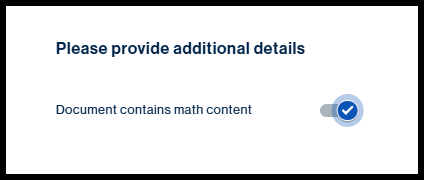
When loading your file in CommonLook Edu, you will be asked to provide details about your document.
- When prompted, toggle on the "Document contains math content" field. This tells CommonLook Edu to look for and detect math content throughout the document.
- Depending on your output type, you will have the ability to provide additional details.
- If your accessible output will be a reflowed large print Word file, use the slider to choose between OfficeMath and MathType.
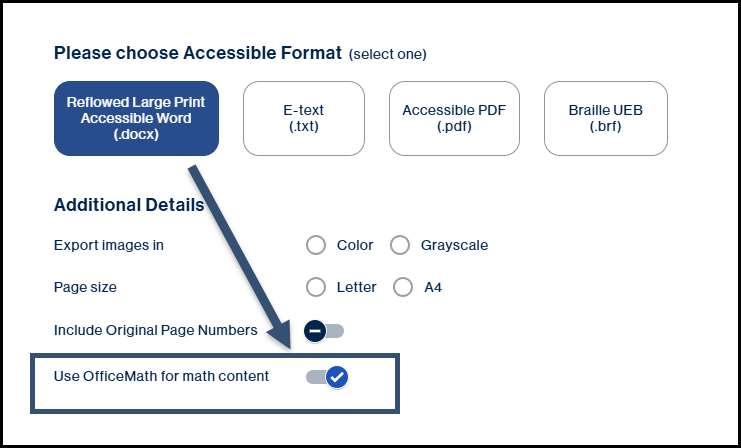
OfficeMath may provide a better experience when using Read Aloud in Word. MathType may work better with other readers. If the OfficeMath slider is not set to "Yes," the output will default to MathType - If your accessible output will be Braille, you will see an option to "Use Nemeth Code" in the Additional Details section. This will be turned on automatically for documents where the subject was set to "Math," but can be toggled on manually for other documents as needed.
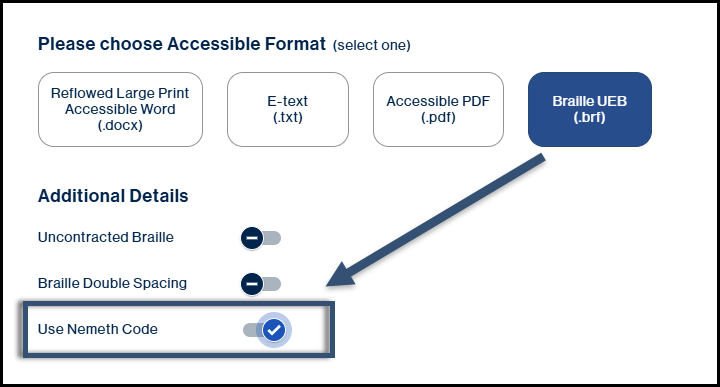
- If your accessible output will be a reflowed large print Word file, use the slider to choose between OfficeMath and MathType.
Step 2: Understand how CommonLook Edu handles math
Once your file is loaded, CommonLook Edu will detect math content and place it in Equation elements automatically.
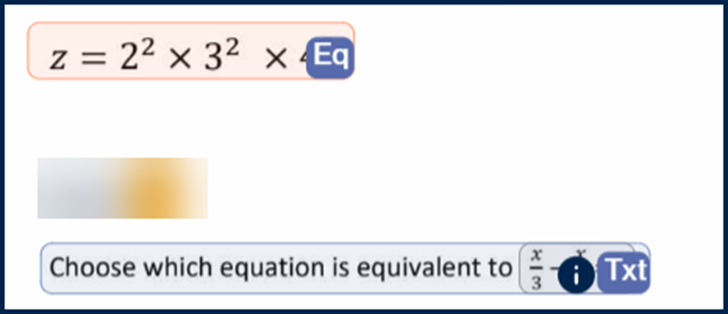
Equations on their own line will appear in a standalone Equation element, marked with "Eq" in the page view.
Equations that appear inline within a paragraph or other content will show as an inline element, marked with an "i" inside their parent element. Opening the parent element will reveal the Equation element inside, marked with a sum symbol.
If you are converting a PDF to a reflowed large print Word document, images of equations will be converted to OfficeMath or MathType objects in the output, which you can then edit further in Word if needed. To edit MathType objects in Word, you will need the MathType client installed.
Step 3: Verify and edit equation descriptions
CommonLook Edu generates an equation description automatically for each detected equation. You should always verify these before finishing your project. You can preview a description at any time by hovering your mouse over the Equation element.
If the description needs to be edited:
- Click on the Equation element. If the equation is inline, select the parent element first, click "Edit Inline" in the toolbar, and then click the Equation element.
- With the Equation element selected, click the "Equation" button in the toolbar.
- On the right side of the interface, locate the "Equation description" panel.
- Review the description and edit it if needed.
- Click "Save."
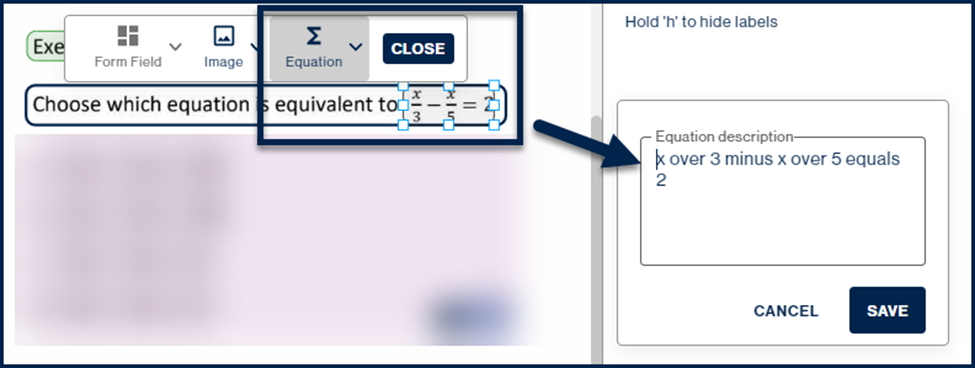
If you need to resize an Equation element, CommonLook Edu will automatically update the equation description to match. You do not need to manually create the description, but you should verify it for accuracy.
Step 4: Handle equations inside lists or tables
If equations appear inside a list or table, you need to make sure the parent element is structured correctly before working with the equations inside it.
- Verify that the List or Table element and all of its contents are marked correctly. Refer to How to Properly Mark Lists or How to Properly Mark Tables as needed.
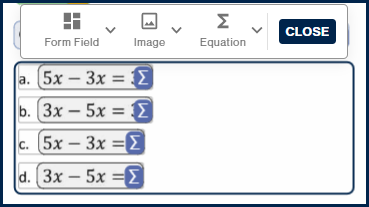
- Select the parent element and click "Edit Inline" in the toolbar.
- The Equation elements inside will become visible.
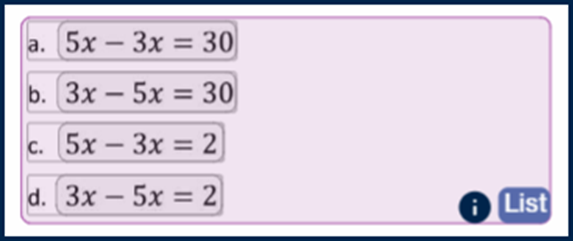
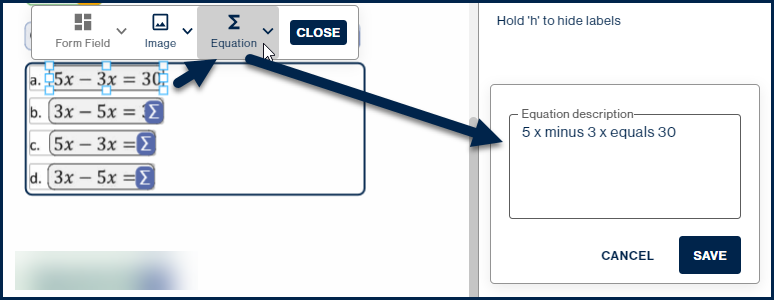
- Click on each Equation element, click the "Equation" button in the toolbar, and verify or edit the description.
- Click "Save" after each one before moving to the next.
If you need to delete a parent element that already has inline Equation elements inside it, a dialog box will appear asking whether you want to keep those inline elements. Choose "No," recreate the parent element, and then mark the inline equations again from scratch.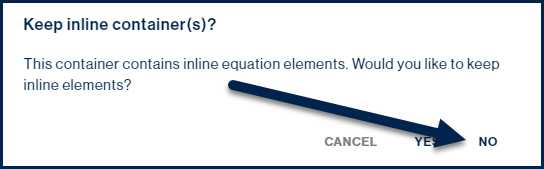
Common Problems
The equation description is not accurate
If the automatically generated description does not match the content, try resizing the Equation element to make sure the entire equation is within its boundaries. CommonLook Edu will update the description automatically when you resize. If it is still not right, edit it manually in the Equation description panel.
Equations inside a list or table are not visible
Inline equations inside parent elements will not be visible until you use "Edit Inline." Select the parent element first, then click "Edit Inline" in the toolbar to access the equations inside.
Deleting a parent element removed the equations inside it
If you deleted a List or other parent element and lost the inline Equation elements inside it, recreate the parent element and mark the equations again. To avoid this in the future, always choose "No" when the dialog box asks whether to keep inline elements, then rebuild from scratch.
Frequently Asked Questions
What is an equation description and why does it matter?
An equation description is a plain language explanation of what a mathematical equation contains. For someone using a screen reader or receiving an E-text output, it is the only way to understand the math content. Without an accurate description, which will eventually be the tag's Alt text, the equation is not accessible.
What is the difference between OfficeMath and MathType?
Both are formats for presenting mathematical equations in Word documents. OfficeMath is built into Word and tends to work well with the Read Aloud feature. MathType is a third-party tool that may work better with other assistive technology readers. You can choose between them when setting up your project, but you will need the MathType client installed in Word if you want to edit MathType objects after export.
What happens to math content in the final accessible output?
It depends on the output type. In an accessible PDF, equations are placed in Formula tags with the equation description used as alt text. In a large print Word document, equations are converted to OfficeMath or MathType objects. In E-text, the equation description replaces the equation entirely. In Braille, equations are presented in UEB Braille code with Nemeth.
Related Articles
Was this article helpful?
That’s Great!
Thank you for your feedback
Sorry! We couldn't be helpful
Thank you for your feedback
Feedback sent
We appreciate your effort and will try to fix the article