Product
CommonLook PDF Desktop Version
Feature
Images and Figures
Document Element
How to tag complex images
Overview
Maps, architectural drawings, engineering plans, and other highly visual graphics can present unique challenges during PDF remediation. Unlike standard figures, these graphics often contain detailed information that cannot be adequately communicated through a single piece of alternative text.
The first step in remediating these graphics is determining the author's intent. If the map is intended only to provide general context or decoration, a simple Figure tag with appropriate alternative text—or even artifacting the image if it is purely decorative—may be sufficient. However, if the map contains important navigational or informational content that readers are expected to understand, the map should be broken into logical sections and tagged individually so that assistive technology users receive equivalent access to the information.
Prerequisites
Use this approach when:
- A map contains important information that users need to understand.
- A graphic cannot be adequately described using a single piece of alternative text.
- The map contains labeled locations, routes, landmarks, or other meaningful visual relationships.
- The document author intends the reader to interpret information from the map rather than simply view it as decoration.
Steps to Follow
1. Determine the Author's Intent
Before tagging the graphic, determine what information the author expects readers to obtain.
For example:
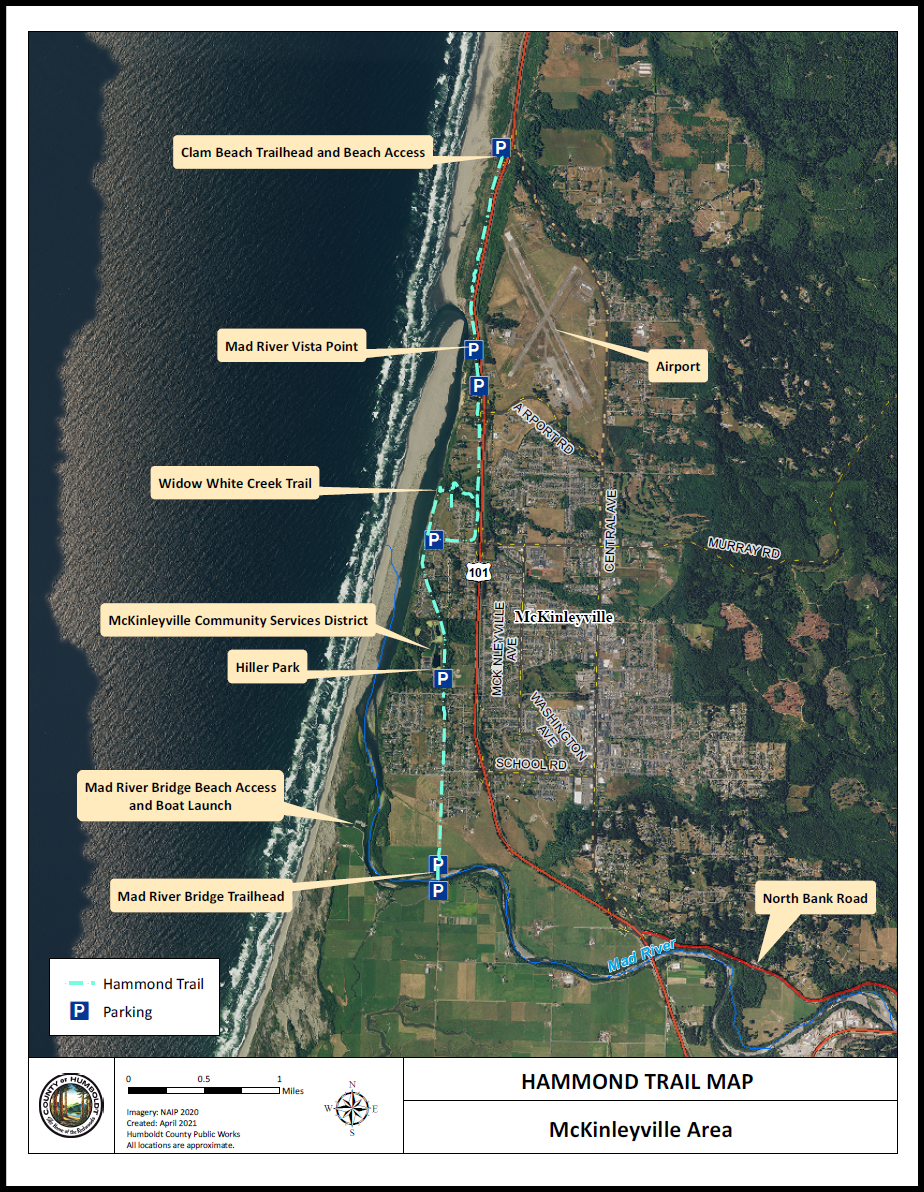
- If the author only wants readers to know that the Hammond Trail runs north to south along the coast, a single Figure tag with concise alternative text may be sufficient.
- If the map is decorative, it may be artifacted or left untagged, depending on the document structure.
- If readers need to understand specific parts of the graphic, for example - trail sections, trailheads, parking lots, landmarks, or navigation, additional remediation is required.
2. Decide Whether the Graphic Needs to be Broken into Sections
If the graphic contains significant information, divide it into logical sections rather than attempting to describe the entire graphic in one Alt text entry.
Each section should communicate one meaningful portion of the map.
3. Prepare the Content for Tagging
Some images consist entirely of vector graphics or images, making individual elements difficult to select.
If necessary:
- Adjust your selection settings.
- Run OCR if text is not selectable.
- Once the content is selectable, use CommonLook to perform the remaining remediation.
4. Tag Each Section Individually
For each logical portion of the map:
- Tag the location name as a Heading.
- Follow the heading with a Figure tag that contains the nearby graphical elements.
- Add alternative text describing that specific portion of the map.
For example:
Heading: Clam Beach Trailhead and Beach Access
Figure Alt Text: Map showing the northern trailhead beginning at the Clam Beach parking lot. The trail runs south along the coastline, parallel to the ocean, Mad River, and CA Route 101.
5. Repeat the process for each section.
Each new Figure should describe:
- Where the reader is relative to the previous section.
- Nearby landmarks.
- Major roads.
- Other significant features.
Providing context from one section to the next helps assistive technology users build a mental picture of the map.
6. Verify the Reading Order
Ensure the headings and figure descriptions are arranged in a logical sequence that follows the natural progression through the graphic.
For example, if the trail runs north to south, the tagged content should be read in that same order.
Screenshots
Common Problems
| Problem | Solution |
| Trying to describe the entire map with one Alt text entry | Divide the image into smaller logical sections. |
| Unable to select map content | Adjust selection settings or perform OCR before tagging. |
| Alt text becomes excessively long | Break the image into multiple Figure tags rather than one large description. |
| Reading order is confusing | Arrange headings and figure tags to follow the natural path through the map. |
Frequently Asked Questions
Is there an example PDF showing a complex graphic tagged with headings and sequential figure tags?
Yes! Scroll to the bottom of this page to download the PDF attachment: Hammond Trail Map - Remediated.
Related Articles
How to Tag Images, Graphics, & Figures
When to use Alternative, Actual, or Expansion Text
Was this article helpful?
That’s Great!
Thank you for your feedback
Sorry! We couldn't be helpful
Thank you for your feedback
Feedback sent
We appreciate your effort and will try to fix the article