Oftentimes strikethrough is used in legal drafts to indicate text that’s been marked for deletion but hasn’t actually been removed yet, so that people can read the proposed deletions to then indicate whether or not they approve, for example. We'll go with that premise for this example.
NOTE: The concepts and steps outlined below also apply to documents that use highlight, underline, or other formatting "properties" to convey information.
To tag text that's been struck-through:
- Start with tagging the paragraph as needed.
- Then, within the P tag, put the struck-through text in a Span tag.
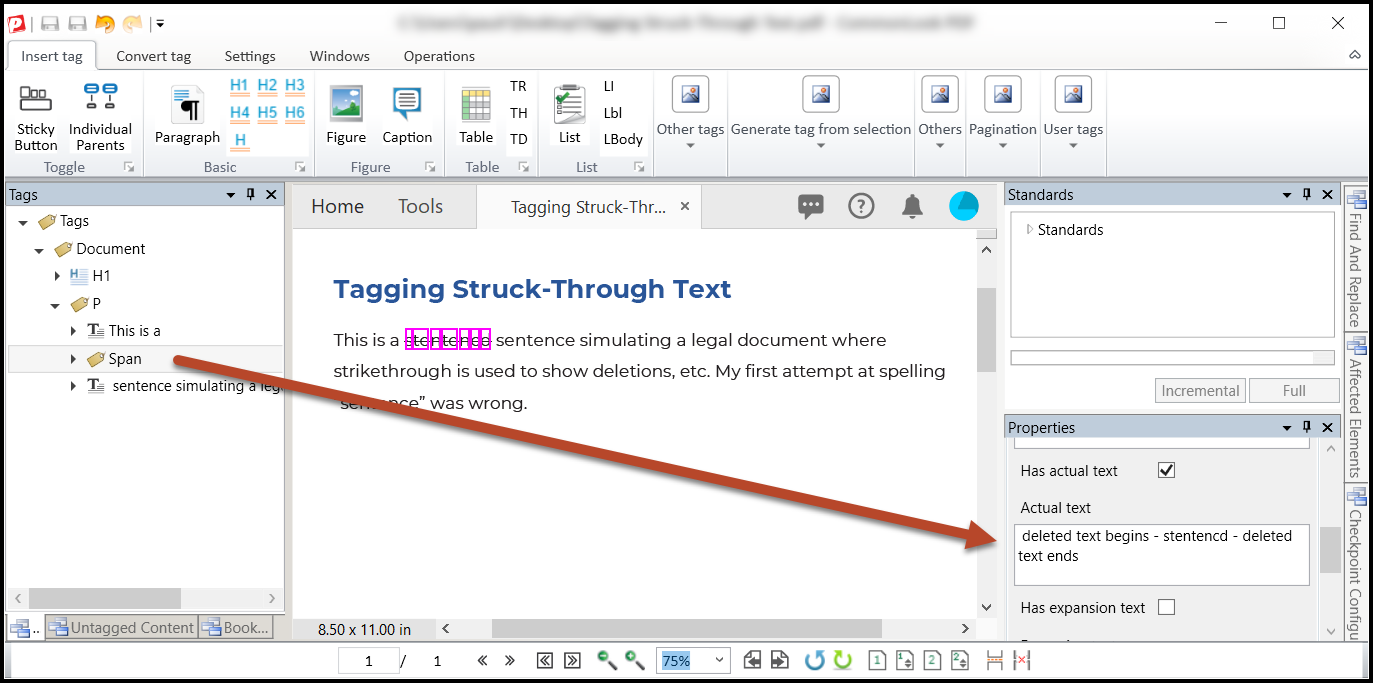
- Then, for that Span tag, assign Actual text.
The Actual text will be “deleted text begins – [the text that’s been struck-through] – deleted text ends”.
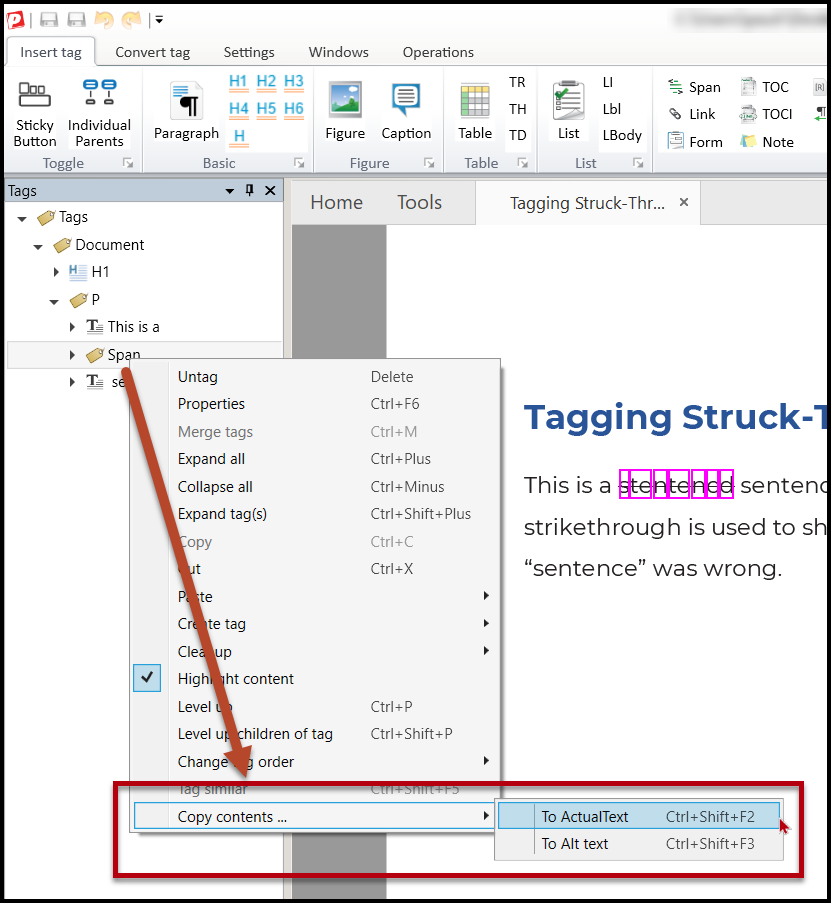
This can be a time-consuming task but, in CommonLook PDF, you can put the struck-through text in a Span tag and then use the functionality available to copy that text to the Actual text. (Select the Span, right-click or otherwise open the context menu, and choose "Copy Contents." Then, in the sub-menu, choose to copy to Actual text. Keyboard shortcut: Ctrl+Shift+F2). After you've copied the contents of the tag to the Actual text, simply add “deleted text begins” and “deleted text ends” as needed.
Note: You don’t have to use the literal words provided here for the deleted text beginning and ending – that was an example. Also, if the strikethrough was meant to convey something else then you’d edit your Actual text accordingly.
Below are some screenshots to help illustrate.
Didn't find what you're looking for? Navigate to our "Tagging (or Untagging) Content" section for more related articles that may help!
Was this article helpful?
That’s Great!
Thank you for your feedback
Sorry! We couldn't be helpful
Thank you for your feedback
Feedback sent
We appreciate your effort and will try to fix the article