Flow charts and other progression visualizations are becoming very common in electronic documents. They typically use lines or arrows and follow a logical direction up, down, or through the content.
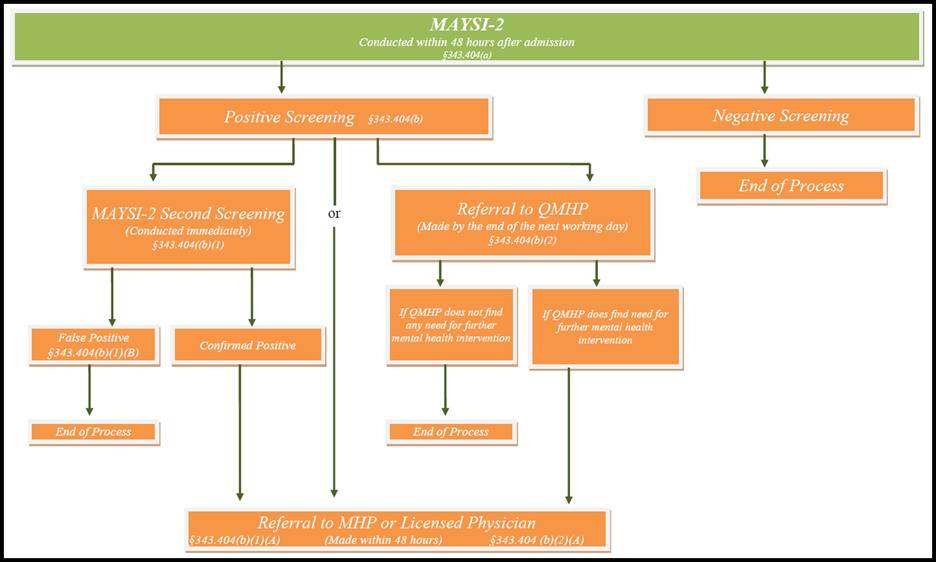
Limitations of Tagging the Flow Chart as a Single Figure
In some situations, remediators try to place the entire graphic into one Figure tag. This is not ideal, as then, the only way to convey the content is through Alternative Text. The previously shown flowchart example has more than ten different pieces of content within it, so attempting to convey all of that, as well as their relationships through Alt text is not an appropriate option. This would be much easier and more flexible to do with each component in its own tag or sub-tag.
What if my flow chart is a screenshot?
Sometimes, authors will use an inserted picture of the flow chart to get the content into the document. This is a problem because a remediator cannot then select specific sections to place them into the needed, individual tags we described previously. If this is the case, you will need to run OCR, or Optical Character Recognition, on the document. There are many third-party OCR tools, or Adobe Acrobat has an OCR tool included in it’s platform. OCR can pull the text from the image and give you access to the searchable text on the page, rather than just a flattened image. Within Adobe Acrobat, this tool can be used by selecting the "Recognize Text" command within the "Scan and OCR" tool menu.
Once OCR has been run, you can save the document, and then open it in CommonLook PDF to remediate the individual parts of now-searchable text.
Tagging the Flow Chart: List vs Headings
There are two main methods to tagging flow charts. One option is to organize the progression of content into a List tag, using List Items to denote content that falls within or after other content, and nested Lists to denote deeper sections of the flow chart. Another popular option is to use increasing heading levels to indicate the level of specific content within the flow chart. Both are viable, but both have limitations to consider.
Tagging the Flow Chart as a List
Using the flow chart pictured previously, the entirety of the content would fall under a single List tag. Within the parent List tag, one List Item would be used for “Positive Screening” and everything beneath it, and another List Item would be used for “Negative Screening” and the content that falls beneath it. It’s worth noting that within “Positive Screening” you would then use a nested List tag to organize the three options that come after.
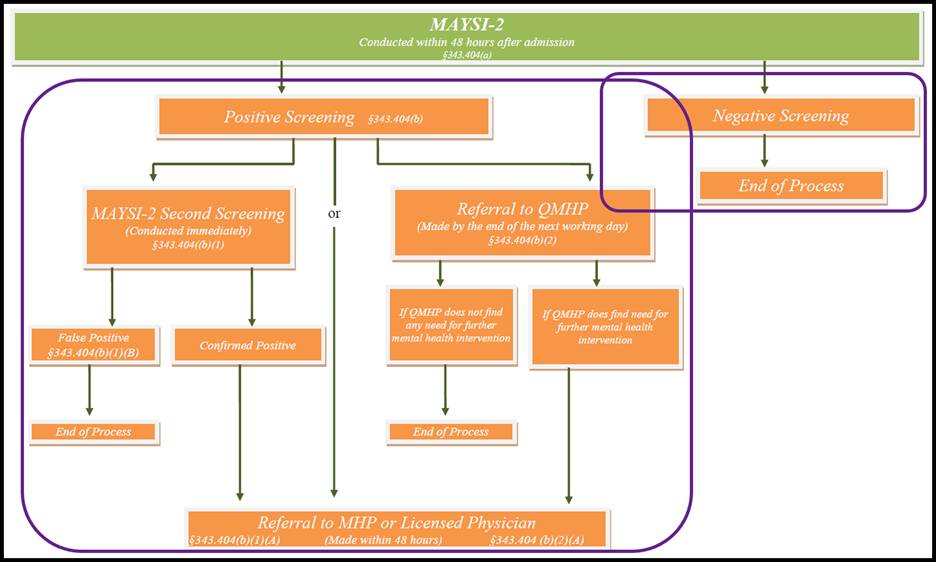
For a downloadable example, please see the “Flow Chart Using List Tags” document attached at the end of the article.
Tagging the Flow Chart using Heading Organization
Using the flow chart pictured previously, the top of the chart would be tagged as an H1, and everything else would flow into H2, H3, and H4 tags. For example, “Positive Screening” could be tagged as an H2, “MAYSI-2 Second Screening” could be tagged as an H3, and “False Positive” and “Confirmed Positive” could both be tagged as H4s. This conveys the relationship between those pieces of content and is easy for someone to navigate successfully.
There is however, a slight limitation to this method, in that any heading beyond an H6 may only be shared as a Paragraph. As a result, this might not be the best option for a flow chart that includes dozens of levels within it.
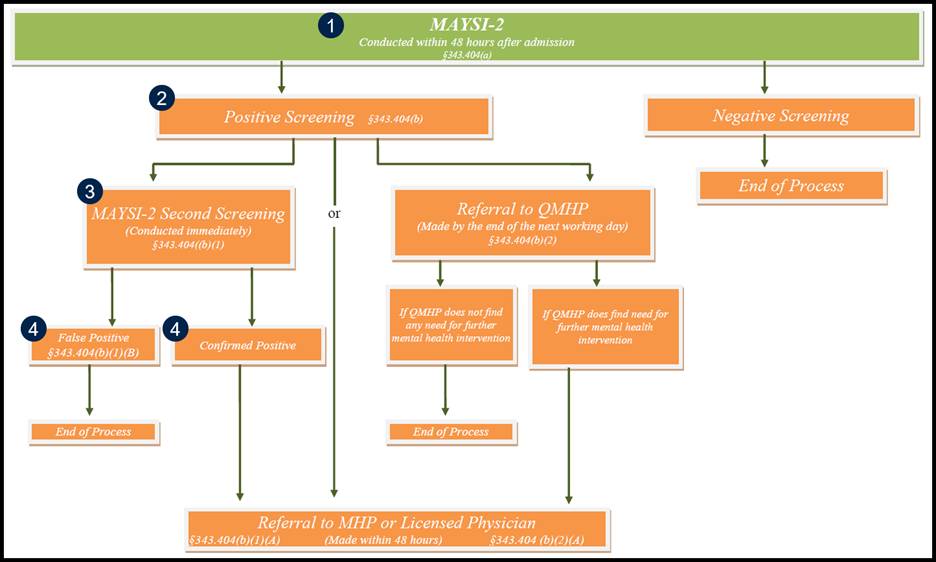
For a downloadable example, please see the “Flow Chart Using Headings” document attached at the end of the article.
Didnt find what you're looking for? Navigate to our "Images, Graphics, & Figures" section for more related articles that may help!
Was this article helpful?
That’s Great!
Thank you for your feedback
Sorry! We couldn't be helpful
Thank you for your feedback
Feedback sent
We appreciate your effort and will try to fix the article