Clearing Up a Common Misconception - the "Order" menu in Acrobat
When a PDF document is open in Acrobat, in the left margin, along with the option to view the Tags tree, there is a menu that Acrobat calls “Order.” Many people have the misconception that this shows the reading order of the document as assistive technology will present it to a listener, however, that is not the case. Rather, think of this as the order in which the elements were placed (or “painted”) on the page when the PDF was created.
Unfortunately, Acrobat reinforces this misconception by the fact that when the user hovers the mouse over the icon for this menu, the tooltip that pops up mentions retagging the content as one of the functions in this menu. However, the reading order – the sequence, structure, etc., of how the content will be presented to someone using assistive technology – is all determined by the tagging as seen in the Tags tree. When using CommonLook PDF to remediate documents, no changes are made to the “Order” menu in Acrobat – and no changes need to be made.
The screenshot below shows the left margin in Acrobat when a PDF is open. The “Order” menu and the “Tags” menu are both identified.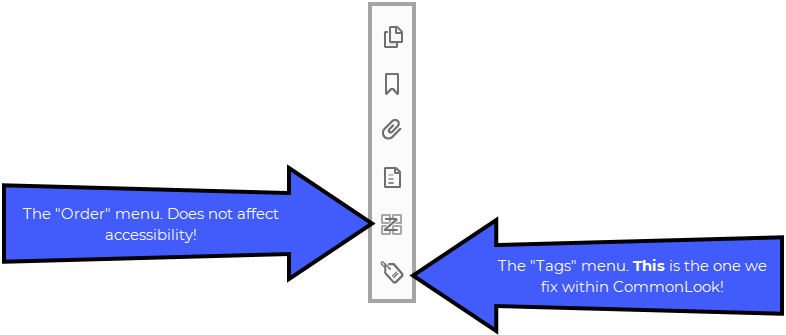
Fixing the Reading Order in a Document
The order of the tags in the Tags tree (the logical view) should correspond to the order in which information is presented visually (the physical view). If the Logical view does not match the Physical view, then move the tag(s) to the correct location in the tag tree.
Tip: To easily find the tag in the tag tree that contains the text (image, etc.) to be moved, highlight the content in the physical view by drawing a box around it. This will locate the content in the tags. Then, select the tag containing the highlighted content and move it accordingly.
Note: If the selected content is not in the correct tag, refer to the article regarding tagging content.
Exceptions to the Logical/Physical View "Rule" - "Remediator's Choice"
Remediators often have to make decisions using their best judgment regarding whether or not content needs to be tagged, which tag to use, and when that tag should appear in the logical reading order. For example, with footer information on multiple pages in the document, one remediator might choose to have the footer information read on the first page (and then artifacted on subsequent pages) while another remediator may choose to have the footer information only read on the last page. Sometimes these decisions are made by managers, departments, or other governing bodies or rules, however, sometimes the decision is purely up to the remediators themselves. This is sometimes called “remediator’s choice.” Remember, use your best judgment when making decisions so that there is a solid reason behind your choice.
Moving Tags
Moving tags can be achieved with the following methods:
Click and Drag.
- Select the tag to be moved.
- Click and hold then drag the tag to the correct location in the tag tree.
Note: This is perhaps the most difficult and error-prone option for moving tags. Be careful to drag and drop accurately and avoid incorrectly “nesting” text or tags inside other tags!
- Cut and Paste.
- Right click on the tag to be moved and, from the context menu, choose “Cut” (keyboard shortcut Ctrl+X).
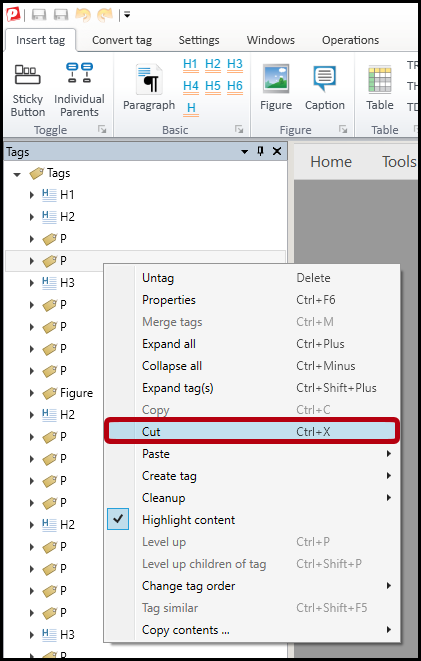
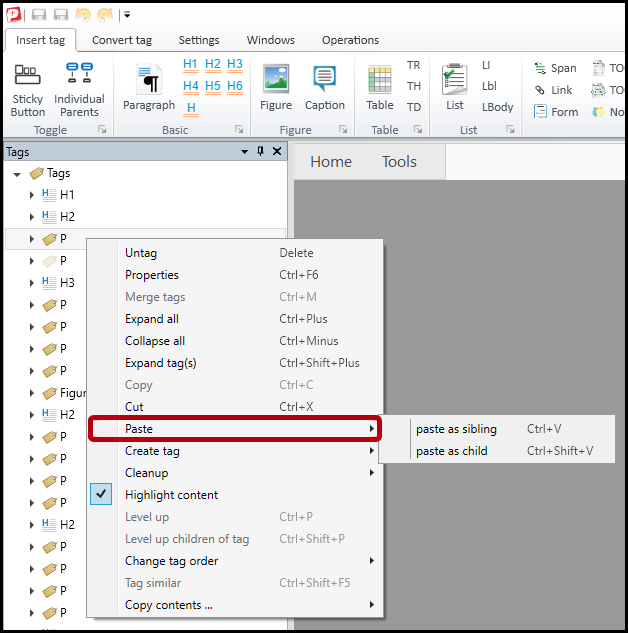
- Right-click (or otherwise open the context menu) on the tag in the tag tree where the “cut” tag will be placed. A context menu will open and there will be paste options as follows:
- “Paste as sibling” (places the tag after the selected tag in the tag tree at the same level) (Ctrl+V)
- “Paste as child” (places the cut tag as the last item inside the selected “destination” (parent) tag) (Ctrl+Shift+V)
- Right click on the tag to be moved and, from the context menu, choose “Cut” (keyboard shortcut Ctrl+X).
- “Change Tag Order.”
- Right-click on the tag to be moved and, with the context menu, choose the appropriate “change tag order” option (Up or Down). Alternatively, select a tag and use the keyboard shortcuts Ctrl+Shift+up-arrow or Ctrl+Shift+down-arrow to move a tag up or down (respectively) in the tag tree.
Note: Change tag order will only move a tag up or down inside the limits of its parent tag. It may be necessary to “level up” (Ctrl+P) the tag to “un-nest” it. Level up is discussed further in the article on Creating Tags.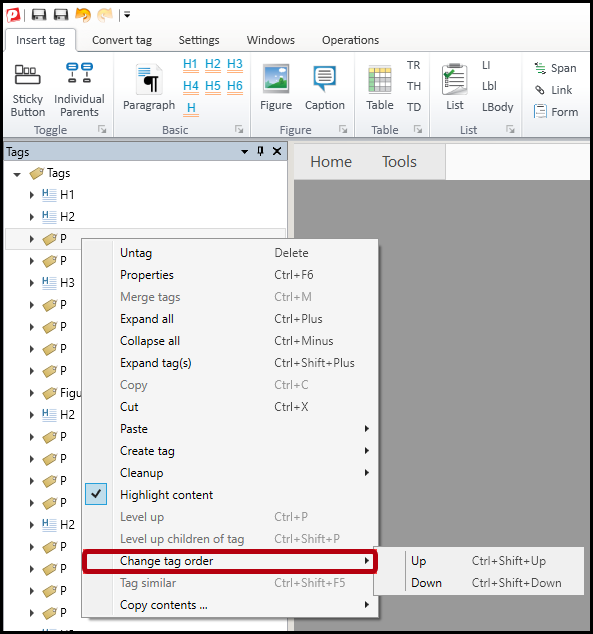
- Right-click on the tag to be moved and, with the context menu, choose the appropriate “change tag order” option (Up or Down). Alternatively, select a tag and use the keyboard shortcuts Ctrl+Shift+up-arrow or Ctrl+Shift+down-arrow to move a tag up or down (respectively) in the tag tree.
Didn't find what you're looking for? Navigate to our "Tagging (or Untagging) Content" section for more related articles that may help!
Was this article helpful?
That’s Great!
Thank you for your feedback
Sorry! We couldn't be helpful
Thank you for your feedback
Feedback sent
We appreciate your effort and will try to fix the article