Product
Advanced Editor (Web-based CL PDF)
Feature
Find and Replace
Document Element
Symbols, Wildcards, and Regular Expressions
Overview
CommonLook's Find and Replace tool locates repeated content throughout a document and lets you apply Alt text or Actual text to every matching instance at once, instead of fixing each one individually. This article covers three ways to use it:
- replacing a repeated symbol with Alt text
- using Wildcards to find and label text based on font properties like bold or color
- using Regular Expressions for more precise pattern-based searches.
Prerequisites
Before you begin, make sure you have:
- Repeated content in your document that needs the same Alt text or Actual text applied throughout, such as a symbol used multiple times, or text distinguished by a specific font style.
- Access to the Find and Replace panel, from the Windows tab or Ctrl+F.
- Familiarity with Span tags and Alt text. See "How and When to use Span Tags in the Advanced Editor" for a refresher if needed.
Steps to Follow
Find and Replace Symbols
Use this method when a symbol appears multiple times in your document and conveys the same information every time, like symbols in a pharmacy directory that correspond to a key at the bottom of the page. When a symbol conveys information this way, it needs to be placed in a Span tag with Alt text so a screen reader can announce what it means.
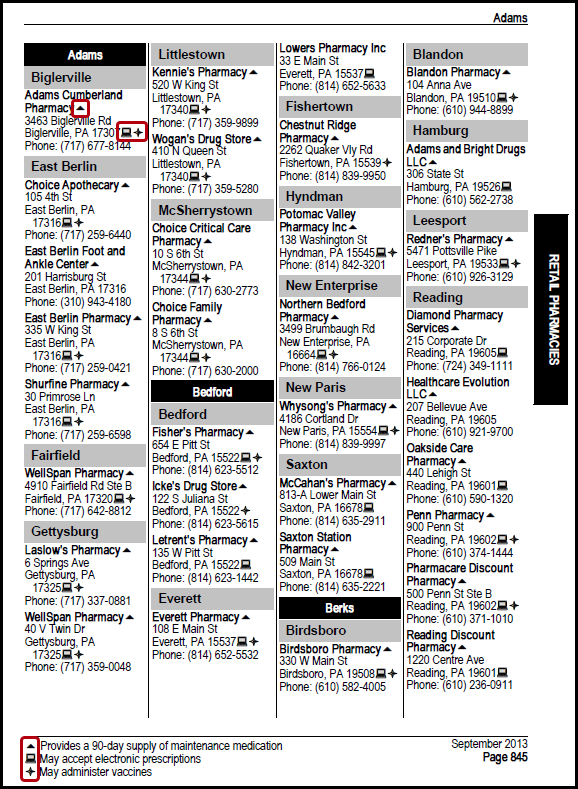
- In the physical view, highlight one occurrence of the symbol.
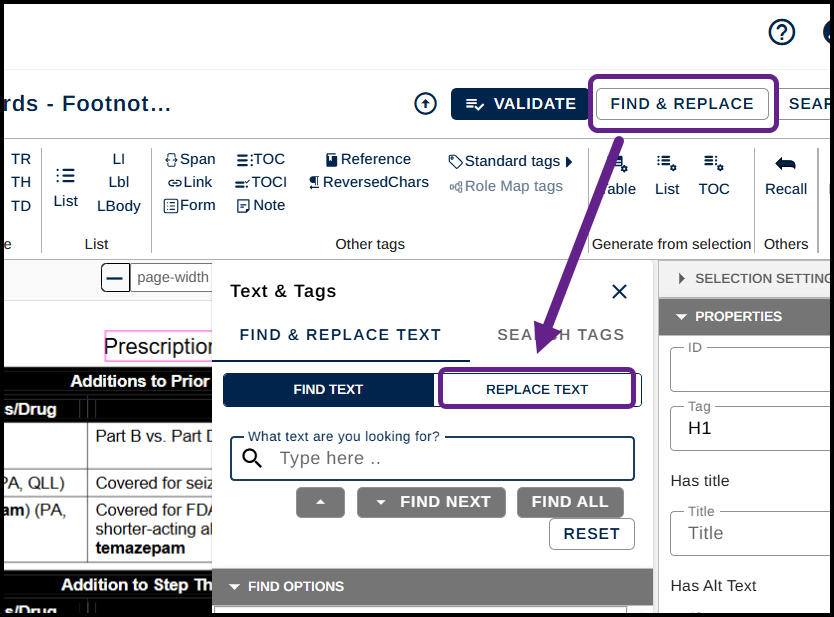
- In top right of the ribbon, select Find and Replace. Or press Ctrl+F.

- In the Find and Replace panel that opens, click the Replace tab at the top.
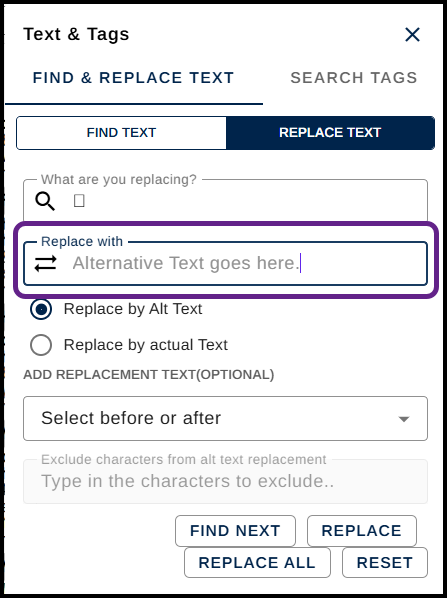
- In the Replace with box, enter the required Alt text. See "Text Selection" for tips on efficiently copying and pasting document text.
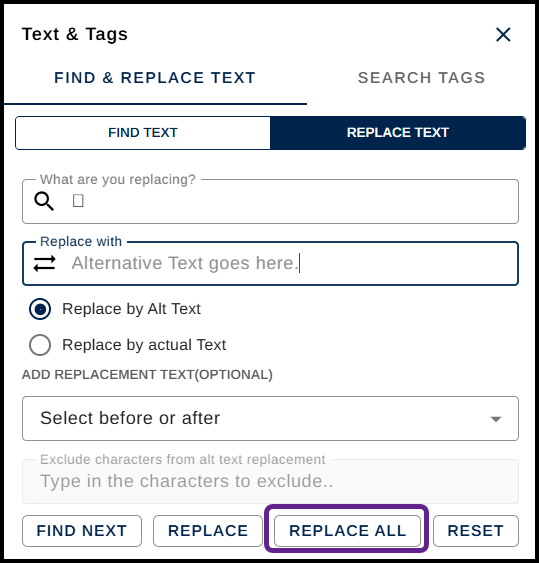
- Click Replace All.
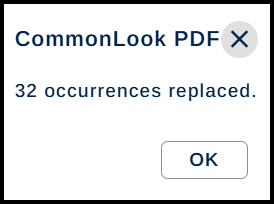
- A window pops up showing how many occurrences were replaced. Click OK.
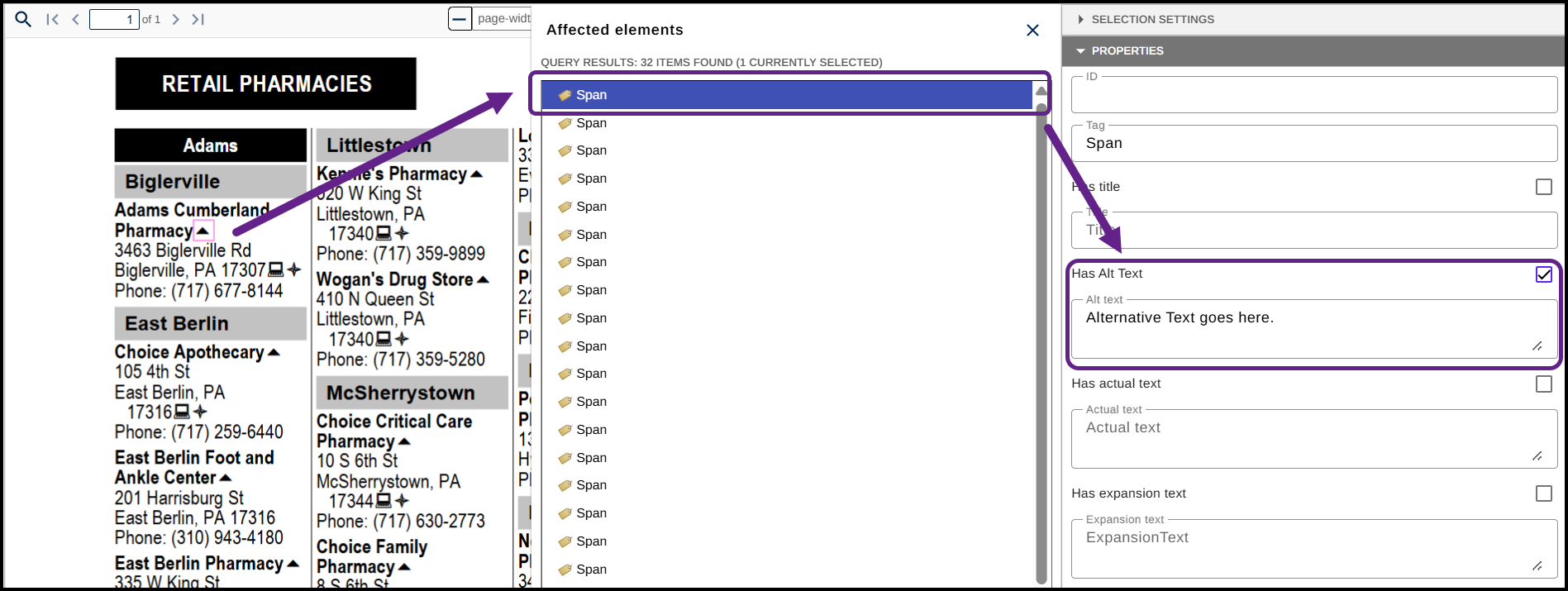
- The Affected Elements panel opens with a list of Span tags. Arrow or click down through the list to confirm every symbol was replaced correctly. You can verify the Alt text in the Properties panel.
- When done, feel free to close out of the Affected Elements panel to set the interface back to its starting positions.
Find and replace using Wildcards
Use Wildcards when formatting itself, like bold, italics, or strikethrough, is being used to convey information. Relying on formatting alone to convey meaning fails the color and formatting accessibility checkpoint, so you'll want to add text that states the meaning directly. For example, in a drug reference table, generic drug names might appear in lowercase bold text while brand names appear in all uppercase letters, with no other indication of which is which. Wildcards let you search by font properties to find and label content like this.
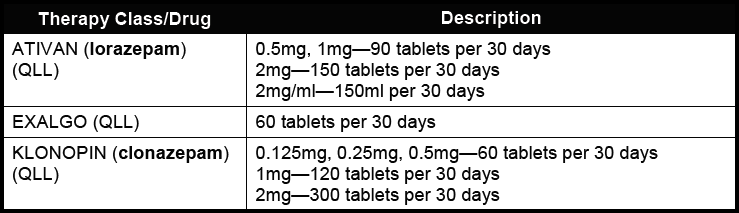
- Open Find and Replace, from the Windows tab or Ctrl+H.
- Navigate to the Replace tab.
- In the Find What field, type an asterisk (*). Once Wildcards is selected in a later step, this tells CommonLook to search for "everything," and you'll narrow that down with other settings.
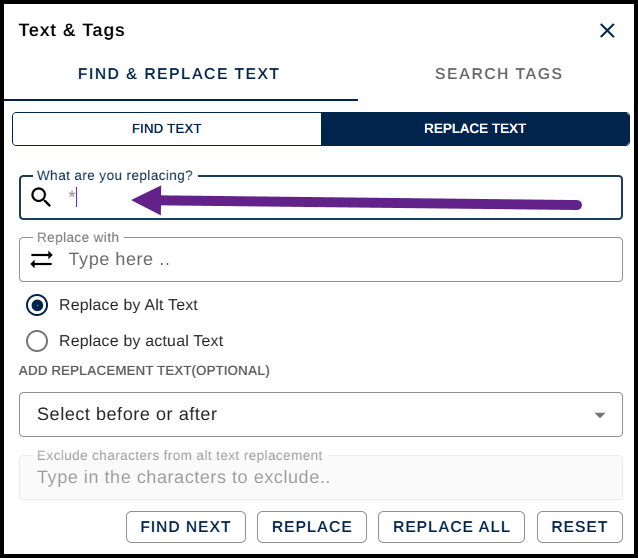
- In the Replace with field, enter your required Alt text. In this example, since we're indicating that lowercase bold drug names are generics, we'd enter "Generic Drug."
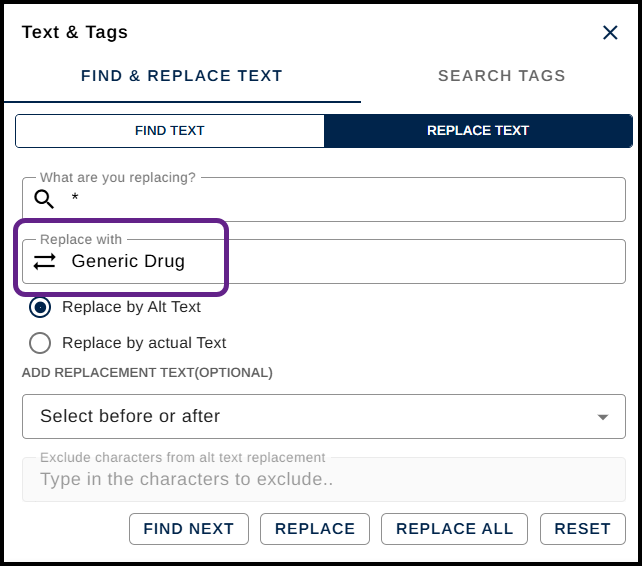
- Decide whether the replacement text should be Alt text or Actual text. In this example, since we're adding text everyone should see rather than text for assistive technology alone, Actual text is the right choice.
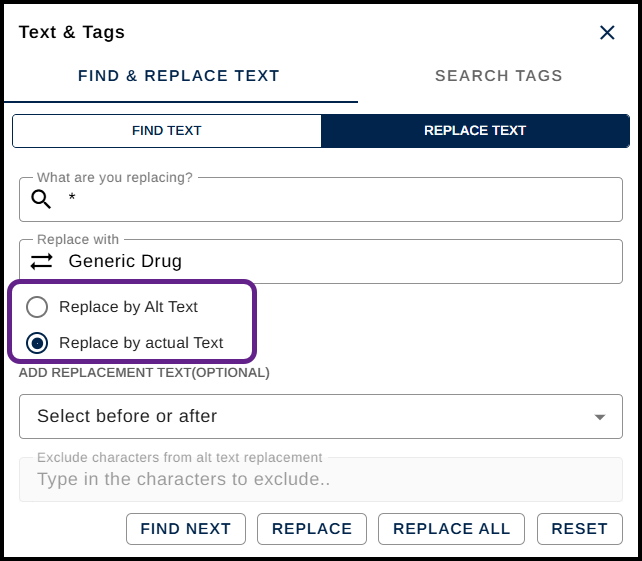
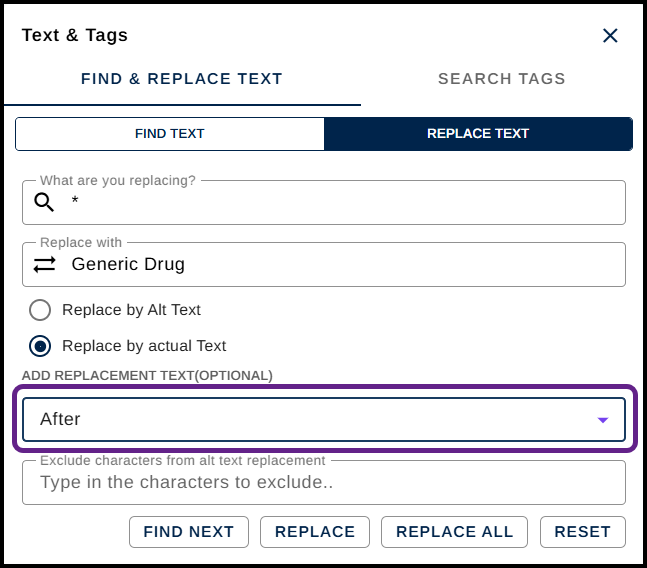
- Choose whether to add the replacement text to the find text. This determines whether your new text replaces what you're finding, or gets added alongside it. In this example, we'd add "Generic Drug" to the drug name itself, so a screen reader reads both the name and that it's a generic. We didn't check this option for the symbols method above, since there we wanted to fully replace the symbol with its meaning instead.
- Choose whether to add the replacement text before or after the found text. Here, decide whether a screen reader should say "generic drug" before or after the drug's name.
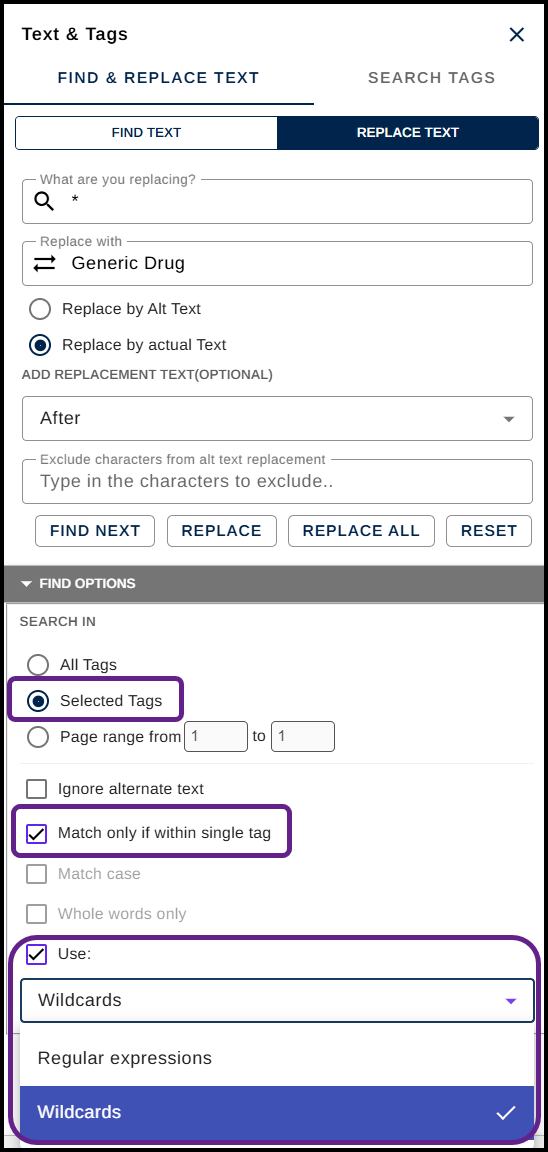
- Open the Find options section. A few helpful settings here:
- Search in Selected tags: select the tag or tags you want to search, then choose the Selected Tags radio button, so you only find matches within that content instead of the entire document.
- Match only if within a single tag: this searches tag by tag, so matching text spread across multiple tags isn't mistakenly treated as one match.
- Use: check this box, then choose Wildcards from the dropdown menu. This sets the search to look for "everything" rather than a literal asterisk, since that's what you entered in step 3. You'll narrow this down further with the font options next.
- Below the Wildcards dropdown, expand Font options. Check the relevant boxes and use the dropdown menus to search by font name, subtype, size, style, or color. In this example, since we're searching for bold text, the Style checkbox is checked with Bold selected from the dropdown.
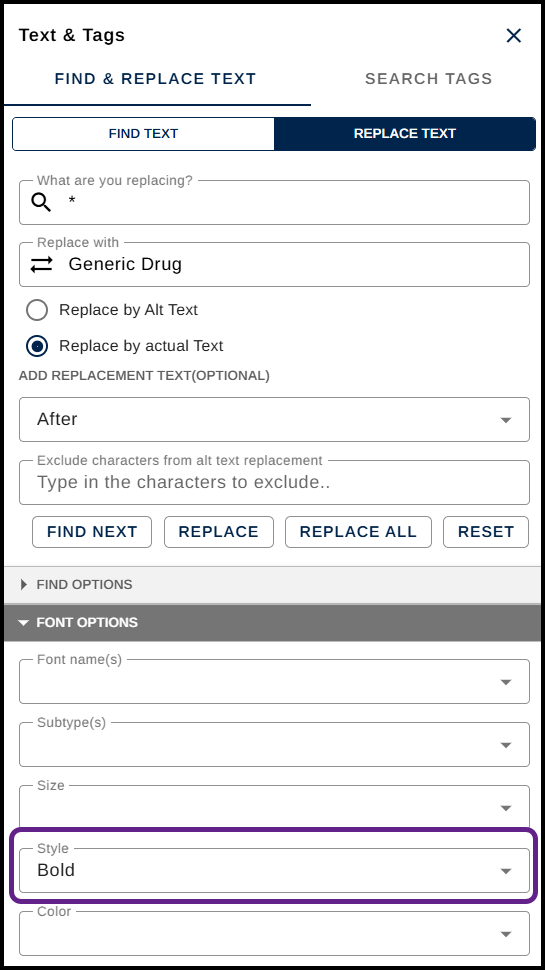
- Once your search parameters are set, go back up to the Find Next button and use it to find the first, and each following, match. Using Find Next instead of Replace All gives you control over which matches actually get the new text.
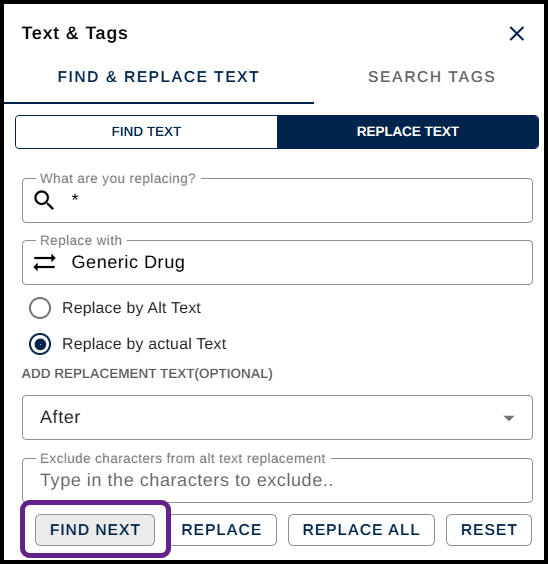
- Use the Replace button, next to Find Next, to assign the Alt or Actual text to that match. Use Find Next to skip over a match you don't want to replace.
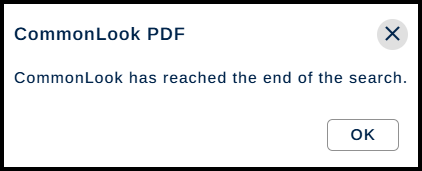
- Once every match has been found, a dialog box lets you know CommonLook reached the end of the search. Click OK to close it.
Find and replace using Regular Expressions
Regular Expressions work similarly to Wildcards, but let you search using more precise patterns instead of font properties alone. Continuing the drug table example from above, you could use a Regular Expression to find drug names in all uppercase letters and label them as brand name drugs.
- Open Find and Replace, from the Windows tab or Ctrl+H.
- Navigate to the Replace tab.
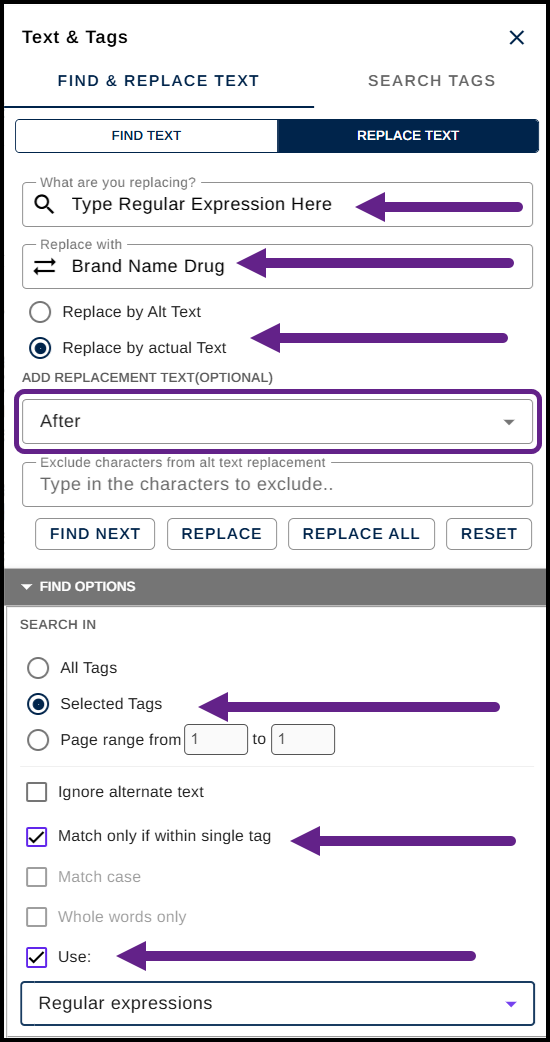
- In the Find What field, type the Regular Expression you need. Regular Expressions can get complex and are beyond the scope of this article.
- In the Replace with field, enter your required Alt or Actual text. In this example, since we're indicating that uppercase drug names are brand names, we'd enter "Brand Name Drug."
- Decide whether the replacement text should be Alt text or Actual text. In this example, Actual text is the right choice.
- Choose whether to add the replacement text to the find text. In this example, we'd add "Brand Name Drug" to the drug name itself, so a screen reader reads both the name and that it's a brand name drug.
- Choose whether to add the replacement text before or after the found text.
- Open the Find options section. A few helpful settings here:
- Search in Selected tags: select the tag or tags you want to search, then choose the Selected Tags radio button, so you only find matches within that content instead of the entire document.
- Match only if within a single tag: this searches tag by tag, so matching text spread across multiple tags isn't mistakenly treated as one match.
- Use: check this box, then choose Regular Expressions from the dropdown menu. This sets the search to look for whatever pattern your Regular Expression describes, rather than its literal characters.
- If needed, expand Font options below the Regular Expressions dropdown and set font name, subtype, size, style, or color. This step is optional for Regular Expressions, useful if you also want to narrow your search by font, for example, finding uppercase words in a particular font.
- Once your search parameters are set, go back up to the Find Next button and use it to find the first and each following match. Using Find Next instead of Replace All gives you control over which matches actually get the new text.
- Use the Replace button, next to Find Next, to assign the Alt or Actual text to that match. Use Find Next to skip over a match you don't want to replace.
- Once every match has been found, a dialog box lets you know CommonLook has reached the end of the search. Click OK to close it.
Common Problems
Replace All changed things I didn't mean to change.
Replace All applies your replacement to every match at once, with no chance to review each one. For Wildcards or Regular Expressions searches especially, use Find Next and Replace instead, so you can confirm each match before applying the change.
My Wildcards or Regular Expressions search isn't finding what I expect.
Double-check the Find options: that Selected Tags is scoped correctly, that Match only if within a single tag is set the way you want, and that Use is checked with the correct option, Wildcards or Regular Expressions, chosen from the dropdown.
Frequently Asked Questions
What's the difference between Alt text and Actual text in Find and Replace?
Actual text replaces character or text. Alt text is used for graphical replacments, like symbols.
Why shouldn't I just use Replace All for Wildcards or Regular Expressions searches?
Wildcards and Regular Expressions can catch more matches than you expect. Using Find Next and Replace instead lets you confirm each match before it's changed, rather than applying the change everywhere at once.
Do I need to know Regular Expressions to use this feature?
Not necessarily. Wildcards, based on font properties, may cover what you need without requiring Regular Expressions at all.
Can I combine Font Options with a Regular Expressions search?
Yes. Font Options can narrow a Regular Expressions search further, for example, limiting it to a specific font, size, or color, in addition to whatever pattern the Regular Expression describes.
Was this article helpful?
That’s Great!
Thank you for your feedback
Sorry! We couldn't be helpful
Thank you for your feedback
Feedback sent
We appreciate your effort and will try to fix the article