Product
CommonLook PDF Advanced Editor
Feature
Selection Settings
Document Element
Where and what are selection settings
Overview
The selection settings in CommonLook PDF can help you to select specific content on the page and in the tags tree. This can help you do things like find annotations on a page or locate and delete all the paths within a paragraph. Here is a breakdown of what the Selection Settings, when turned on, can do:
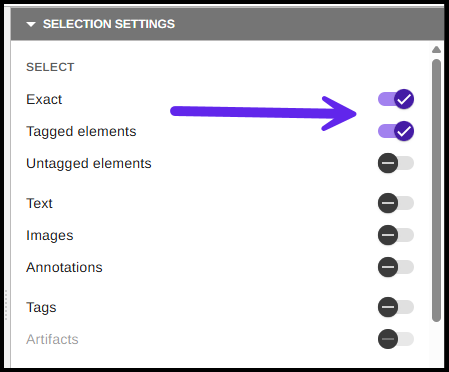
- Exact - The first option in this group. Usually, you'll want this one selected. It means that you'll be able to select exactly what you're highlighting (or choosing in the Tags).
- Text, Images, and/ or Annotations- Use these options to limit what gets selected when you highlight an area or select from the tags.
- Images - will allow you to only be able to select graphic images in the physical view and tags tree.
- Text - will allow you to only be able to select text in the physical view and tags tree.
- Annotations - will allow you to only be able to select annotations in the physical view and tags tree.
- Tagged - Use this option to be able to select tagged content. (Usually, you'll want this checked.)
- Artifacts - Use this option to be able to select untagged content. Most of the time you'll want this not selected. However, if there's untagged content that needs to be tagged, you'll need to use this option so that you can select the content and then tag it.
Steps to Follow
To find Selection settings, follow these steps:
- Navigate to the Selection Settings panel on the right side of the screen and open it by selecting the arrow.
- In the "Select" Group, check your selection settings and make sure you have Exact and Tagged toggled "on".
Screenshots
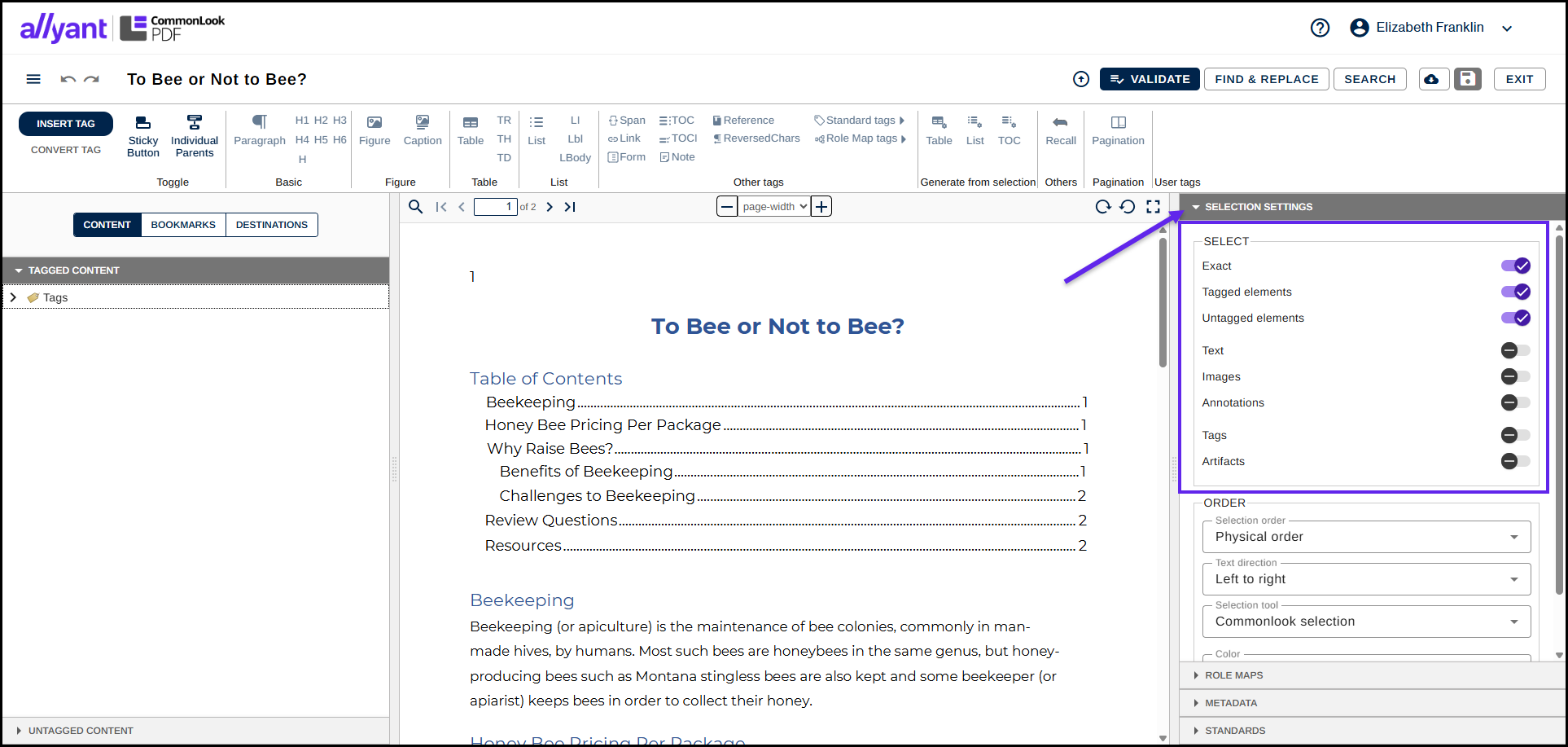
The selection settings panel is located on the left side of the screen and can be opened and closed by pressing the carrot next to the name.
Common Problems
If you're unable to select content in your PDF, whether by highlighting in the physical view or by selecting in the Tags, you might need to manipulate the Selection section of the Settings tab.
Was this article helpful?
That’s Great!
Thank you for your feedback
Sorry! We couldn't be helpful
Thank you for your feedback
Feedback sent
We appreciate your effort and will try to fix the article