Product
Advanced Editor (Web-based CL PDF)
Feature
Tagging
Document Element
Untagged Content (Selection group)
Overview
When remediating a document, it's common to untag content that doesn't need to be read by assistive technology. The reverse is also true: sometimes content that was previously untagged needs to be tagged so that information can be shared with individuals using assistive technology.
If you're having trouble selecting content on the page in order to tag it appropriately, this is usually because the current Selection settings aren't set up to let you select untagged content. The steps below show you how to adjust your selection options so you can select and tag that content.
Prerequisites
ollow these steps when:
- You need to tag content on the page that was previously left untagged.
- You're able to see the content visually, but clicking or highlighting it in the physical view doesn't seem to select it for tagging.
Steps to Follow
- Open the Selection Settings Panel on the right side of the screen. In most cases, the default selections when remediating a document are Exact and Tagged elements.
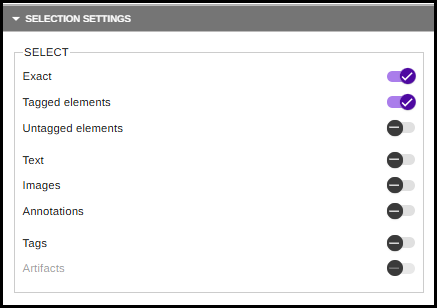
- Toggle on the Untagged checkbox, granting yourself the ability to highlight untagged content in the physical view.

- Select the tag in the Tags tree that you want the new tag to follow.
- Highlight the content you wish to tag, and generate the appropriate tag under the Insert tab of the CommonLook ribbon.
- Adjust the Selection section back to your default selections, if preferred.
Common Problems
- Untagged content can't be selected. This typically happens because the Untagged checkbox in the Selection group isn't checked. Enable it to highlight untagged content in the physical view.
- The wrong tag gets nested in the Tags tree. Before highlighting content to tag, make sure you've selected the correct tag in the Tags tree for the new tag to follow — otherwise the new tag may be placed in an unintended location in the tree.
- Forgetting to reset Selection settings. After tagging untagged content, remember to uncheck Untagged (and re-check your usual defaults, such as Exact and Tagged) if you don't want to keep selecting untagged content going forward.
Frequently Asked Questions
What other content can the Selection group help me select?
The Selection group can help you manipulate other types of content as well. Other checkable selection options include being able to select only images, annotations, or artifacts.
What are the default Selection settings when remediating a document?
In most cases, the default selections are Exact and Tagged.
Was this article helpful?
That’s Great!
Thank you for your feedback
Sorry! We couldn't be helpful
Thank you for your feedback
Feedback sent
We appreciate your effort and will try to fix the article