Product
CommonLook Edu
Feature
Chemistry
Overview
CommonLook Edu includes some features for handling math and chemistry content, which is specifically useful to educational institutions. One of those features is automatic chemistry detection, which identifies chemical equations and diagrams in your document and generates descriptions for them automatically. This article walks you through how to verify, fix, and manually mark chemistry content in your document.
Prerequisites
Do this any time your document contains chemical equations, reaction equations, or chemical diagrams. You should work through your chemistry content during the Clarify Page Elements stage, before moving on to the Full Document Review. If your document also contains chemistry inside tables or lists, make sure those elements are correctly marked before handling the chemistry inside them. Refer to How to Properly Mark Tables (Simplified Editor) and How to Properly Mark Lists (Simplified Editor) as needed.
Steps to Follow
Verifying automatically detected chemistry
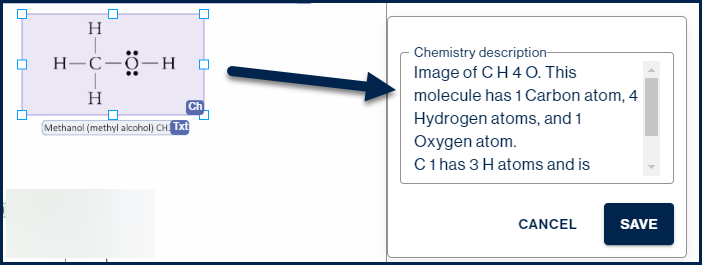
When CommonLook Edu detects chemistry in your document, it places it in a Chemistry element and generates a description automatically. You should always verify that description before moving on.
- Click on the Chemistry element in the page view. If the chemistry is inline inside another element, select the parent element first, click "Edit Inline" in the toolbar, and then click the Chemistry element.
- With the Chemistry element selected, click the "Chemistry" button in the toolbar.
- On the right side of the interface, locate the "Chemistry description" panel.
- Review the description for accuracy. Edit it if needed.
- Click "Save."
Marking chemistry that was not detected automatically
If CommonLook Edu did not recognize content as chemistry and it has been placed in a Text or Image element instead, you can convert it manually.
- Select the Text or Image element containing the chemistry content.
- In the toolbar, click "Chemistry" to convert it to a Chemistry element.

- Review and edit the Chemistry description as needed.
- Click "Save."
If the Chemistry element was not detected at all:
- Draw a box around the chemical diagram or equation in the page view.
- In the toolbar, click "Chemistry" to create a new Chemistry element.
- Review and edit the Chemistry description. If the description does not look right, try resizing the element to make sure the entire diagram is inside its boundaries.
- Click "Save."

Chemistry inside data tables
If your document has a data table that contains chemistry content, mark the table structure correctly first before handling the chemistry inside it.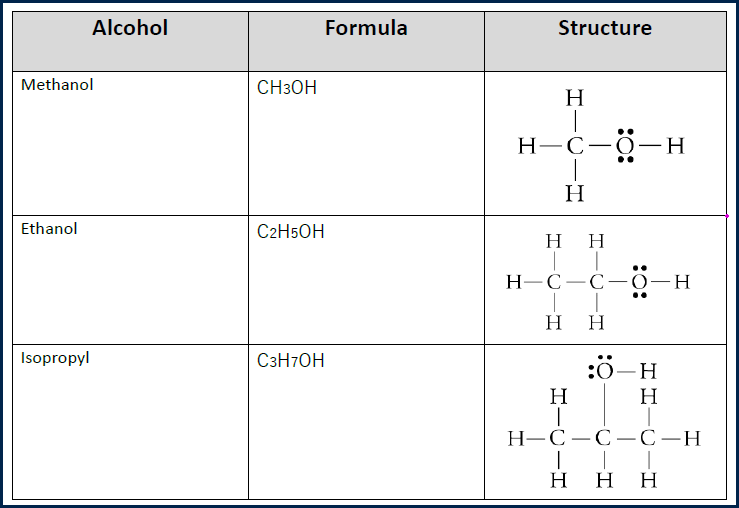
- Make sure the Table element has the correct rows, columns, and headers. Refer to How to Properly Mark Tables (Simplified Editor) if needed.
- Select the Table element and click "Edit Inline" in the toolbar.
- Draw a box around the chemistry content inside the relevant table cell.
- In the toolbar, click "Chemistry."
- Review and edit the Chemistry description.
- Click "Save" before moving on to the next cell.
- Repeat for any other cells containing chemistry content.
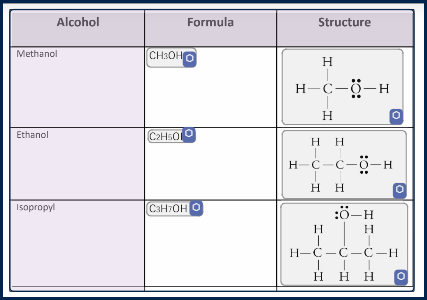
Inline Chemistry elements inside table cells use a slightly different icon than standalone Chemistry elements, so you can tell them apart at a glance.
Chemistry inside lists
If your document has chemistry content inside a list, make sure the List element and its List Items are structured correctly before marking the chemistry inside them.
- Make sure the list is correctly marked in a List element. Refer to How to Properly Mark Lists (Simplified Editor) if needed.
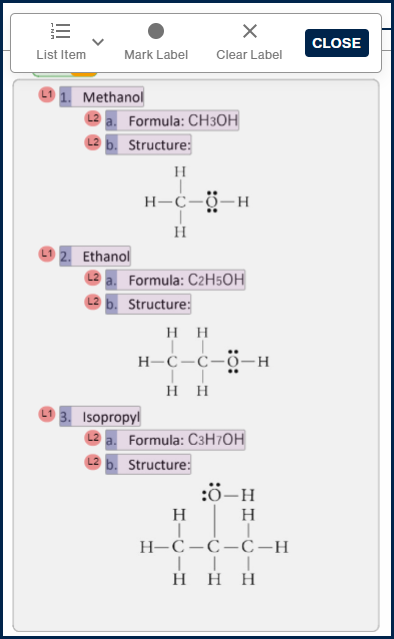
- Select the List element and click the "List" button in the toolbar to open the List toolbar.
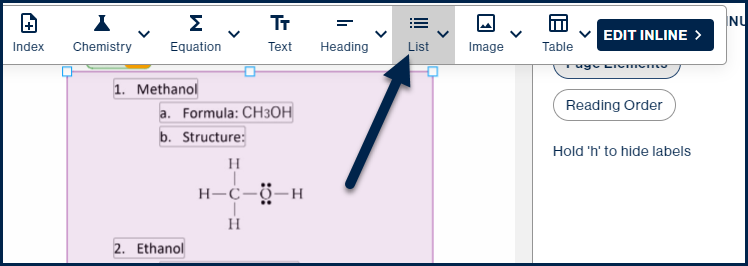
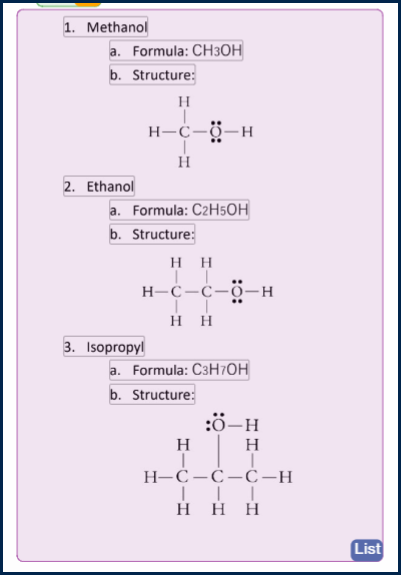
- Resize any List Items that need to also contain chemistry content, so that the chemistry falls inside the List Item boundaries.
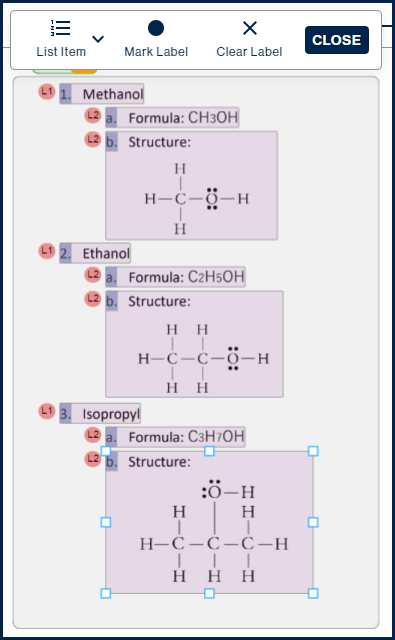
- Click "Close" in the List toolbar to return to the main List element view.
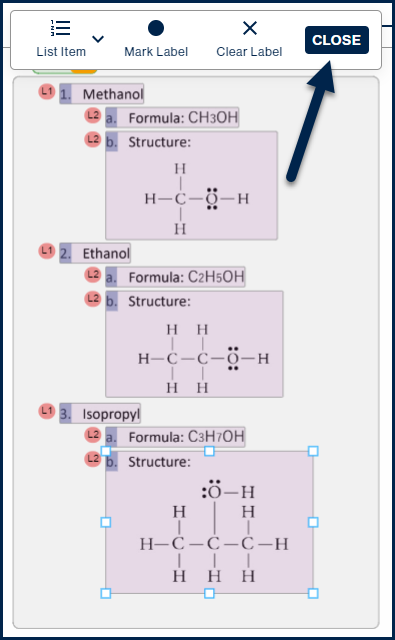
- Select the List element and click "Edit Inline" in the toolbar.
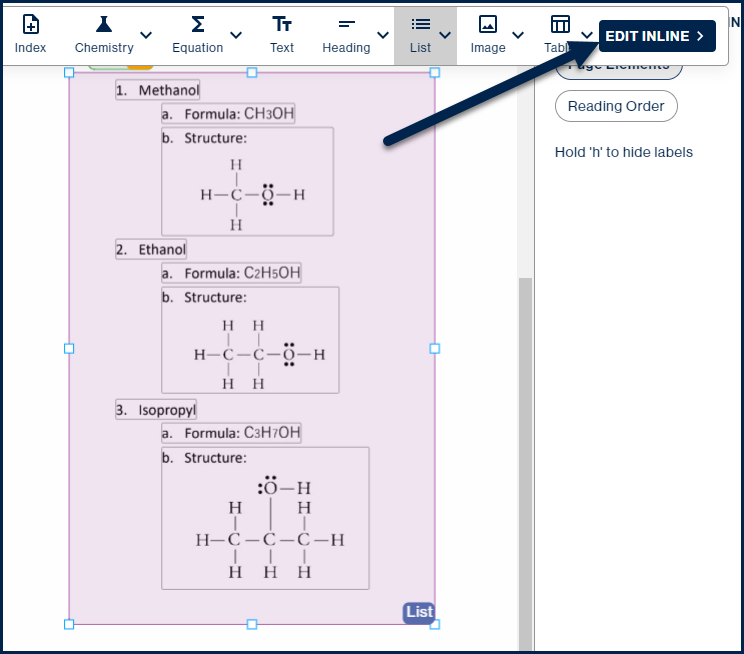
- Draw a box around the chemistry content inside the relevant List Item.
- In the toolbar, click "Chemistry."
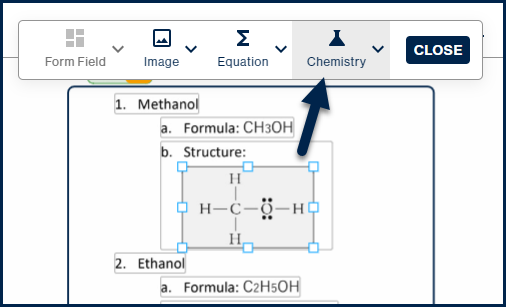
- Review and edit the Chemistry description.
- Click "Save" before moving on to the next item.
- Repeat for any other List Items containing chemistry content.
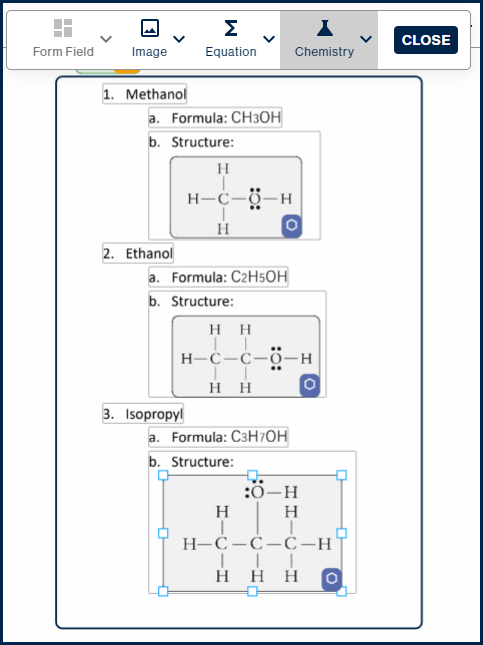
- Click "Close" when you are done with inline editing.
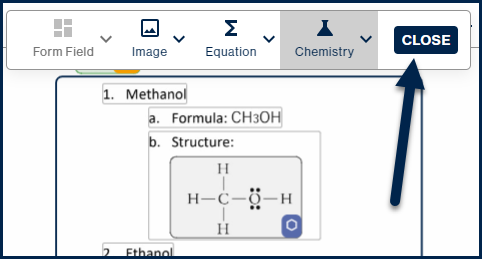
If you need to delete a parent element like a List that already has inline Chemistry elements inside it, a dialog box will appear asking whether you want to keep those inline elements. Choose "No," recreate the parent element, and then mark the inline chemistry again from scratch.
Common Problems
The Chemistry description is not accurate
If the automatically generated description does not match the content, try resizing the Chemistry element to make sure the entire diagram or equation is within its boundaries, then check the description again. If it is still not right, edit it manually in the Chemistry description panel.
Chemistry inside a table or list is not being detected
CommonLook Edu does not always detect inline chemistry inside tables or lists automatically. This depends on different factors about how the content was created. If this happens, you will need to mark it manually using the Edit Inline steps described above.
Deleting a parent element removed the chemistry inside it
If you deleted a List or other parent element and lost the inline Chemistry elements inside it, recreate the parent element and mark the chemistry again. To avoid this in the future, always choose "No" when the dialog box asks whether to keep inline elements, then rebuild from scratch.
Frequently Asked Questions
What is a Chemistry description and why does it matter?
A Chemistry description is the eventual alt text that gets used in place of or alongside a chemical equation or diagram in the accessible output. For a screen reader user, it is the only way to understand what the chemistry content contains. Without an accurate description, the content is effectively missing to anyone using assistive technology.
What happens to chemistry content in the final accessible output?
It depends on the output type. In an accessible PDF, chemistry is placed in Formula or Figure tags with the Chemistry description used as alt text. In a large-print Word document, chemical diagrams are treated as images with the description as alt text, and equations are converted to OfficeMath or MathType objects. In E-text, the Chemistry description replaces the equation entirely. In Braille, diagrams are replaced with their descriptions and equations are presented in UEB Braille code with Nemeth.
Can I mark an image of a chemical equation as chemistry?
Yes. This is a big quality of life enhancement! CommonLook Edu can generate descriptions for chemical reaction equations regardless of whether the content is extractable text or an image in the source document. Mark the image as a Chemistry element using the same steps described above and verify the description before saving.
Related Articles
- How to Properly Mark Tables (Simplified Editor)
- How to Properly Mark Lists (Simplified Editor)
- How to Work with Math Equations (CL Edu)
Was this article helpful?
That’s Great!
Thank you for your feedback
Sorry! We couldn't be helpful
Thank you for your feedback
Feedback sent
We appreciate your effort and will try to fix the article