Some documents will be full of lines and other decorative graphics that should not be read by assistive technologies. For example, you might stumble upon a massive table that has every single line, cell border, and shading (or "banding") tagged! These graphical elements typically appear in the Tags tree as Paths or XObjects - although there are occasionally "other" types of graphical elements, too. The "issue" is not that the "thing" is a Path, or an XObject. The point of this article is how to handle graphical elements in PDFs that don't, by themselves, convey any important information. So, "Step 1" could be for you, as the remediator, to decide whether or not the graphical "thing" - the Paths, the XObjects, etc., are important or not. If they are important, you tag them in Figure tags and provide Alt text. If they are not important, you follow the advice in this article for how to deal with them.
(Note: Even though their icon, in the Tags tree, looks like a tag, Paths and XObjects are not actually tags. They are the graphical elements.)
There are a few ways to remove graphical elements, some of which can be more efficient than others depending on the circumstances.
Methods for Removing Decorative Graphical Elements
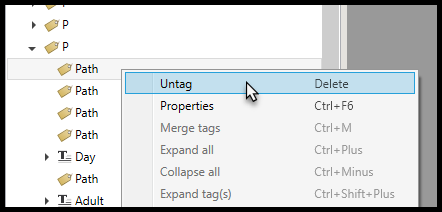
- Select the content in the Tags tree or physical view, right-click, or otherwise open the context menu, and untag it. This can be highly accurate, but time-consuming.
- Change your Selection Settings (in the ribbon from the Settings tab, check the boxes for "Images" and "Tagged") to only be able to select the graphical elements. You should then be able to easily highlight them without accidentally snagging text or other content. This can be both highly accurate and efficient. (With your selection settings set to "Images," when selecting a tag in the Tags tree, you'll also only select the graphical elements that are inside the tag you selected.)
When you've selected the graphics you need to untag then choose "Untag" from the context menu or simply hit the Delete key on your keyboard.)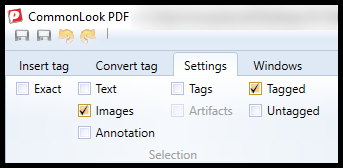
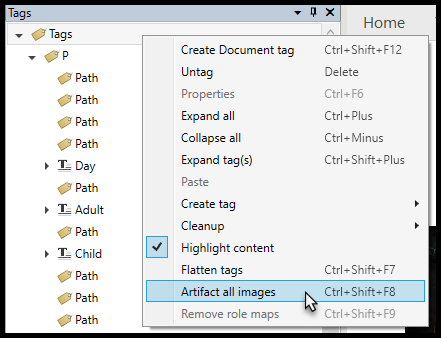
- Right-click or otherwise open the context menu of the Tags root. Select "Artifact all images" from the context menu. This will untag any and all graphics from the document. This can be extremely efficient, but not effective if there are graphics that you need to keep tagged.
Didn't find what you're looking for? Navigate to our "Tagging (or Untagging) Content" section for more related articles that may help!
Was this article helpful?
That’s Great!
Thank you for your feedback
Sorry! We couldn't be helpful
Thank you for your feedback
Feedback sent
We appreciate your effort and will try to fix the article