If you have run the PDF/UA accessibility checker on your PDF and received a failure for one of the images not having the Bounding Box attributes set or incorrectly set, you can easily use the Fix Wizard to address this issue.
What are Image Bounding Boxes (BBox)?
The Bounding Box (BBox) shows the exact position and size of items like images, links, and tables on a page. This is crucial for assistive technologies to know where these tagged elements are located and how big they are.
Using the Fix Wizard to Set the BBox Attributes
- Select the Failed Result and open the fix wizard. For desktop users, you can double-click on the failure or right-click and select "Fix." For advanced editor users, select the three dots and in the menu that opens, click on "Fix."
- In the Fix Wizard, the only option is to calculate and set the BBox attribute. With this selected and press finish.
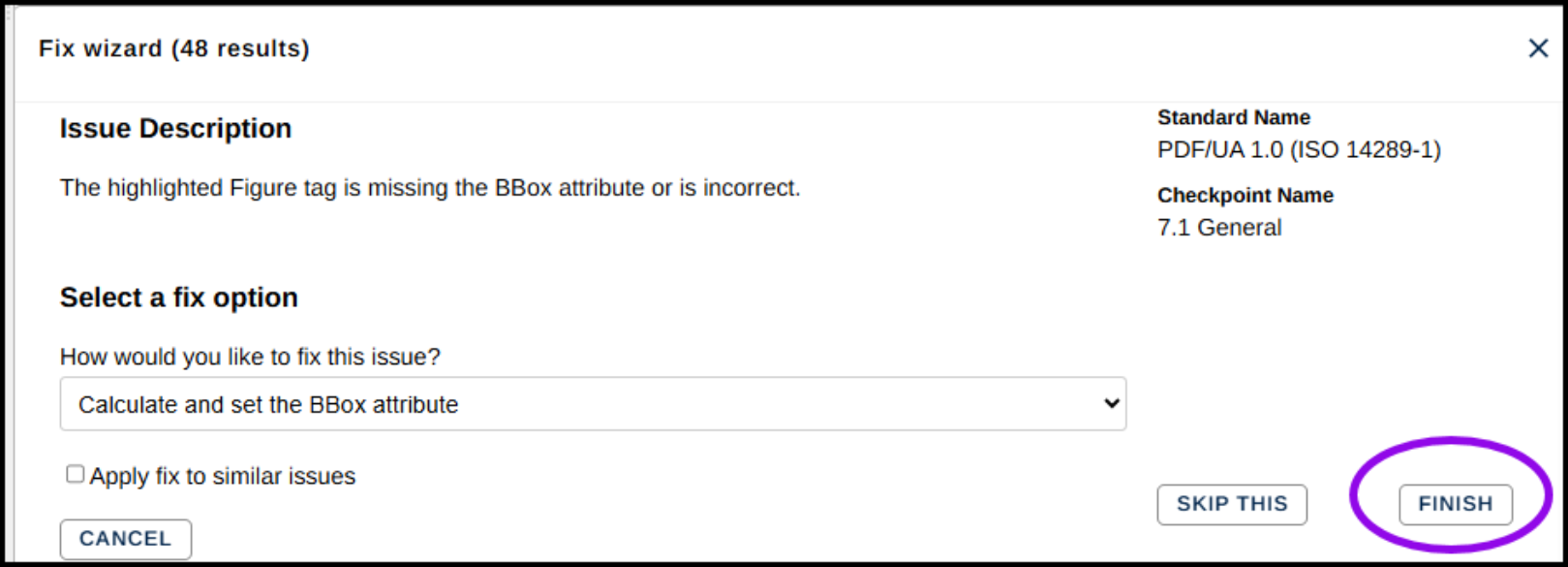
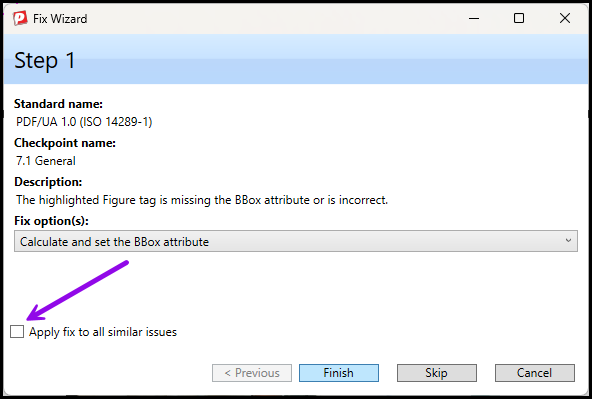
- If you have multiple Images that require this failure in your results, before you select the finish button, check the checkbox, "Apply fix to all similar issues."
Using templates
- Once you save a template, click on Use template to open the template as a new article
- Make the relevant changes to the template and save the article
Was this article helpful?
That’s Great!
Thank you for your feedback
Sorry! We couldn't be helpful
Thank you for your feedback
Feedback sent
We appreciate your effort and will try to fix the article