When content is redacted in a PDF, it’s purposefully, and permanently, removed from the document and replaced with a black rectangle. Note that this is not simply covering up the content that was there. Also, while, visually, there are just black rectangles on the page, it’s important for assistive technology users to know that content has been redacted.

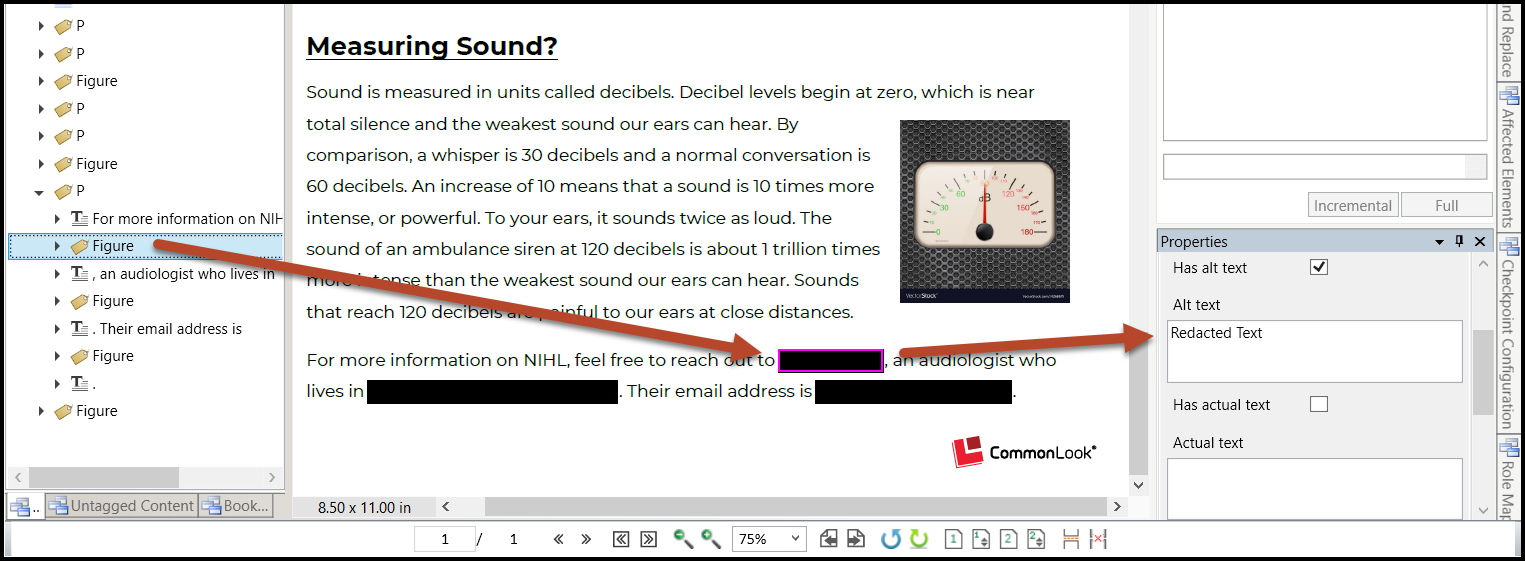
Using the screenshot above as an example, you'd tag the paragraph of text, including the black redaction rectangles. Of course, because each redaction rectangle is a graphical element that does convey information, they should then be placed in Figure tags and given Alternative text. (In this case, the Alt. text would be something like "Redacted text" so that screen-reader users know what the graphic is conveying.)
Refer to the article on Tagging graphics for more information, if needed.
Note: Some organizations use codes to indicate why text was redacted, when a name is removed from a document for security reasons, for example. If that’s the case in your documents, make sure the Alternative text conveys all of the important information, including redaction codes, etc.
Didn't find what you're looking for? Navigate to our "Images, Graphics, & Figures" section for more related articles that may help!
Was this article helpful?
That’s Great!
Thank you for your feedback
Sorry! We couldn't be helpful
Thank you for your feedback
Feedback sent
We appreciate your effort and will try to fix the article