Product
CommonLook PDF Desktop Version
Feature
Verification
Document Element
Addressing Failures, Warnings, and User Verifications
Overview
Once you've run a Validation, the Results panel lists everything CommonLook found, sorted into three types: Failures, Warnings, and User Verifications. Rather than working through the list top to bottom, it's easier to address results one type at a time, in this order: fix Failures first, then Warnings, and finish with User Verifications.
Pro Tip: Read each status message carefully. Some are worded a bit technically, but a careful read will often tell you exactly what the checkpoint is looking for and what you need to do about it. For the trickier ones, try the Knowledge Base's search functionality using a few keywords from the message. Many specific checkpoints already have their own article here.
Prerequisites
Before you start, make sure you:
- Have already run a Validation (Full or Incremental) on your document. See Running Validation.
- Have the Results panel open.
Steps to Follow
Addressing Failures
Failures are results that didn't meet one or more checkpoints in the standards you're validating against. For example, every standard requires that Figure tags have Alternative text, so CommonLook marks any graphic missing that text as a Failure. These steps focus on Failures, but the same pattern applies to other result types as well.
- Near the upper left corner of the Results panel, click the "Filter by" field to open its dropdown menu, then click "Failed" to show only Failures.

- Hover over the Description column of the first failed item, near the right side of the panel, to reveal a tooltip with the full description of why it failed.
- Click the failure once. If it relates to a specific element, such as a Figure missing Alternative text, that element is highlighted in the document. If it relates to something that affects the whole document, such as a missing document title, nothing is highlighted in the physical view, but the metadata window opens on the right side of the screen instead.
- Open the Fix Wizard, either by double clicking the error in the Description column or by right clicking it and choosing "Fix" from the context menu.
- About halfway down the Fix Wizard panel, click the "Fix option(s)" dropdown to see the available fixes, choose the best one, and click Next or Finish as prompted. Some errors need more than one step. Follow the Fix Wizard's prompts until the result is resolved.

- When a fix is complete, the Fix Wizard closes and you're returned to the Results panel. Repeat these steps for the remaining Failures.
When the Fix Wizard Isn't Available
Some errors don't have a Fix Wizard solution. When that happens, right click the error's description in the Results panel, choose "Edit Checkpoint Status," read the description, and address the issue manually.
Addressing Warnings
Once every Failure has been addressed, move on to results marked "Warning." A Warning isn't a violation of the standards. It's CommonLook flagging something worth knowing about even though it isn't required. For example, most standards don't require table summaries, but CommonLook marks their absence as a Warning so you know you have the option to add one. These steps focus on Warnings, but the same pattern applies to other result types as well.
- Click the "Filter by" field near the upper left of the Results panel and choose "Warning" to show only Warnings.

- Hover over the Description column of the first Warning to reveal a tooltip with its full description.
- If a Fix Wizard solution is available, follow its prompts to resolve the Warning. If it isn't, right click the description, choose "Edit Checkpoint Status," read the description, and address the issue manually.
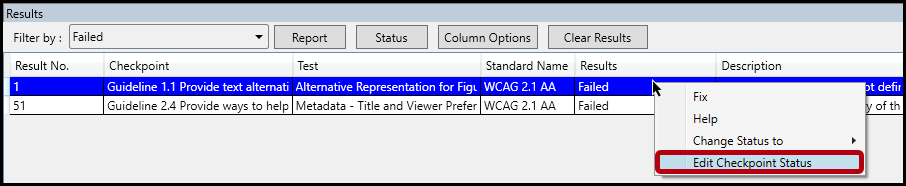
Addressing User Verifications
Once Failures and Warnings are addressed, move on to results marked "User Verification." These aren't compliance failures. They're checkpoints a machine can't fully evaluate on its own. For example, software can detect whether color is present in a document, but it can't tell whether color is the only way information is being conveyed, so that part of the color checkpoint always comes back as a User Verification requiring a person to check it.
- Click the "Filter by" field near the upper left of the Results panel and choose "User Verification" to show only that result type.

- Hover over the Description column of the first item to reveal a tooltip with its full description.
- Click the item. If applicable, the related element is highlighted in the physical view.
- Right click the Description and choose "Edit Checkpoint Status" from the context menu.
- In the Status dialog that opens, read the description of what the checkpoint is checking for, then review the document to confirm whether there's an issue. A User Verification can turn up a real problem, or it can simply confirm something was already done correctly.
- If you find an issue, click Cancel at the lower right of the Status dialog, then fix the issue in the document. Afterward, run an Incremental Validation Check rather than a full one, so you don't duplicate validation work you've already done.
- If there's no issue, use the "Status" dropdown above the description to change the result (Passed, Not Applicable, Skipped, and similar options are available). You can optionally add a comment here; comments appear on the CommonLook Compliance Report if you generate one. See Generating a Compliance Report.
- Click OK.
Common Problems
A status message doesn't make sense
Reread it slowly first, since many messages describe exactly what's needed once you slow down. If it's still unclear, search the Knowledge Base using a few keywords from the message. Many specific checkpoints already have their own dedicated article here.
An error has no Fix Wizard option
This is expected for some checkpoints. Right click the error's description, choose "Edit Checkpoint Status," and address it manually, following the same approach described under Addressing Failures.
Common Problems
A status message doesn't make sense
Reread it slowly first, since many messages describe exactly what's needed once you slow down. If it's still unclear, search the Knowledge Base using a few keywords from the message. Many specific checkpoints already have their own dedicated article here.
An error has no Fix Wizard option
This is expected for some checkpoints. Right click the error's description, choose "Edit Checkpoint Status," and address it manually, following the same approach described under Addressing Failures.
Frequently Asked Questions
What's the difference between a Failure, a Warning, and a User Verification?
A Failure means a checkpoint in the selected standards wasn't met and needs to be fixed. A Warning means nothing is technically wrong, but CommonLook wants you aware of something you might choose to address. A User Verification means the checkpoint can't be fully evaluated by software, so it needs a person to confirm whether there's actually an issue.
What happens to comments I add when changing a status?
They're saved with that result and appear on the CommonLook Compliance Report if you generate one for the document.
Do I need to run a full Validation again after fixing something found during User Verification?
No. Run an Incremental Validation Check instead. It checks what's changed without duplicating validation work you've already completed.
What if a Warning just doesn't apply to my document?
Handle it the same way as a Failure without a Fix Wizard option: right click the description, choose "Edit Checkpoint Status," and update it manually.
Was this article helpful?
That’s Great!
Thank you for your feedback
Sorry! We couldn't be helpful
Thank you for your feedback
Feedback sent
We appreciate your effort and will try to fix the article