Product
CommonLook PDF Desktop Version
Feature
Verification
Document Element
Sub-section of the "Feature" (linking headers in tables, nested lists, etc)
Overview
Once remediation is complete, run a verification to check for anything that might have been missed, errors that may have been made, and/or for any steps that were purposefully skipped because CommonLook's functionality provides a way to fix things "in bulk" during this phase (for example, tooltips on forms).
There are two types of Verifications that can be run:
- Structural check — Tests the document for empty tags, empty tags that contain Alt text, broken links, etc. It also tests tables, links, tables of contents, etc., to make sure these tags — including their required nested tags — have been assembled correctly. For example, the Structural check verifies that Table tags contain Table Row tags, and that those tags then contain Table Data and/or Table Header cells.
- Accessibility check — Tests the document against one or more established accessibility standards (Section 508, WCAG 2.0 AA, WCAG 2.1 AA, HHS, and PDF/UA).
Prerequisites
Run a Full Validation once remediation of the document is complete. Run an Incremental Validation any time an adjustment is made to the document after a Full Validation has already been run, to re-check only what changed rather than re-reviewing every result.
Steps to Follow
Running a Full Validation
- In the Standards panel, to the right of the physical view of the document, double-click to open the Standards menu.
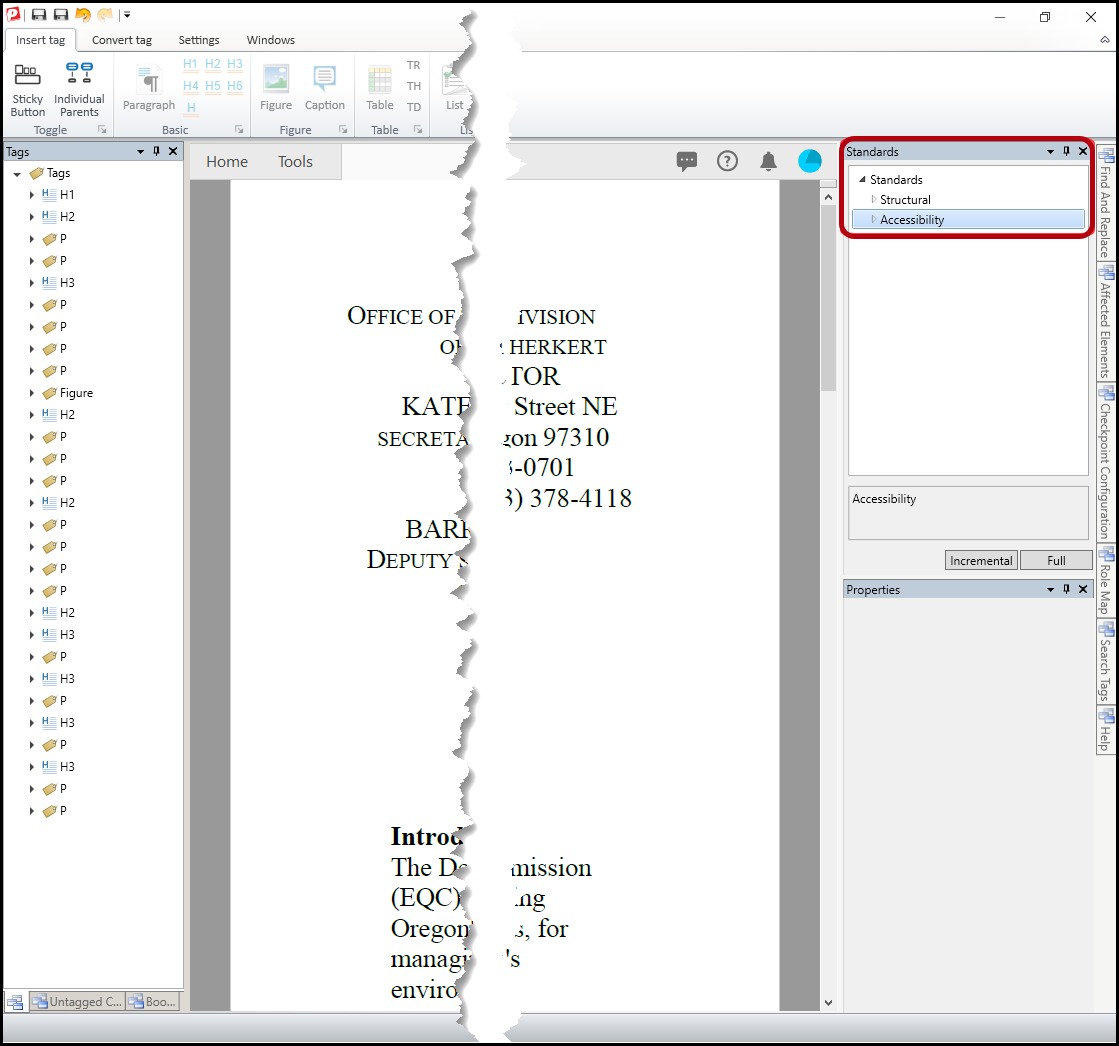
- Select and open “Accessibility” to choose from the list of standards for testing the document’s compliance.
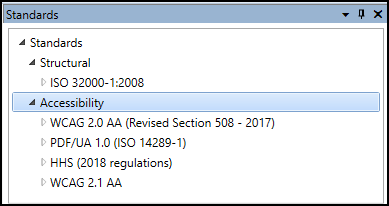
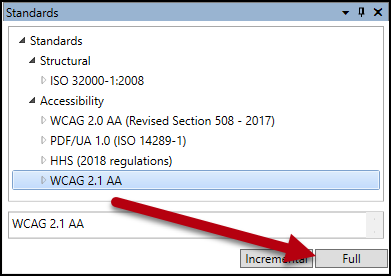
- Choose the standard(s) against which the document will be checked. (Note: Standards can be opened and then individual guidelines or checkpoints within the standard may be specifically tested. To test the document against the full standard, simply choose it from the menu.)
- Below the list of Accessibility standards, click the “Full” button to test the document.
Running an Incremental Validation
When going through validation results, it is very common for a user to make an adjustment to the document. If changes are made, it's important to run the verification check again to ensure compliance, but it's unnecessary to work through the same results again. In situations like this, run an Incremental Validation to check only the document elements that have been updated since the last Full Validation was run. This saves time during remediation by preventing repetitive work.
The steps below walk through running an Accessibility check; running a Structural check is accomplished in much the same way.
The steps below walk through running an Accessibility check; running a Structural check is accomplished in much the same way.
- In the Standards panel, to the right of the physical view of the document, double-click to open the Standards menu.
- Select and open "Accessibility" to choose from the list of standards for testing the document's compliance.
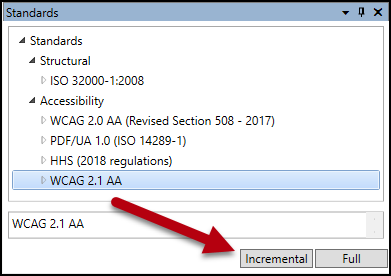
- Choose the standard(s) against which the document will be checked. (Note: Standards can be opened and then individual guidelines or checkpoints within the standard may be specifically tested. To test the document against the full standard, simply choose it from the menu.)
- Below the list of Accessibility standards, click the "Incremental" button to test the document.
Filtering Validation Results
After running a Validation check, you'll work your way through the results and make the necessary adjustments. To make that easier, filter your results so they're more manageable. After running your verification, you'll notice a large number of results have been generated — the Results panel shows all outcomes from the selected standards by default, so filtering breaks the feedback down and makes your efforts more logical and manageable. This section addresses "Failed" results, but "Warning" and "User Verification" findings should also be managed.
- When the Results panel opens, near the upper left corner, click in the “Filter by” field to expand the drop-down menu options.
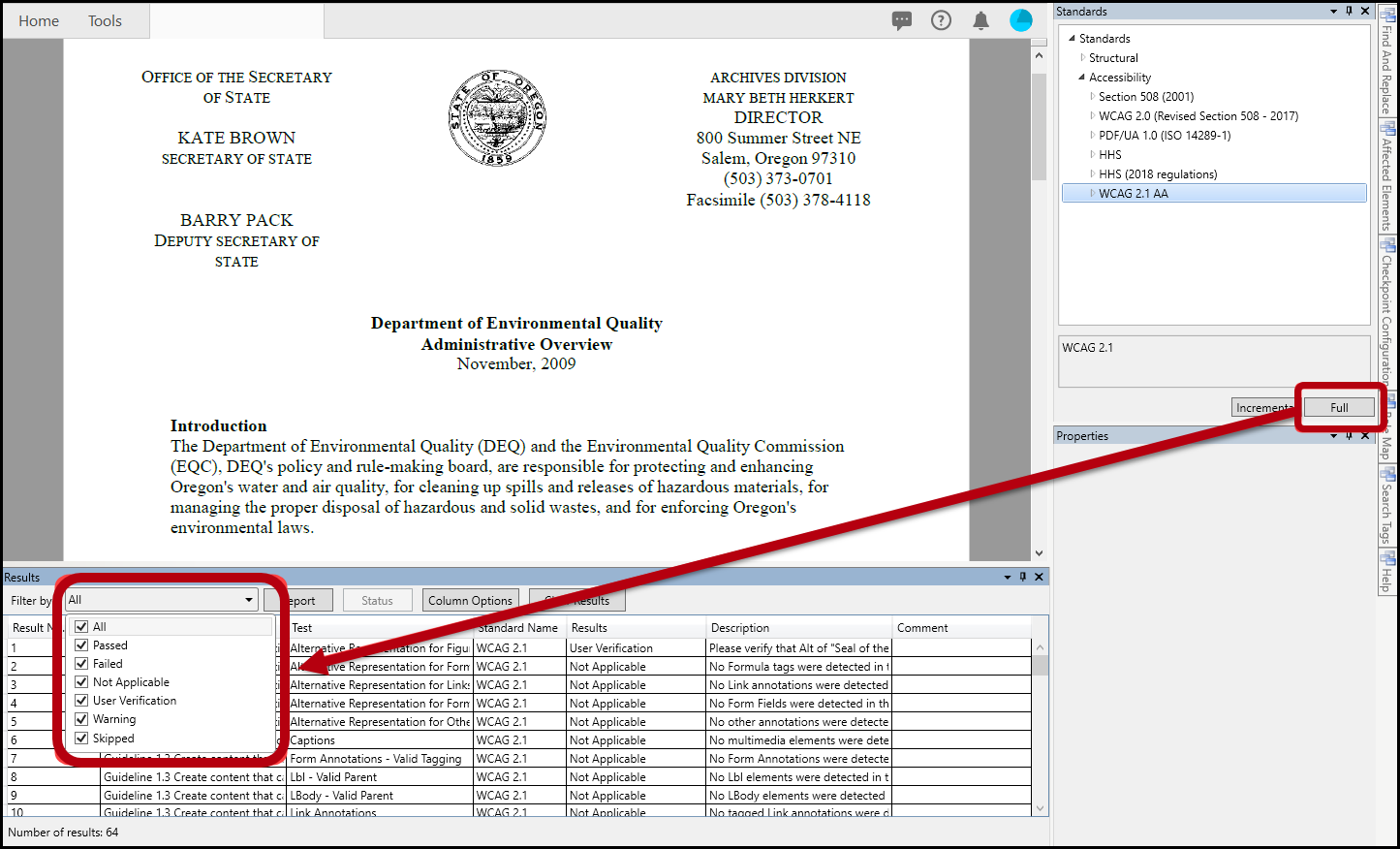
- Uncheck the checkbox for “All” and then check the desired filter checkboxes. Click anywhere to close the dropdown menu. There is no need to check the elements that have already passed or do not apply to the particular document. This includes "Passed" and "Not Applicable" results.
Common Problems
- Running a Validation check can generate a large number of results, which can feel overwhelming to work through — filtering results (see above) makes this more manageable.
- Verification getting stuck. A common issue some documents run into is that "extra" tags clog up the verification phase of remediation, causing it to run very slowly or appear to hang. This is typically a sign that the Recommended Remediation Workflow taught in class, in webinars, and throughout the Knowledge Base isn't being followed. That workflow calls for removing any unfamiliar tags and accurately tagging content throughout the document as you go.
Was this article helpful?
That’s Great!
Thank you for your feedback
Sorry! We couldn't be helpful
Thank you for your feedback
Feedback sent
We appreciate your effort and will try to fix the article