Upon completion of a full validation, users may want a way to track their remediation efforts. A compliance report will share the validation outcomes and final result of each and every checkpoint within the selected standards. This is a great way of verifying when a document was remediated and the exact actions a remediator took during the verification process. Many users will save a copy of the finalized, compliant, PDF, as well as the CommonLook Compliance Report as a way to track their efforts. Follow the steps below to generate a report:
- Open the Filter by menu in the Results panel and check the checkbox for “All.”
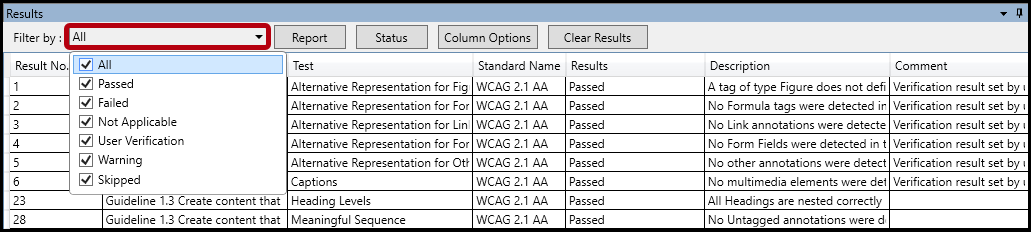
- Click anywhere to close the dropdown menu.
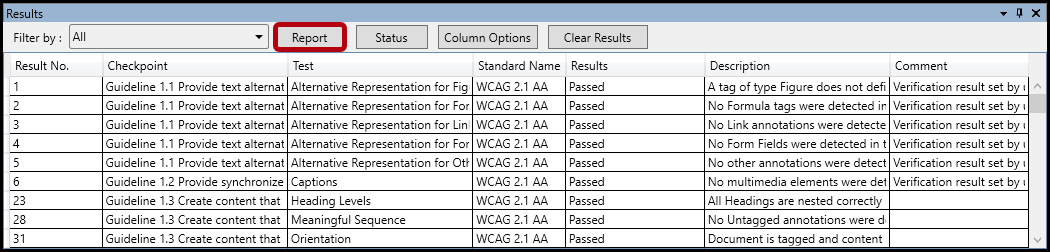
- To the right of the "Filter By" menu, click the button labeled “Report.”
- The “Save As” dialog box will open. Default settings will use the PDF’s file name for the report and it will be saved in the same location in which the PDF is saved. Make any changes needed and click Save. The report is saved as an accessible HTML file.
Note: This report will also share any comments that were added during the validation process.
Didn't find what you're looking for? Navigate to our "Validation & Standard Check" section for more related articles that may help!
Was this article helpful?
That’s Great!
Thank you for your feedback
Sorry! We couldn't be helpful
Thank you for your feedback
Feedback sent
We appreciate your effort and will try to fix the article