Check out this demo video of the web-based Advanced Editor.
Before We Begin:
This guide is designed to take the new CommonLook PDF user step by step through the process of remediating and validating the accompanying PDF document. To follow along, download the PDF document at the very bottom of this page. It is titled "Rock on DC Music Festival." Although the document is relatively simple, by taking the concepts and applying them to other documents, the intent is that you’re able to get a good start at remediating your own files.
A typical workflow for PDF remediation may include running OCR (Optical Character Recognition – for scanned documents), adding any interactive elements (links, forms, buttons, etc.), and then adding tags to the document before fixing it in CommonLook. These steps aren’t needed in this sample document so we can move right into opening CommonLook and getting started.
The Quick Start steps below are specific to the accompanying "Rock on DC Music Festival" PDF.
Important Note: To thoroughly explain all of the functionality in CommonLook would make this Quick Start Document unreasonably long. The instructions below provide one way to fix the PDF. Feel free to explore the software on your own or to inquire about formal training to receive more in-depth instruction.
It's also worth noting that if any of the screenshots or images are appearing a bit small, you can select them to enlarge them.
Using the Correct Quick Start Guide:
There are two versions of CommonLook PDF. The first is web-based and accessed through an internet browser. The second is a plugin to Adobe Acrobat Pro or Pro DC. This Quick Start Guide includes step-by-step instructions, screenshots, and tips for using the CommonLook PDF Web-based Advanced editor.
If you are using the desktop application, please navigate to the CommonLook PDF - Desktop Quick Start Guide.
Web-Based Version of CommonLook PDF Quick Start Guide:
This section of the Guide is specifically for users in the web-based version of CommonLook PDF.
Getting started
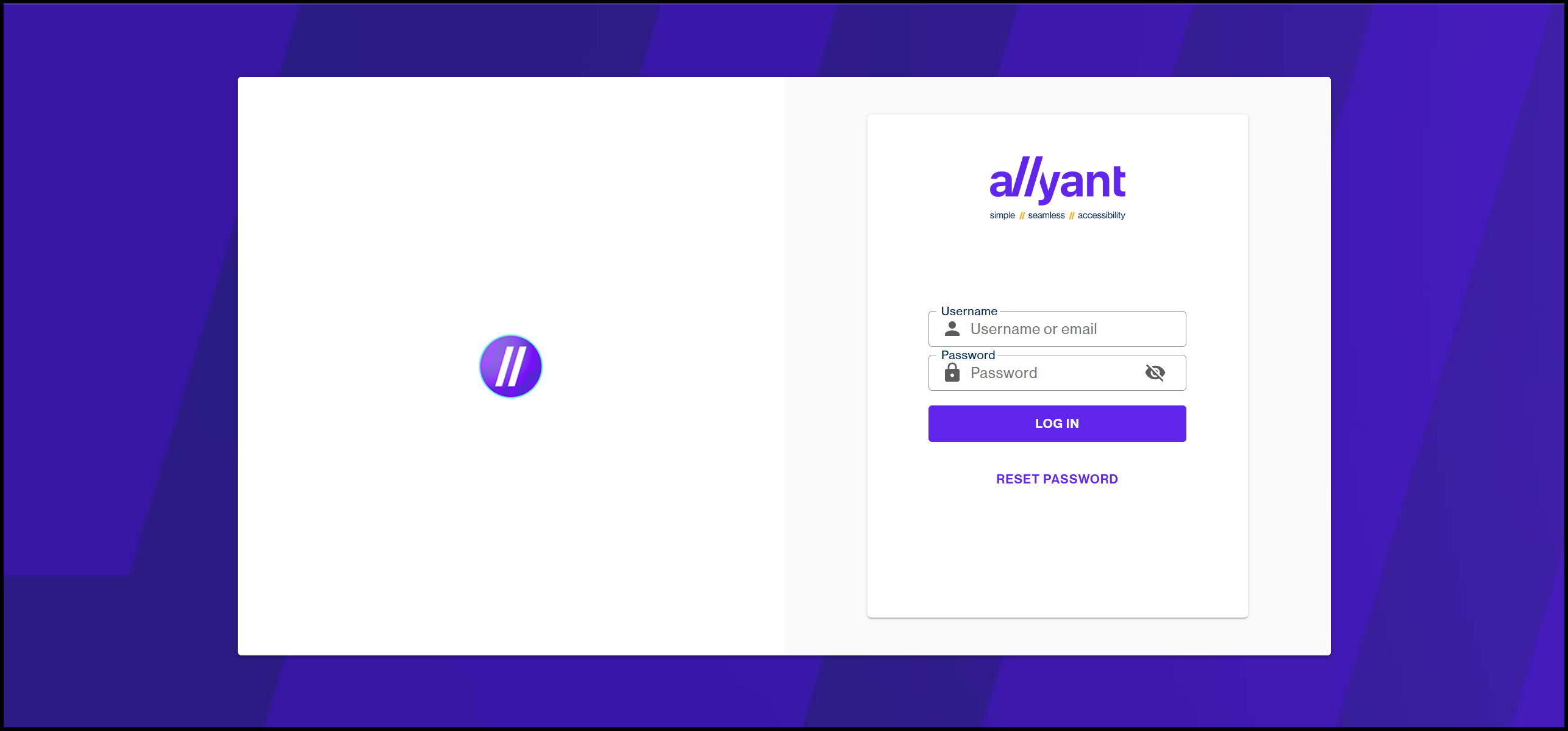
- Login to web-based CommonLook PDF.
Note 1: Currently, the system will only accept your email address, for login, in all lower-case letters.
Note 2: If Multifactor Authentication has been turned on, when you enter your username (email address) and your password, you'll then be brought to the "Verify Code" screen. Check your email for your verification code and enter it here to continue.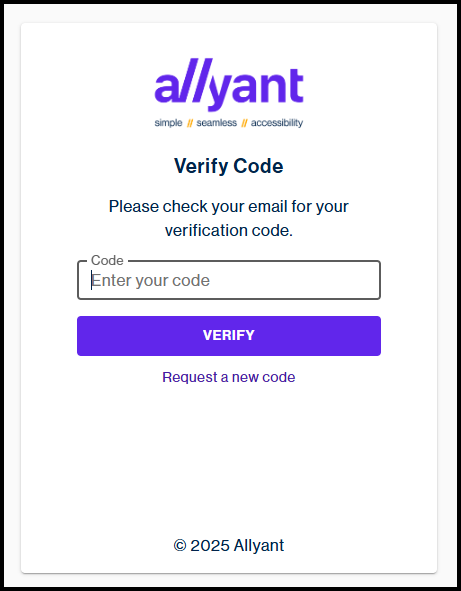
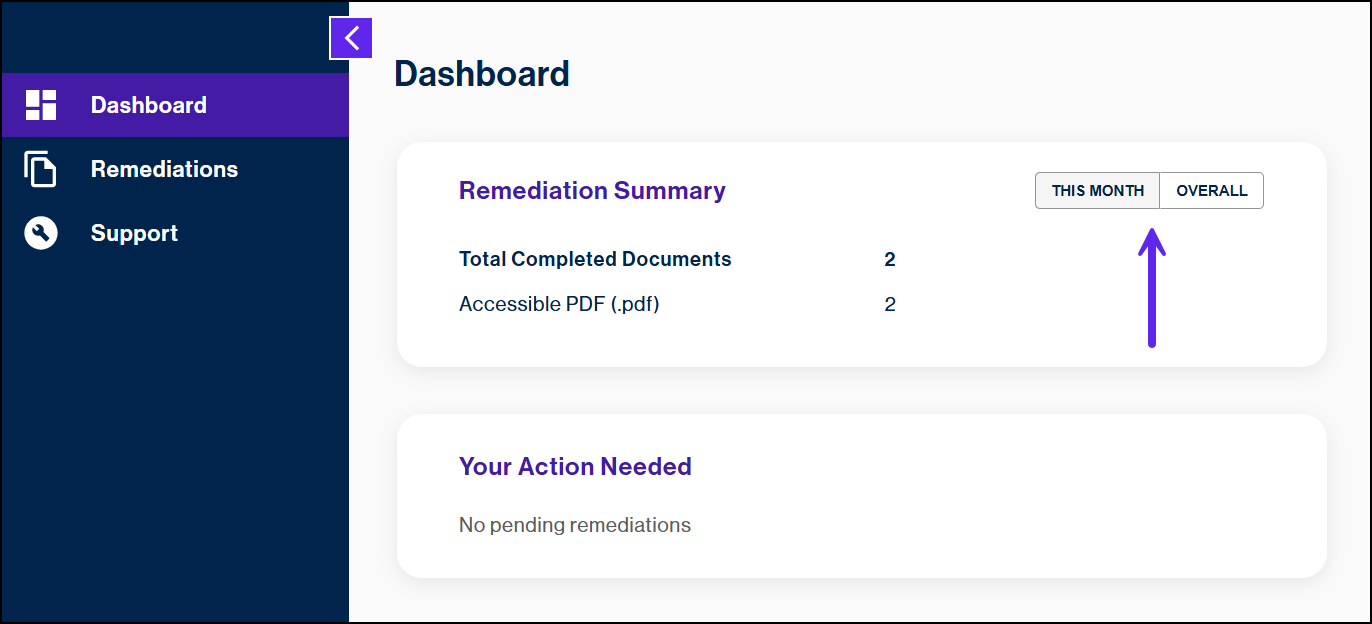
- When you log in, you'll be taken to your "Dashboard," where you'll be able to find Summary information of the work you've done in the past. It will list, by type, your "Total Completed Documents" and will let you see data related to "This Month" or "Overall." Also, in "Your Action Needed," it will list any documents that are in progress or pending your input.
- To start a new project, in the menu on the left, choose “Remediations.”
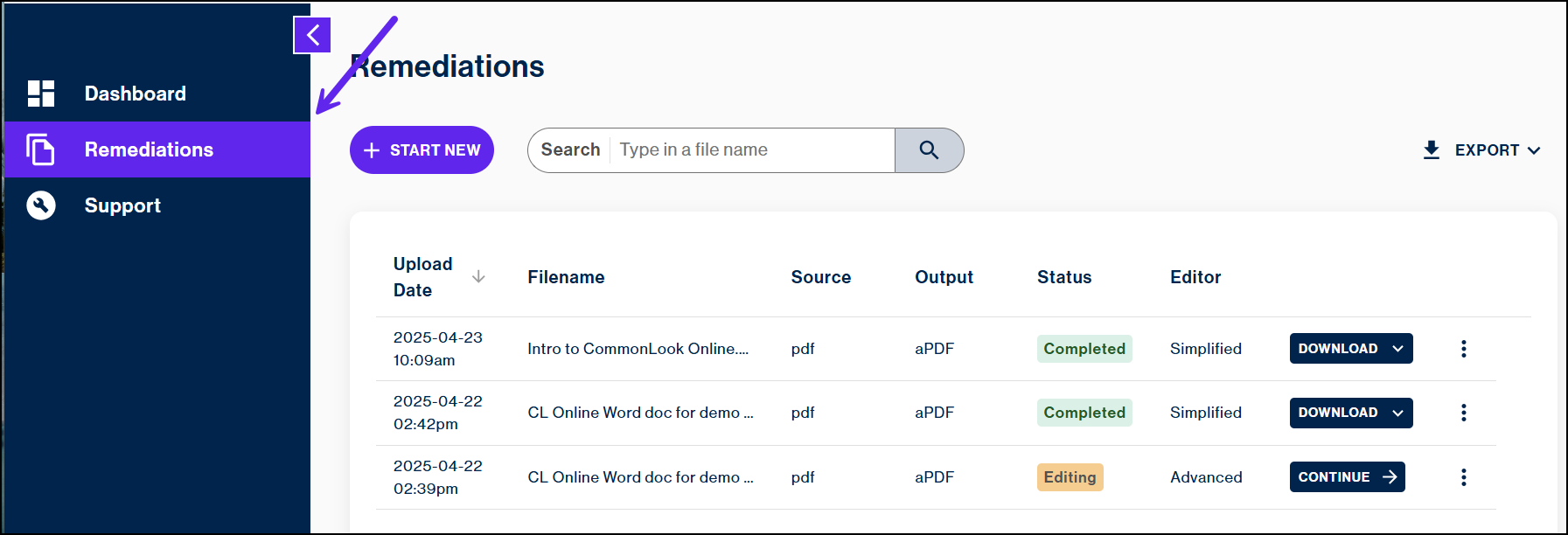
- To begin working on a document, choose “Start New.”
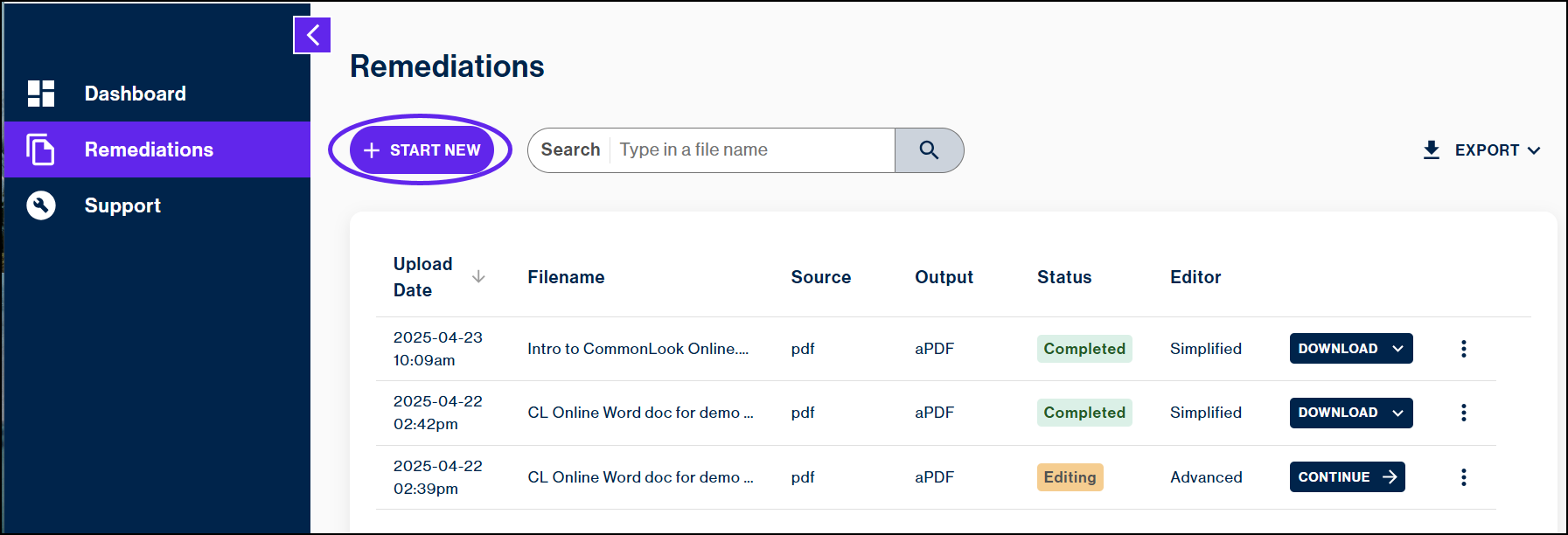
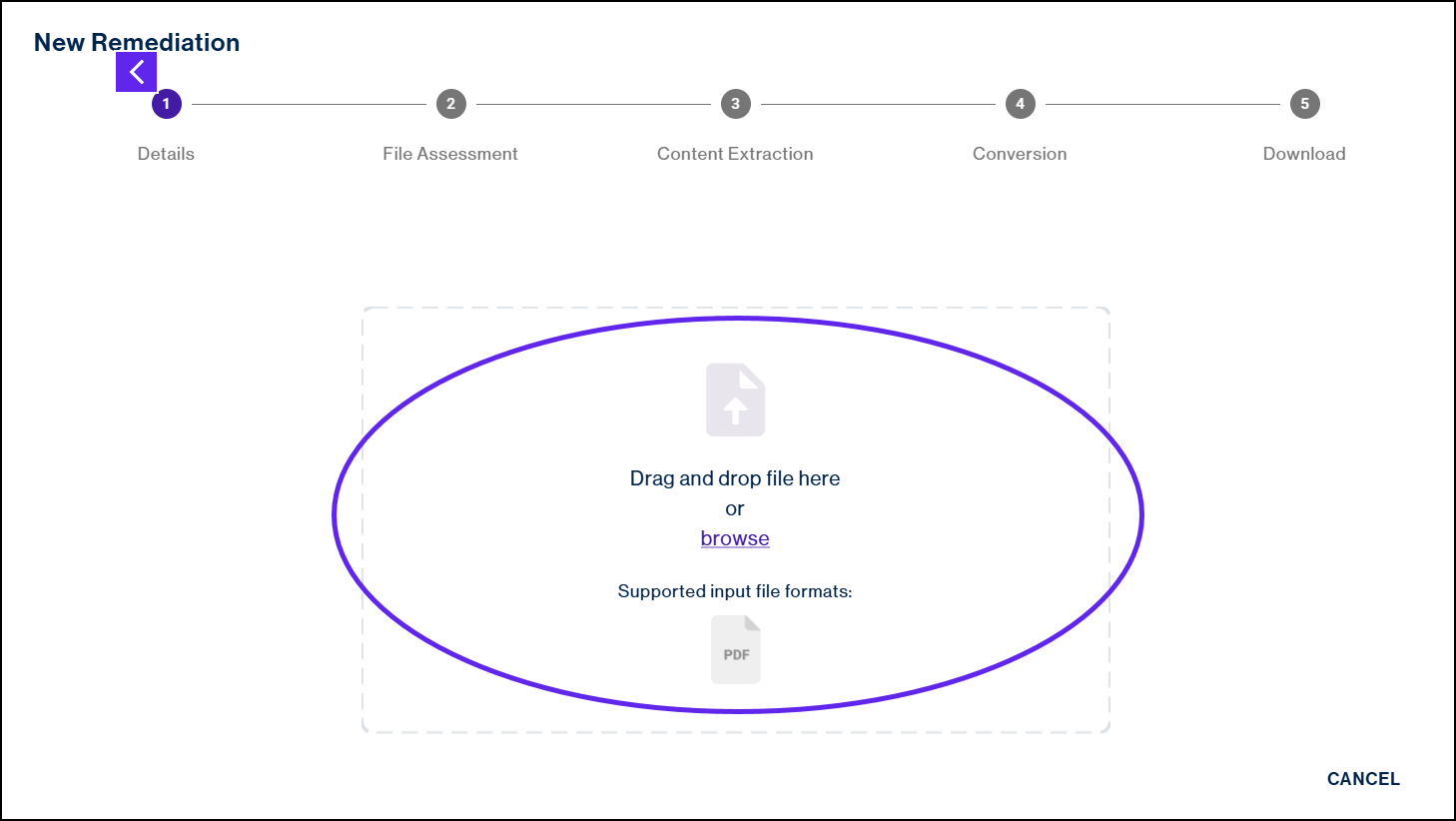
- The "New Remediation" wizard screen will open. At the top of the wizard, it outlines the overall steps in the process. You'll begin with document "Details" and then the web-based CommonLook PDF Simplified editor will walk you through the steps of "File Assessment," "Content Extraction," creating the "Accessible Output," and, finally, you'll be able to download your accessible PDF. To start the process, upload the PDF you want to make accessible by either dragging and dropping it into the widget or by "browsing" to locate and select the file. (Remember, you can get the sample file for this Quick Start Guide at the bottom of this article.)
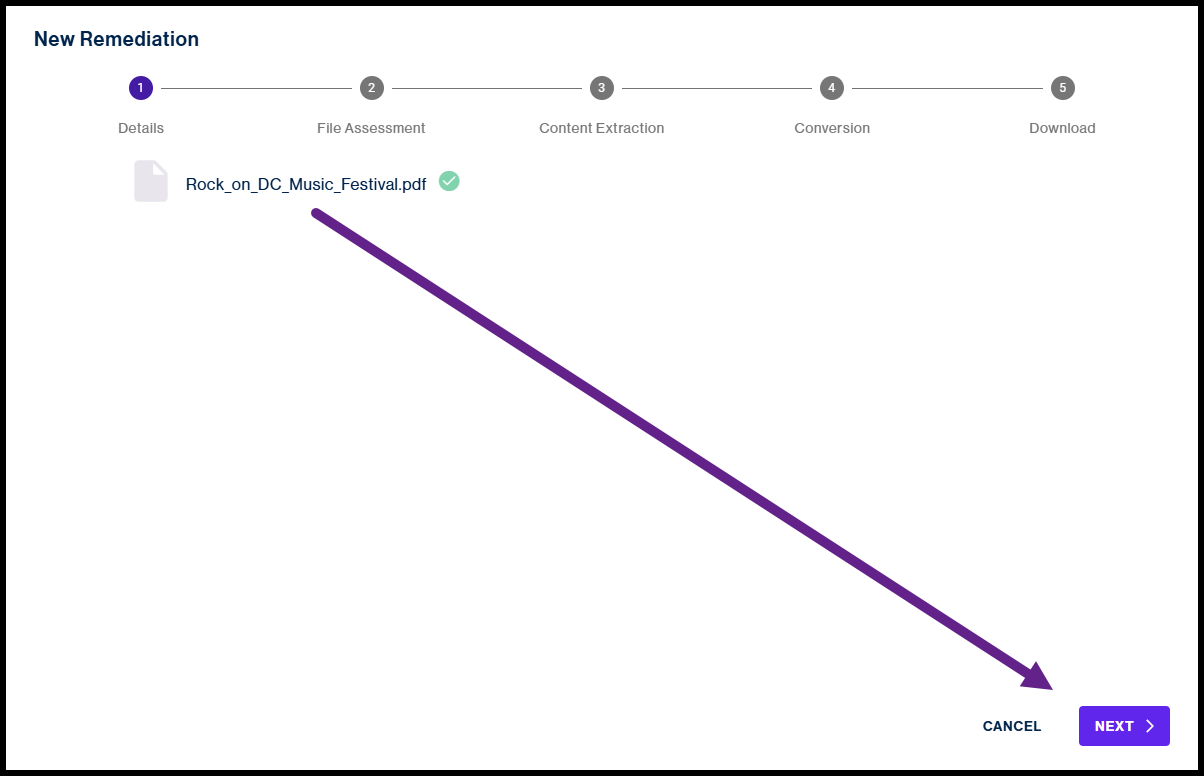
- With the document loaded into the system, select the "Next" button to proceed.
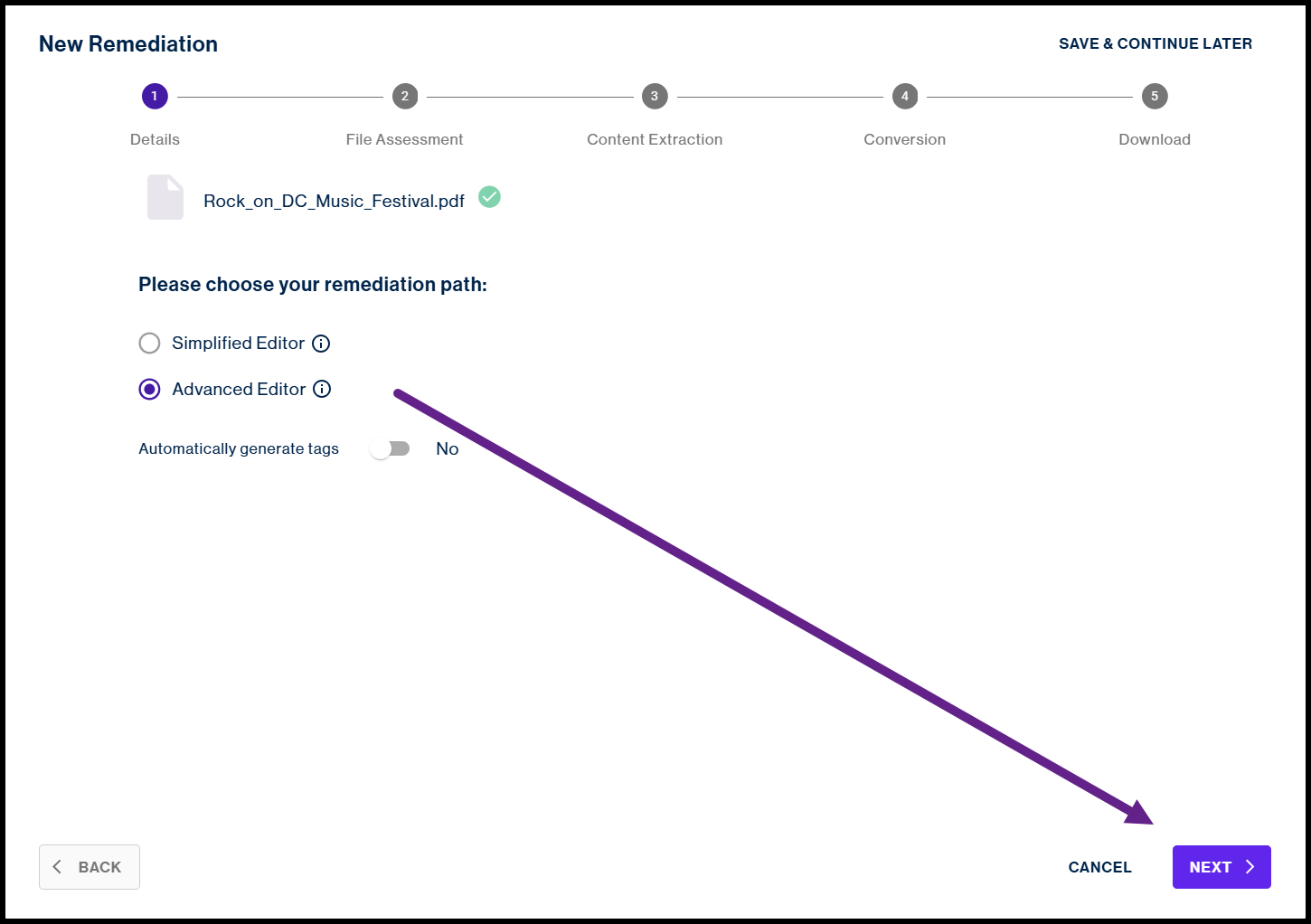
- Next, you need to choose a remediation path. Select the radio button for the Advanced Editor, if it is not already selected. There is also a toggle for the tool to "Automatically generate tags." If you choose "Yes," all previously existing tags in the Tags tree will be removed and replaced with automatically generated tags. Because of this, we recommend using this feature only when choosing to use the tool on PDF documents without tags or those that you are sure are poorly tagged. For more information on this, please explore our article about "Automatically Generating Tags in CommonLook PDF." Leave "Automatically generate tags" set to "No," and hit “Next.”
- Within a few minutes, the Advanced Editor should open, and we can begin adjusting our interface and checking settings and preferences within the tool.
Setting Adjustment and Interface:
After opening web-based CommonLook PDF for the first time, follow these steps:
- Efficient clearing of empty tags
- Navigate to the three-line button at the top left of the interface.
- Select "Settings" and then select "Preferences" from the sub-menu.
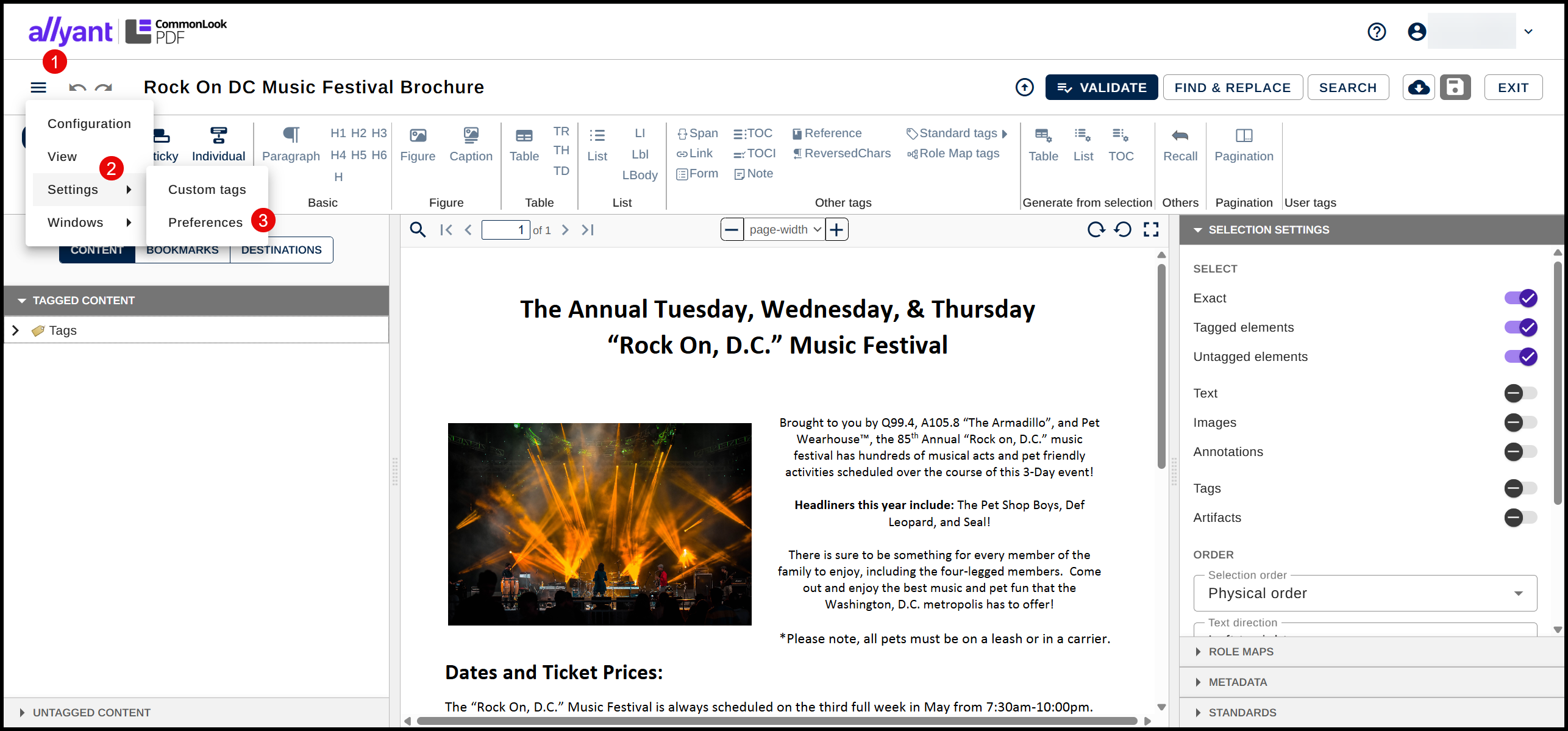
- In the resulting dialog box, turn on "Consider elements containing only spaces to be empty" and select "Save Changes."
- Selection Settings
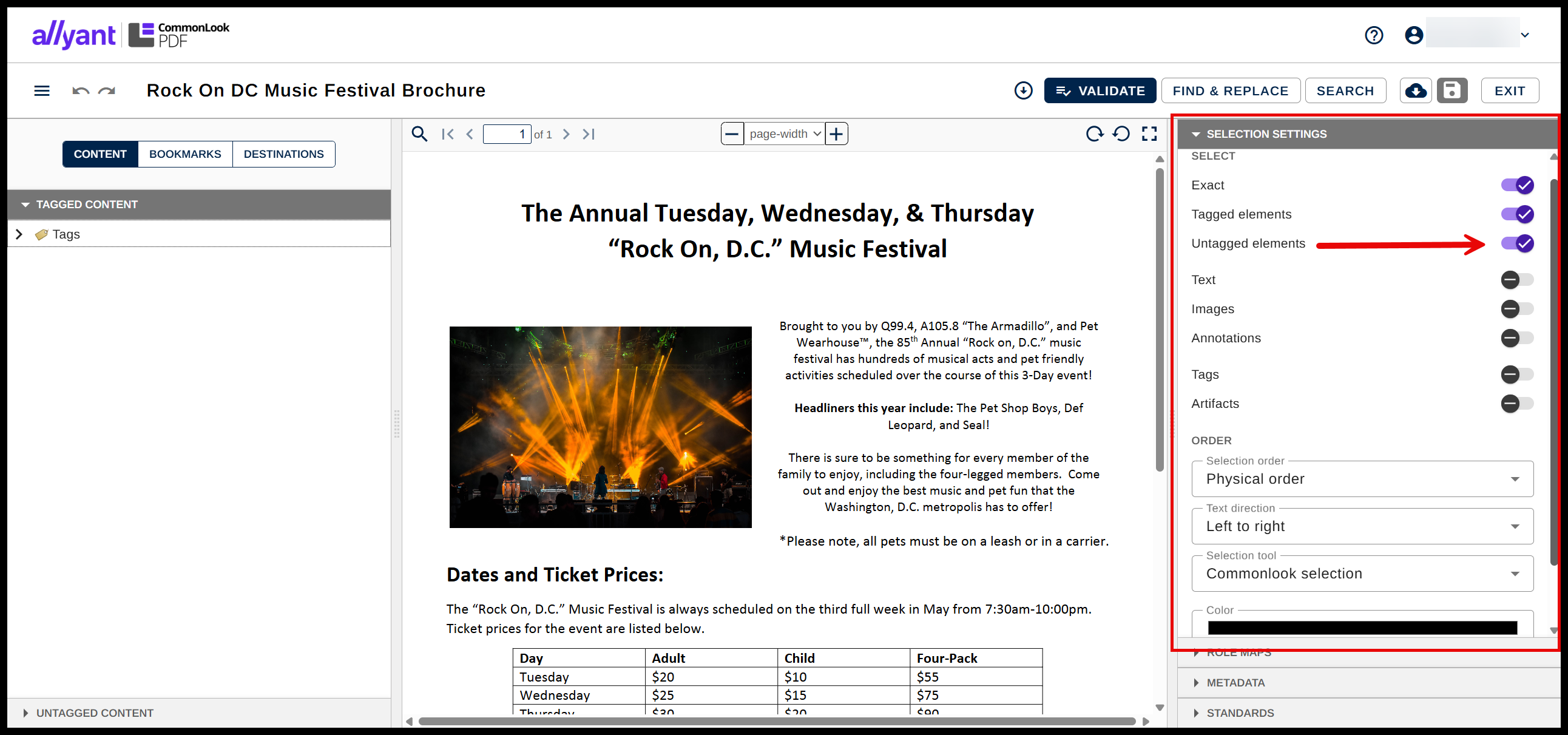
- Navigate to the "Selection Settings" panel on the right side of the interface.
- Ensure that "Untagged Elements" is not selected. With this change, you should only have "Exact" and "Tagged Elements" toggled on.
- Highlight Color
- While optional, we recommend adjusting the "Color" in the Selection Settings menu to be something you can see easily. You can choose or input any color.
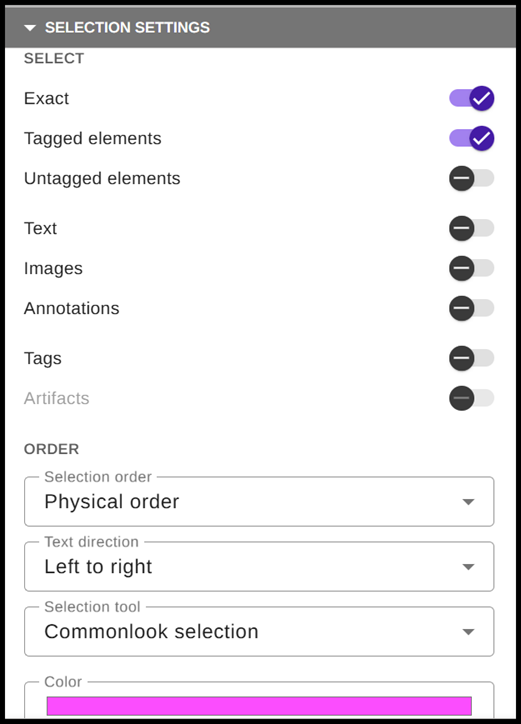
- While optional, we recommend adjusting the "Color" in the Selection Settings menu to be something you can see easily. You can choose or input any color.
Important Note: These settings will be saved if you close the software and reopen it, which means you shouldn't need to update these every time you use the tool, but whenever the software is automatically updated, these adjustments will need to be made again.
The CommonLook Workflow:
The recommended workflow when using CommonLook to remediate PDFs is to first navigate through the Tags making sure that the correct tags are being used for the content and that they’re in the correct reading order and then, second, to run a verification and see if there’s anything you missed. This workflow, which we’ll follow in this Quick Start Guide, lends itself to a more accurate and efficient process as opposed to (what many people do when using Acrobat) running a full-check, fixing issues, running another check, fixing other issues, etc., until you get a “clean” report. For more info on the CommonLook Workflow, check out our Knowledge Base article titled, "A Recommended Workflow."
Fixing the PDF
- Open the Tags tree
- Navigate to the Tags panel (on the left side of the screen – OR hold down the Control key and press Tab to open the Active Tools Window and then select Tags) and expand the Tags root by double-clicking it, clicking on the caret, or using the right arrow on your keyboard.
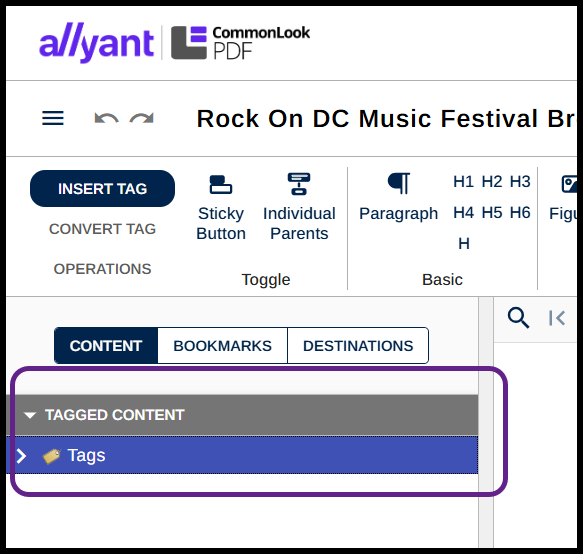
- Navigate to the Tags panel (on the left side of the screen – OR hold down the Control key and press Tab to open the Active Tools Window and then select Tags) and expand the Tags root by double-clicking it, clicking on the caret, or using the right arrow on your keyboard.
Fix the H1 (for the Title of the document)
- Select the first Paragraph tag in the Tags tree. In the physical view, the first line of the title will be highlighted. Tip: Unless you really need to open tags it’s recommended that you don’t open them. In our teaching experiences, we find that the more open people’s tags are, the more confused they get. If you’re using the physical view for guidance on selecting tags, noticing what each tag contains, etc., then keep the tags themselves closed as much as possible. That said, screen reader users, when you select the first Paragraph tag, you’ll hear something along the lines of “P tag collapsed” – keep in mind that different screen readers may say slightly different things. Use the right arrow on your keyboard to open it and hear the tag’s contents.
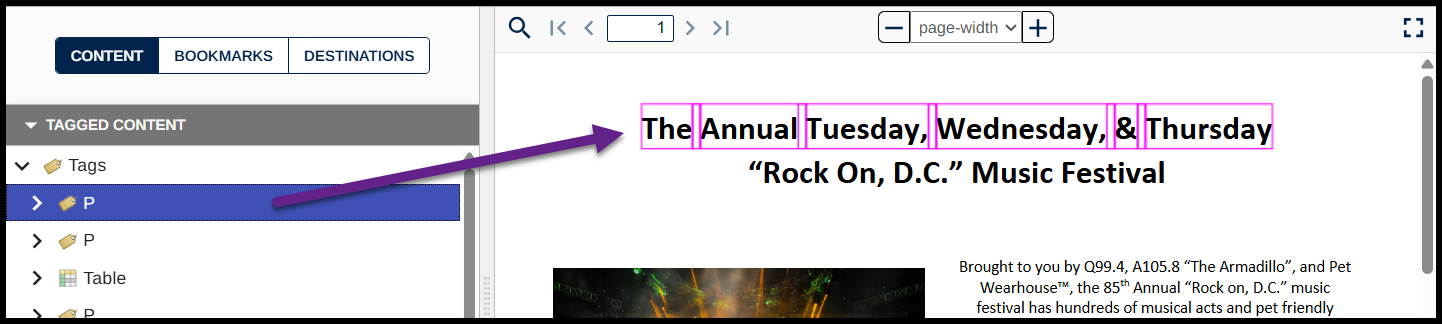
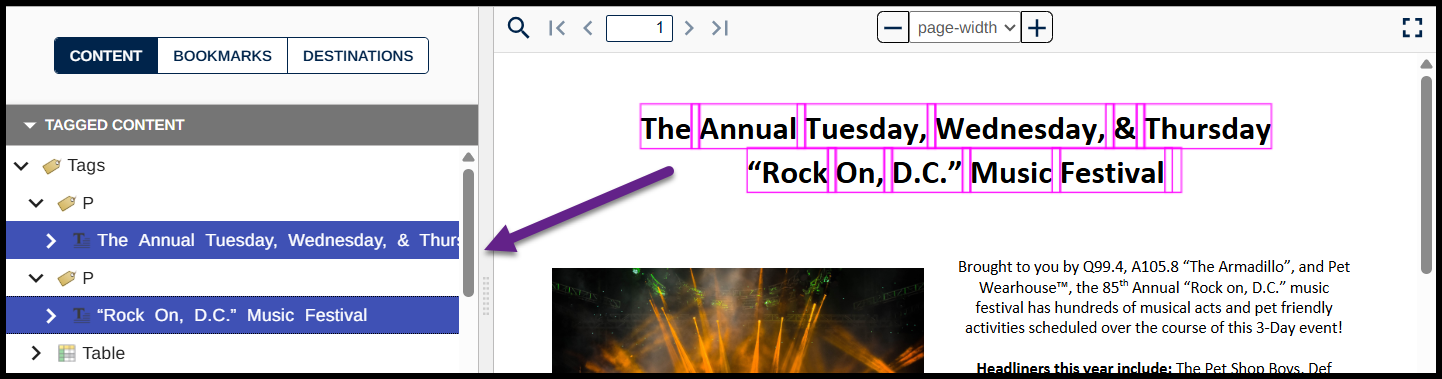
- Navigate to the second Paragraph tag in the Tags tree. (Open it only if you need to!) It contains the text of the second line of the title. We need both lines of the title to be in one H1 (heading 1) tag.
- In the physical view, highlight (draw a box around) both lines of the title of the document. When you do this it’ll select both text elements inside the Paragraph tags. OR navigate back up to the text inside the first P tag and then, with it selected, hold down the Control key and navigate down to the text element inside the second P tag. While still holding the Control key, press the Spacebar. This’ll select both text elements inside both P tags. (Important: If selecting the text inside the P tags from within the Tags tree, select the text in the first P tag first and then the text in the second P tag!)
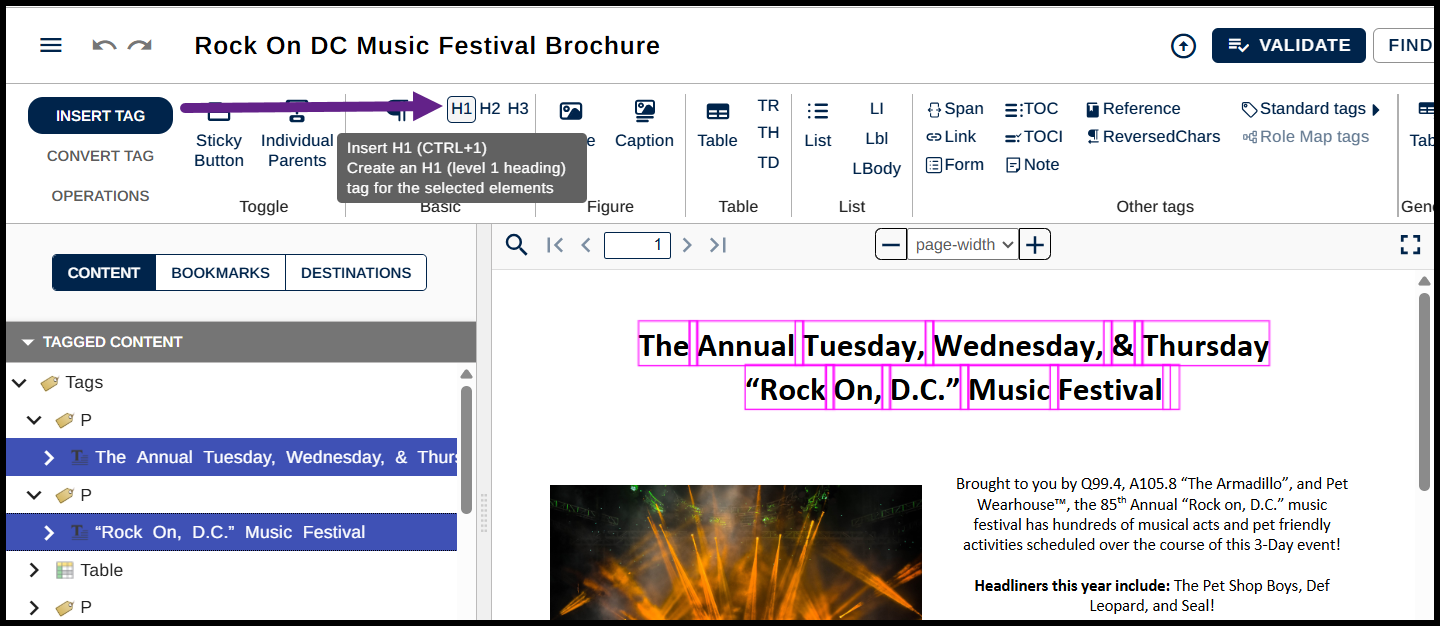
- Navigate to the Insert tag menu and use the button to put your selected text into an H1 (or use the keyboard shortcut Ctrl+1).
- The H1 that you just created will be open – perhaps even the text element will be open to the text run level. Use the right arrow on the keyboard, or double-click, to close it.
- The H1 is nested inside one of the original P tags. We need to “push” the H1 out of the P tag. To do that, right-click (or open the context menu) on the H1 and, in the context menu, navigate to and choose “Level up” (or use the keyboard shortcut Ctrl+P).
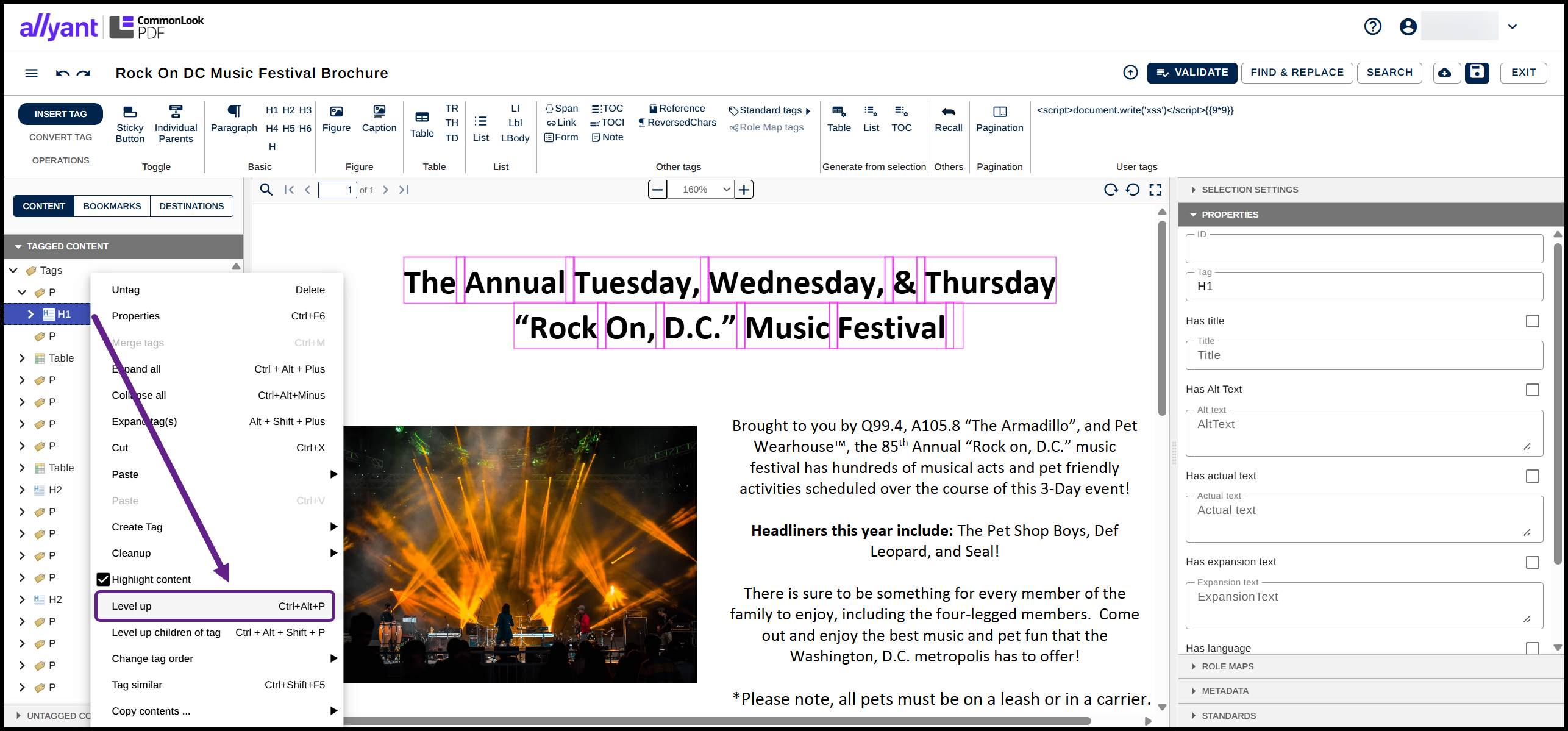
- When you “Level up” your H1 it’ll get pushed out of the P tag and will become the first tag in the Tags tree.
- Select the first Paragraph tag in the Tags tree. In the physical view, the first line of the title will be highlighted. Tip: Unless you really need to open tags it’s recommended that you don’t open them. In our teaching experiences, we find that the more open people’s tags are, the more confused they get. If you’re using the physical view for guidance on selecting tags, noticing what each tag contains, etc., then keep the tags themselves closed as much as possible. That said, screen reader users, when you select the first Paragraph tag, you’ll hear something along the lines of “P tag collapsed” – keep in mind that different screen readers may say slightly different things. Use the right arrow on your keyboard to open it and hear the tag’s contents.
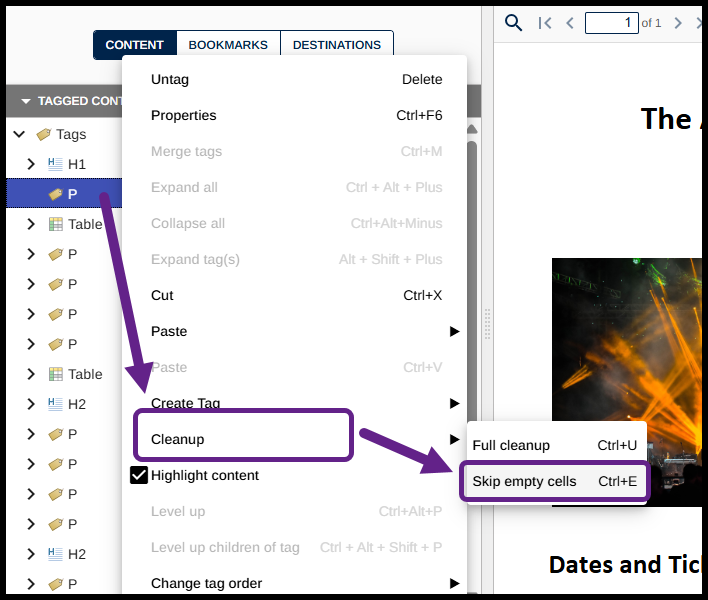
- Clean-up Empty Tags (if necessary)
- Next, if there is one, clean up, or remove, the empty P tag. This will avoid having empty tags in the Tags tree, which is a violation of the standard.
- Right-click on the tag (open the context menu),
- Navigate to “Clean up,”
- Expand the sub-menu and navigate to “Skip empty cells.” Or, use the keyboard shortcut Ctrl+E.
Linearize an Improperly-Used Table:
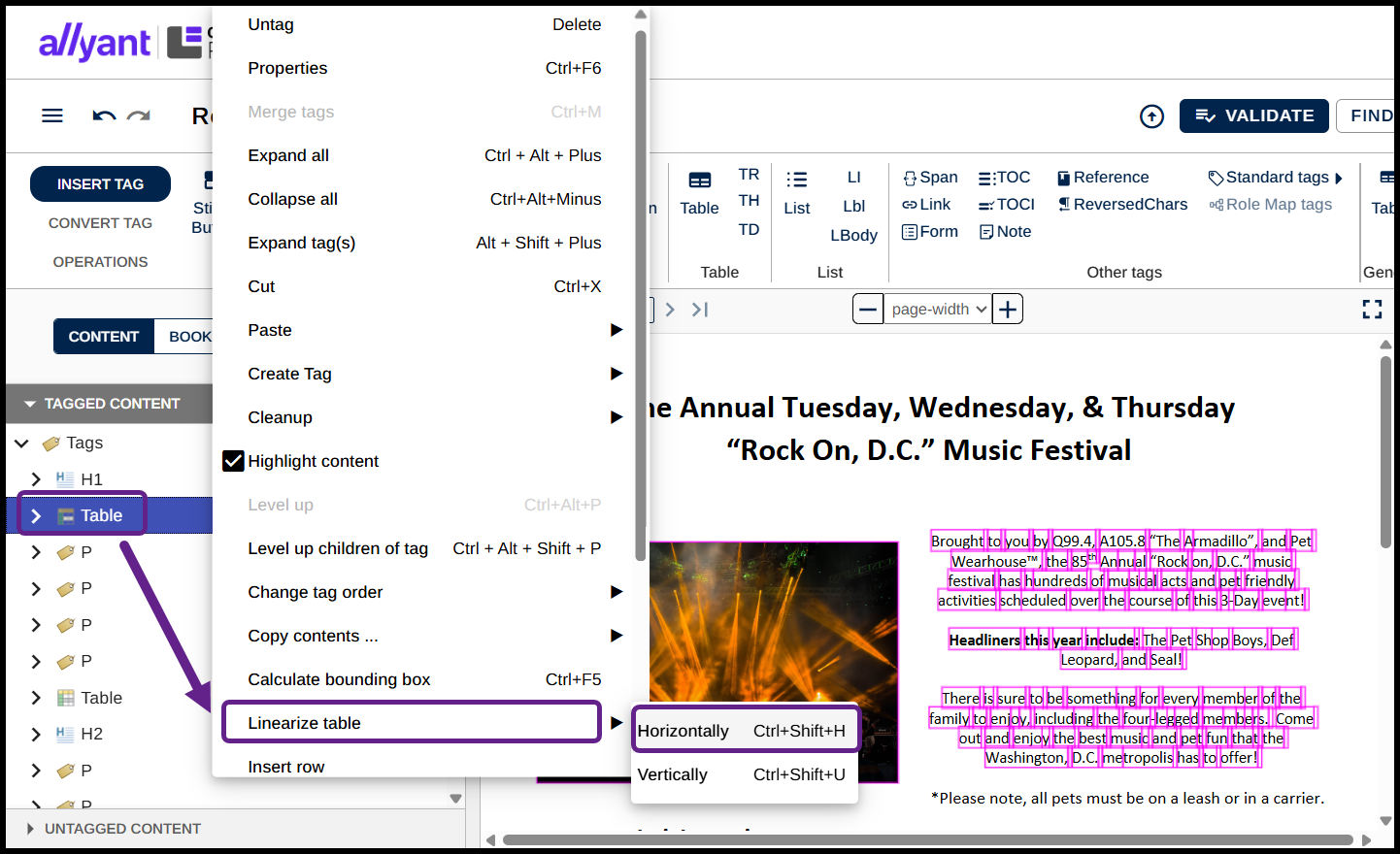
The next tag we encounter is a Table tag. In this instance, a table was used in the authoring phase to format this section of the document but it’s not a data table and, therefore, it shouldn’t be tagged as a table.
- Select the Table tag in the Tags tree,
- Right-click on it (open the context menu),
- Navigate to Linearize Table,
- Choose Horizontally. The cells in the table are converted to one Figure tag containing the image and three P tags.
- Verify the reading order for the Figure tag and the P tags by either clicking on them or using the down-arrow.
Alternative Text for Figure Tags that aren’t Decorative:
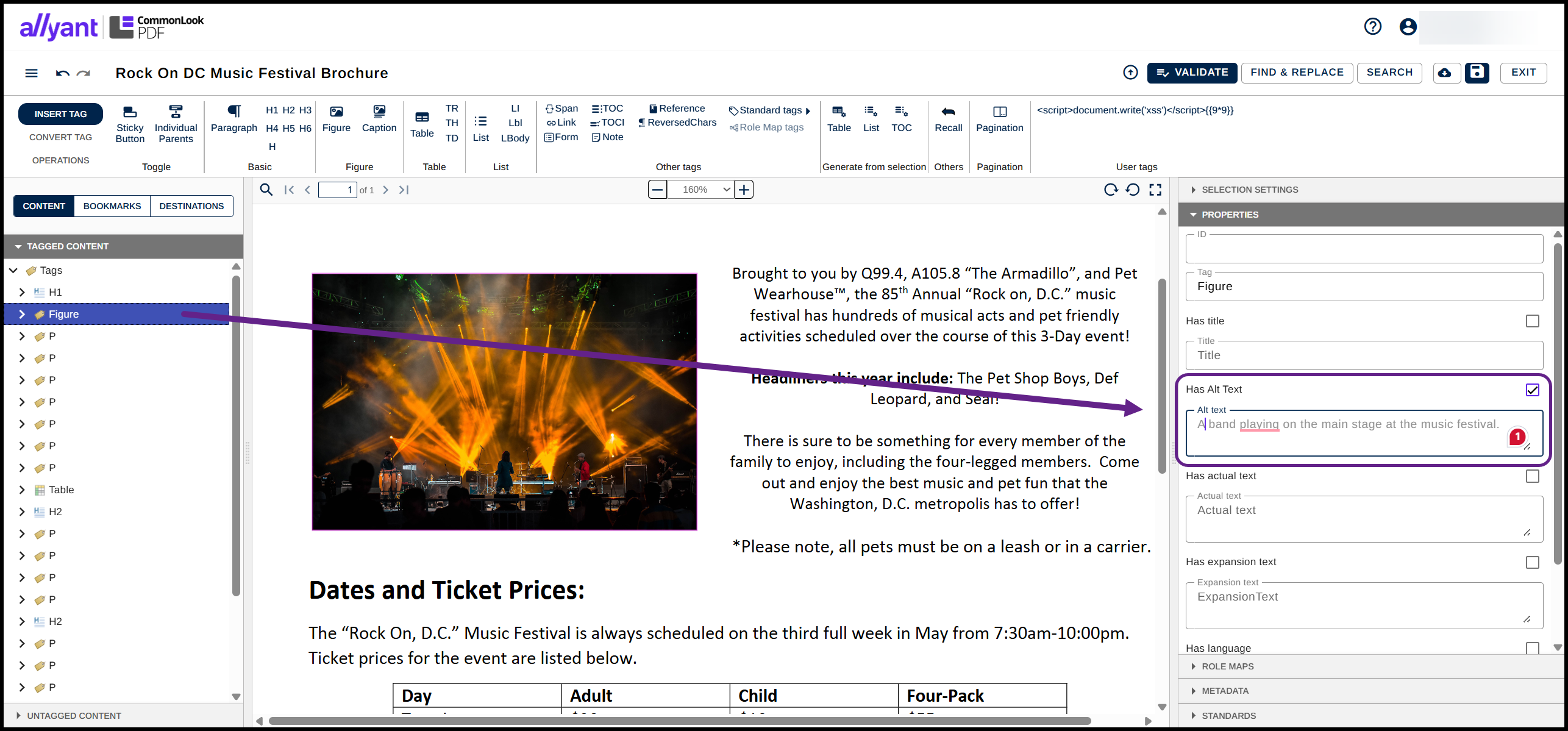
Because the Figure tag here contains an image that might be interpreted as “conveying information,” it needs to have Alternative text.
- Select the Figure tag.
- Navigate to the Properties panel (using keyboard navigation, hold Control, press and release Tab, and then use the down-arrow to select Properties. Then release the Control key.)
- Navigate to the Alt. text field,
- Type the Alt text (in this example, use something like “A band playing on the main stage at the music festival”),
- it Press the Tab key (this step is technically not required, but helps form good habits that can be useful when editing document properties elsewhere).
Verify Reading Order
- After linearizing the Table and adding Alt Text to the Figure tag for the band playing on-stage, navigate through the new Paragraph tags, verifying the reading order. They are likely in the correct order, but it's always a good idea to confirm that, especially after linearizing a table.
- Convert the P tag to the Proper Heading Tag
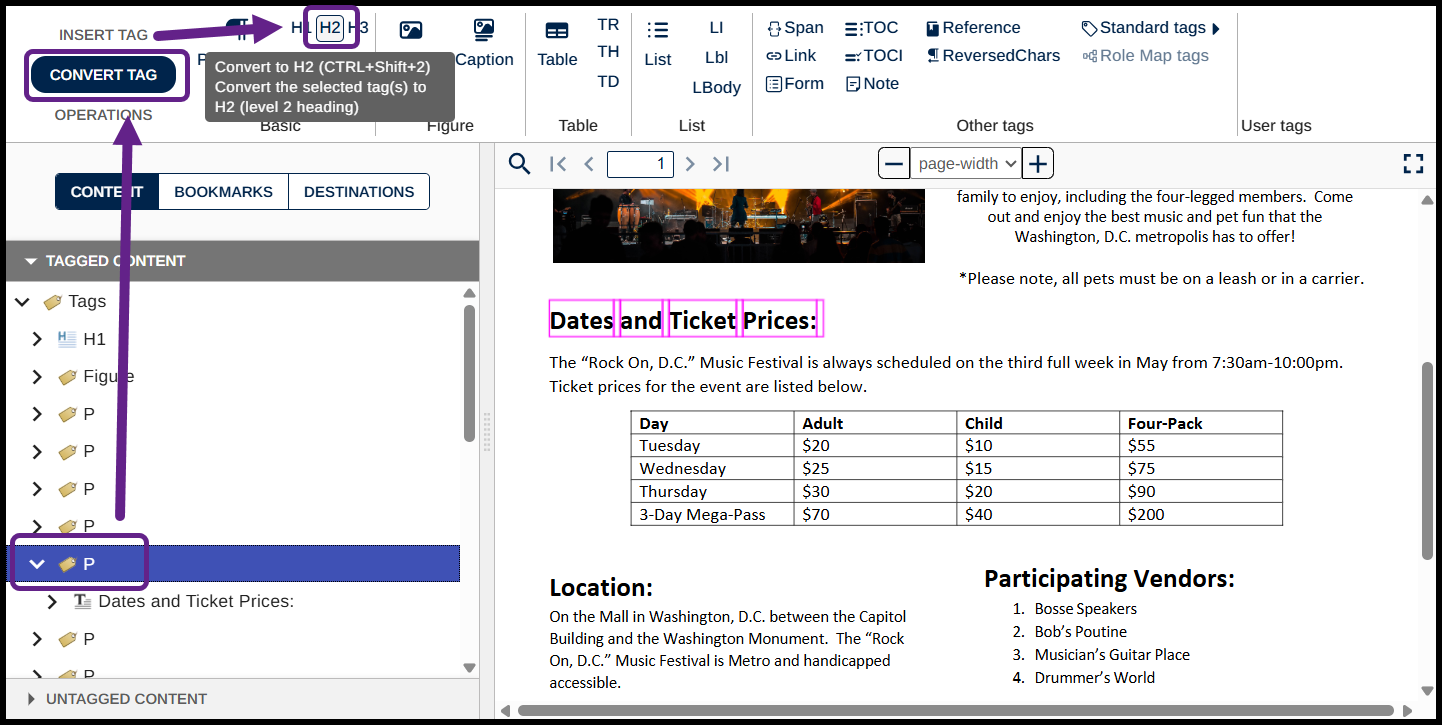
“Dates and Ticket Prices,” is incorrectly tagged as a Paragraph.- With the P tag containing “Dates and Ticket Prices” selected, navigate to the Convert tag menu in the toolbar.
- In the ribbon, choose the “H2” button to convert the Paragraph tag to an H2 (or use the keyboard shortcut Ctrl+Shift+2).
- Merging Tags
After the H2 for “Dates and Ticket Prices,” there are two sentences, each in their own Paragraph tag. One sentence is about when the music festival is and the other is about how much it costs (indicating that the actual prices are in the table below that sentence). Let’s combine the text in these two tags so that we only have one P tag. One way would be to select the text, put it all in a new P tag (like we did with the H1 at the beginning) and then “Level up” that new P tag so that it’s not nested inside one of the P tags that’s already there. However, there’s another (perhaps easier) technique.- Select the first of the two P tags,
- Holding Shift (or Control), select the second P tag,
- Right-click (open the context menu) and choose “Merge tags” (or use the keyboard shortcut Ctr+M).
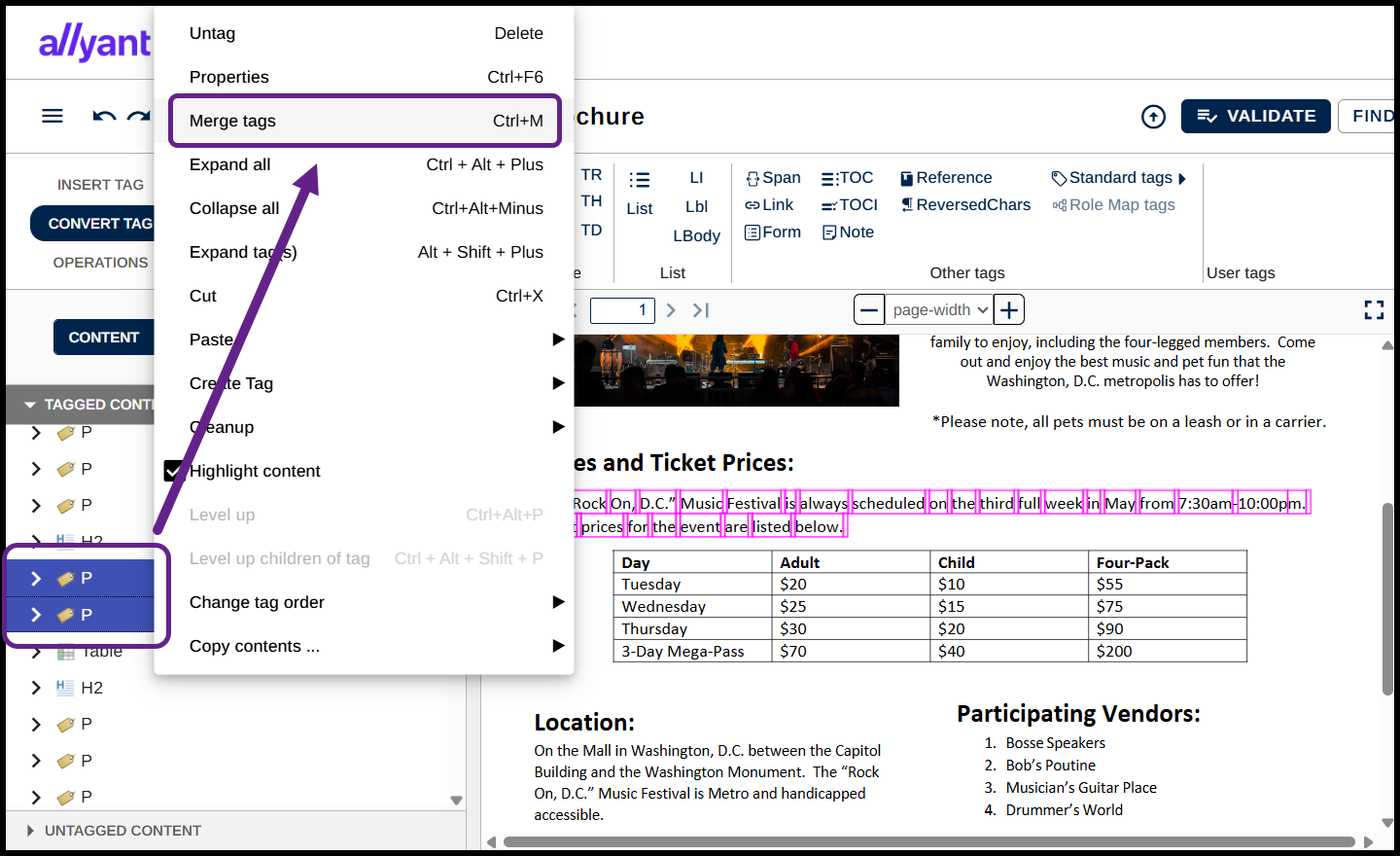 You may notice that now you have one P tag with two text elements inside and you don’t have an empty P tag left behind. When merging tags, CommonLook will remove empty tags automatically. There’s also no need to “Level up!”
- Tagging a Data Table
Next, there’s a data table in the physical view.
For a table to be tagged correctly, it needs to not only be “structurally sound” (a Table tag containing Table Rows (TR) which, in turn, contain Table Header (TH) and/or Table Data (TD) cells), but the header cells also need to be assigned the proper scope – column or row – so that the table information is correctly presented to individuals using assistive technology. To verify that the table has been built correctly, and that headers are tagged properly and assigned the correct scope, follow these steps:- Right-click (open the context menu) on the Table Tag in the Tags tree,
- Choose (at the bottom of the context menu) “Show Table Editor” (you may need to scroll in the context menu).
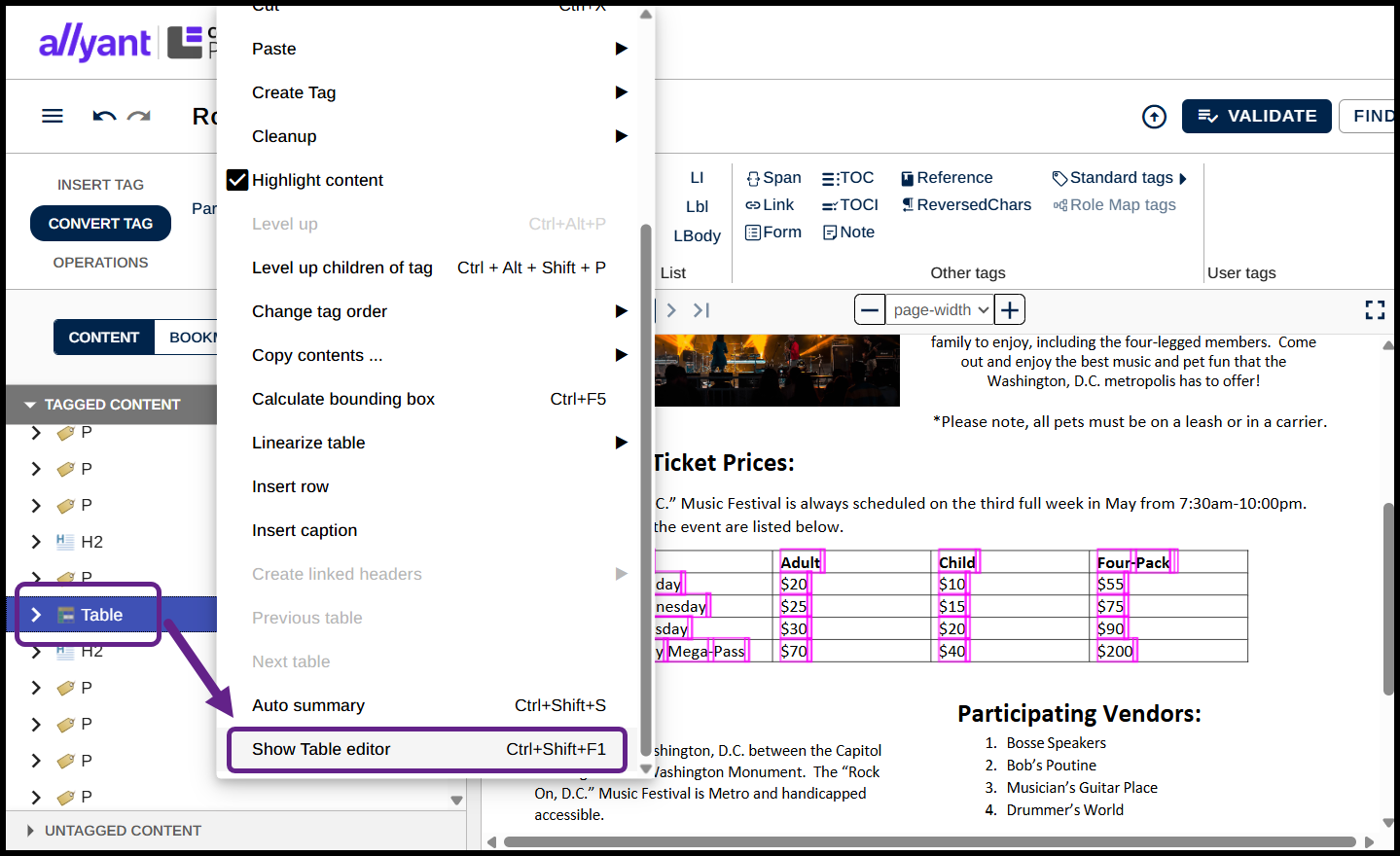
- Verify, in the Table Editor, that the layout matches the table in the physical view. (In this example, it does. Concepts like fixing tables, including redrawing/ correcting complex data tables, and more, are covered in our in-depth training courses.)
- In the Table Editor, select the cell containing the text “Day” (the top left corner of the table),
- Hold down the Shift key and choose the cell for “Four-Pack.” This selects the top row of cells. (Alternately, with the “Day” cell selected, hold down the Shift key and use the Right-arrow to select the rest of the cells in the top row.)
- In the Table Editor, there are ten icons across the top. The fifth from the left is a button to change cells to TH (Table Header cells) and to assign the scope of column. Select this button. (Alternatively, with these cells selected in the Table Editor, use Ctrl+C.)
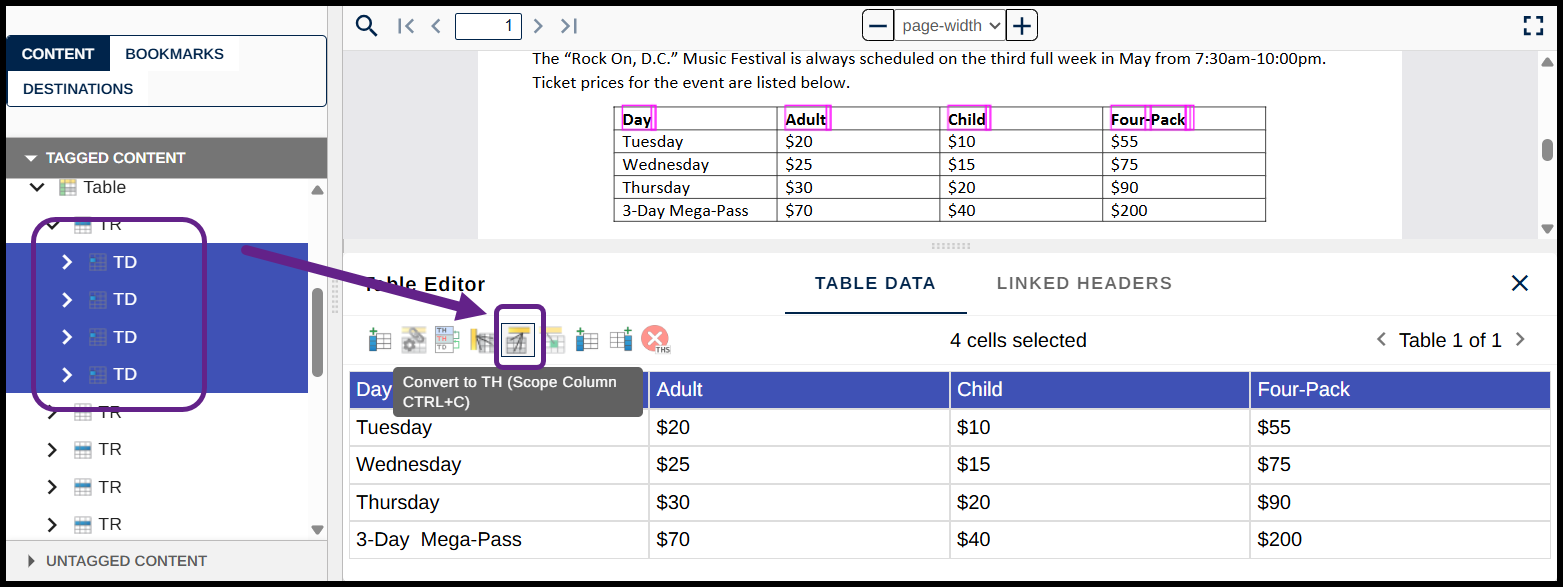
- In the Table Editor, choose the cell containing “Tuesday” and then hold down the Shift key and select the cell containing “3-Day Mega Pass” (again, multi-selecting these cells). (Alternatively, after selecting “Tuesday,” hold down the Shift key and then use the Down-arrow on your keyboard to select the rest of the cells in that first column.)
- In the Table editor, the fourth button from the left is used to change cells to TH and assign them the scope of Row. Use this fourth button. (Alternatively, with these cells selected in the Table Editor, use Ctrl+R.)
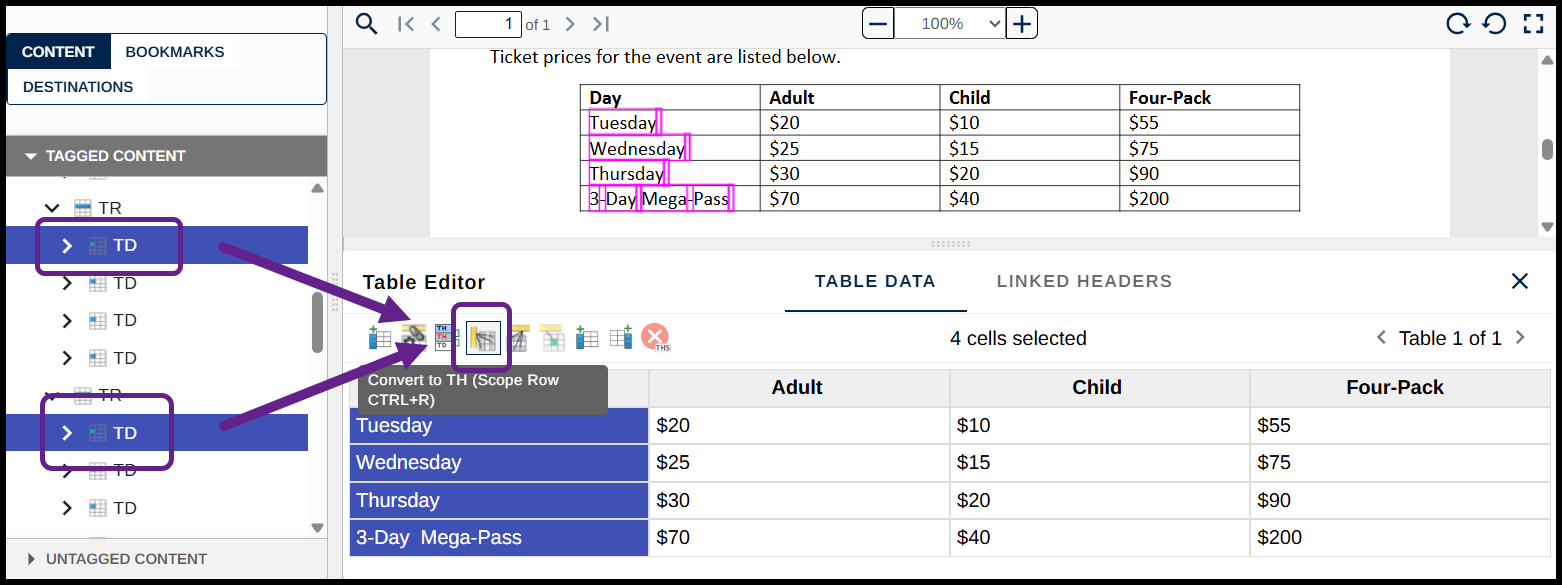
- Close the Table editor by selecting the “x” in its top-right corner (not the “x” in the top right corner of the CommonLook window – that closes the software!). You can also close the Table Editor by selecting the Table tag in the Tags tree, opening its context menu, and “unchecking” the option “Show Table Editor.”
- As we worked in the Table Editor, various TR and TH/TD tags were opened in the Tags tree. To close those tags, click the small arrow next to the Table tag in the Tags tree (or select the Table tag and use the Left-arrow key to close it).
- Checking and merging more Tags
After the data table, the next tag in the Tags tree is an H2 tag that contains the text for the heading “Location.” This is the correct tag, as well as in the correct reading order, so it is accurate. The four P tags immediately after the H2 each contain one line of the "Location" paragraph. These are unfortunately not connected under one Paragraph tag, so we must fix that. To fix this efficiently:- Select the first of these P tags, which includes "On the Mall in..." and then, holding shift, select the fourth of these P tags, which includes "accessible."
- With those four Paragraphs selected in that specific order, right-click on one of them in the Tags tree, or open the Context menu and select Merge Tags," or use Ctrl+M.
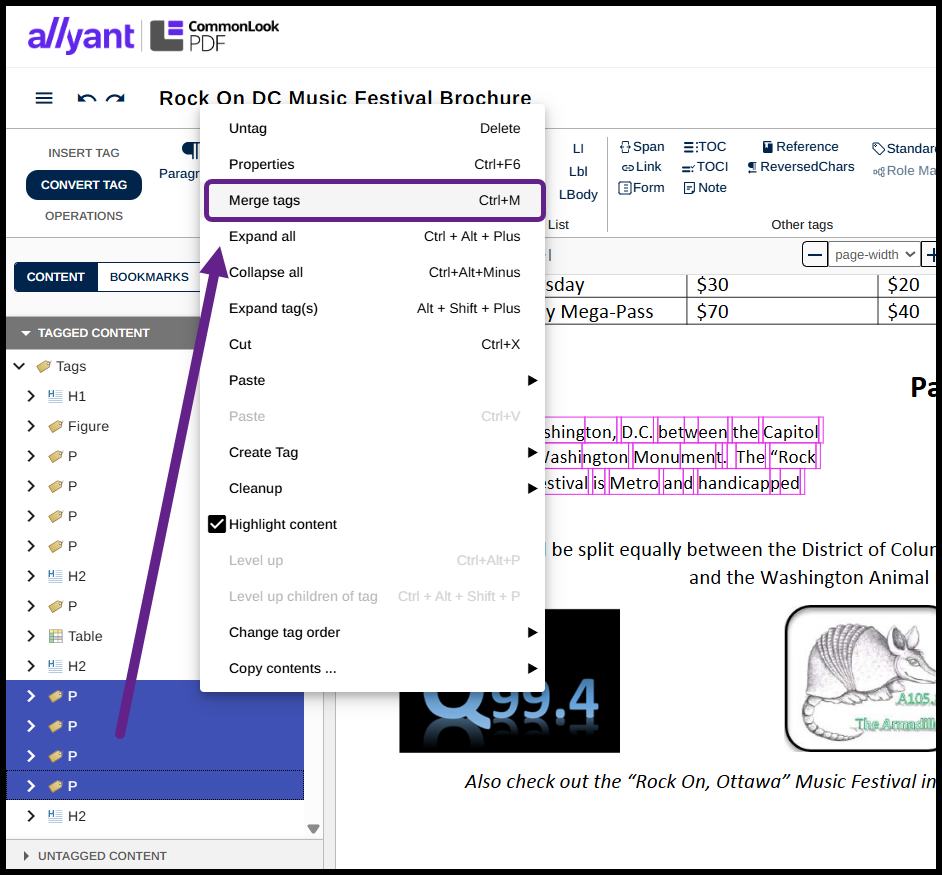
- Immediately after the newly merged Paragraph, we find another H2, which is tagged correctly.
- Generating a List Tag
The next four Paragraph tags are incorrect in that they should be tagged as a single List. List tags include very specific tag structures that include nested components within them. These nested components are List Items (LI), Labels (Lbl), and Body (LBody) tags. The structure is not hard to learn with practice, and the good news is that CommonLook PDF will create the List components automatically by following these steps:- Highlight the list in the physical view of the document. Make sure to select the bullets in the list as well as the text for the list items. (Alternatively, select the text in the Tags tree.)
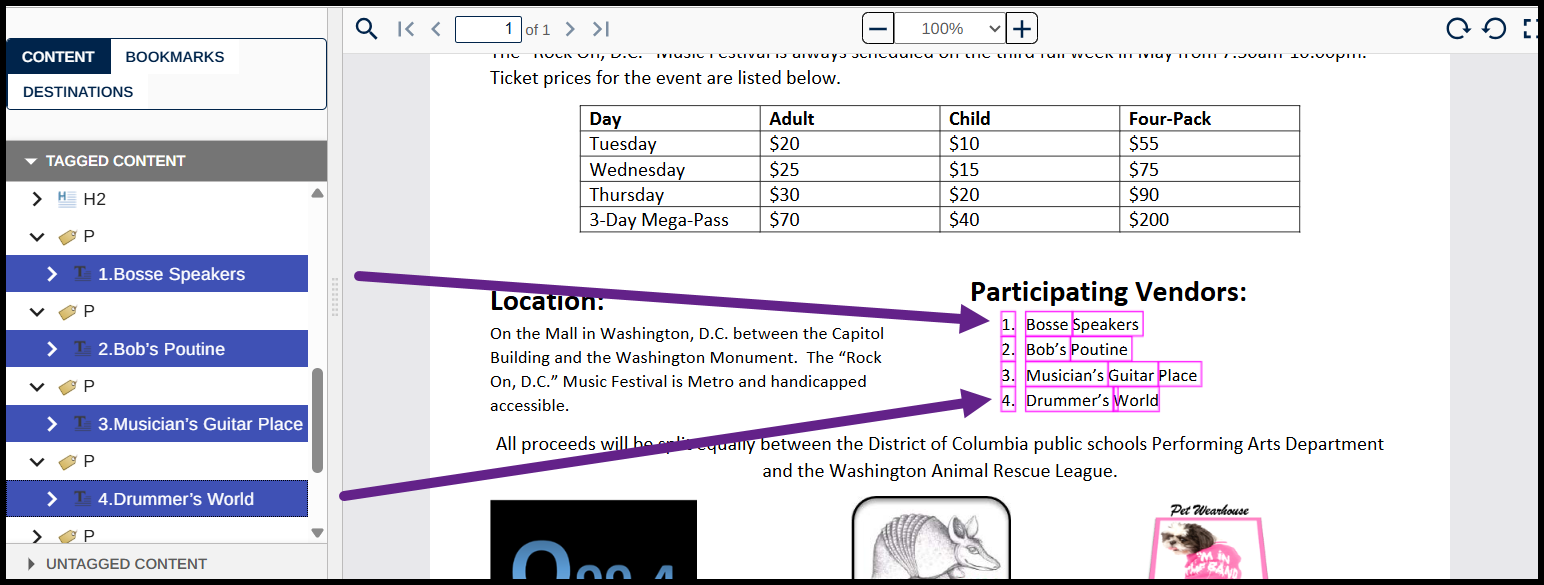
- Navigate to the far right side of the Insert tag menu to the “Generate from selection” group and choose the “List” button. (Keyboard shortcut: Ctrl+Alt+9)

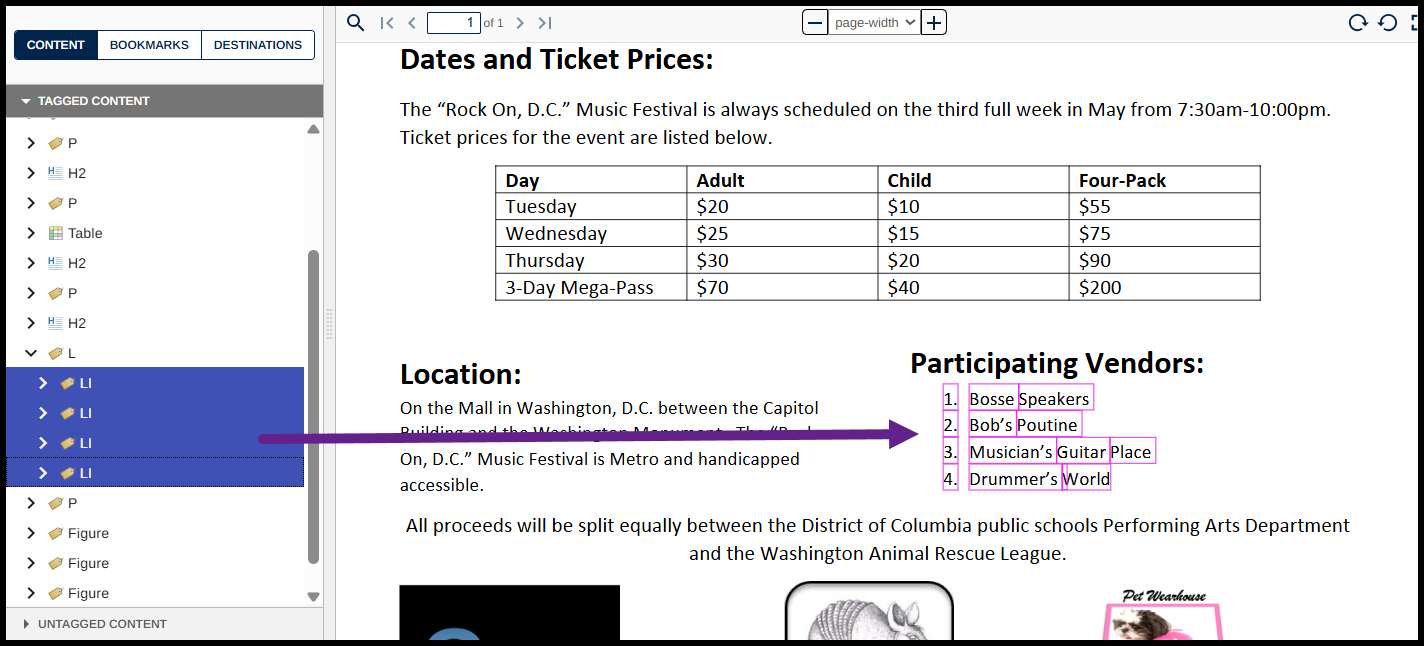
- After tagging your List, move it to the root level by leveling up (Ctrl+Alt+P) and then cleaning up the empty P tags that were left behind (Ctrl+E).
Note: There may be tags left behind, after tagging the list, that contain the spaces after the bullets in the list. Because those spaces aren’t important content, they don’t need to be tagged. The “Clean up” function will automatically remove them, placing them in Artifact containers in the Untagged Content. - Verify that the list was tagged correctly. Open the list tag and find your four LI (List Item) tags.
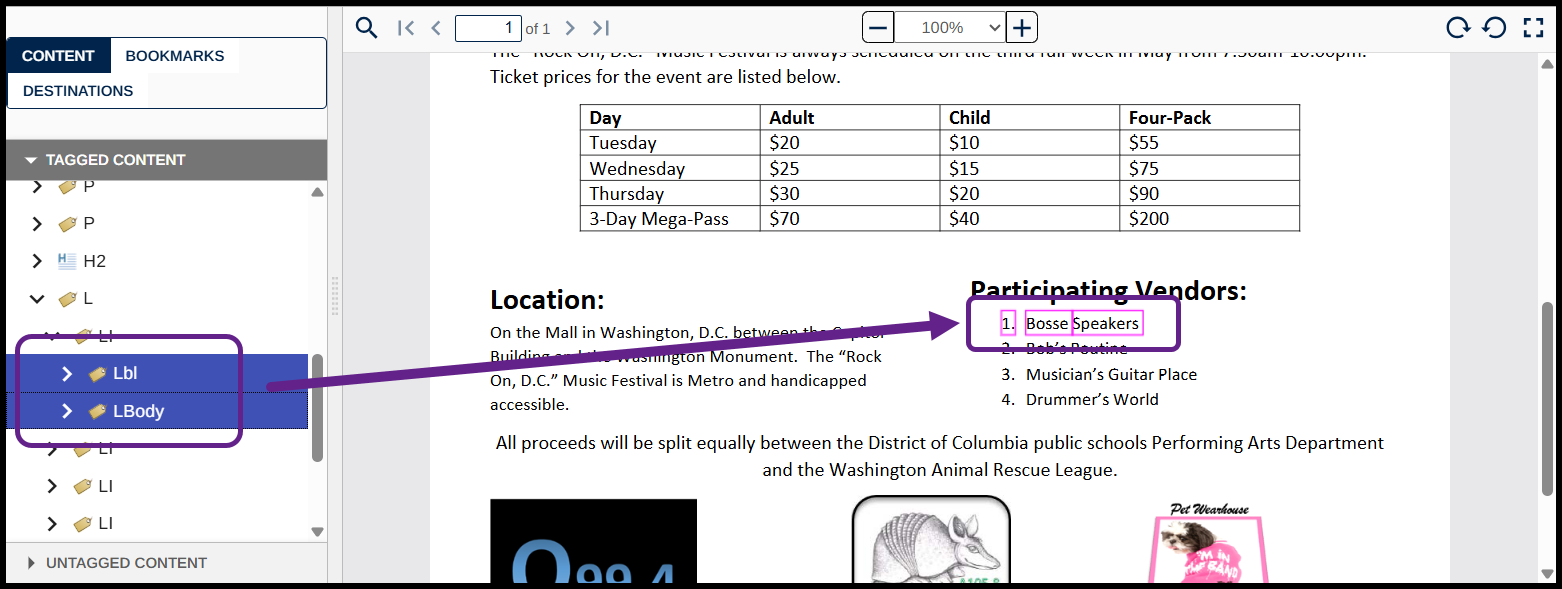
- Open the List Item tags to reveal their nested (child) Lbl (Label) and LBody tags. Selecting the Lbl tags will highlight the bullets in the physical view, selecting the LBody tags will highlight the text of the list items in the physical view. OR, open the Lbl and LBody tags to verify their contents.
- After you’ve verified that the list was tagged correctly, close the List tag so that the Tags tree is less confusing.
- After the List, in the Tags tree, there’s a Paragraph tag. Selecting it highlights what should be the next paragraph to be read in the document. This tag is correct and doesn’t need anything else done with it!
- Highlight the list in the physical view of the document. Make sure to select the bullets in the list as well as the text for the list items. (Alternatively, select the text in the Tags tree.)
- Correct Figure Issues
- In the set of three Figure tags near the bottom of the Tags tree, when you select the first one, you’ll notice that the logo on the right side of the page is highlighted (as opposed to the one on the left). Hold down the Control and Shift keys and then press the Down-arrow twice to reorder the Figure tags (that's the shortcut for "Change tag order").
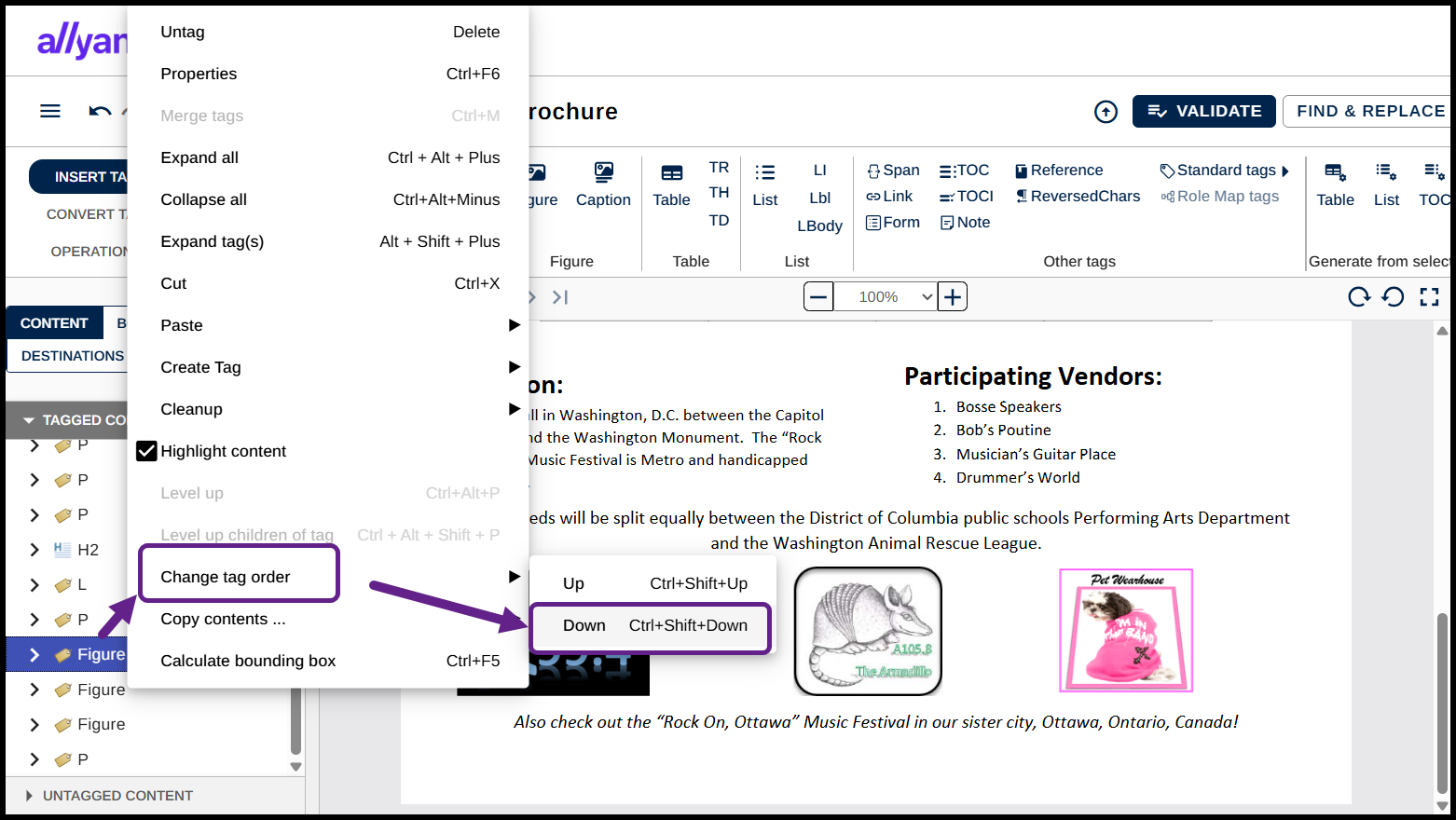
- Next, select them in order, from top to bottom, to verify that the logos will be read from left to right as they appear on the page.
Note: As addressed earlier in this guide, Figure tags like these, that contain actual “content,” require Alternative text. However, we are going to skip that now and come back to it in the Verification phase – to learn another way to address Alt text for images. - The last Paragraph in the Tags tree is tagged correctly, so, again, no further work is needed here, and you've reached the bottom of the document!
- In the set of three Figure tags near the bottom of the Tags tree, when you select the first one, you’ll notice that the logo on the right side of the page is highlighted (as opposed to the one on the left). Hold down the Control and Shift keys and then press the Down-arrow twice to reorder the Figure tags (that's the shortcut for "Change tag order").
- >Adding the Document Tag
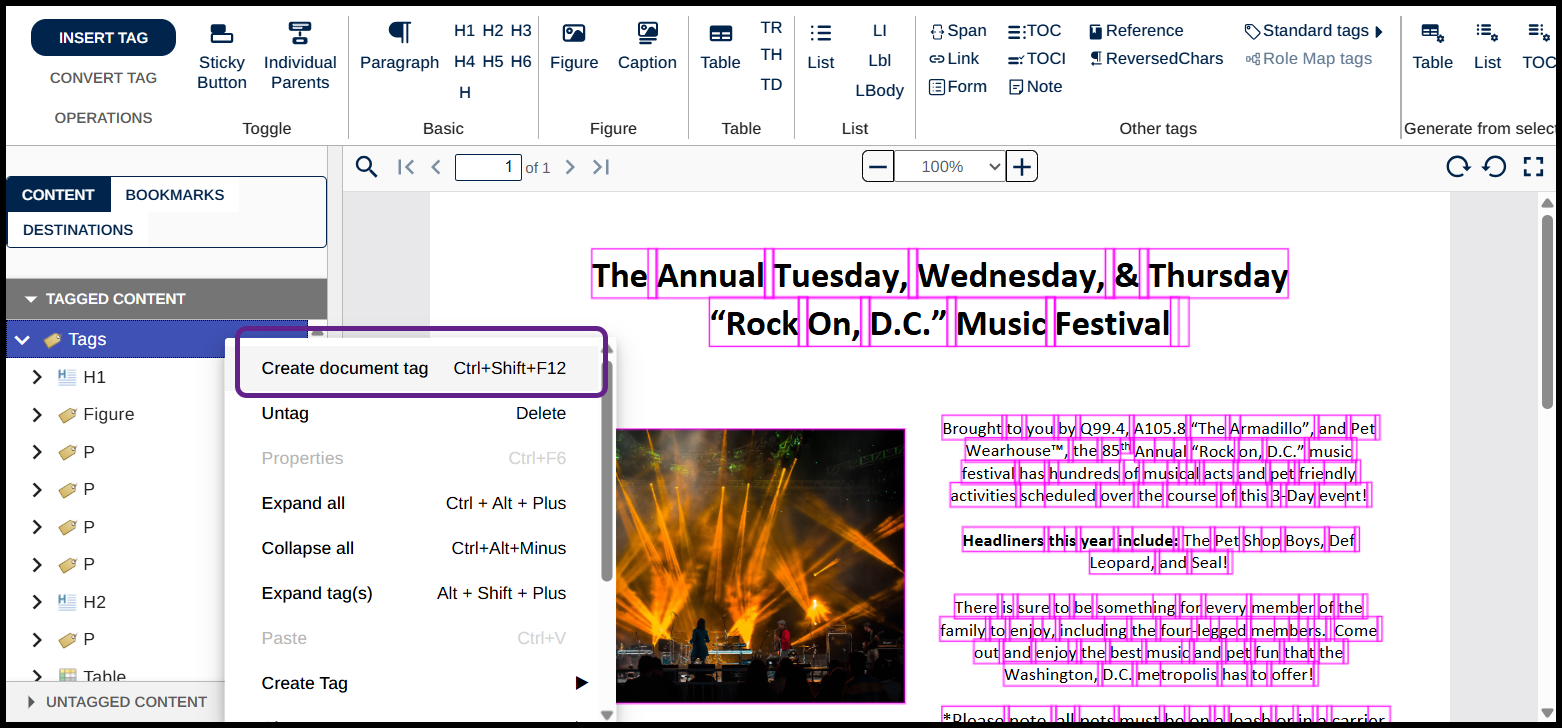
- When you’ve finished checking and fixing the tags, navigate back up to the top of the Tags tree, right-click on the Tags root (open the context menu) and choose “Add Document tag.” This wraps everything up in a Document tag and is a requirement of the standard.
 Congratulations – you’ve checked the tags and made some fixes! It’s time to run a Verification and make sure we didn’t miss anything!
- When you’ve finished checking and fixing the tags, navigate back up to the top of the Tags tree, right-click on the Tags root (open the context menu) and choose “Add Document tag.” This wraps everything up in a Document tag and is a requirement of the standard.
Verifying Document Compliance (and Fixing What You Missed)
1. Running the Verification
Now that you have ensured that the tags in the document are both accurate and in the correct reading order, we will follow these steps for verification of the document against the standards:
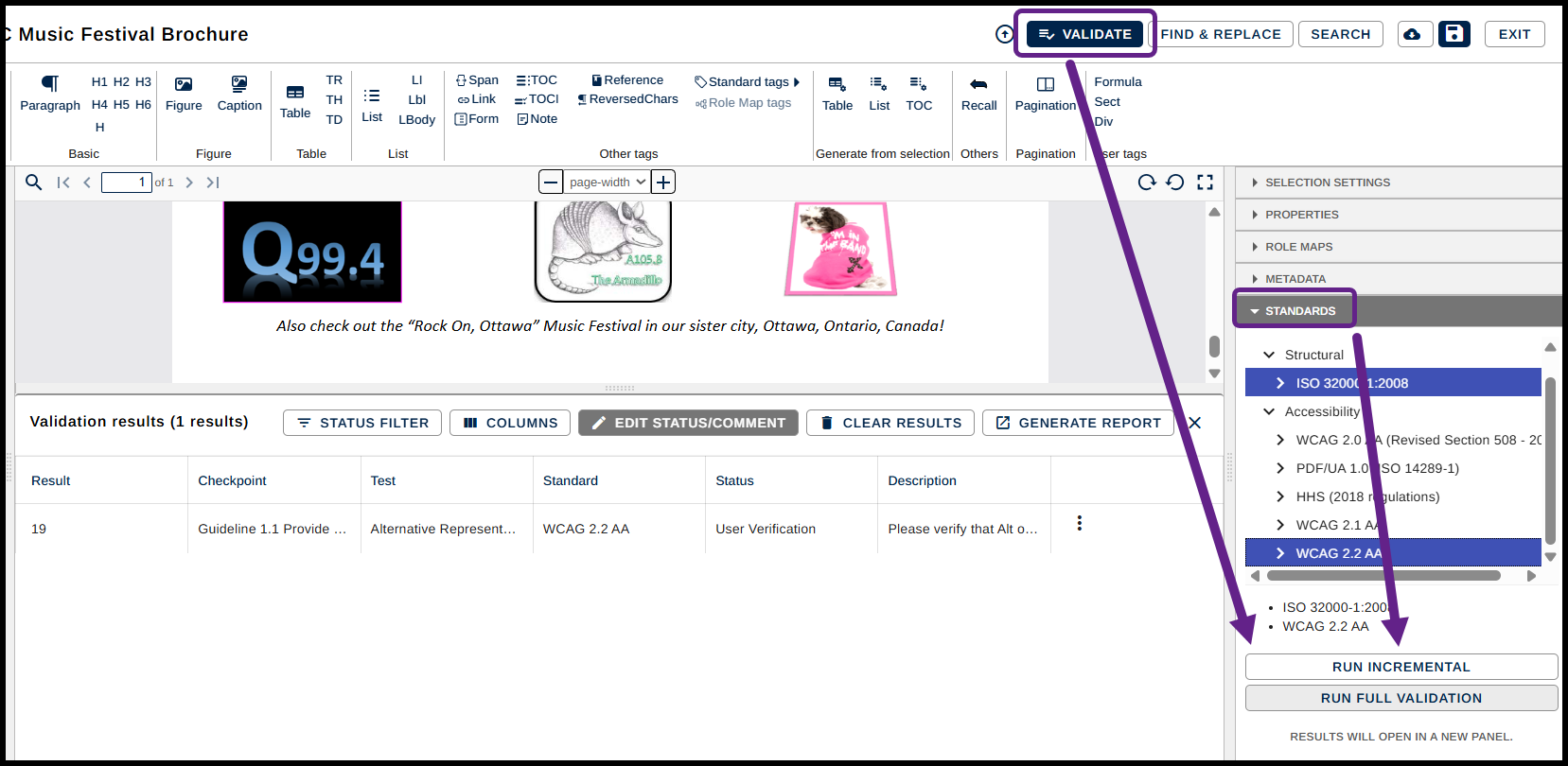
- Navigate to the Standards panel, located on the right side of the screen below the Selection Settings panel. You can also get to this by selecting the "Validate" button along the top right of the interface.
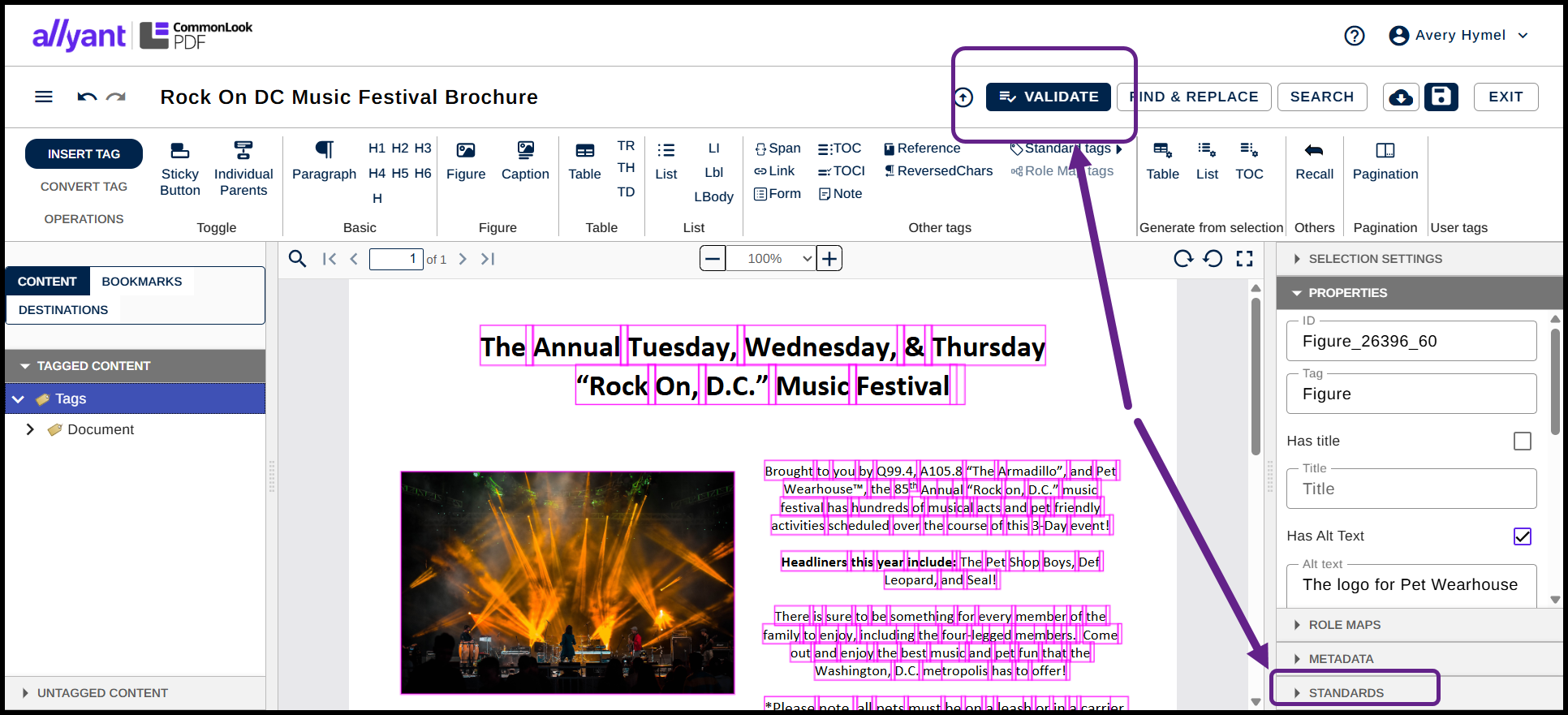
- Select “Standards” and then press the Right-arrow on your keyboard to open the menu.
- Similarly, navigate to and open the “Structural” and “Accessibility” menus.
- From the “Structural” menu, choose ISO 32000-1:2008. (This is the standard on “how to make a PDF” and will test the structural integrity of the document.)
- Hold down the Control key and, in the Accessibility menu, choose WCAG 2.2 AA. (When holding the Control key either click on WCAG 2.2 or use the Down-arrow to navigate there and then select it by pressing the Spacebar.)
Note: In this guide, we’ll validate against WCAG 2.2. Choose an alternate standard if needed. - Navigate to and choose the “Run Full Validation” button.
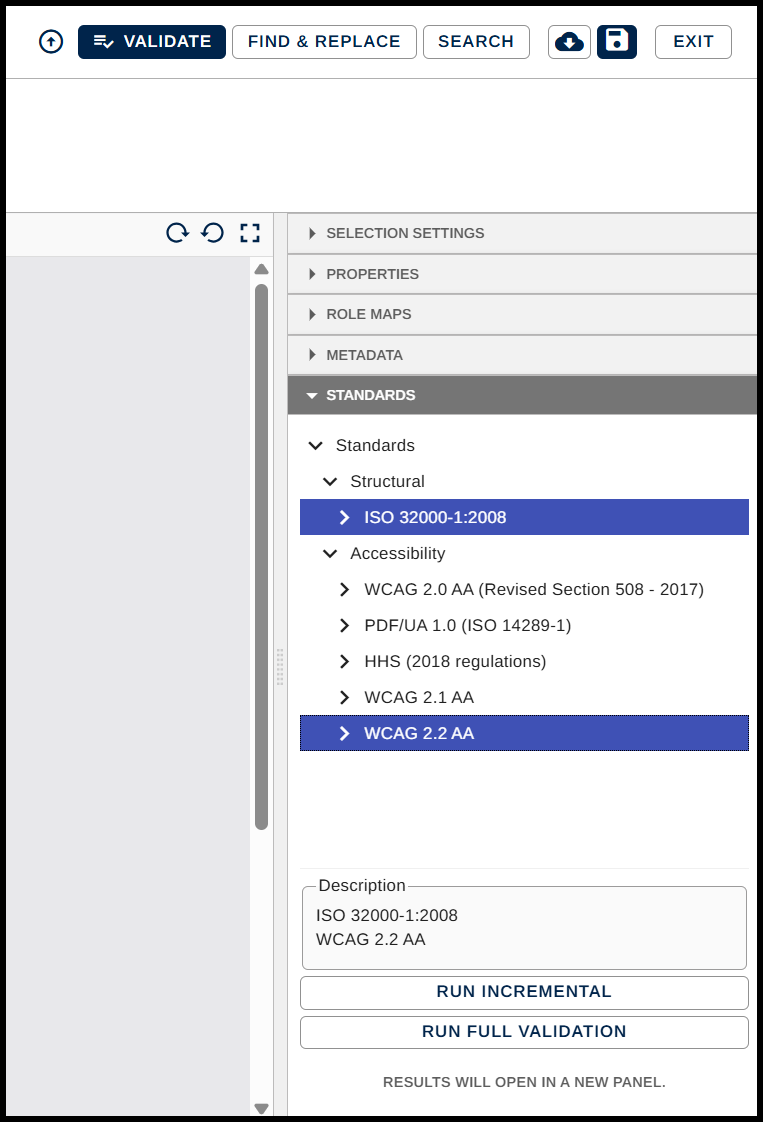
- Go to the Results panel when it opens, across the bottom of the middle panel.
Note: A lot of people get stressed when the Results panel opens because they think CommonLook is listing a whole lot of issues they need to address. This is not the case. CommonLook lists every checkpoint for the standards chosen and their status, whether it’s Passed, Failed, or requires manual verification, for example. Don’t stress at this point! - In the Results panel, navigate to the “Status Filter” drop-down menu and expand it.
- Uncheck the “All” checkbox.
- Check the boxes for Awaiting Validation, Failed, User Verification, and Warning. Now, CommonLook is listing the issues, or the potential issues in the document.
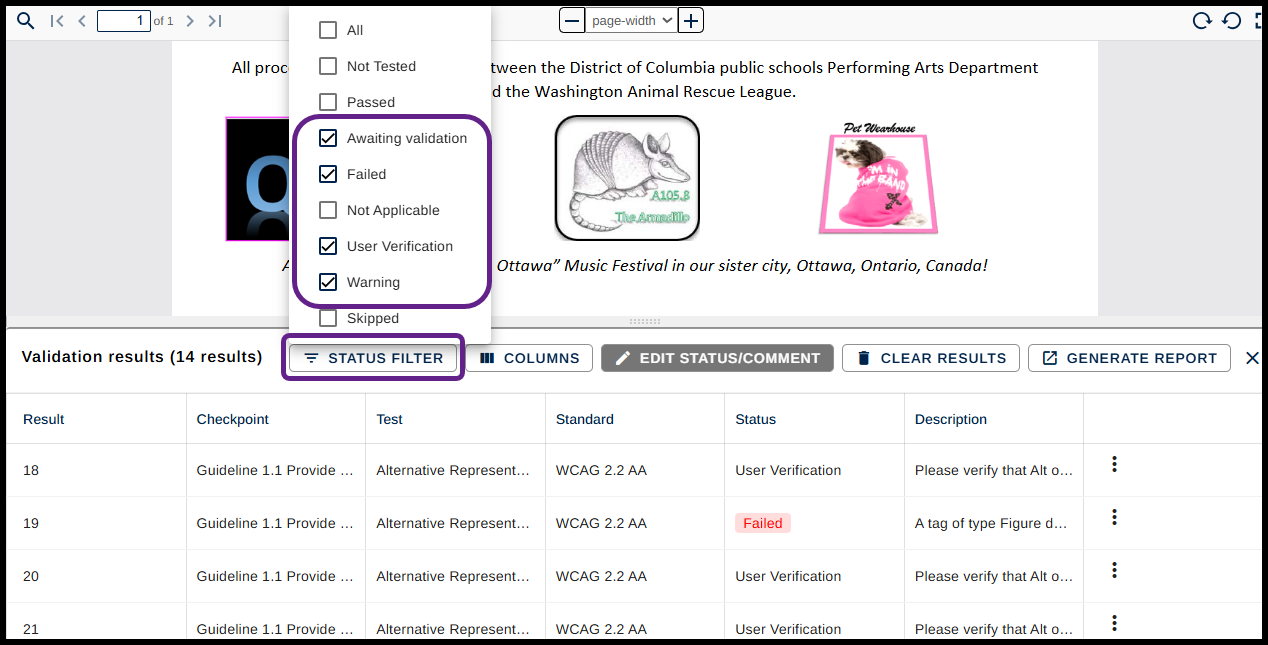
Fixing the Issues
Failures:
- Select the first Failure in the Results panel. The first of the three logos at the bottom of the page gets selected and shown in the physical view.
- Select the three-dot menu in the right-most column of the result and choose “Fix.” The Fix Wizard will open.
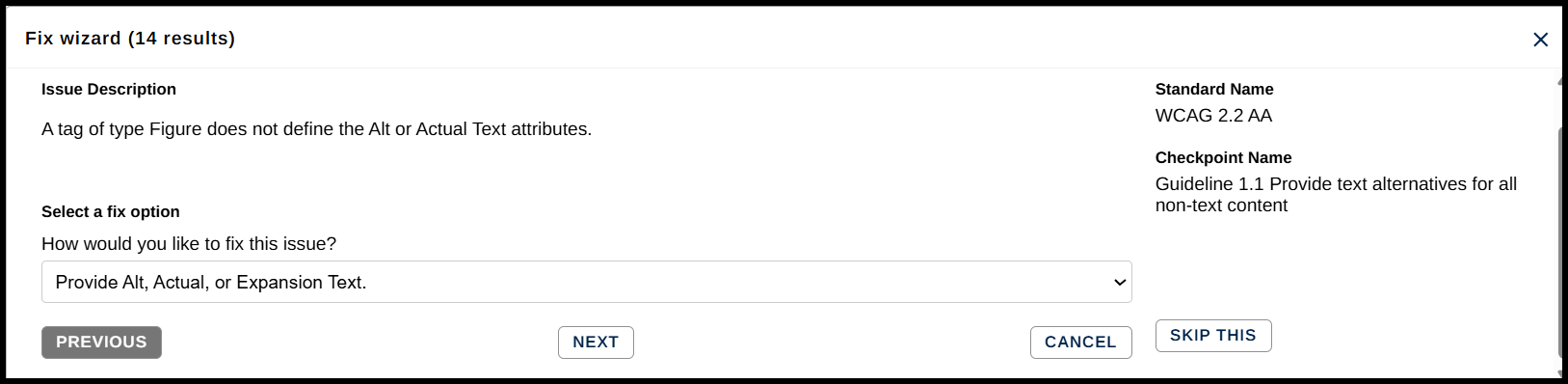 In the Fix Wizard, along with a description of the failure, under “Fix Options,” there’s a drop-down menu with different ways to correct the problem. Because this Figure tag needs to have Alternative text, we’ll use the first option shown – to “Provide Alt, Actual, or Expansion Text."
 - Choose “Next.”
- In Step 2, choose to “Provide Alt text for the tag” and then “Next.”
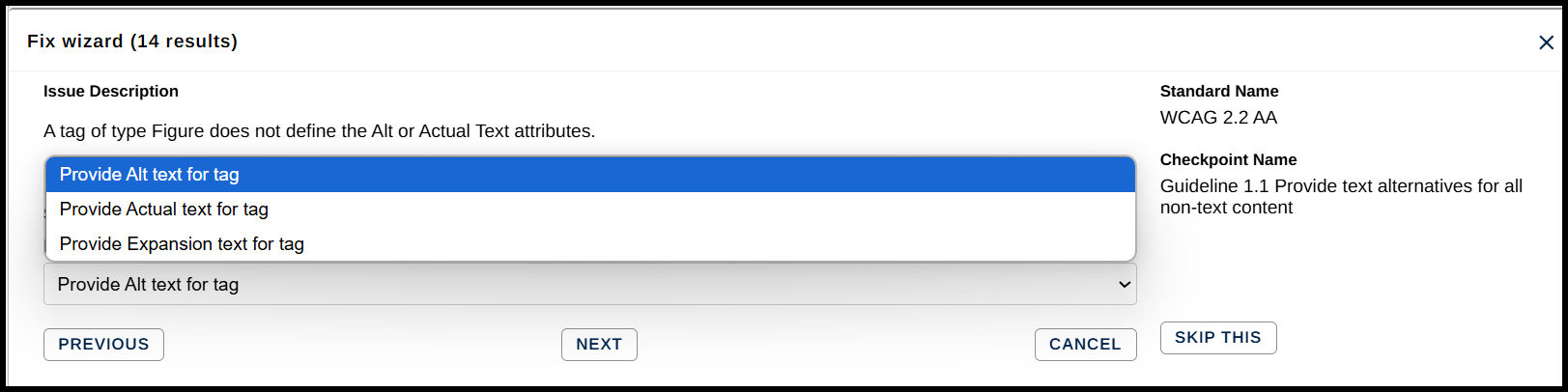
- Finally, in Step 3, enter the Alternative text needed for the image. In this case, we’ll enter “Logo for radio station Q 99.4.”
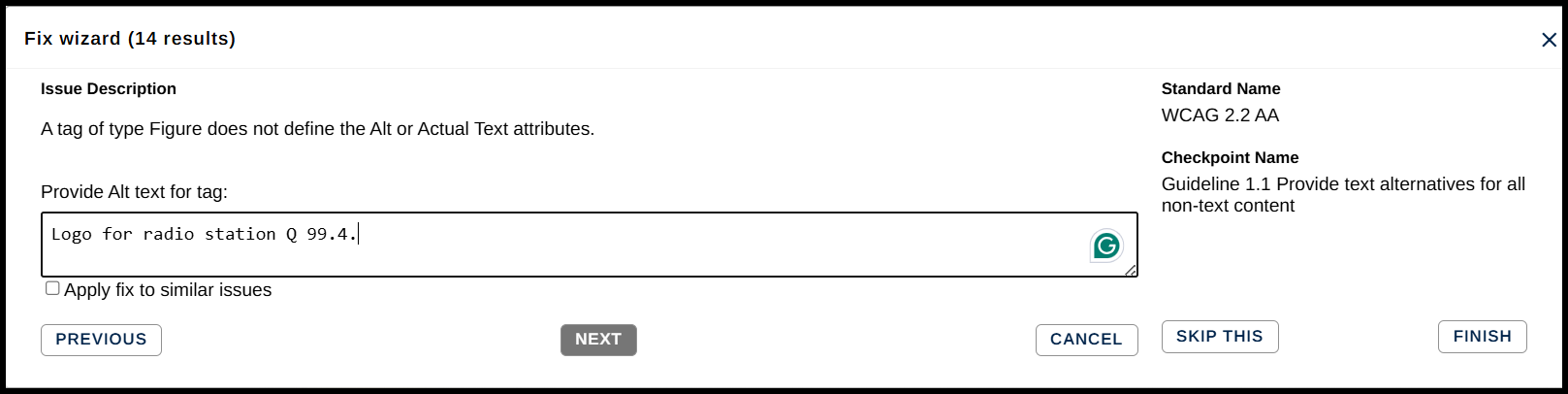
- Navigate to the “Finish” button and select it.
Note: The steps above have addressed the failures remaining in this document if you followed the remediation steps prior to the Verification section. If you have other Failures, use the Fix Wizard to address those issues as well.
- Select the three-dot menu in the right-most column of the result and choose “Fix.” The Fix Wizard will open.
Warnings:
There is one Warning result to address. You might need to scroll to the bottom of your results panel to find it.
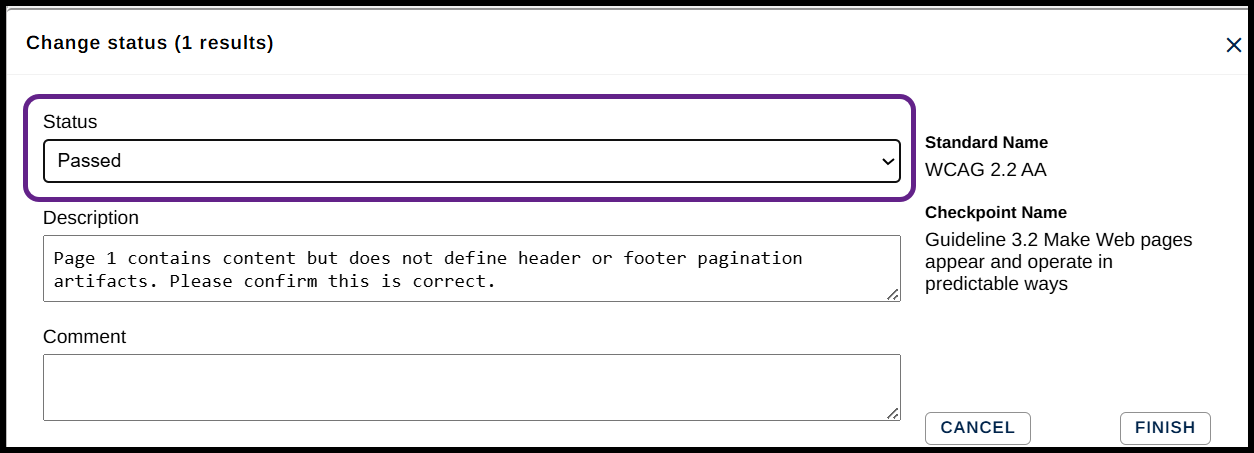
- In the Results panel, select the Warning item. Select the three-dot menu in the right-most column of the result and choose “Edit Status/Comment.” The Change Status menu will open.
- It reads “Page 1 contains content but does not define header or footer pagination artifacts. Please confirm this is correct.” In this document, there aren’t any headers at the top of the page and there aren’t any footers at the bottom so you can safely change the status to “Passed.”
User Verifications:
After the Failures and Warnings have been fixed, there are a number of items that require User Verification. Validating a document can’t be an entirely automated process because a machine can’t, for example, verify that the Alt. Text on an image is appropriate for that image. We can automatically test whether or not Alt text is present for the image, but verifying that something is truly correct sometimes requires human interaction. Likewise, while a machine can check a document to see whether or not color has been used, it cannot test to see if color is the only way information is being conveyed. This is why checking the things that require “user verification” is very important. Follow the steps below to address the User Verification items.
- In the Results panel, select the first User Verification item. It’ll highlight the first image in the document (the main stage at the music festival) and select the Figure tag in the Tags tree.
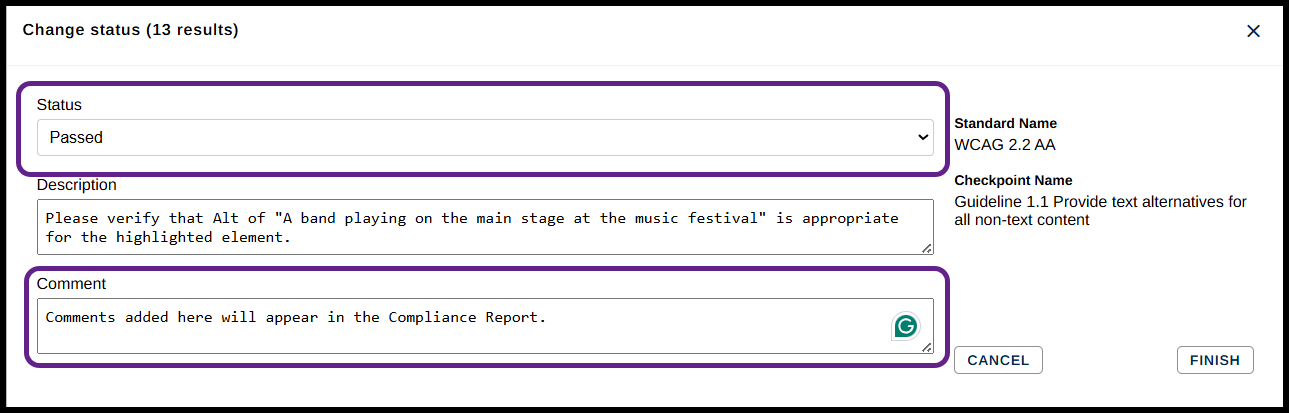
- Open the three-dot menu for that result and choose “Edit Status/Comment.”
- Read the description – here it’s asking whether or not the Alt text that was provided for the Figure is appropriate.
- Assuming that the Alt. text is appropriate (because we typed it in during the remediation phase), in the Status drop-down menu, choose Passed. Optional: Enter a Comment in the “Comments” field. Your comments will appear in the Compliance Report that we’re going to generate later.
- Choose Finish.
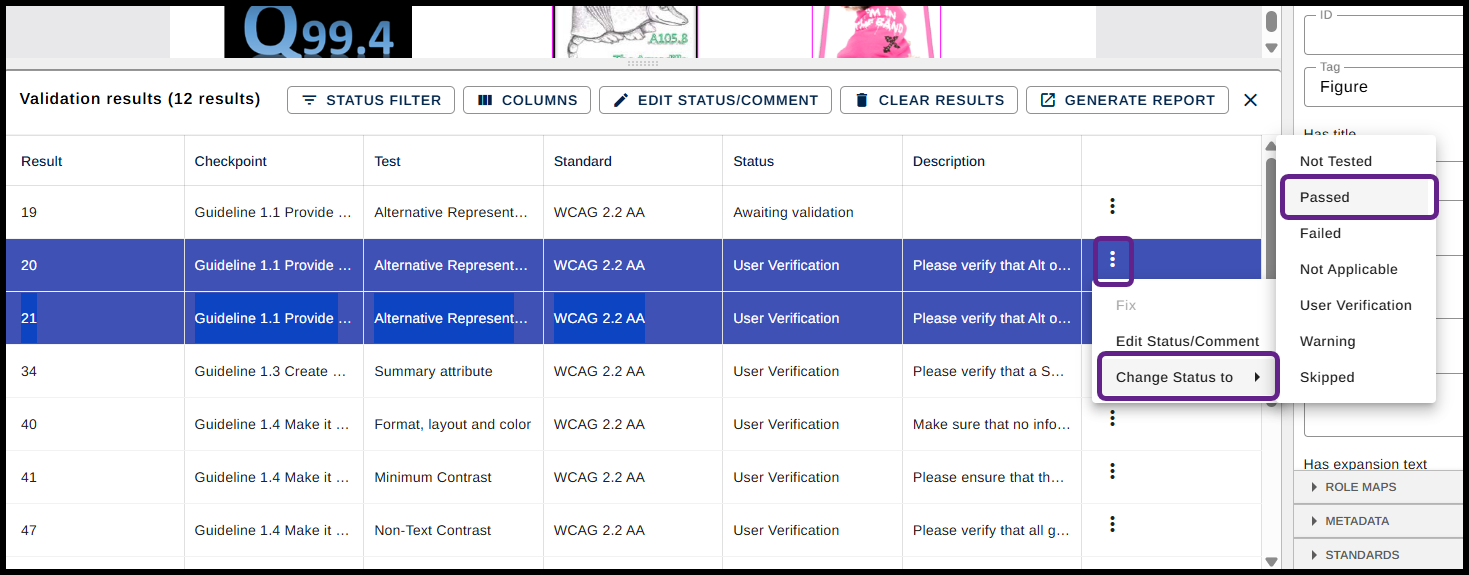
- Select the next two User Verification items. They are asking us to verify that the other images in the document. The first one is for the radio station A105.8, and the second is for the logo with the dog in it. These were added before you downloaded the original document, so you are simply verifying it's accuracy. Both of these Alt Texts are correct, so you can select both of the results and change their status to Passed. To do so, select the first, hold down the Control key on your keyboard, and select the next. With both selected, open the three-dot menu, select "Change Status to" and then choose "Passed" from the sub-menu.
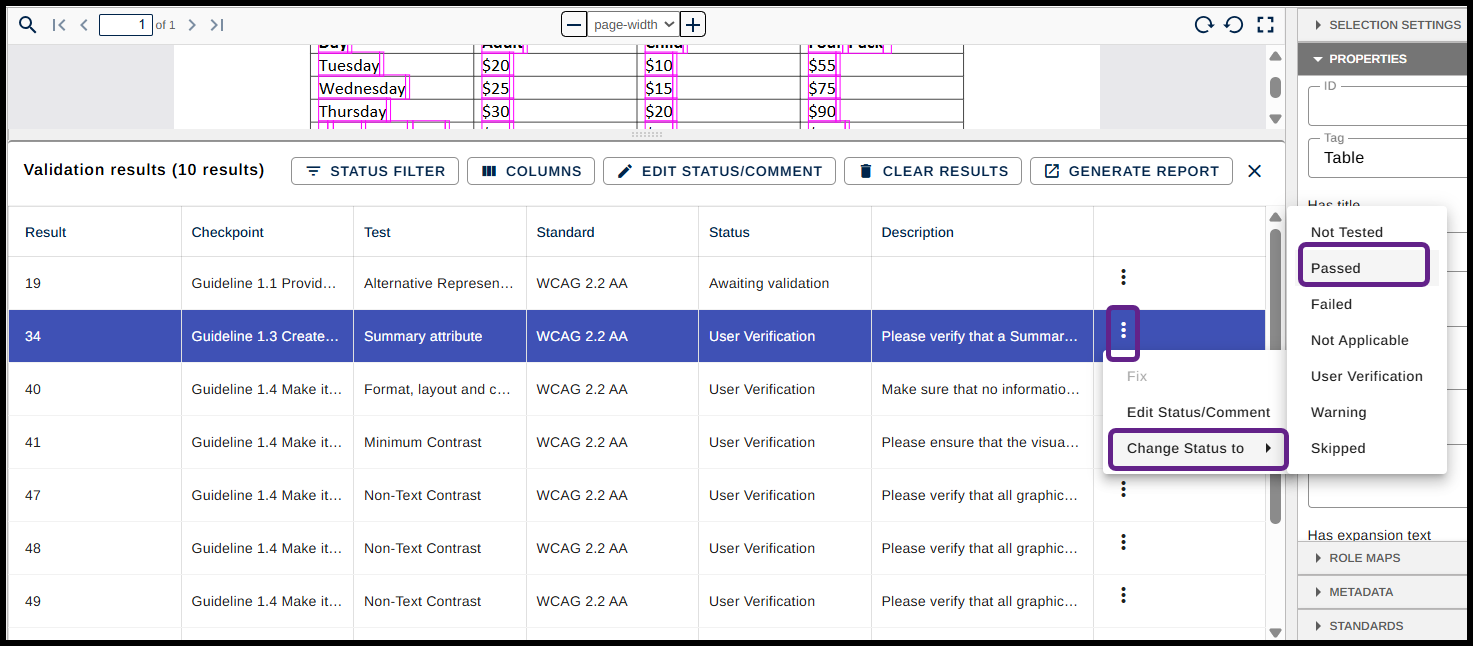
- Next, verify that the Table Summary is appropriate for the Table. This was also added before you downloaded the original document, so you are simply verifying its accuracy. Change that item’s Status to "Passed” using the same "Change Status to" menu you used previously.
- The next item is asking us to verify that color use, contrast, format, layout, etc., aren’t the only way that information is being conveyed. Seeing as this isn’t an issue in this document, change the status to “Passed.”
- The next checkpoint is asking specifically about the contrast ratio between text and the background of the document. It's asking us to make sure that there is enough contrast, visually, so that content is easily read. Again, we can pass this item.
- The next four results are asking, for all four of the images in the document, whether or not they have a contrast ratio of at least 3:1 with their surrounding content. They do, so we can select all of these (4) "Non-Text Contrast" items and pass them.
- Next, we’re asked whether or not the Title of the document is appropriate. It is, so we can pass this item as well.
- Finally, verify that the language setting (in this case English) is correct. This can be passed as well.
Awaiting Validation:
Due to the web-based nature of this CommonLook PDF interface, when we update content through, for example, the Fix Wizard, it does not instantly become something that can be verified as a "User Verification" result. As a result, after we used the Fix Wizard to add the Alt text for the Q99.4 logo, we created a new result labeled as "Awaiting Validation." At this point, this will hopefully be your last result still showing.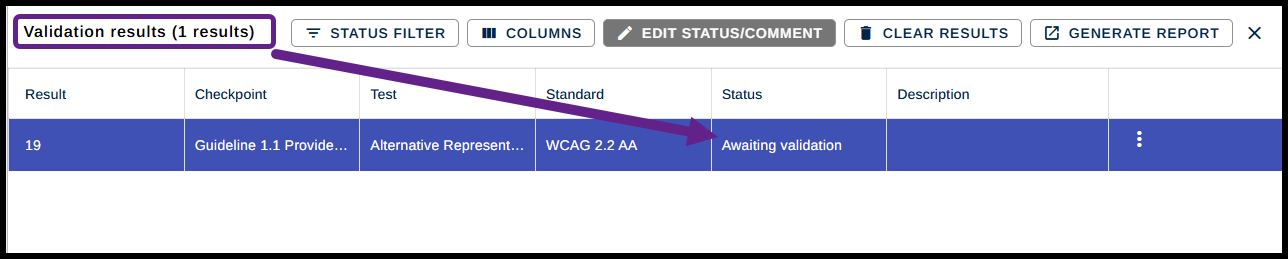 To handle this, we need to rerun our verification check. This will allow CommonLook to validate this updated component, and then, we can address it accordingly.
- Navigate back to the Standards panel, or hit "Validate" at the top of the screen. The previous standards should still be selected, so all we should have to do is select the "Run Incremental" button. This will update the check, and turn the Awaiting Validation result into a User Verification.
- With the updated "User Verification" result, you can change it to Passed using the three-dot menu, in the same way we have done for previous results.
Congratulations! At this point, all of the errors in the document have been corrected.
Reporting Compliance
Once you’ve finished fixing the document, including the items that come up in the Verification phase, you can generate a Compliance Report. This report will show that the document has been tested against the standards that you chose and the issues have been addressed. In addition, if you typed comments in the Status Dialog box, they’ll be in the report as well.
- Navigate to the “Status Filter” drop-down menu at the top of the Results panel and check the box next to “All.”
- Go to the “Generate Report” button (right-most button in the same menu) and select it to generate a report.
- This will automatically generate and download an accessible HTML Compliance Report to wherever your browser saves downloaded files. Most commonly, this is your "Downloads" folder.
- The document is now remediated, and you have an accessible Report to accompany it.
Save and Close
Lastly, when you are finished with the file, you can save the document and exit the CommonLook PDF Advanced Editor. Do so by selecting the small Save icon (floppy disk) in the top menu, and then selecting the "Exit" button.
Note: You will be able to reopen this document or continue remediation after doing this.
Parting Comments
It’s our hope that this PDF document and the Quick Start Guide get you up and running successfully with the CommonLook PDF software. With a little bit of practice, we’re sure that the steps outlined in this guide will become second nature and remediating documents will become a much faster, more efficient, and easier task than ever before.
Please keep in mind that this Quick Start Guide is designed to get you started using CommonLook PDF. To get the most from your software investment, and to reinforce what you learned through this guide, we strongly recommend you attend our training classes where even more features, tips, tricks, and tools are taught in even greater depth. Please refer to our Training Calendar to learn of and sign up for any of our upcoming courses and continue to take advantage of the many resources we have available to help you master CommonLook PDF!
We wish you all the best in your remediating projects!
Was this article helpful?
That’s Great!
Thank you for your feedback
Sorry! We couldn't be helpful
Thank you for your feedback
Feedback sent
We appreciate your effort and will try to fix the article