Product
CommonLook PDF Desktop Version
Feature
Tagging Tools
Document Element
Individual Parents
Overview
Normally, when you tag a section of text, whether it's a paragraph, a list item, or the data in a table cell, all of that text goes into one tag. For example, to tag a paragraph, you'd highlight the whole paragraph in the physical view and create a single P tag for it.
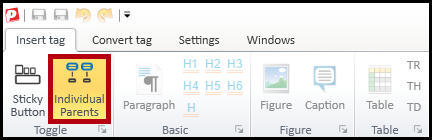
Sometimes, though, you want the opposite: you want to select several items on the page and place each one in its own separate tag, rather than putting them all in one shared tag. That's what the Individual Parents button is for. Used together with a tag type button, it takes every selected text run and gives each one its own tag of that type.
Prerequisites
Before you start, you should already know how to:
- Select text in the physical view.
- Apply a tag type to a selection using CommonLook's tag type buttons.
Steps to Follow
- In the physical view, select every item you want placed into its own tag. For example, if you're tagging a list, you might select all of the bullet characters at once.
- Click the "Individual Parents" button to turn it on.
- Click the tag type button for the tag you want applied. For the bullets example, that would be "Lbl."
- Each item you selected is placed into its own individual tag of that type, instead of one tag covering the entire selection.
Was this article helpful?
That’s Great!
Thank you for your feedback
Sorry! We couldn't be helpful
Thank you for your feedback
Feedback sent
We appreciate your effort and will try to fix the article