Given the way current PDF and accessibility standards are written, forms that include mutually exclusive radio buttons can present a unique accessibility issue. This is because Acrobat assigns the same name and tooltip to all radio buttons in a group. (Refer to the article on Verification Checkpoints Related to Forms for more information on Tooltips.)
To fix this issue, in Acrobat, use a JavaScript with the radio buttons so that they can be individually named and given their own tooltips but still be mutually exclusive.
Important Note: Some screen readers will read mutually exclusive radio buttons accurately if the buttons are created correctly in Acrobat. However, this is due to the functionality of certain specific (usually more advanced) screen readers and is not characteristic of all screen readers. It is important that all PDF documents are remediated to the standard so that they can be read accurately by any screen reading software.
Tip: This article deals with the JavaScripting of the Radio buttons in Acrobat. For more information about tagging forms, refer to the article "Creating Properly Tagged Forms."
Adding JavaScript to Radio Buttons
- Open the form in Acrobat.
- Open "Prepare Form" (may be "Form Editing" depending on your version of Acrobat.)
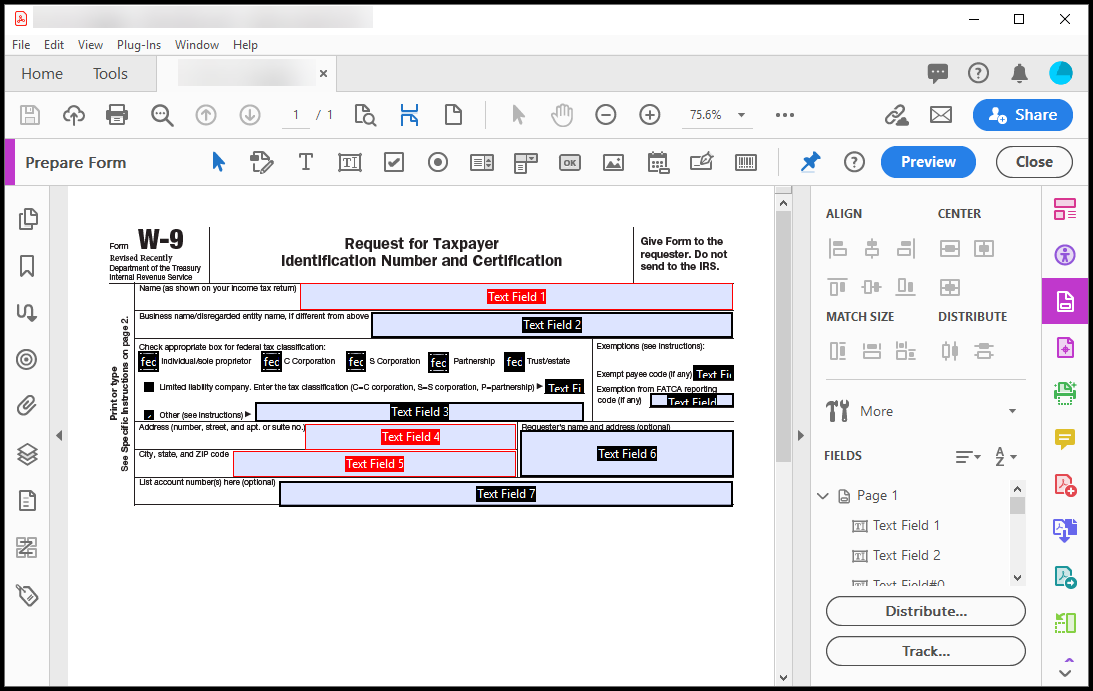
- Select the first radio button and then right-click (or otherwise open its context menu) and select “Properties.”
- When the Radio Button Properties window opens, in the “Name” field, enter a unique name. Note: To use the JavaScript provided below, type RadioButton1 for the name of the first button. Important Tip: Spelling, spaces, and capitalization matter for the JavaScript to work correctly!
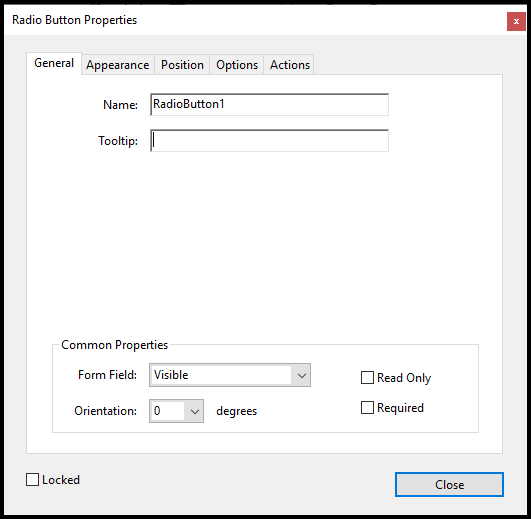
- If there is anything entered in the “Tooltip” field, delete it. (We're deleting the tooltip in this step because it's going to be the same for all of the radio buttons. Later, we can use the functionality in CommonLook to automatically provide individual tooltips. Refer to the article on Verification Checkpoints Related to Forms if needed.)
- Navigate to the Options Tab.
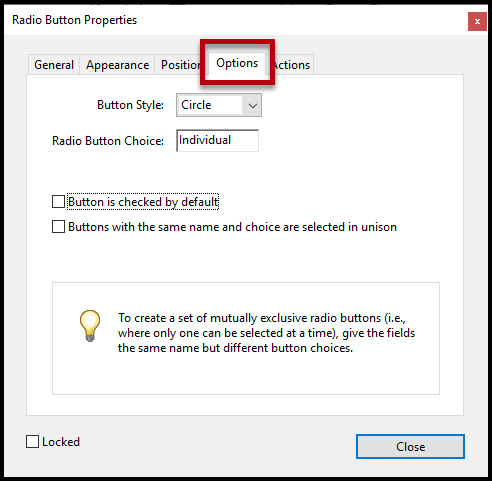
- Type the appropriate “Radio Button Choice” in the field. (“Radio Button Choice” may be called “Export Value” depending on the version of Acrobat being used.)
Note: To use the JavaScript below, type “Individual” for the Radio Button Choice of the first button. Remember, spelling, spaces, and capitalization matter for the JavaScript to work correctly! - One by one, select the remaining radio buttons, rename them, delete the tooltip, if present, and change their Radio Button Choices as needed.
Tip: If using the JavaScript provided, use the names RadioButton2 through 4 as appropriate. The Choice name is determined by the text in the physical view of the form that accompanies each radio button. - Once all radio buttons in the group have been named and the Radio Button Choices have been assigned, select the first radio button and navigate to the Actions tab.
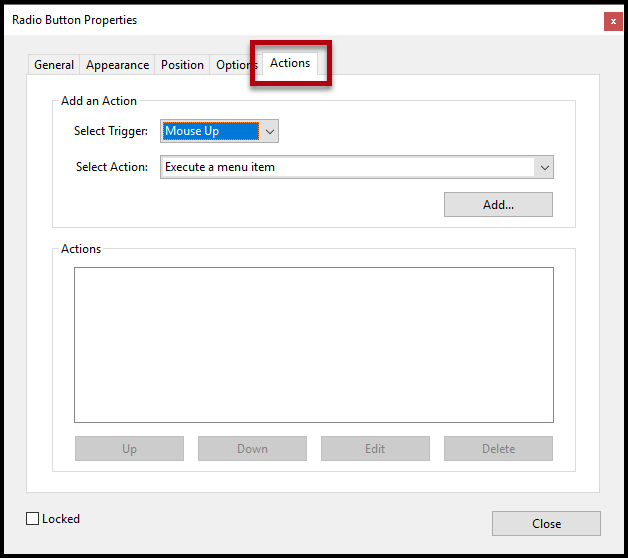
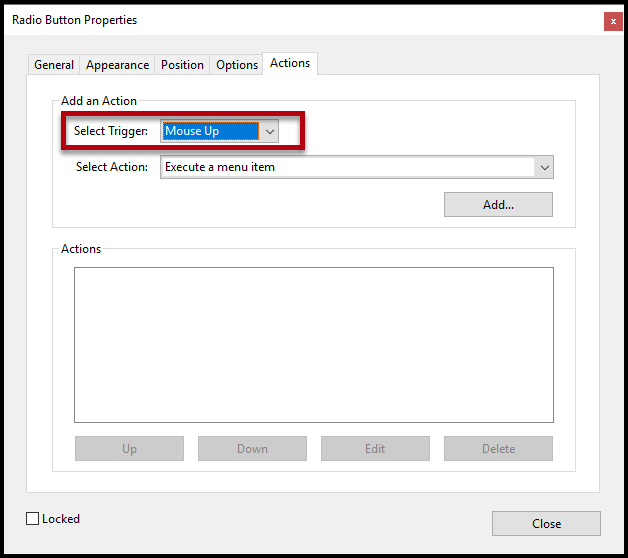
- From the “Select Trigger” dropdown menu, choose “Mouse Up.”
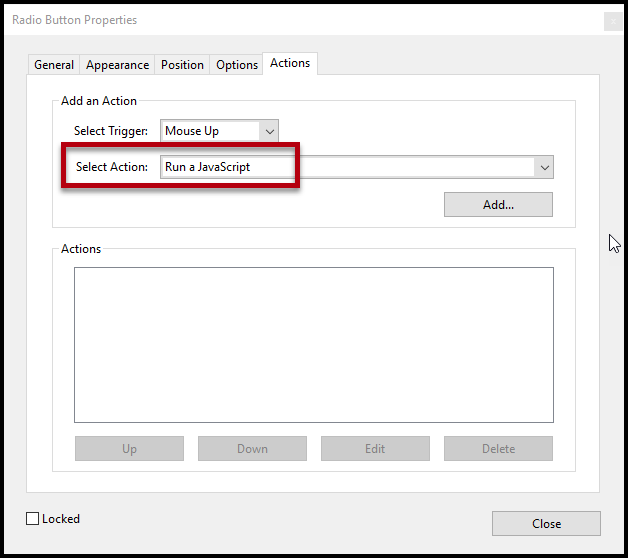
- In the “Select Action” dropdown, scroll to “Run a JavaScript.”
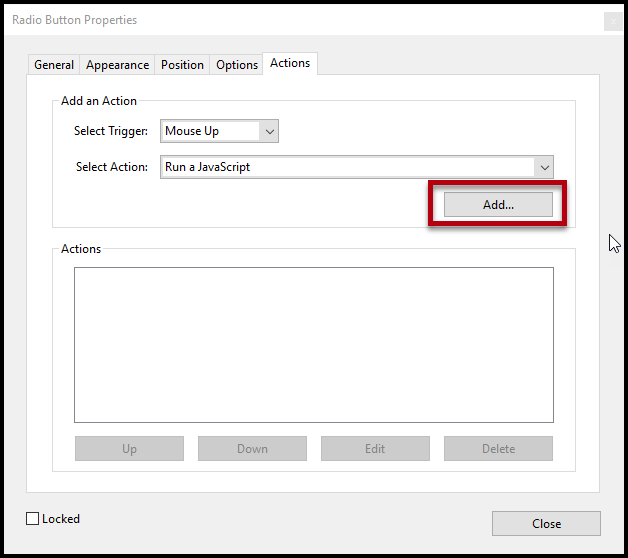
- Select "Add."
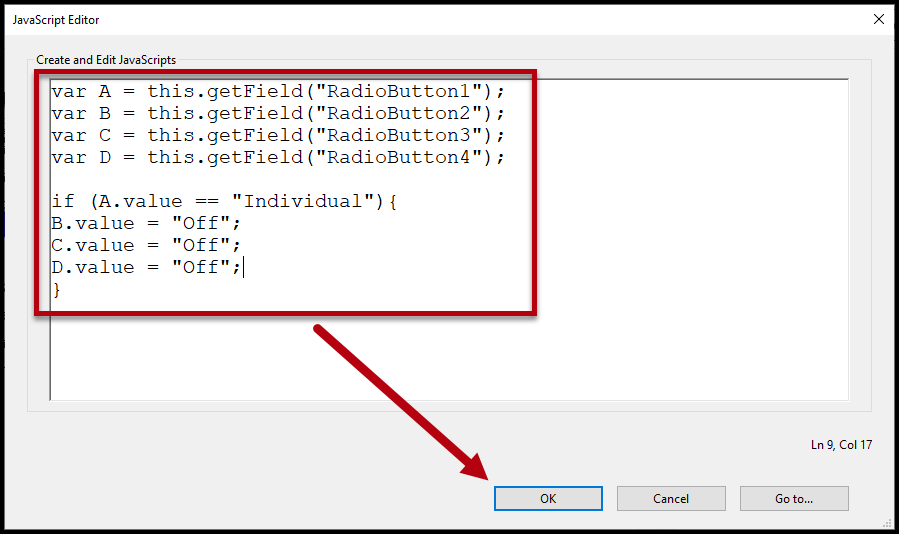
- In the JavaScript Editor window that opens, insert the following JavaScript:
var A = this.getField("RadioButton1");
var B = this.getField("RadioButton2");
var C = this.getField("RadioButton3");
var D = this.getField("RadioButton4");
if (A.value == "Individual"){
B.value = "Off";
C.value = "Off";
D.value = "Off";
}
NOTE: The code above assumes the radio button currently selected is named “RadioButton1” and has a radio button choice of “Individual.” It also assumes that other fields are named RadioButton2, RadioButton3 and RadioButton4, etc., and none has a radio button choice of “Off.”
Pro Tip: You're going to need to use this JavaScript again so if you've edited it at all, make sure you copy it before the next step! Choose "OK."
Back in the Radio Button Properties dialog box, select “On Blur” from the Trigger drop-down menu and “Run a JavaScript” from the Action. (“On Blur” refers to when the focus is pulled off of the radio button because the user tabbed away from it. “On focus” is when the user tabs into the field).
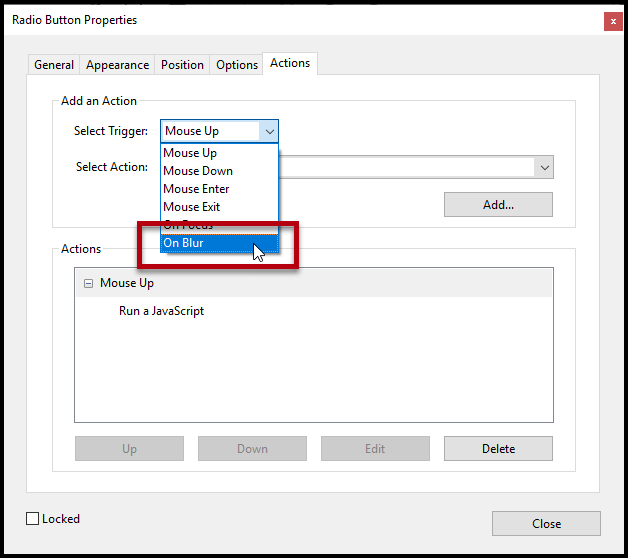
- As with the "Mouse Up" Trigger, choose “Add” and enter the same JavaScript that was used for “Mouse Up.”
- Select "OK."
- Select the second radio button in the physical view.
- in the Actions tab, verify that the Trigger is “Mouse Up” and the Action is to “Run a JavaScript.” Select "Add."
- Paste the JavaScript into the JavaScript Editor window.
Important Note: The JavaScript needs to be edited for the second (and subsequent) radio buttons – do not hit "OK" yet! - Edit the JavaScript. Because this is for the second radio button, the “if” statement (the second part of the JavaScript) will be edited as shown below. (Note that, for this example, the second radio button’s “choice” value is Corporation. The first part of the JavaScript, with the radio button names, does not change.)
if (B.value == "Corporation"){
A.value = "Off";
C.value = "Off";
D.value = "Off";
} - Copy the entire (edited) JavaScript.
- Click OK.
- Change the trigger for the second radio button to “On Blur,” click Add, and paste the copied edited JavaScript.
- Repeat the steps assigning triggers (Mouse Up and On Blur) to the other radio buttons and adding the appropriately edited JavaScript.
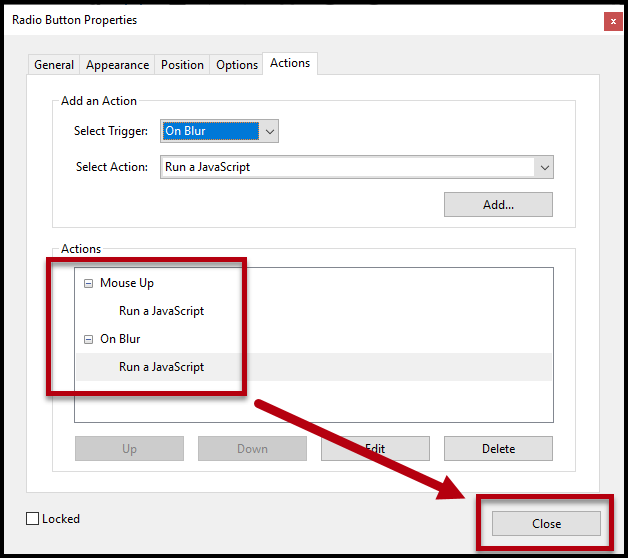
- Once all of the radio buttons have been assigned their Triggers and JavaScripts, choose the "Close" button in the Radio Button Properties dialog box.
- In Acrobat DC, choose the "Preview" button back in "Prepare Form." (In older versions of Acrobat you may need to choose “Close Form Editing.”)
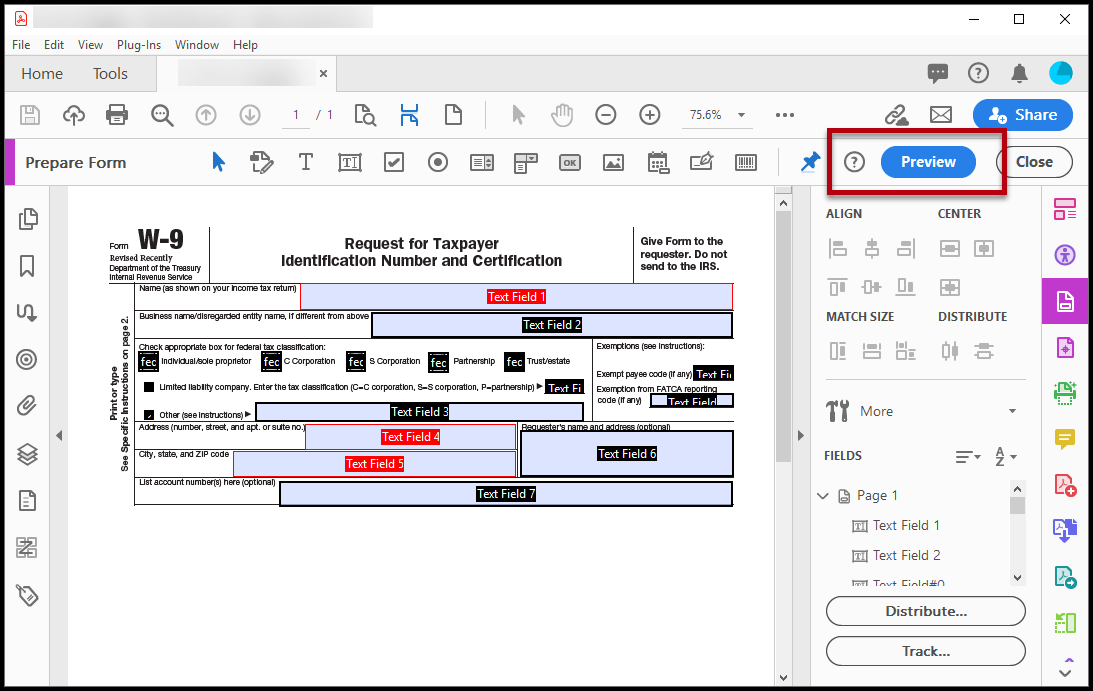
- Select the radio buttons in the document to make sure that, when selected, they turn on and, when a different radio button is selected, a previously chosen radio button is turned off. If more than one radio button can be selected at the same time then there is an error somewhere in either the naming of the radio buttons, their Radio Button Choices, or in the JavaScript that needs to be fixed.
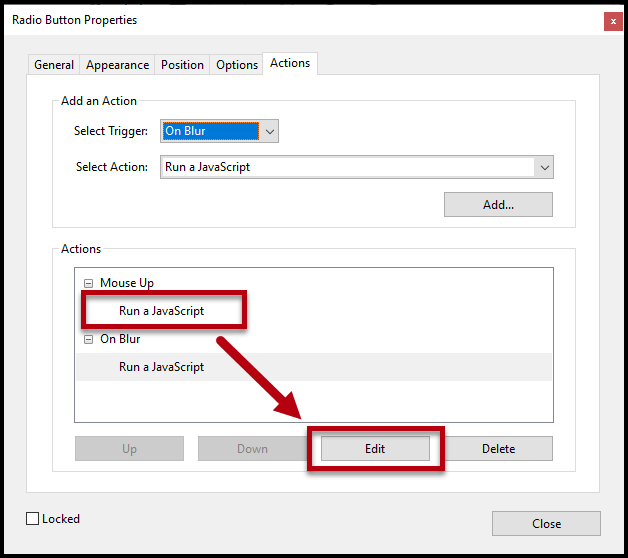
Tip: If errors need to be corrected, go back into the form editing mode, select the radio button and open the Properties panel. Check that the Names and Radio Button Choices are correct and then, if needed, in the Actions tab, in the lower panel, choose “Run a JavaScript” and then "Edit."
Mutually Exclusive Check Boxes
If you wish to make check boxes in a PDF document mutually exclusive, you can also use the same JavaScript with some minor changes:
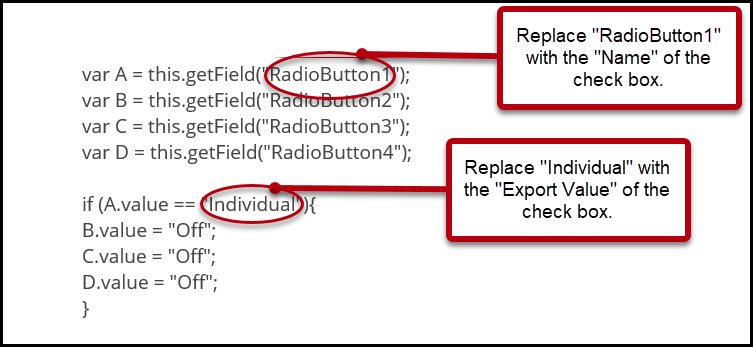
- In the General tab of the Check Box Form Properties dialog box, you will see the "Name" assigned. You will need to note the "Name" of the check boxes, possibly copying and pasting it into a "holding" document. You will replace the "RadioButton#" in the JavaScript with the "Name" of the check box.
- Open the Options tab and you will find the "Export Value" assigned to the checkbox. You'll need to know what the "Export Values" are for each checkbox, too. You might want to copy and paste those into your "holding" document as well.
*Please note that you can change the Name and Export Values of the checkboxes in the Form Properties, but these changes will also have to be reflected in the JavaScript too. - Make the needed changes to the JavaScript and proceed to step 9 in the preceding directions to ensure you add Java Script to both the "Mouse Up" and "On Blur" actions.
An important note about the JavaScript:
The JavaScript used in the example above uses radio button names 1 through 4. If there are more (or fewer) than four radio buttons that need to be grouped together, edit the JavaScript appropriately. For example, if there are five radio buttons on the form, add another line to the script for “RadioButton5.” Of course, in the lower half of the script, a line will need to be added for “E.value = “Off”;” as well. If there are fewer than four radio buttons, remove the extra lines from the script.
Reminders When Tagging Forms
- When tagging forms with mutually exclusive radio buttons, the text labels and the individual radio buttons are placed in their own Form tags (one text label and radio button annotation per Form tag). Later, for appropriate structure and reading order, all “related” Form tags can be placed in the same Paragraph tag. Refer to the article "Creating Properly Tagged Forms if needed.
- Force the tabbing order to follow the document’s structure. Read the article on Tab Order for more information.
Didn't find what you're looking for? Navigate to our "Forms" section for more related articles that may help!
Was this article helpful?
That’s Great!
Thank you for your feedback
Sorry! We couldn't be helpful
Thank you for your feedback
Feedback sent
We appreciate your effort and will try to fix the article