As of CommonLook Office version 2.1.14 there is a new checkpoint for Target Size, for documents containing forms. It comes up as a User Verification check, asking you to manually verify that your form fields are compliant with the Target Size requirement, WCAG 2.2 Success Criteria 2.5.8. But, how do you know whether or not you're in compliance?
The W3C has a very long, very informative webpage "Understanding Target Size (Minimum)." That can, however, be more information than you may need and it may be hard to sift through what's really relevant to you, in your Word documents (or, probably less likely, your PowerPoints) with forms in them.
We'll break down some of the key points, here:
- If you are using text fields, dropdown fields, date fields, etc., you're most likely going to be in compliance with the target size requirement unless you purposefully make the fields smaller than Word does when you put them in your documents.
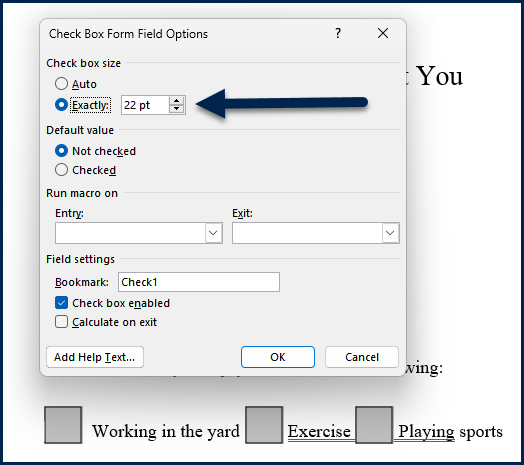
- For Legacy form checkboxes, after inserting the checkbox in your document, open the Check Box Form Field Options dialog box. Then, in the Check box size section, select the "Exactly" radio button and change the size to 22pt or larger. The checkboxes in your PDF will automatically be large enough to pass the Target Size requirement.
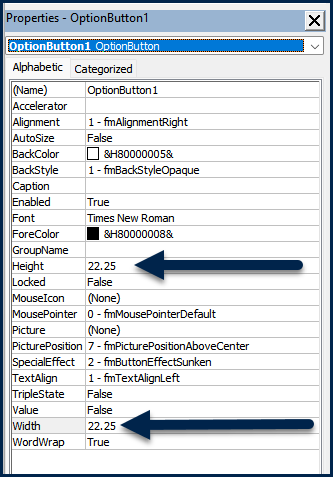
- If you are using ActiveX Controls checkboxes or radio buttons, open their properties. Then, in the properties for the field (the checkbox or radio button) change both the width and the height to be at least 22. (Word may default you to 22.25 when you enter 22.)
Didn't find what you were looking for? Check out our other articles dealing with Forms in CommonLook Office.
In addition, we have another article on Forms and Target Size, as pertains to PDF and CommonLook PDF but may be helpful, too.
Was this article helpful?
That’s Great!
Thank you for your feedback
Sorry! We couldn't be helpful
Thank you for your feedback
Feedback sent
We appreciate your effort and will try to fix the article