Forms are an interactive question and answer opportunities within a document. Each question on a form (name, address, phone number, etc.) will be placed in its own Form tag.
Most tagged forms contain two elements:
- The text (as shown in the physical view)
- The form Annotation.
The “Annotation” is the “interactive part” of the form; it is the text field, checkbox, dropdown menu, etc., with which the user answers the prompted question.
Note: Occasionally, there will be text fields (annotations) in a form that do not have text associated with them in the physical view. For example, if a question is a checkbox for “Other” with the instructions to “provide specific information below,” it may be followed by a blank text field in which the user can provide necessary details. In this case, the Form tag will only contain the Annotation. Another example could be one in which there is a data table where the text for the "questions" is in the column and/or row header cells and the data cells, in the "body" of the table only contain the form annotations. In this situation your TD tags (for the data cells in the table) would contain Form tags which, in turn, contain the annotation. In summary, while most Forms will have both text and annotation, it is okay if a Form tag contains an annotation only.
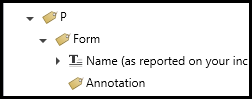
Below is a screenshot of a properly structured Form. Note that the Form tag is open showing the Annotation and the text inside, and that the Form tag is placed inside a Paragraph tag. Form tags will always be placed inside a structural tag and never at the root level on the Tags tree. Also, please note that while the order of the text and annotation in the form tag doesn't really matter, the best practice is to place them in the same order as they appear in the physical view.
Caution: Oftentimes, when content authors are creating forms, they will place the content of the form in a table for formatting purposes. Make sure to linearize any table that is not a data table as to not mislead anyone using assistive technology. Refer to the article on Presentation Tables if needed.
Tip: If a table was used to format the form section of a document, in addition to linearizing the table, artifact the lines so that they are not also placed in the Form tags. (Remember to change the selection settings in the Settings tab, unchecking “Untagged,” so that when the lines are artifacted they are not subsequently re-tagged when creating the Form tags.)
There are a number of ways to properly tag Forms using CommonLook PDF. Two of the more popular methods will be described in the following sections.
Letting CommonLook Tag the Form Automatically
When there is form in a document, oftentimes CommonLook will correctly structure the components (text and annotation) when generating the Form tag.
- In the physical view, highlight the “question” to be tagged in a Form. Be sure to select both the text and the Annotation.
- Create a new Form tag (in the Insert tag tab on the ribbon or keyboard shortcut Ctrl+8).
- Level up if needed (Ctrl+P or right-click (or otherwise open the context menu) and choose level up from the context menu), but remember that Form tags cannot be placed at the root level, unlike paragraph or caption tags for example.
- Open the Form tag to make sure that it contains the text for the form and the Annotation. In addition, make sure that the text and the annotation are in the correct order. (For example, if the text is in multiple text elements, make sure that the annotation is not between two of them.)
Oftentimes CommonLook will automatically tag the Form correctly when a Paragraph tag is created.
- In the physical view, highlight the “question” to be tagged in a Form. Be sure to select both the text and the Annotation.
- Create a new Paragraph tag (in the Insert tag tab on the ribbon or keyboard shortcut Ctrl+7).
- Level up if needed (Ctrl+P or right-click (or otherwise open the context menu) and choose level up from the context menu).
- Open the Paragraph tag. Make sure that the Form tag is inside it and, if the paragraph contains more than the question on the form, the Form tag is in the correct reading order within the Paragraph tag.
- Open the Form tag to make sure that it contains the text for the form and the Annotation. In addition, make sure that the text and the annotation are in the correct order. (For example, if the text is in multiple text elements, make sure that the annotation is not between two of them.)
Manually Creating the Form Tag
If using the method described above to automatically tag the Form does not provide accurate results, then follow these steps to tag it manually:
- In the physical view, highlight the “question” text and the annotation that will be placed in a Form tag. Be sure to select both elements!
Tip: If the annotation is in the Untagged Content, make sure that the option to be able to select untagged items is enabled (in the Selection group on the Settings tab in the ribbon). - In the Insert tag tab, on the ribbon, select the button to create a Form tag (or use Ctrl + 8).

- Place the Form tag in the proper reading order.
Note: Forms need to be placed inside of another structural tag (Paragraph, LBody, TH or TD, etc.) and not placed directly at the root level in the Tags tree.
If the Form contains a “Path” (for example, the lines in a table used to format the document), because the lines do not convey any relevant information, they can be artifacted. Select the “Paths” and press the Delete key.
Stand-Alone vs Grouped Forms
Forms typically fall into one of two configurations - "Stand-Alone" and "Grouped." While the structure of a Form tag is the same in both scenarios, where the Form tag is placed in the Tags tree has slight differences. When deciding which configuration to use, consider the relationships, or lack thereof, between questions. This will help determine where Form tags should be located in the Tags tree. Here are a few examples.
Stand-Alone Forms

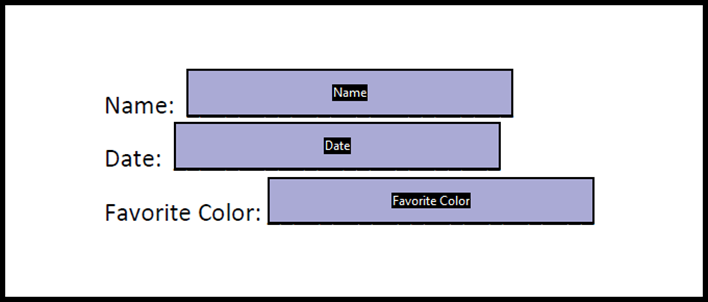
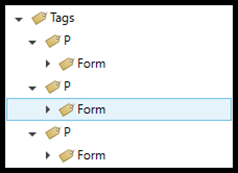
This scenario contains three questions that are independent of each other. For example, in this scenario, does someone need to know the Date to know someone's Favorite Color? No. Because these questions don't contextually rely on each other, we can confidently classify them as "stand-alone" forms. As a result, we put each one in its own Form tag and place each Form tag in its own Paragraph. Here is a screenshot showing the "Stand-Alone Form" tag structure.

Grouped Forms

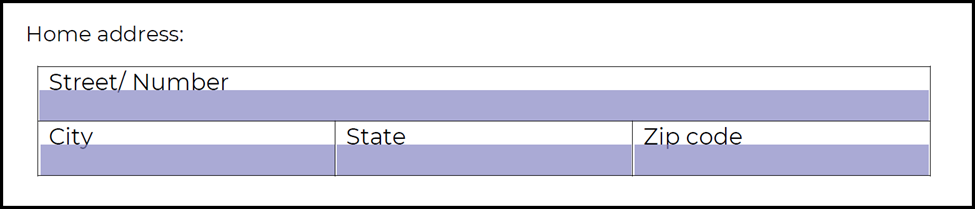
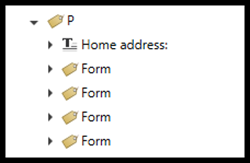
This scenario contains four questions that are related to each other. For example, in this scenario, does someone need to know the Street Address, City, State, and Zip code to get the entire Home address? Yes. Because these questions contextually rely on each other and provide the full information only when offered collectively, we can confidently classify them as "grouped" forms. As a result, we put each one in its own Form tag and then group the four Form tags into a single Paragraph tag in the Tags tree. Here is a screenshot showing the "Grouped Form" tag structure.

Disclaimer: The terms "Stand-alone" and "Grouped" are ones that we use with our software. They are not technical terms. For example, if you are searching the standards for rules about "Grouped Forms," you won't find an official mention, they just happen to be terms that seem to "stick" with our students and help break down these complicated ideas.
Adjusting Tab Order
Regardless of if a user is tagging a Form manually or automatically, a remediator must still update the document tag order. For more information, refer to the article titled, "Tab Order."
Didn't find what you're looking for? Navigate to our "Forms" section for more related articles that may help!
Was this article helpful?
That’s Great!
Thank you for your feedback
Sorry! We couldn't be helpful
Thank you for your feedback
Feedback sent
We appreciate your effort and will try to fix the article