Overview
A form field is any part of a PDF that a user is meant to interact with and fill in. Common examples are fill-in-the-blank text boxes, checkboxes, and radio buttons. For assistive technology to work with them correctly, each field needs to be properly identified and labeled so the software knows what it is and what information it's asking for.
Prerequisites
If a document has any type of interactice form element, it must be correctly identified and be given an accurate tooltip.
Steps to Follow
Checking the Parent Container
When the Simplified Editor detects a form field, it places it inside a container. That container needs to match what the content actually is. If the content is not a data table, for example, it should not be sitting inside a Table container, as it is in this example.

The other thing to check is whether the form field and its label are together in the same container. If the field is on its own line without the question text, the tool has no way to connect them.
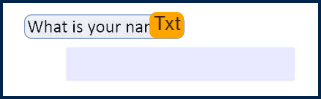
To fix this, resize or create a Text container so that both the label and the form field are inside it together.
Adding & Editing Tooltips
A tooltip is what a screen reader reads aloud when a user lands on a form field. It tells a reader what question is being asked. Without one, the field is essentially invisible to someone using assistive technology.
The Simplified Editor will try to generate them automatically based on the paired text. To check or edit a tooltip:
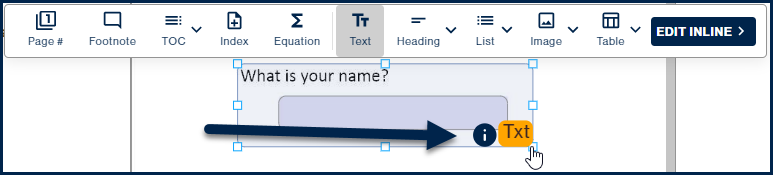
- Select the container holding the form field.
- Click "Edit Inline" in the toolbar.
- Click the form field itself. The Form Field Details panel will open.
- Review the tooltip text. Edit it if needed, then click Save.

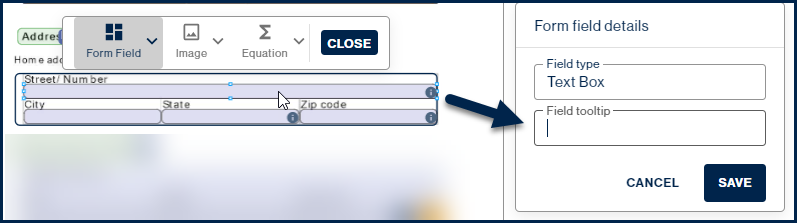
Tips for writing a good tooltip: Write it the way you would ask the question out loud to someone who cannot see the document. Include enough context to make the field clear on its own. If the field is required, note it directly in the tooltip, for example: "First name (required)."
Radio Buttons (Special Case)
Radio buttons work a little differently from other form fields. Because all the buttons in a group are tied to the same question, they all share one tooltip. That tooltip should be the question itself, not the individual answer options.
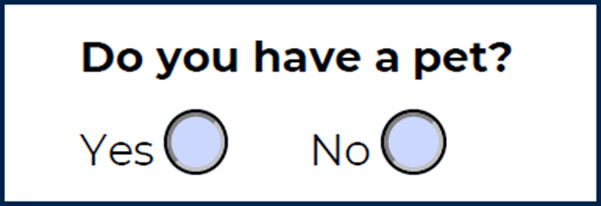
When you enter the tooltip for one button in the group, it applies to all of them automatically.
For each individual button, use the "Radio Button Choice" field to enter that button's answer option, for example "Yes" or "No."
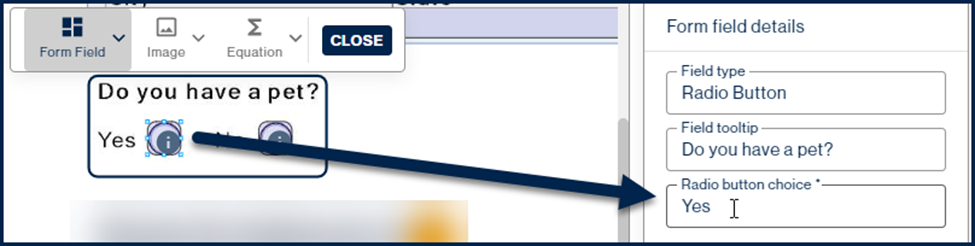
Click Save after each one.
Common Problems
Can't Find or Open the Tooltip
One important detail is that you have to go through the parent container first. You cannot click the form field directly from the main document view.
- Select the container that holds the form field.
- Click "Edit Inline" in the toolbar.
- Then click the form field itself. The Form Field Details panel will appear.

Frequently Asked Questions
How does Assistive Technology read forms?
When a screen reader reaches a form field, it reads the tooltip out loud so the user knows what information to enter. This is why getting the tooltip right matters so much. Without one, the screen reader may skip the field entirely or read something unhelpful like "blank" or a random string of characters. It will also identify the type of field, so the user knows whether they are filling in a text box, selecting a checkbox, or choosing a radio button.
Was this article helpful?
That’s Great!
Thank you for your feedback
Sorry! We couldn't be helpful
Thank you for your feedback
Feedback sent
We appreciate your effort and will try to fix the article