When remediating, it is common to untag content that is not needed to be read by assistive technology. Inversely, there are other cases in which we would need to tag content that was previously untagged in order to share that information with individuals using assistive technology. If you are having trouble selecting the content on the page to tag appropriately, the following steps will allow you to select untagged content and tag it.
- Navigate to the Settings tab of the CommonLook ribbon.
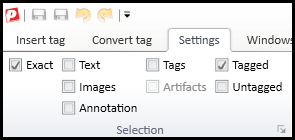
- Locate the Selection group and note which boxes are currently checked. In most cases, the default selections when remediating a document are "Exact" and "Tagged."
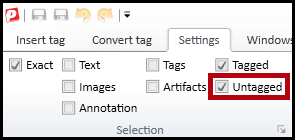
- Check the "Untagged" checkbox, granting yourself the ability to highlight untagged content in the physical view.
- Select the tag in the Tags tree that you want the new tag to follow.
- Highlight the content you wish to tag and generate the appropriate tag under the Insert tab of the CommonLook ribbon.
- Adjust the Selection section of the Settings tab back to your default selections if preferred.
As you might imagine, the Selection group can help you easily manipulate other content as well. Other checkable selection options include being able to select only images, annotations, or artifacts.
Didn't find what you're looking for? Navigate to our "Tagging (or Untagging) Content" section for more related articles that may help!
Was this article helpful?
That’s Great!
Thank you for your feedback
Sorry! We couldn't be helpful
Thank you for your feedback
Feedback sent
We appreciate your effort and will try to fix the article