Overview
When a sighted reader refers to an image, they can gain contextual information from the graphic that a non-sighted reader cannot gather. It is the responsibility of the remediator to ensure that all information that is conveyed to a sighted reader is also available to someone using assistive technology. Through providing text alternatives to graphical document elements, a user ensures that all information is shared with all audiences.
Any image, graphic, or figure that is used to convey information in a document needs:
- To be in a Figure tag
- To have Alternative text assigned to that Figure tag
When a screen reader finds a Figure tag in the Tags tree, it will announce to the listener that there is an image, saying “graphic” or “image” (different screen readers say different things). Then, after announcing the Figure tag, the screen reader will read the Alternative text that has been entered for that tag. Conversely, any image that is purely used for aesthetics and does not convey information does not need to be tagged as a Figure (and, therefore, does not require alternative text).
Prerequisites
If you have images, graphics, and figures that convey important information in your PDF, it needs to be placed in a P tag and given Alt text.
Steps to Follow
Creating a Figure Tag
If an image is not already in a Figure tag (and it needs one), follow these steps:
- Highlight the image in the physical view of the document.
Note 1: Paths, XObjects, or Form XObjects are all examples of graphical elements. You might highlight the image and find one of those element types, for example.
Note 2: Oftentimes, one image in the physical view will be comprised of many smaller pieces based on shading and other characteristics of the image. When highlighted in the physical view, multiple Path, XObject, or Form XObject elements may be selected. If this is the case, and if all of these items combine to create one image on the page, then put them all in the same Figure tag. - After the graphical elements have been selected in the physical view, in the Insert tag tab, choose Figure.
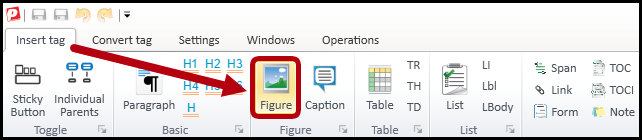
- Remember to place the tag in the correct reading order as well!
The screenshot below shows an image in the physical view of the document, the Figure button in the Insert tag tab in the ribbon, and the Figure tag containing an XObject in the tag tree.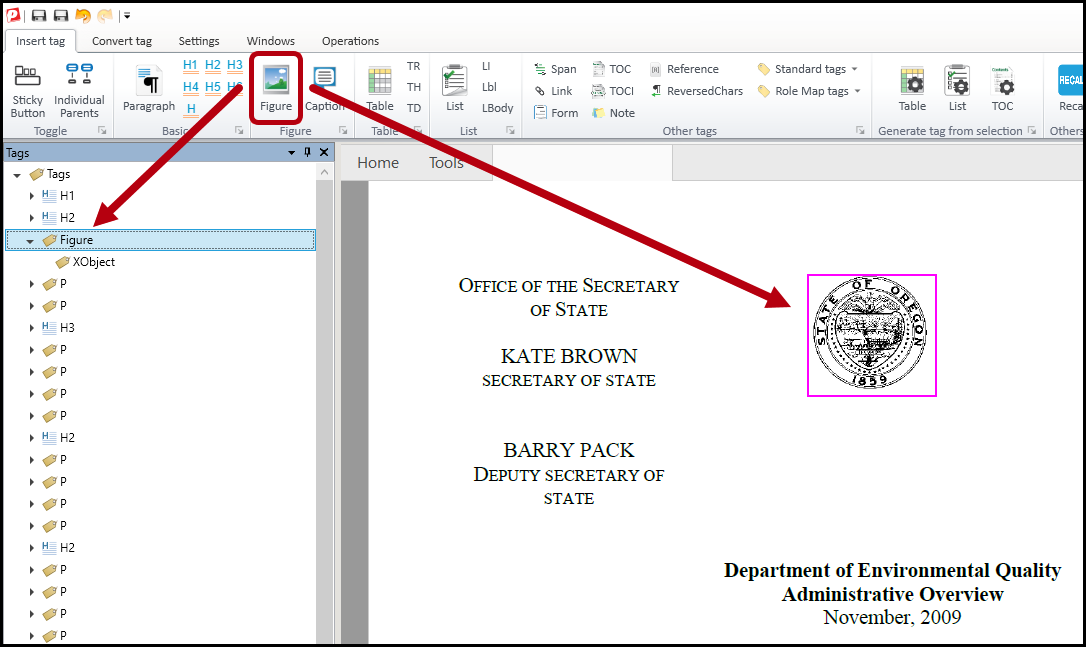
How to Add Alternative Text to Figures
Images, graphics, and figures that share information require alternative text (Alt Text). For those that do not share relevant details, such as a decorative line, do not need alternative text, and can be untagged. These instructions are relevant to images that require descriptive text. For more information on how to determine which descriptive text to provide, refer to the article on which type of descriptive text to use. Providing alternative text to an image can be done in one of two ways:
- Manually, during remediation: Select the Figure tag in the tag tree and then, in the Properties panel (lower right side of the user interface), type the Alternative text in the appropriate box.
Tip: Press the Tab key to make the Alt text “stick” and also make sure that the “Has Alt Text” checkbox is checked.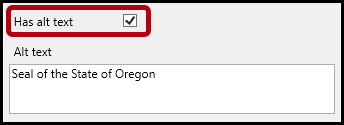
- Using the Fix Wizard during the Standards Check:In the verification phase near then end of the remediation project, you will generate a failure for any figure tags that are not assigned alternative text. Follow the prompts in the “Fix Wizard” to correct any alternative text failures.
- Decide whether or not to add text to the Figure tag.
Note: If the image was placed in a Figure tag because it conveys relevant information then it needs to have text associated with it. If the incorrect tag was used, and no alternative text is needed, there is an option in the Fix Wizard to change the tag type. In addition, if the image is only used for decoration, and does not require Alt. text, it can be untagged in this phase. Choose the appropriate option and click Next.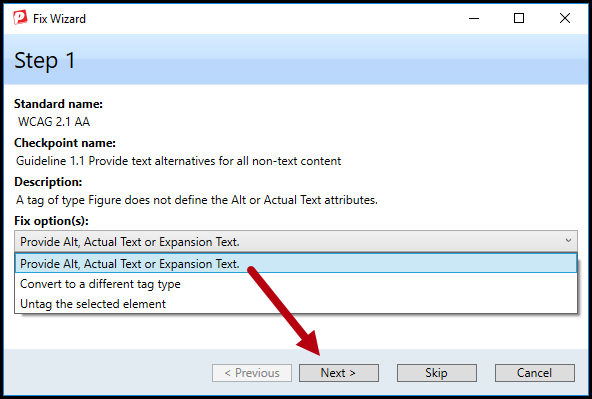
- Assuming the selection to provide text was chosen in the previous step, now choose which type of text to add (Alt., Actual, or Expansion).
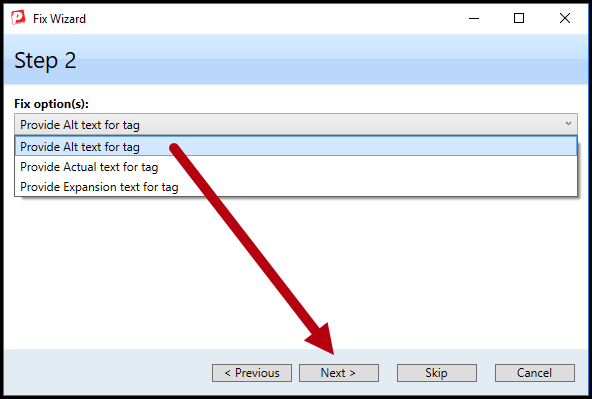
- Input the necessary text and click “Finish”.
Tip: If the same image is used repeatedly in the document (for example, a formula used multiple times or the black boxes for redacting text) then check the checkbox for “Apply fix to all similar issues” and all of the images will be assigned the same text.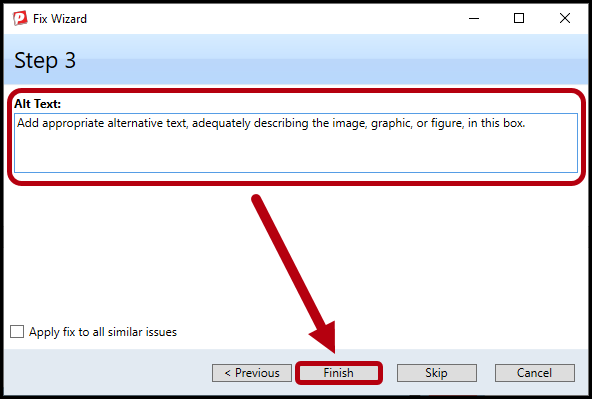
- Decide whether or not to add text to the Figure tag.
Frequently Asked Questions
What if there is a Logo repeated at the top of every page in the PDF?
When logos are used in a document, they are conveying important information. However, it is not necessary to tag that figure on every page of the document. The Logo should be tagged once, and all the rest should be made into pagination artifacts.
Is there a Limit to Alt text?
There is no specific character or word limit for alternative text in PDF; however, using long alternative text can cause issues with some assistive technologies:
- Some older PDF creation or remediation tools may truncate very long Alt text fields.
- Extremely long Alt text (hundreds or thousands of words) can create a poor user experience because screen readers will read the entire string as a single object.
- Certain assistive technology users may find lengthy Alt text difficult to navigate because they cannot easily skip within it.
Related Articles
When to use Alternative, Actual, and Expansion Text
Was this article helpful?
That’s Great!
Thank you for your feedback
Sorry! We couldn't be helpful
Thank you for your feedback
Feedback sent
We appreciate your effort and will try to fix the article