Product
CommonLook PDF Desktop Version
Feature
Opening a PDF in CommonLook PDF Desktop
Issue
The CommonLook PDF desktop application may not open for a few different reasons:
1. CommonLook PDF desktop requires that the document is tagged.
2. CommonLook PDF desktop may not open if there are certain security settings on the PDF preventing it from being changed in any way.
3. The save location of the PDF you are trying to open may need to be changed.
Symptom
Upon opening CommonLook PDF, you are presented with a warning letting you know CommonLook PDF cannot open.
Caues
The PDF is not tagged
The PDF has security settings preventing any changes
The file location of the PDF
Resolution Steps
1. "This document is untagged." Adding Tags in Acrobat.
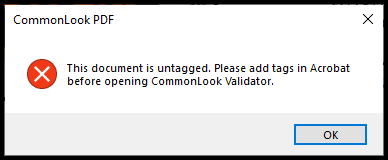
If you try to open CommonLook PDF and you get an error message stating that the PDF isn't tagged, as shown in the previous screenshot, follow these steps:
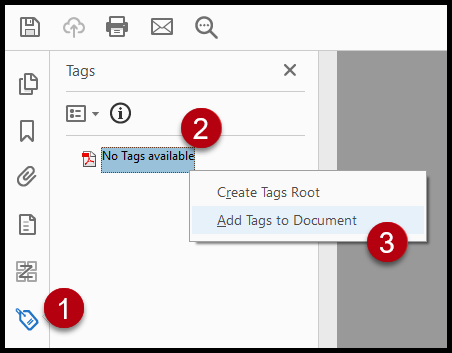
- Open the PDF in Adobe Acrobat (if it isn’t already open) and navigate to the Tags pane. (You can do this by clicking the Tag icon, on the left, if it's available or go to "View," "Show/Hide," "Navigation Panes," and then choose "Tags.")
- At the top of the Tags tree, right-click (open the context menu) on “No Tags Available.”
- Choose “Add Tags to Document.”
- Save
- Open CommonLook PDF.
2. Unable to lock this document: changing save location
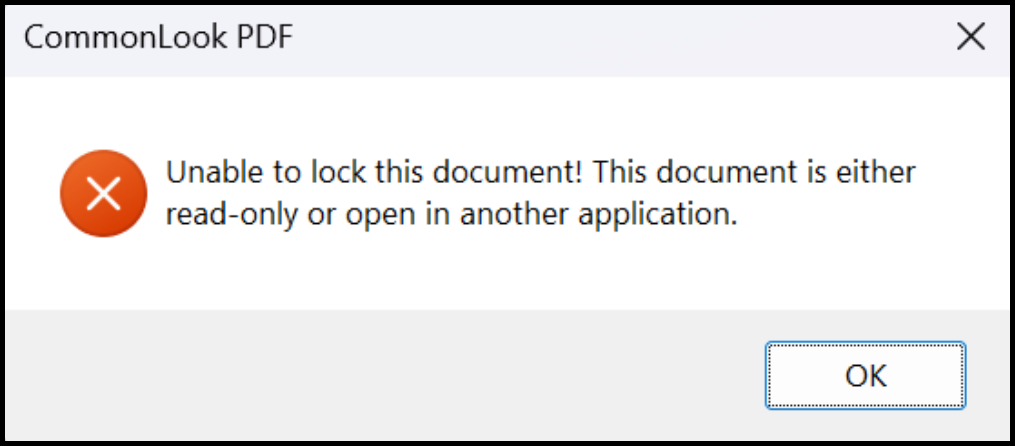
If you try to open the desktop version of CommonLook PDF and you get an error message stating that the document cannot be locked, as shown in the previous screenshot, your document is most likely saved in a location that CommonLook cannot access. This would prevent any changes from being made to your document, thus making remediation impossible. To make sure your document can be "unlocked" and remediated, follow these steps:
- Make sure the document you're working on is saved locally on your machine and that you're not trying to work on it in a shared folder like SharePoint, Dropbox, etc. While some shared network folders do not cause issues, historically, some have, so this is our first check.
- Additionally, make sure that the PDF you're trying to work on is not in a zipped folder. If it is, unzip the folder, pull the PDF out, save it in a more CommonLook-friendly location such as your desktop or other local destination, and try again.
- As a last check, ensure that you do not have the file "preview" turned on in your File Explorer. This makes it so that when you select a PDF, a little window gives you a thumbnail of what that PDF looks like. Historically, this has created an issue, too. It is likely because CommonLook "thought" the file was already open and you can only have one PDF open at a time when using CL PDF.
3. Exception loading CommonLook PDF - "Protected Mode"
Note: As of version 5.14, released in December 2023, the desktop version of CommonLook PDF now supports Protected mode, in Acrobat, with some limitations to functionality.
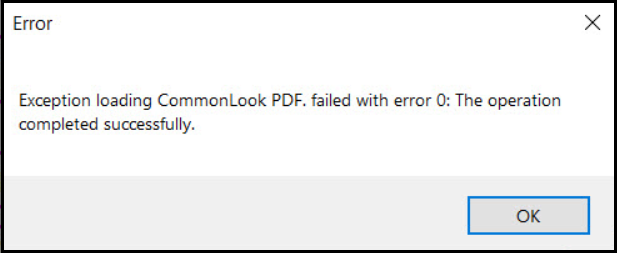
If you try to open CommonLook PDF and you get an error message stating that there is an exception loading CommonLook, as shown in the previous screenshot, your document is likely in "Protected Mode." In addition, if CommonLook PDF won't open or if Acrobat crashes, it's likely that Protected Mode is turned on. Having Protected Mode turned on would prevent any changes from being made to your document, thus making remediation impossible. To turn off Protected Mode in Acrobat, follow these steps:
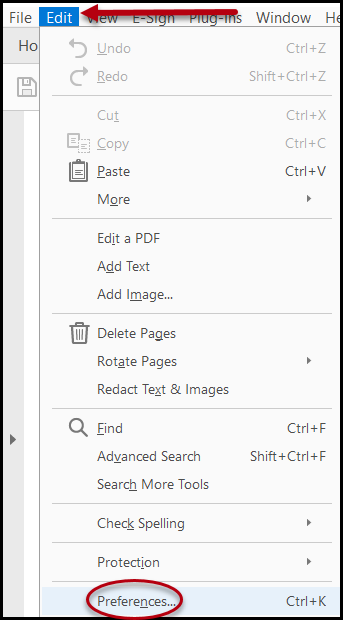
- In Acrobat, navigate to Edit (in the toolbar)
- Choose Preferences
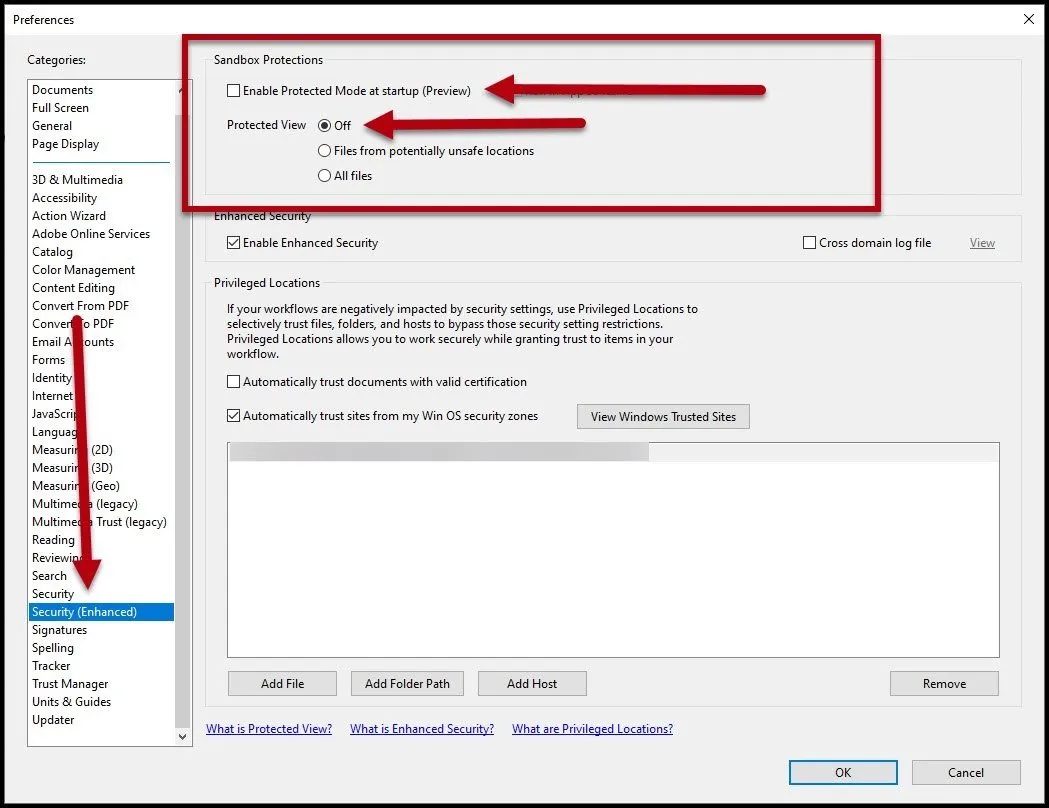
In the left side of the Preferences dialog box, select Security (Enhanced)
In the Sandbox Protections, uncheck “Enable Protected Mode at startup”
In “Protected View,” choose the “Off” radio button (Please note the screenshot below if needed.)
Press OK and close out of Acrobat. Then re-open the PDF and the CommonLook Office.
Related Articles
Was this article helpful?
That’s Great!
Thank you for your feedback
Sorry! We couldn't be helpful
Thank you for your feedback
Feedback sent
We appreciate your effort and will try to fix the article